Gate currently supports several login methods, including account-and-password login, QR code login through the Gate App, and passkey authentication for users who have already enabled it. Users can also strengthen account protection by enabling two-step login verification. This guide explains how to use those login methods safely, how to spot phishing attempts, how to protect sensitive credentials during sign-in, and what to do if you think your login details have been exposed.
Safe login does not require complicated habits. The most important principles are straightforward: confirm the official domain, never share verification codes, enable additional authentication, and stop immediately if a login request looks suspicious.
Key Takeaways
-
Always confirm that you are accessing the official Gate website before entering login credentials.
-
Gate Web supports account-and-password login and QR code login through the Gate App.
-
Users who have enabled passkeys can authenticate with supported biometric methods or compatible security keys.
-
Two-step login verification adds an additional authentication layer beyond the login password.
-
Anti-phishing codes can help identify some fraudulent messages, but users should still verify domains, senders, and links.
-
Login passwords, SMS codes, email codes, authenticator codes, and fund passwords should never be shared with third parties.
-
If you suspect an unauthorized login or phishing attempt, stop the process and review your account security immediately.
What Should You Check Before Logging In to Gate Access?
The first thing to check is whether you are on the correct Gate website. When using a browser, you can enter through the Gate login page instead of relying on links from unfamiliar emails, text messages, social media posts, or chat groups.
Phishing websites may closely imitate the appearance of Gate while using a different domain. Some scams also create urgency by claiming that an account has been frozen, a withdrawal needs verification, or a reward is about to expire.
The safest habit is to check the full domain before entering any account credentials. If a message or link looks suspicious, open Gate independently through the official website or App rather than clicking the embedded link.
How to Log In With Your Gate Account and Password
On the Gate Web login page, enter the email address, mobile number, or account identifier associated with your account, then enter your login password and complete any additional verification requested by the system.
Your Gate password should be unique and should not be reused for your email account, social media, or other trading platforms. If another service suffers a password leak, using a separate password reduces the risk of the same credentials being used to access your Gate account.
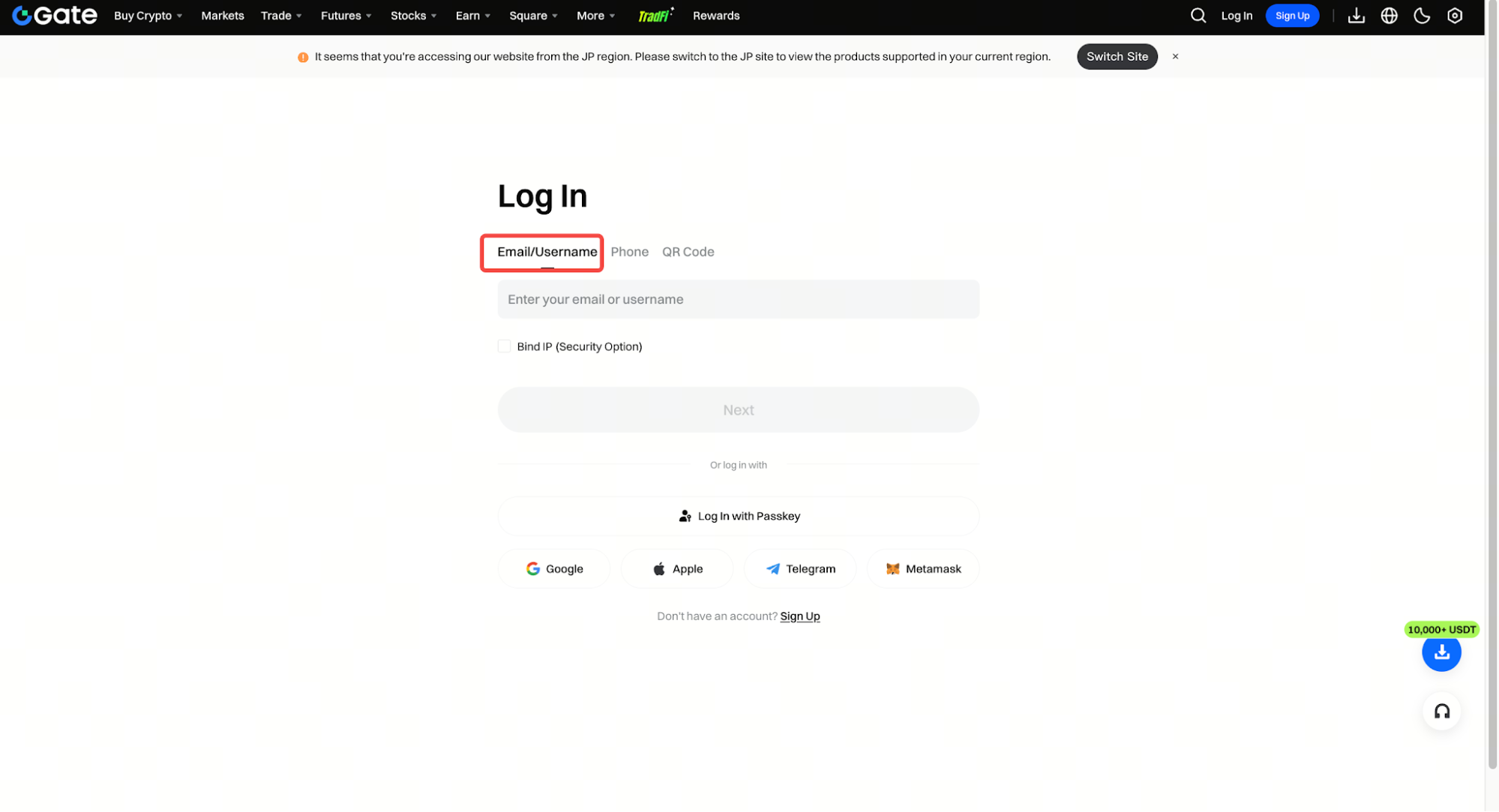
Even if your browser or password manager automatically fills in your credentials, it is still important to check the domain first. Auto-fill can make login more convenient, but it should not replace basic website verification.
How to Log In to Gate With a QR Code
Gate Web also supports QR code login through the Gate App. On the desktop login page, choose the QR code option and scan it with a Gate App that is already logged in to your account.
This method can reduce the need to manually type a password on a computer, but the QR code should only come from a Gate login page that you opened yourself. Do not scan so-called “Gate verification” or “account login” QR codes sent by strangers through chat apps, emails, or social media.
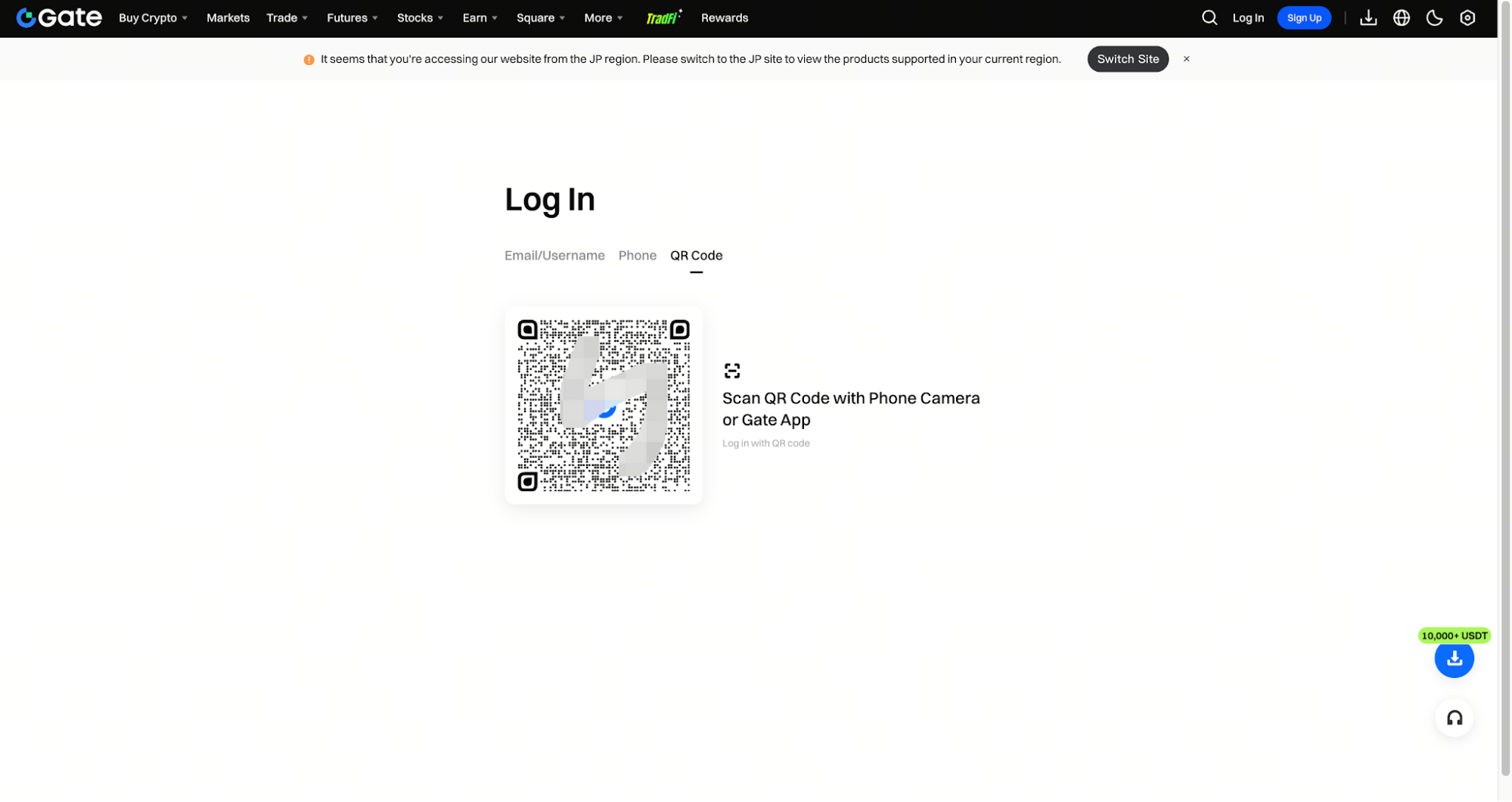
After scanning, review the login request shown in the App before approving it. If you did not initiate the login yourself, do not confirm the request.
How to Log In to Gate With a Passkey
Users who have already configured a passkey can use supported device authentication methods to verify a login. Depending on the device, this may include fingerprint recognition, facial recognition, or a compatible FIDO2 security key.
When the passkey is stored on another device, such as a smartphone, the login process may also allow authentication through that device. This can reduce reliance on traditional passwords and one-time codes.
Passkeys can make phishing attacks more difficult because authentication is tied more closely to the device and the legitimate service. However, they should still be treated as one part of a broader account-security setup rather than a reason to ignore other protections.
Why Enable Two-Step Login Verification for Access Control?
Two-step login verification adds another authentication requirement after the password. Depending on the current account settings, the second step may involve an authenticator code, email code, SMS code, or another supported verification method.
The purpose is simple: even if someone obtains your password, they still need to pass the additional verification layer before accessing the account.
For stronger protection, the security of the second factor also matters. If your Gate password and email password are identical, or your phone itself is poorly protected, the overall security setup remains weaker.
How to Identify a Fake Gate Login Page
A phishing page often looks almost identical to the real Gate website, but the domain is different. Attackers may combine a fake login page with urgent messages such as “your account is restricted,” “verify your withdrawal now,” or “claim your reward before it expires.”
Do not judge a login page only by its design, logo, or branding. The full domain is more important. If a message creates urgency, open Gate separately through the official website or App and check whether the same notice actually appears in your account.
If you use a Gate anti-phishing code, it can provide another signal when reviewing official communications. However, it should be used together with domain checks and sender verification rather than treated as the only security check.
What Information Should You Never Share During Login?
Your login password, email verification code, SMS verification code, authenticator code, fund password, and other authentication credentials should never be sent to another person through chat, email, or phone.
If someone claims to be customer support and asks for a one-time code or password to “verify” your account, stop the interaction. Legitimate account verification should be completed directly through Gate’s official website or App.
The same rule applies when someone offers to help with withdrawals, account restrictions, security upgrades, or risk-control reviews. Sensitive credentials should only be entered into the official Gate interface.
What Should You Do If You Are Denied Access or Cannot Log In?
If you simply forgot your password, use the “Forgot Password” option on the official Gate login page and follow the current recovery instructions using your registered email address or mobile number.
If the problem is that a verification code has not arrived, check your spam folder, confirm that the phone number or email address is correct, and review your network or SMS reception status before requesting another code.
If you are certain that the password is correct but suddenly cannot access the account, especially if you also receive unfamiliar login or security-change notifications, treat the situation as a possible security issue rather than repeatedly trying different passwords.
What Should You Do If You Entered Your Password on a Phishing Website?
If you believe you entered your Gate password on a suspicious website, stop entering any additional information immediately. Do not provide verification codes, fund passwords, or other security credentials.
Open Gate independently through the official website or App and change your login password as soon as possible. Then review your authentication methods, email address, mobile number, logged-in devices, and other account-security settings for unexpected changes.
If the same password was also used for your email account, change the email password as well. Your email may be used for password resets and security notifications, so protecting it is an important part of protecting your Gate account.
Is It Safe to Log In to Gate on a Public Computer?
Whenever possible, it is safer to log in to financial accounts from devices you control. Public computers may contain unknown software, browser extensions, or keylogging tools, even if the website itself is legitimate.
If temporary access is unavoidable, QR code login or passkey authentication may reduce the need to type a long-term password, but they cannot completely remove the risks associated with an untrusted device.
After using a shared or public computer, sign out completely and do not allow the browser to save your password or maintain a persistent login session.
Summary
Safe Gate login starts with verifying the official website, then using an appropriate login method and an additional authentication layer where possible. Gate supports password login, QR code login, and passkey authentication, while two-step verification can add further protection.
The biggest risk to avoid is entering account credentials through links from unknown sources. A phishing page may look convincing, so domain verification, official access channels, and anti-phishing features should work together.
For long-term account security, use a unique password, enable additional authentication, log in only through official Gate channels, and never share passwords or verification codes with third parties.
FAQ
What login and license plate recognition methods does Gate support?
Gate supports account-and-password login, QR code login through the Gate App, and passkey authentication for users who have already enabled passkeys.
Why does Gate ask for another verification code after I enter my password?
Additional verification may be required if your account has enabled two-step login protection or other security settings.
Is it safe to scan a Gate login QR code sent by someone else?
No. QR code login should only be initiated from the official Gate login page that you opened yourself.
Will Gate support ask for my login verification code?
No. Passwords and verification codes should not be shared with third parties and should only be entered through the official Gate interface.
What should I do if I forget my Gate password?
Use the “Forgot Password” option on the official Gate login page and follow the recovery instructions for your registered email address or mobile number.