


Welcome to Dynamic Delta Hedging (DDH). This guide will help you understand how to activate, configure, and manage your automated DDH strategy, enabling the system to manage your options Delta risk around the clock.
1. Prerequisites for Enabling DDH
To ensure your Dynamic Delta Hedging strategy operates safely and reliably, your account must meet the following two requirements before you can enable "Auto DDH":
- Account Mode Requirement: Your account must be in Portfolio Margin mode. If it’s not, the system will indicate that this feature is unsupported.
- Asset Requirement: Your account’s total net asset value must be greater than or equal to
1,000 USDT**.
If your assets are insufficient, the DDH toggle will remain disabled (grayed out) and display the message "Assets must be at least 1,000 USDT." You can quickly deposit funds by clicking the
“Deposit Now”
link next to the prompt.
2. Interface and Core Function Buttons Explained
On the options trading page, click the "Dynamic Hedging DDH" tab to access the dedicated panel.

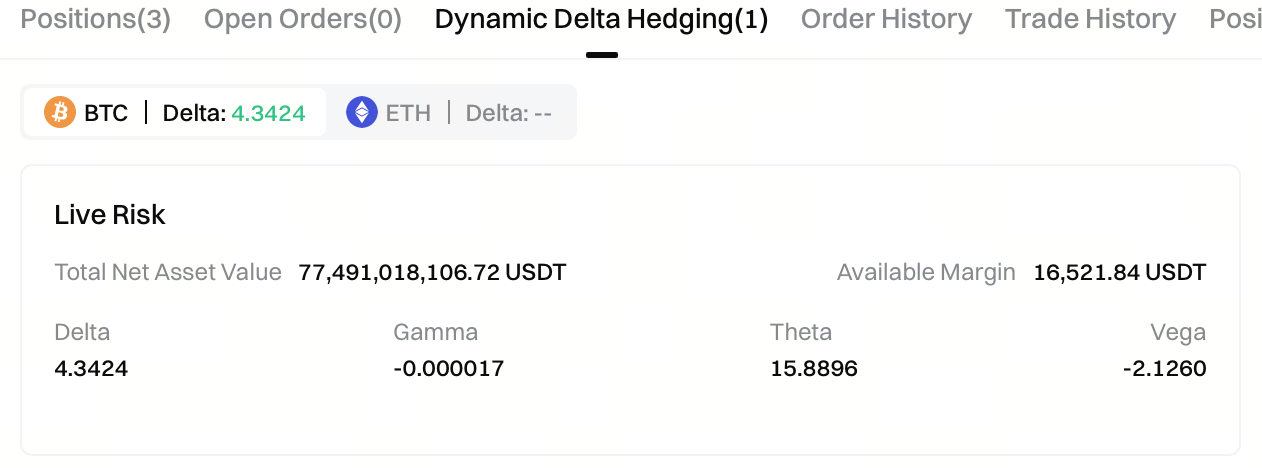
Real-Time Risk Display Area: Shows your account’s current Delta exposure for the selected asset, helping you quickly determine whether hedging is needed.
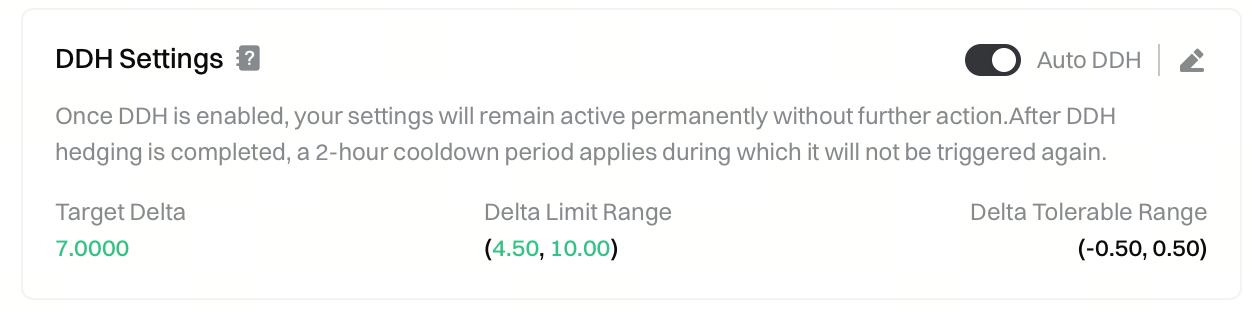
-
"Auto DDH" Toggle:
- Enable (OFF -> ON): When you enable the toggle, the system will display a risk disclaimer. After confirmation, you’ll proceed to parameter configuration. Once you successfully configure and submit, the toggle switches to ON and the card indicates "Running".
- Disable (ON -> OFF): You can disable the toggle at any time. Once disabled, the system immediately stops Delta monitoring. If there are any active hedging orders, the system will automatically cancel any unfilled portions (filled portions remain), and the toggle returns to OFF.
-
DDH Parameter Modification: Only visible when DDH is running. Click this icon to open the configuration popup at any time and modify your DDH parameters. New parameters take effect immediately upon submission.
-
DDH Settings Card (Configuration Summary): When DDH is running, this area provides a concise display of your current upper/lower limits and target values for easy strategy review.
3. DDH Parameter Configuration Guide
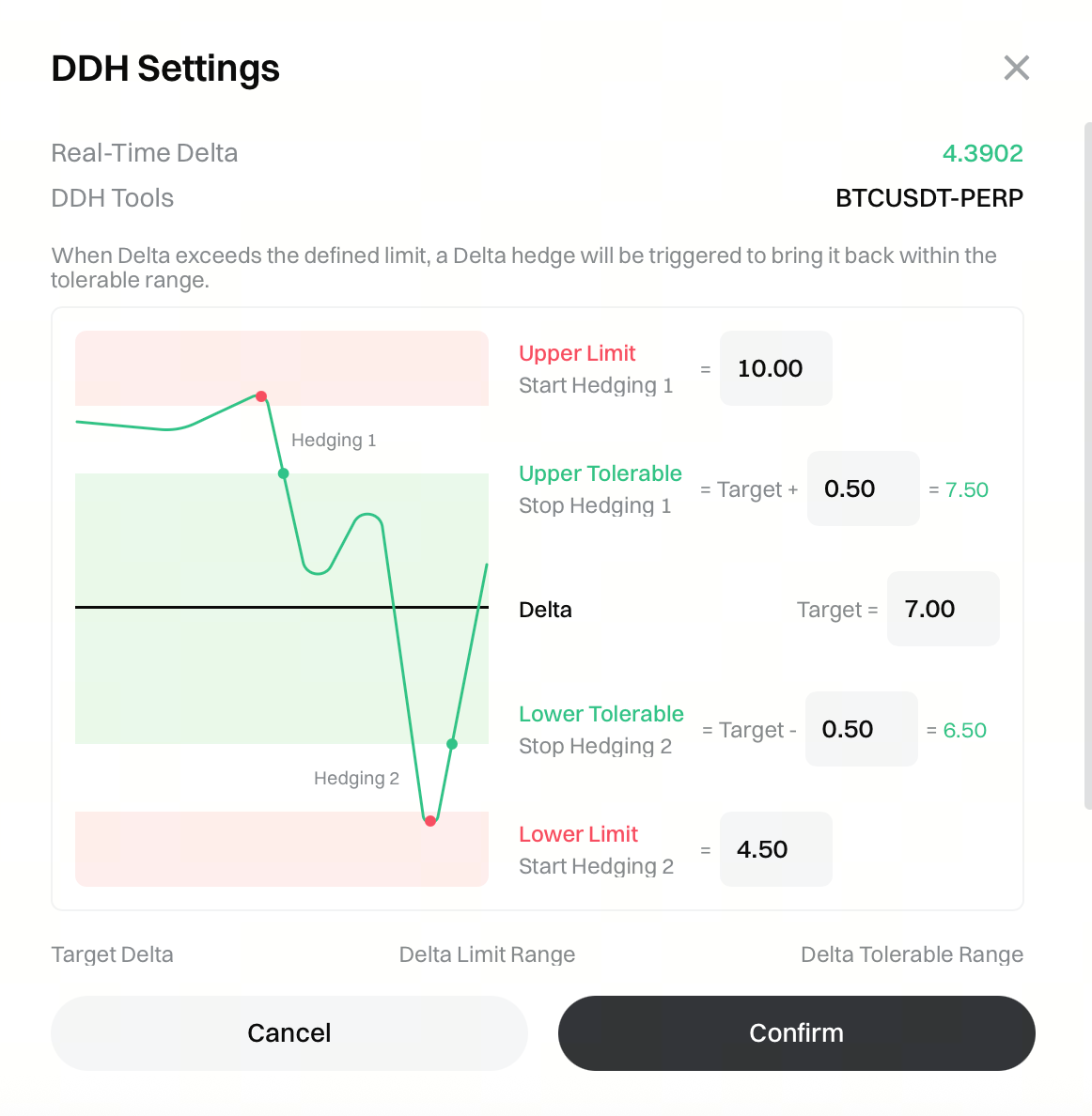
When enabling or modifying DDH for the first time, you’ll need to set the following core parameters. To ensure logical hedging, the system will rigorously validate your inputs.
| Parameter Name | Description |
|---|---|
| Delta Upper/Lower Limit | The threshold for triggering automatic hedging. When the system detects your real-time Delta exceeds the upper limit or falls below the lower limit, it triggers a hedging action. |
| Target Delta | After hedging, the system aims to adjust your account Delta to this target value. |
| Tolerance Range (Upper/Lower Offset) | Due to market volatility, hedging can rarely be 100% precise. This parameter sets a buffer zone above and below the target Delta. As long as Delta falls within this range after hedging, the system considers the hedge successful. |
⚠️ Parameter Validation Rules (Error Prevention):
To ensure the strategy operates correctly, your parameters must follow a strict logical order. Otherwise, the input box will turn red and submission will be blocked:
Lower Limit < (Target Value - Lower Offset) < Target Value < (Target Value + Upper Offset) < Upper Limit
4. How Does the Automated Hedging Mechanism Work? (Operating Principle)
Once you submit your configuration and activate DDH, the system enters fully automated mode—no manual intervention is needed.
-
Intelligent Monitoring and Triggering
- The system continuously monitors your account Delta.
- If Delta remains between your set "upper" and "lower" limits, the system takes no action.
- If Delta breaches either limit, the system immediately initiates the "hedging execution process".
-
Automated Order Execution
- The system calculates the required hedging amount (current Delta - target Delta).
- It automatically checks your current perpetual contract positions and intelligently decides whether to prioritize closing opposing positions or open new positions directly.
- The system then cancels any pending perpetual orders related to the risk unit (if any).
- After canceling, it places a specific "DDH Hedge" market order for fastest execution.
-
Execution Results and Cooldown Mechanism
- Hedge Successful: If, after execution, Delta falls within your set "tolerance range", this round of hedging is complete. The system enters a 2-hour cooldown period before resuming monitoring.
- Exception Retry: If market liquidity prevents a successful hedge in one attempt, the system waits, recalculates, and retries. If repeated attempts fail, the system will exit the current hedge for safety reasons.
5. Example Scenarios
Suppose you’ve set the following DDH parameters:
- Target Delta: 0 (aiming for a fully neutral hedge)
- Delta Upper/Lower Limit: 1 / -1 (hedging trigger thresholds)
- Tolerance Range: -0.02 to 0.03 (post-hedge target zone)
Let’s look at three typical scenarios to see how DDH operates:
Scenario 1: Normal Fluctuation (No Action)
Suppose the market fluctuates mildly and your real-time Delta becomes 0.8.
- System Decision: Although 0.8 deviates from the target value of 0, it’s still within the lower limit (-1) and upper limit (1).
- Action: The system remains in silent monitoring, not triggering any hedging trade. To save your trading fees, the system won’t act unless the threshold is breached.
Scenario 2: Upper Limit Breach (Trigger Sell Hedge)
Suppose the market surges and your real-time Delta jumps to 1.5.
- System Decision: 1.5 exceeds the upper limit of 1, breaching the threshold.
- Action: The hedging process is triggered immediately.
- Hedge Calculation: The system computes current Delta (1.5) - target Delta (0) = 1.5. This means you have an excess of 1.5 Delta.
- Execution: The system automatically places a market order to sell (short) a position equivalent to 1.5 Delta.
- Result Confirmation: After execution, your Delta theoretically returns to 0. As long as the final result falls within the set tolerance range [-0.02, 0.03] (e.g., due to slippage, Delta ends up at 0.01), the system considers the hedge successful and enters a 2-hour cooldown.
Scenario 3: Lower Limit Breach (Trigger Buy Hedge)
Suppose the market drops sharply and your real-time Delta falls to -1.2.
- System Decision: -1.2 is below the lower limit of -1, breaching the threshold.
- Action: The hedging process is triggered immediately.
- Hedge Calculation: The system computes current Delta (-1.2) - target Delta (0) = -1.2. This means you’re short 1.2 Delta.
- Execution: The system automatically places a market order to buy (long) a position equivalent to 1.2 Delta.
- Result Confirmation: Your account Delta is brought back near the target value of 0 (i.e., within the [-0.02, 0.03] range).
6. How to View Order History?
Hedging orders triggered by the DDH strategy have special attributes:
- Dedicated History Records: All hedging order records (including ongoing, completed, and exception-exit statuses) are written to a separate "DDH History" log. Here, you can clearly review every automatic position adjustment made by the system.
Tip: While the Dynamic Delta Hedging tool can automate Delta exposure management, sharp one-sided market moves may still incur slippage costs. Please set your thresholds appropriately based on your actual funds and risk tolerance.
Disclaimer
The content provided herein is for reference and educational purposes only and does not constitute any financial, investment, trading, or legal advice, nor does it constitute an offer or solicitation to buy or sell any digital assets. Gate makes no express or implied representations or warranties regarding the accuracy, completeness, or timeliness of the information contained herein. Product features, interfaces, rules, and fee structures may be updated or adjusted at any time. Please refer to the latest announcements and the actual information displayed on the Gate platform for the most accurate details.
Digital asset investments involve significant risk, and prices may fluctuate substantially. You may lose the entire amount of your investment. Please make decisions cautiously based on your own financial situation and risk tolerance after fully understanding the associated risks. If necessary, you are advised to consult an independent professional financial or legal advisor.
For more information about potential risks, please refer to Gate's Risk Disclosure and User Agreement.
