


Gate Pay offers two merchant refund methods: Manual Refund via Merchant Dashboard and API Refund
Merchant Dashboard Refund Instructions
Merchants can process full or partial refunds directly through the merchant dashboard.
Log in to the merchant dashboard, select [Trade] - [Payment] to access the payment order page. You can search for refund orders using either the merchant order number or Gate Pay order number. Then, click the Refund button to enter the refund page.
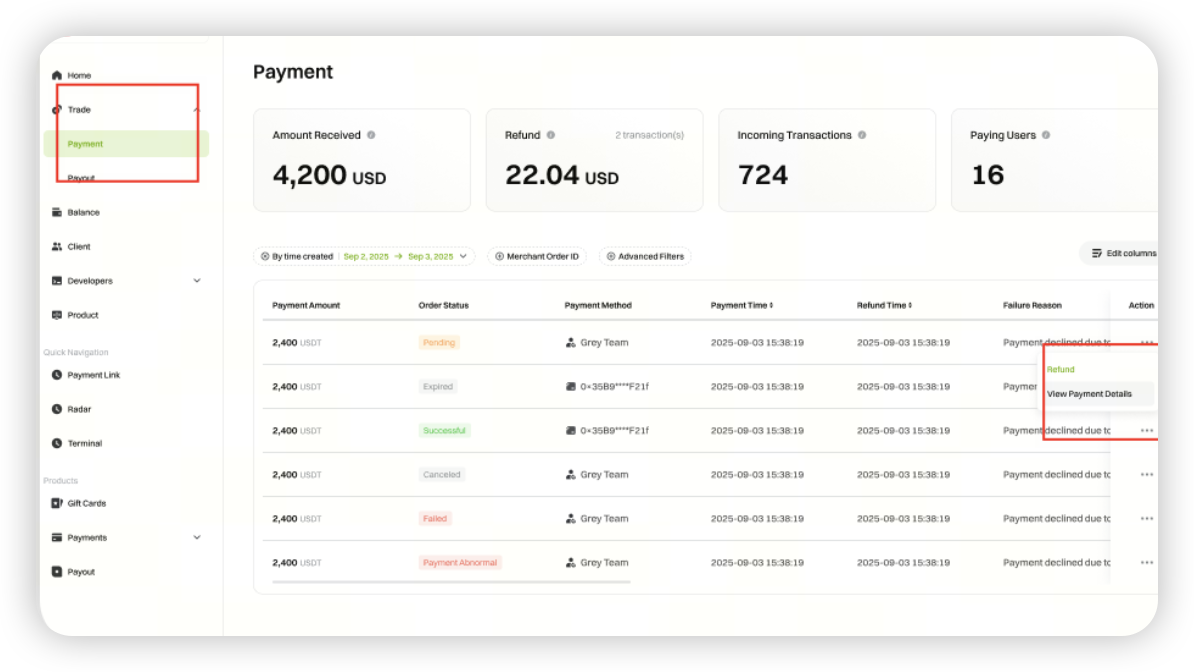
Option 1: Refund to Original Payment Method
Select [Original Payment Method] and enter the refund amount to process the refund.
(If the merchant chooses to cover the transaction fee, the consumer will receive the full refund amount, and the on-chain fee will be deducted separately from the merchant’s payment account. If the consumer covers the fee, the actual amount received = refund amount - transaction fee, and the on-chain fee will be deducted from the refund amount.)
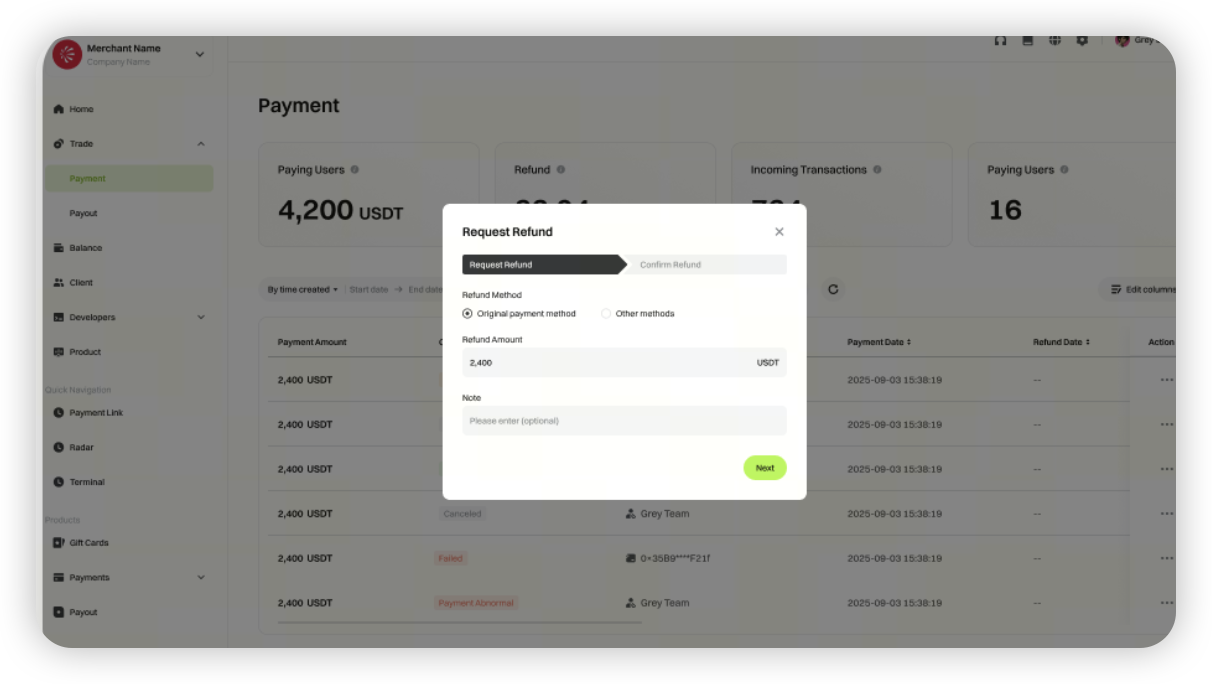
Option 2: Refund via Other Methods
- Gate Pay
Gate Pay only supports refunds to Gate users. To refund via Gate Pay, enter the recipient’s Gate UID and the refund amount.
Web3 Payment
To refund via Web3 Payment, enter the recipient’s account, refund amount, and select who will cover the transaction fee.
(If the merchant covers the fee, the consumer receives the full refund amount, and the on-chain fee is deducted separately from the merchant’s payment account. If the consumer covers the fee, the actual amount received = refund amount - transaction fee, and the on-chain fee is deducted from the refund amount.)
API Refund Instructions
Merchants can initiate order refunds by calling the corresponding refund API provided by Gate Pay for each payment method.
Order Refund Parameter Details
Checkout payments include On-chain Address Payment and QR Code Payment .
For non-checkout address payment orders , the refund logic can reference the refund processing method for checkout on-chain address payments .
API parameter settings depend on the specific refund scenario. Key parameter descriptions are as follows:
https://docs.gate.com/api-reference/version/100/en/endpoint/checkout/refundV2
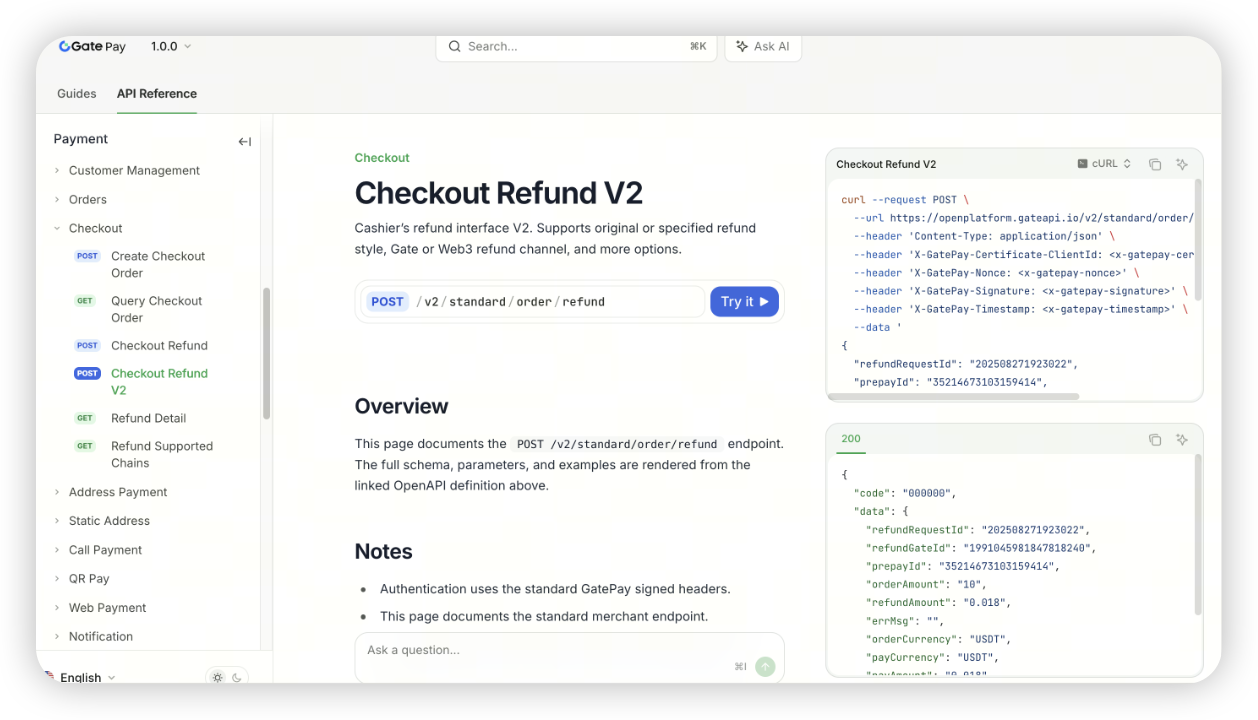
“refundAmount” : Refund amount must not exceed the actual amount received in the merchant’s balance account
“refundStyle” : Refund address type. Merchants can choose from the following methods:
Refund to Original Address : Refund to the user’s original payment address
Refund to Specified Address : Refund to a merchant-designated on-chain address
“refundPayChannel” : Refund channel. Merchants can select:
Gate Centralized Refund : Refund to the user’s Gate account
On-chain Refund : Refund to the user’s Web3 address
“refundBearType” : Applicable only for Web3 on-chain refunds , used to specify the party responsible for the transaction fee (Gas Fee). If this parameter is not provided, the merchant will cover the fee by default :
Merchant covers fee : Fee is deducted from the merchant’s balance
User covers fee : Fee is deducted from the refund amount
Refund Fees
Please refer to the withdrawal fee query interface at https://docs.gate.com/api-reference/version/100/en/endpoint/withdraw/withdrawStatus
TON Chain Refund Instructions
For TON chain deposit scenarios where a user fails to enter or enters an incorrect Memo/Tag, resulting in funds not being automatically matched to the order or account, Gate Pay allows merchants to submit a refund request in the dashboard. Once the system verifies the original transaction information, the funds will be returned to the user's payment address via the original route.
How to Access This Feature
Path: Merchant Dashboard → Transactions → Collections → Abnormal Payments → Memo Missing/Incorrect Refund
On the "Memo Missing/Incorrect Refund" page, merchants can view all submitted refund requests and quickly locate records using filter criteria.
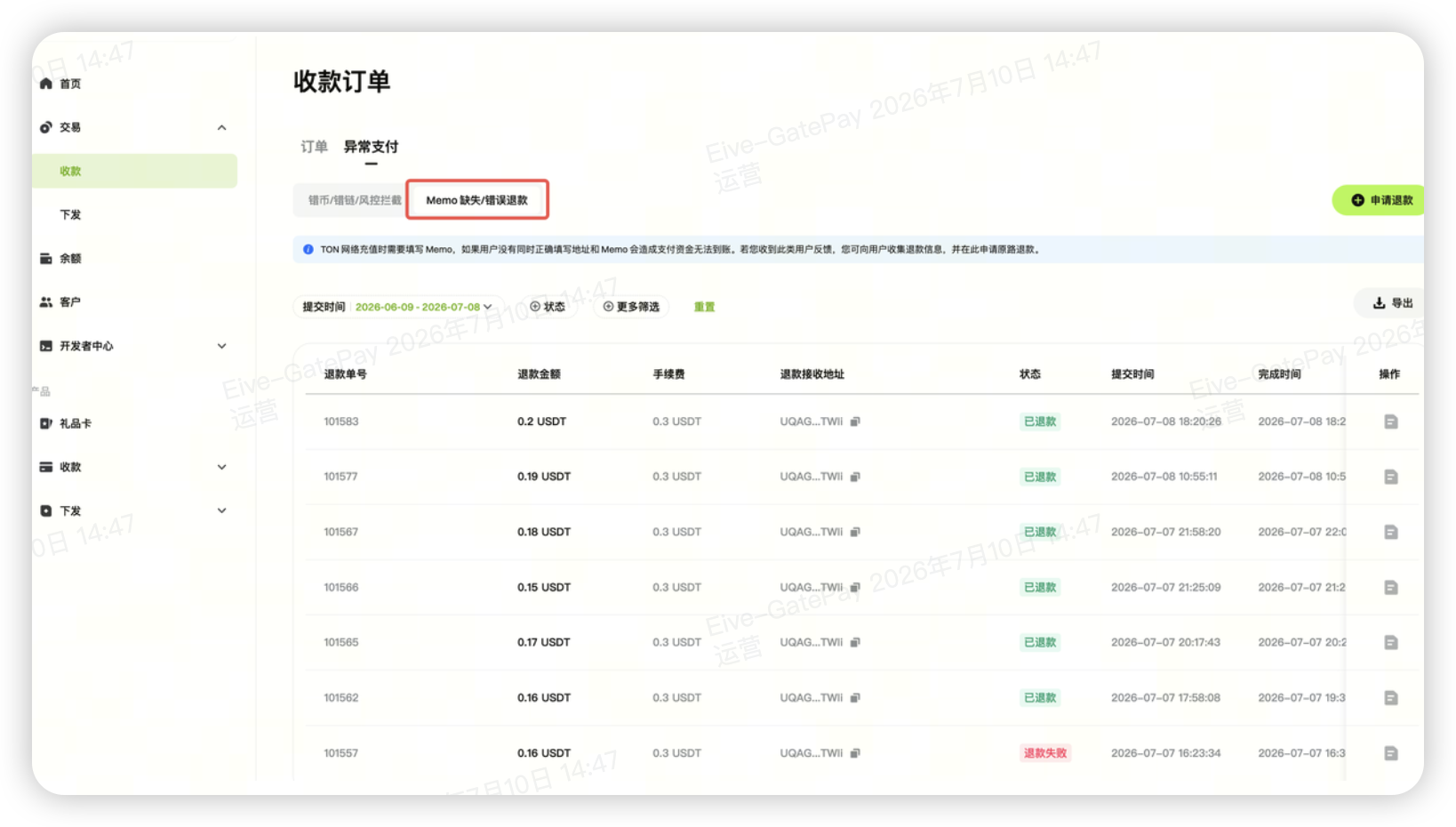
Refund Process
Click "Request Refund" at the top right of the page to start the refund process, which consists of two steps: Verify Original Transaction Information and Confirm and Submit Refund.
Step 1: Verify Original Transaction Information
Please fill in the original on-chain transaction details as provided by the user. The system will verify the authenticity of the submitted information.
td {white-space:nowrap;border:0.5pt solid #dee0e3;font-size:10pt;font-style:normal;font-weight:normal;vertical-align:middle;word-break:normal;word-wrap:normal;}
| Information Item | Required | Description |
|---|---|---|
| Transaction Hash (TxHash) | Required | The on-chain hash of the user's original payment transaction |
| User Payment Address (From) | Required | The user's original payment wallet address |
| Original Receiving Address (To) | Required | The Gate receiving address the user paid into |
| Memo/Tag | Optional | If the user entered an incorrect Memo/Tag, enter the incorrect content; if omitted, leave blank |
| Network | Required | Currently supports TON |
| Transaction Amount | Required | The actual payment amount by the user |
After completing the form, click "Next". The system will verify the existence of the transaction and whether the information matches the on-chain record:
- Verification passed: Proceed to the next step, "Confirm and Submit Refund"
- Verification failed: The page will display "Original transaction information is incorrect. Please confirm with the user and provide the correct original transaction information."
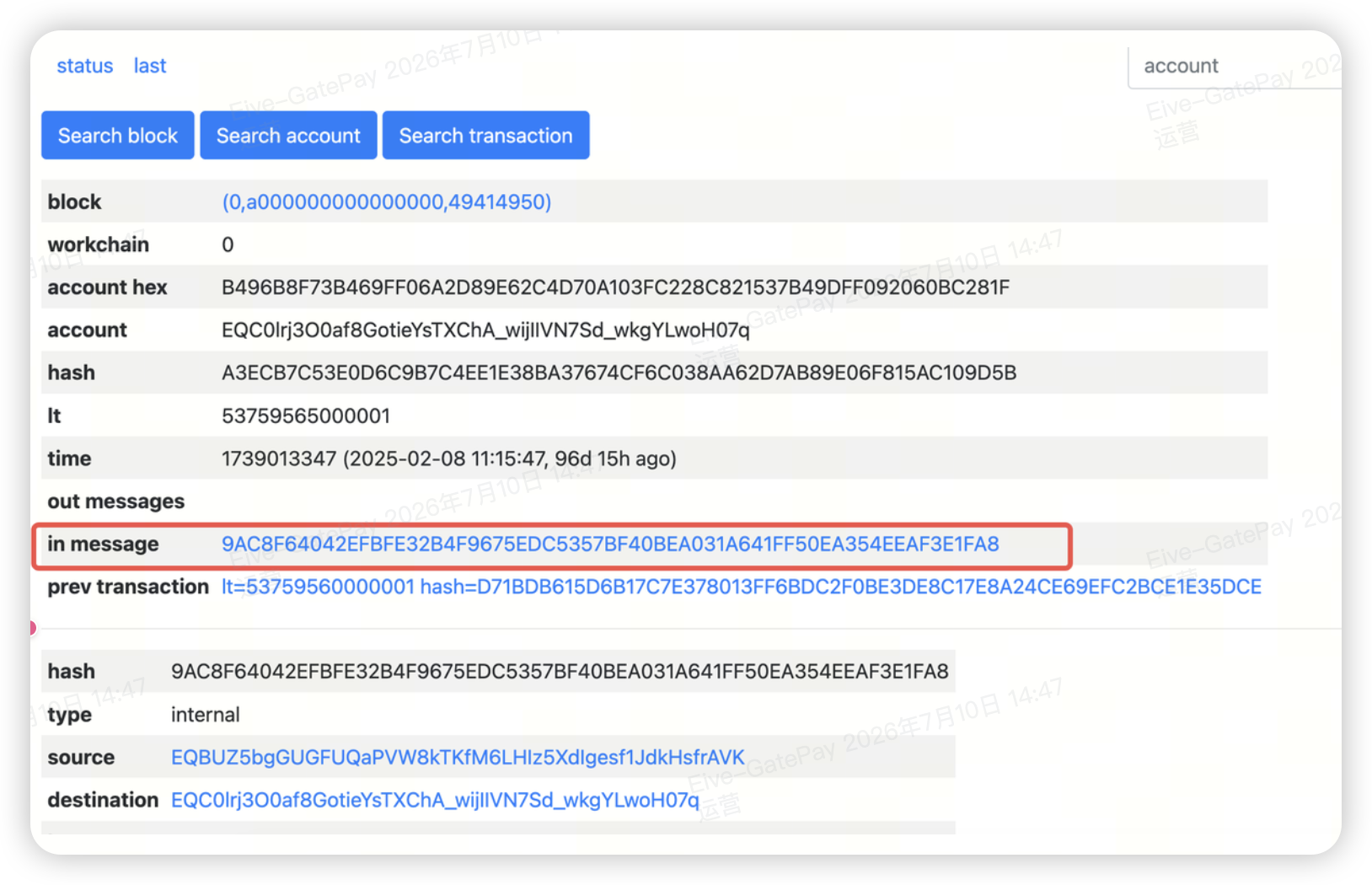
Note: Some on-chain transactions are bundled (Bundle), and the user's actual transaction is only one part of it. In this case, you should enter the hash corresponding to the user's actual transaction (i.e., the in message transaction hash in the block explorer), not the entire bundle's hash. Otherwise, verification may fail. For hash conversion instructions, see below.
Step 2: Confirm and Submit Refund
Once verified, the system will display the refund confirmation details. Please check the refund recipient address, refund amount, fees, etc. The system will perform the following checks. If passed, the refund will be submitted for on-chain processing, and the refund status will be updated once the transaction is successful:
td {white-space:nowrap;border:0.5pt solid #dee0e3;font-size:10pt;font-style:normal;font-weight:normal;vertical-align:middle;word-break:normal;word-wrap:normal;}
| Check Item | Description |
|---|---|
| Balance Check | Merchant's balance must be sufficient to cover the refund fee, which is always borne by the merchant |
| Security Verification | Merchant must complete fund password, verification code, and other security checks |
Refund Fee Instructions
The on-chain refund fee for this feature is borne by the merchant.
- The fee amount is calculated in real time based on actual on-chain conditions
- The fee is deducted immediately after the refund is submitted; if the refund fails, the deducted fee will be returned according to the rules
- The fee shown on the final confirmation page is the actual amount
- Merchants may choose to collect this fee from users offline, but by default, the fee is deducted from the merchant's balance within the Gate Pay system
Hash Conversion Method (Using TONCOIN as an Example)
If the TXHash provided by the user does not match the on-chain record and verification fails during the "Memo Missing/Incorrect Refund" application, you can use the following method to find the user's actual transaction hash (i.e., the in message) on tonviewer.com.
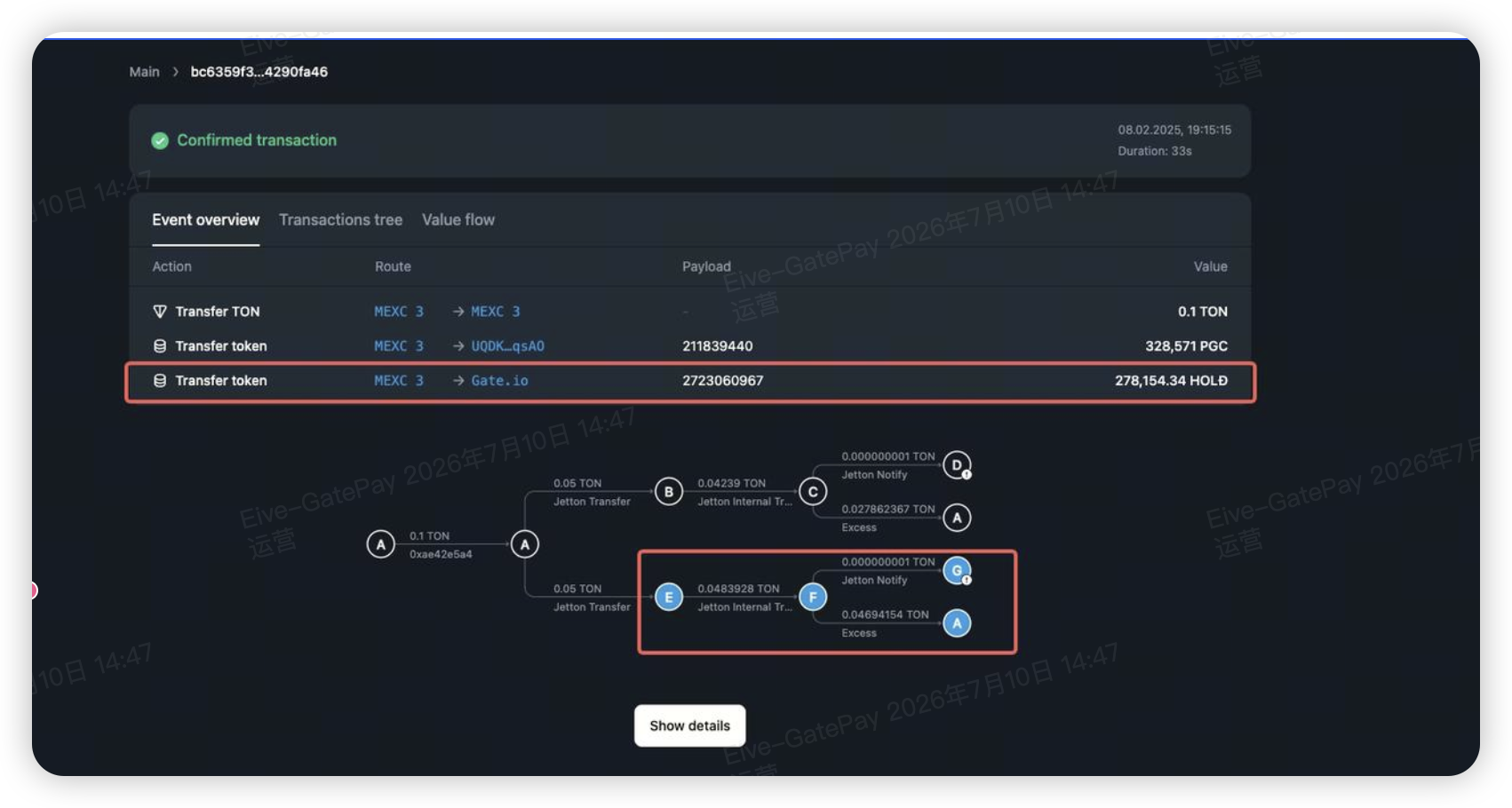
For example, see transaction https://tonviewer.com/transaction/a3ecb7c53e0d6c9b7c4ee1e38ba37674cf6c038aa62d7ab89e06f815ac109d5b:
-
On the Event Overview page, hover your mouse over the record for the deposit to Gate. The corresponding node in the tree diagram below will be highlighted.
-
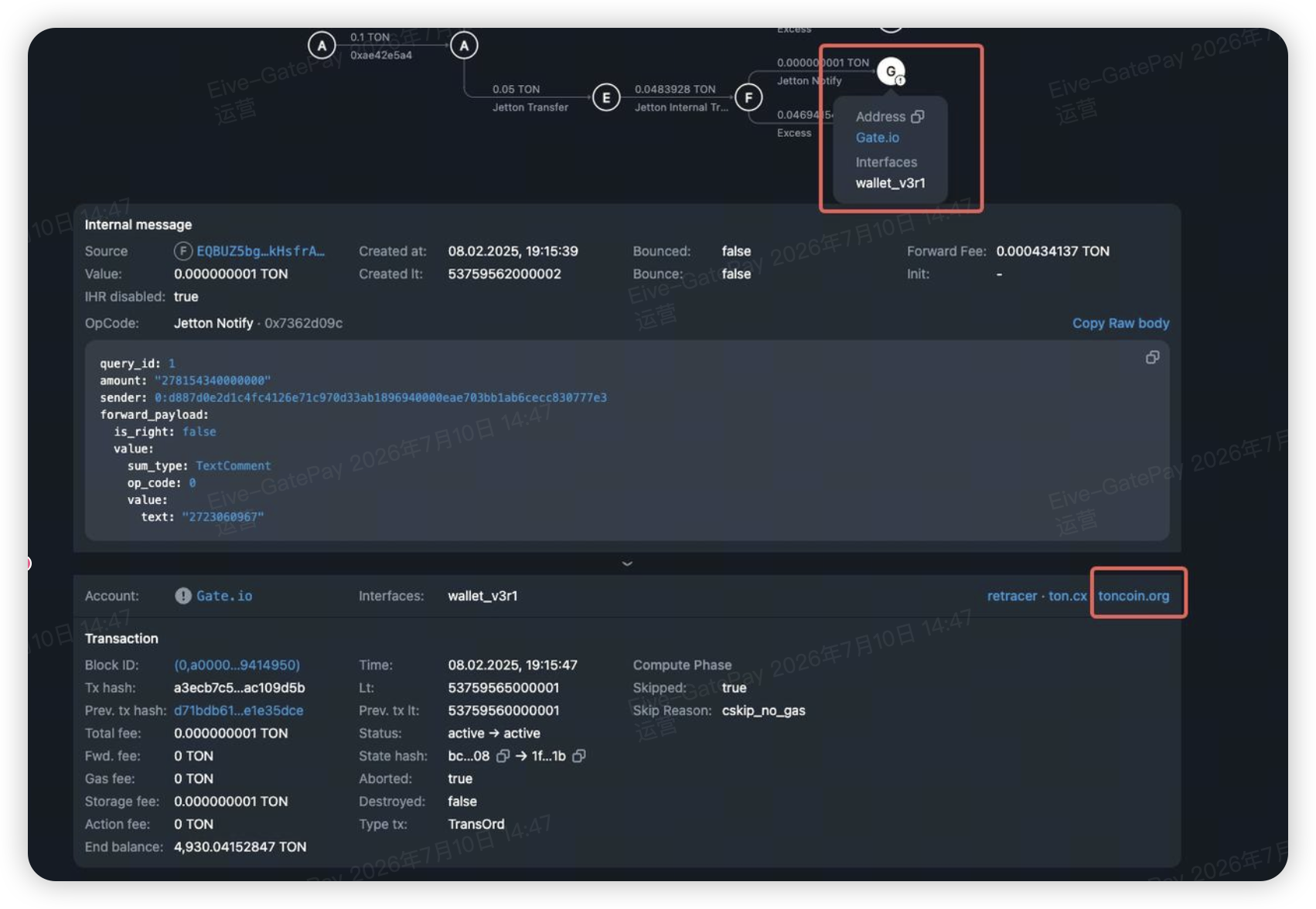
Click the branch node with the address gate.io to open the corresponding toncoin.org link in the top right.
-
On the toncoin.org result page, find the in message field. Copy and paste this hash as the user's actual transaction hash.
Entering the Refund Amount
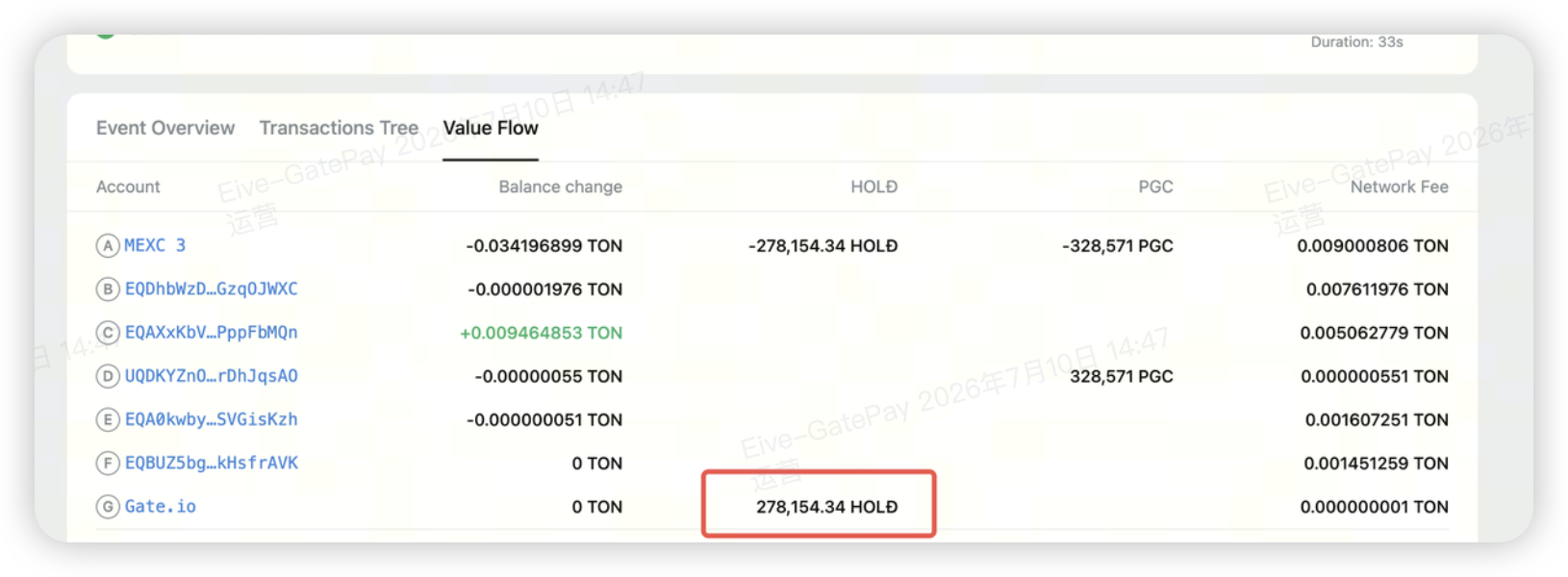
The amount entered by the user should ideally be the amount received by Gate after deducting fees, not the original transaction amount. You can compare the two numbers in the following positions and use the lower value after the decimal point.
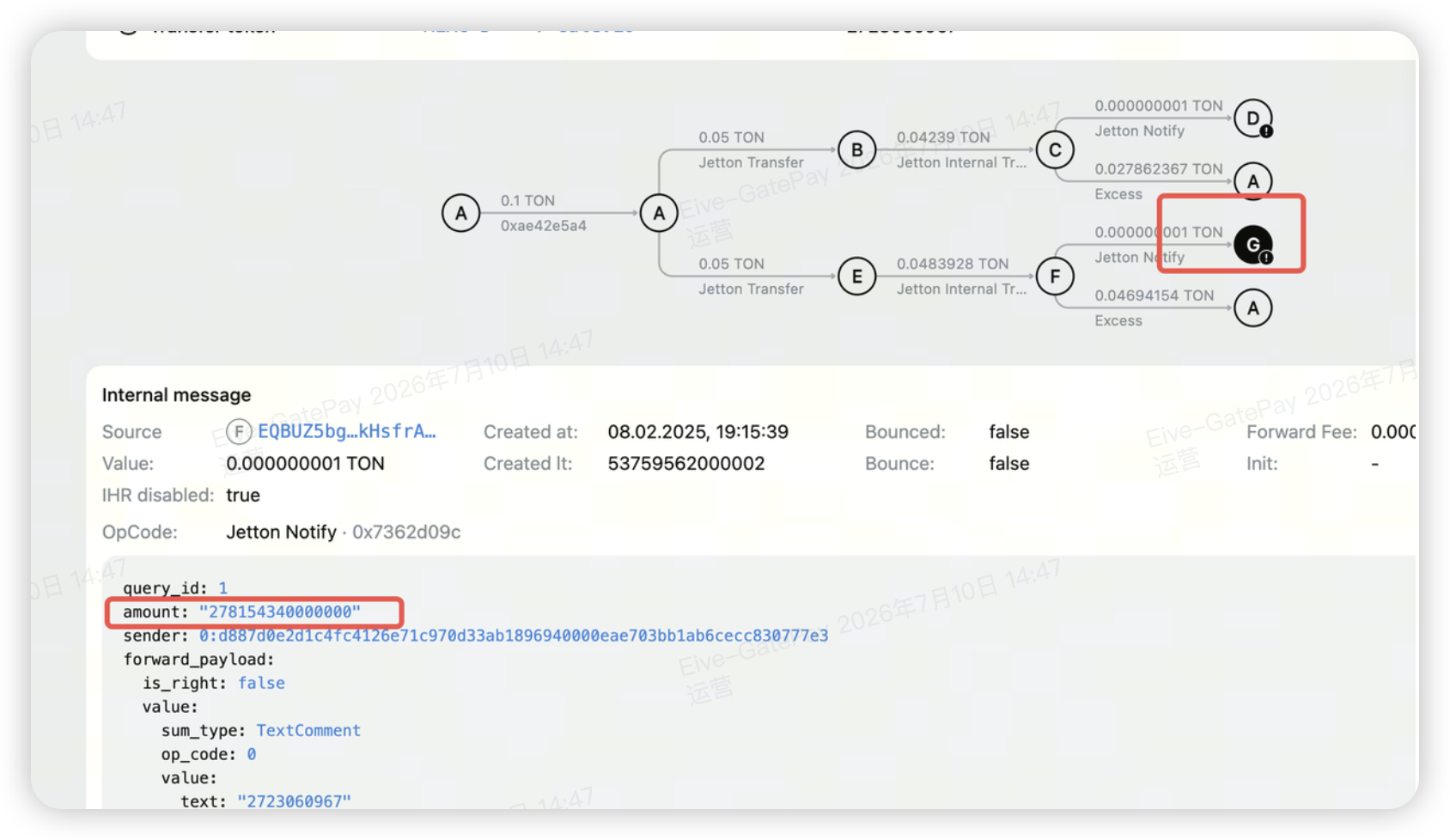
Important Notes
- Be sure to collect the user's real and complete original transaction information, including TxHash, payment address, receiving address, and amount.
- If the user omitted the Memo/Tag, you can leave this field blank when applying for a refund.
- If the user entered an incorrect Memo/Tag, please enter the actual incorrect content provided by the user.
- Refunds will be returned to the original payment address. Do not modify the refund recipient information arbitrarily.
- This feature is only for handling abnormal deposits due to missing or incorrect Memo/Tag, and is not for regular order refunds.
- Submitting false transaction information or malicious claims may result in refund application failure or trigger risk control measures.
- The refund status is subject to the system list and details page.
Disclaimer
The content provided herein is for reference and educational purposes only and does not constitute any financial, investment, trading, or legal advice, nor does it constitute an offer or solicitation to buy or sell any digital assets. Gate makes no express or implied representations or warranties regarding the accuracy, completeness, or timeliness of the information contained herein. Product features, interfaces, rules, and fee structures may be updated or adjusted at any time. Please refer to the latest announcements and the actual information displayed on the Gate platform for the most accurate details.
Digital asset investments involve significant risk, and prices may fluctuate substantially. You may lose the entire amount of your investment. Please make decisions cautiously based on your own financial situation and risk tolerance after fully understanding the associated risks. If necessary, you are advised to consult an independent professional financial or legal advisor.
For more information about potential risks, please refer to Gate's Risk Disclosure and User Agreement.
