


FAQ Quick Reference
Frequently Asked Questions | Brief Answers |
What should I do if the “Passkey” option is not displayed on my Android device, or if I see the message “Passkeys are not currently supported in this network environment”? 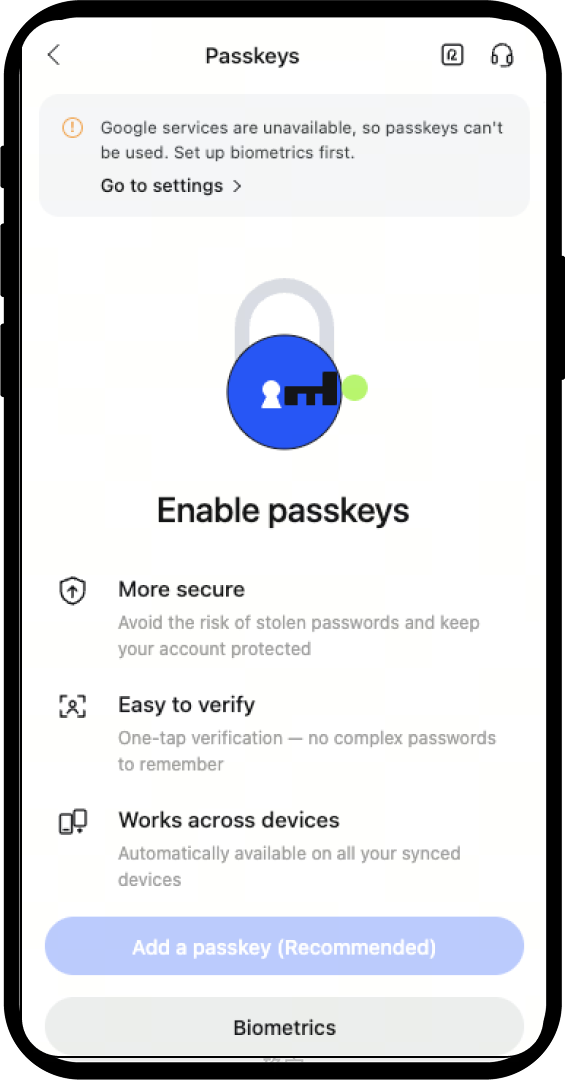 | This message usually appears because the network cannot access Google services. If you have not yet created a passkey, the Security Center may display a “Biometrics” option. If you have already created a passkey and need to use it normally, try the following: 1. Try switching networks, downloading the latest version of the app, or restarting your device. 2. If you need to complete the operation urgently, select another verification method. |
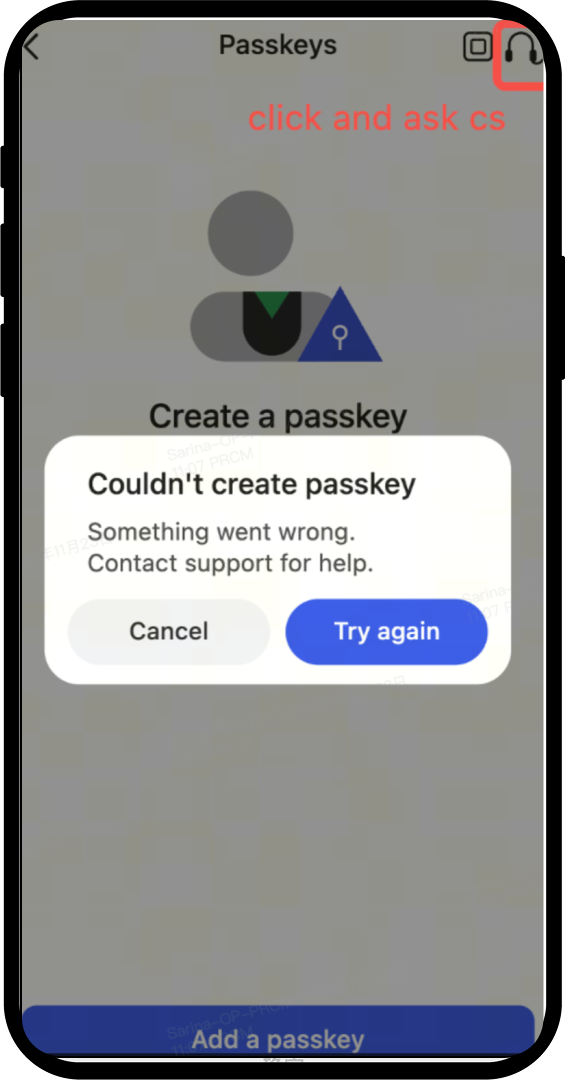
When you see the pop-up below after 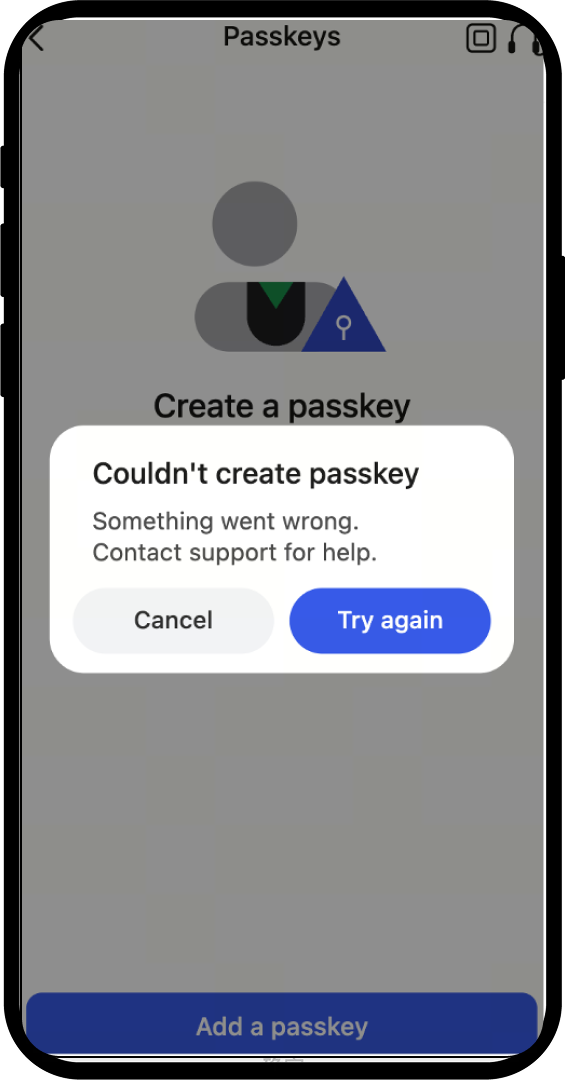 Illustration: Failure message displayed when creating a passkey (for reference only; please refer to the actual interface). The “?” and headset icons in the upper-right corner of the page are the Help and Online Customer Support entry points, respectively. | For solutions, refer to the following troubleshooting steps for common issues |
Troubleshooting Steps for Common Issues
I. First, check these three items: network, phone model, and phone system
1. Check your phone’s network connection status. If the network is still unsupported after switching networks, contact Official Website Customer Support immediately.
2. Common device models that may not support passkey binding include, but are not limited to:
Path: Settings → About Phone / My Device. Record the “brand + model + system / ROM version.”
Send the brand and model you found to Official Website Customer Support to check whether the device supports passkey installation.
3. Mobile devices running Android 7.0 or later
Path: Settings → About Phone → Android Version. Android 7.0 or later is required.
II. How to check whether you meet the requirements
Check Item | Requirement | Where to Check | What to Do If There Is an Issue |
Network environment | VPN connection works properly, and Google services are accessible | Check the VPN connection status in the status bar and verify that Google Chrome opens normally; | Disable it, then switch networks and try again |
Phone model | Check whether your device is among the common models that do not support passkeys | Path: Settings → About Phone / My Device | Use another device. If you cannot switch devices, use another type of security key, such as biometrics |
Phone system | Android 7.0 or later | Path: Settings → About Phone → Android Version | If the version is too old, upgrade it first. If you cannot upgrade, use another type of security key, such as biometrics |
III. How to bind a passkey after meeting the requirements
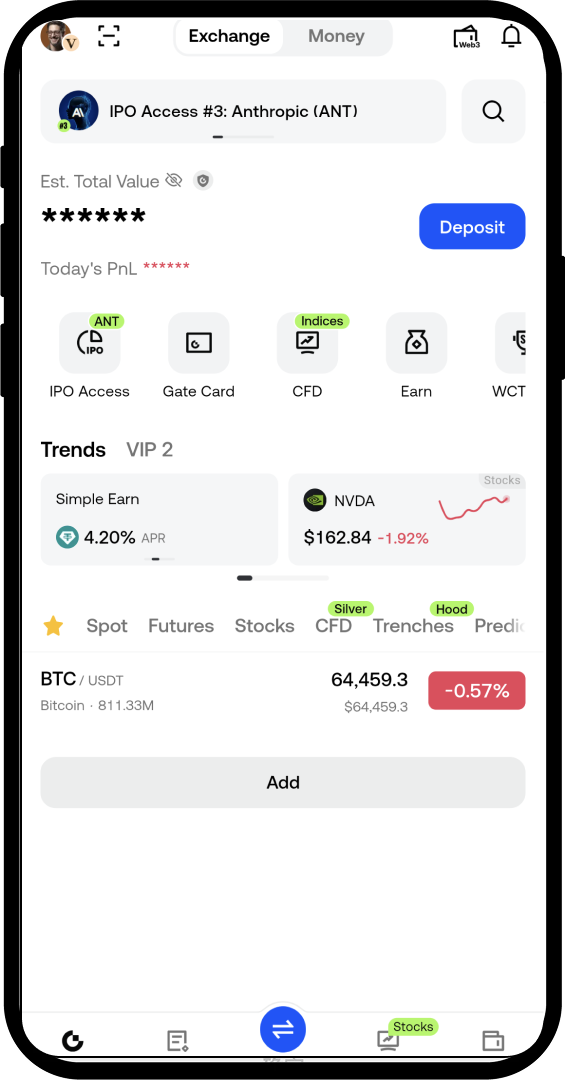
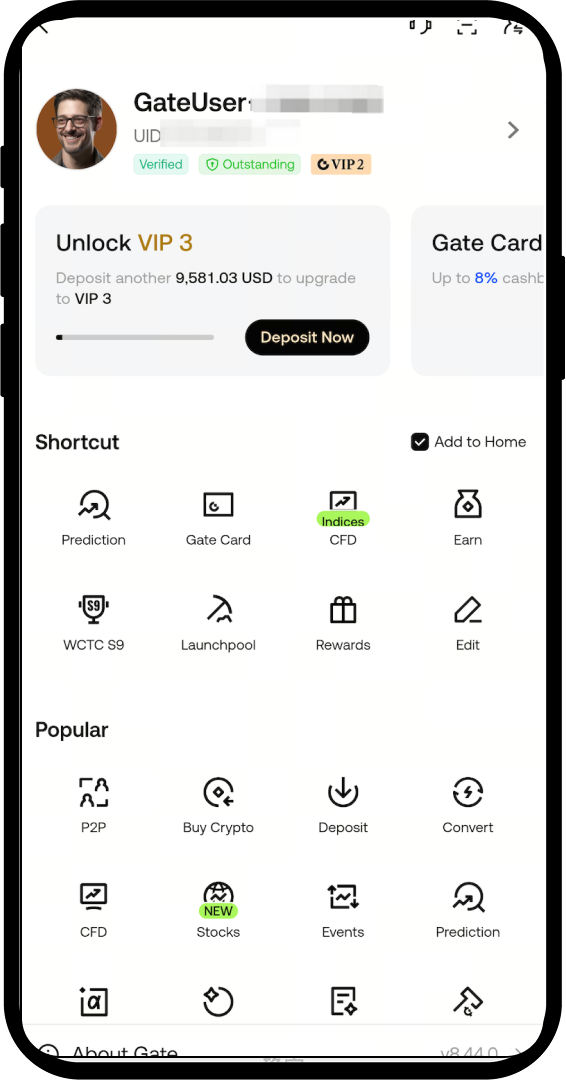
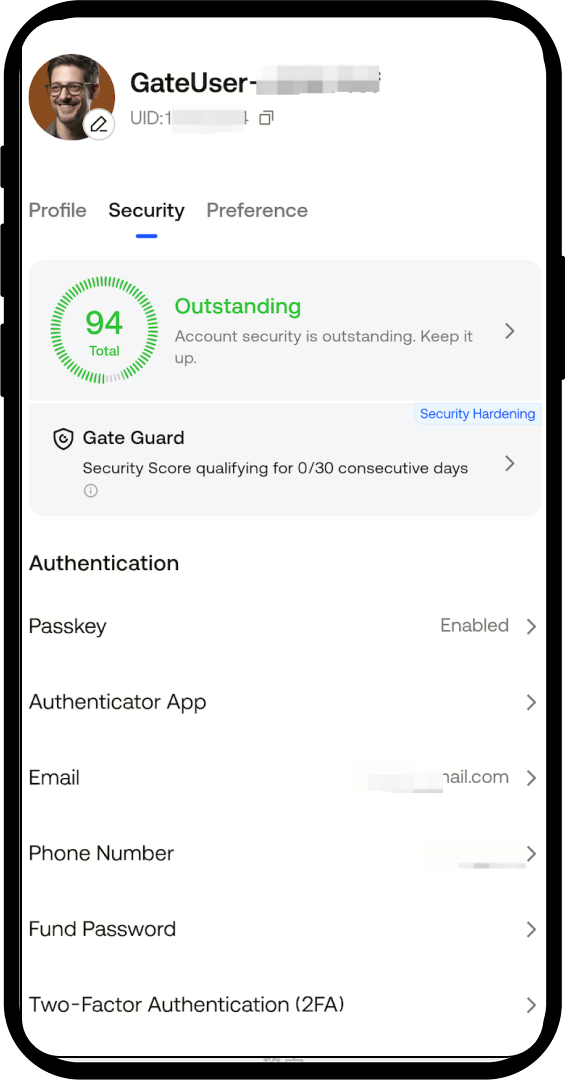
1 | Go to Security Settings Open the app and tap the profile icon in the upper-left corner. |
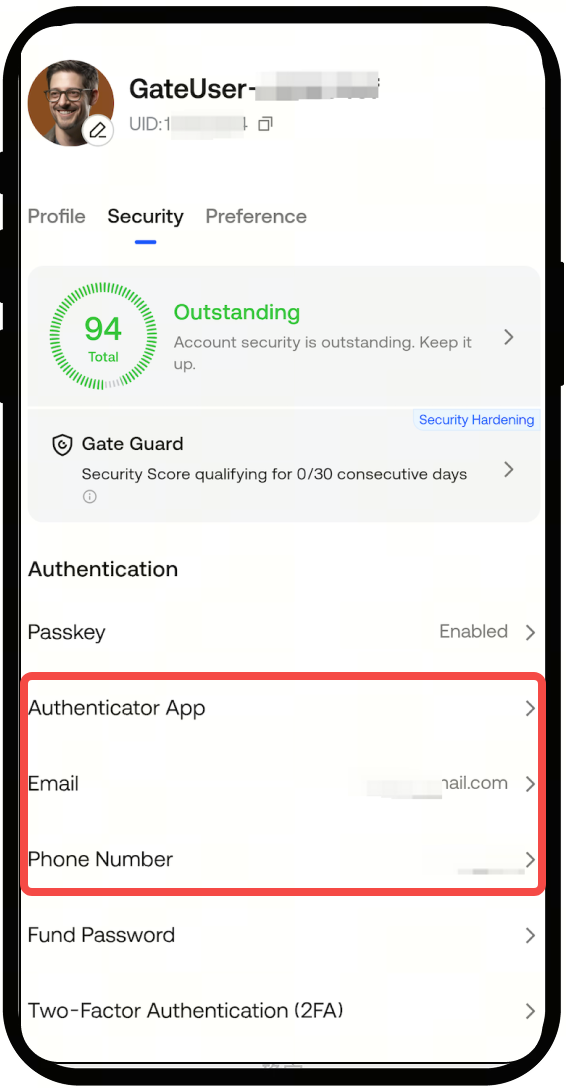
2 | Confirm the prerequisite verification methods Tap 【Profile and Settings】→【Security Center】→【Verification Methods】; creating a passkey requires at least 2 security verification methods to be linked. Add any missing methods first. |
   | |
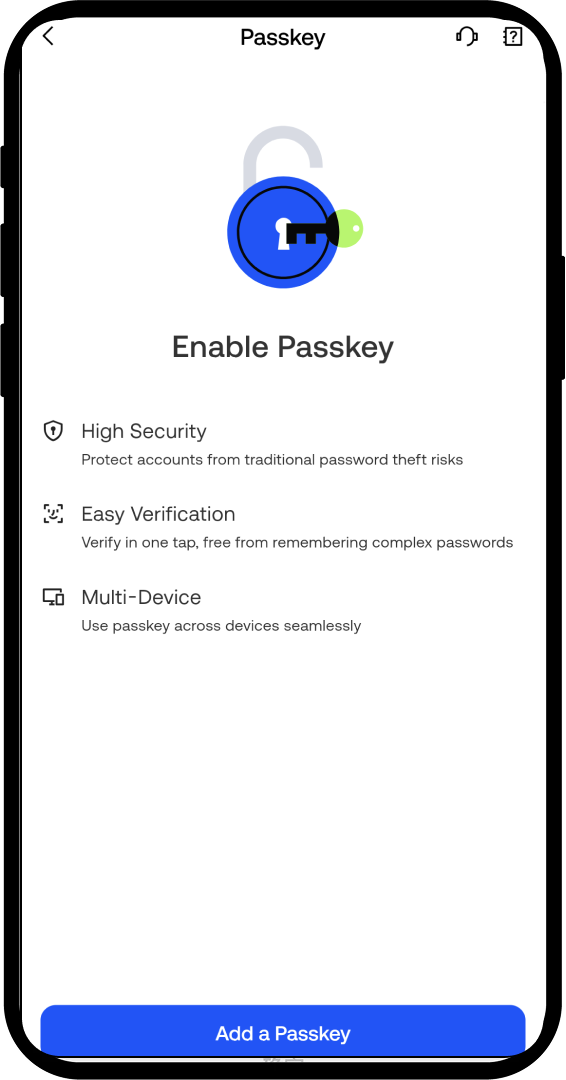
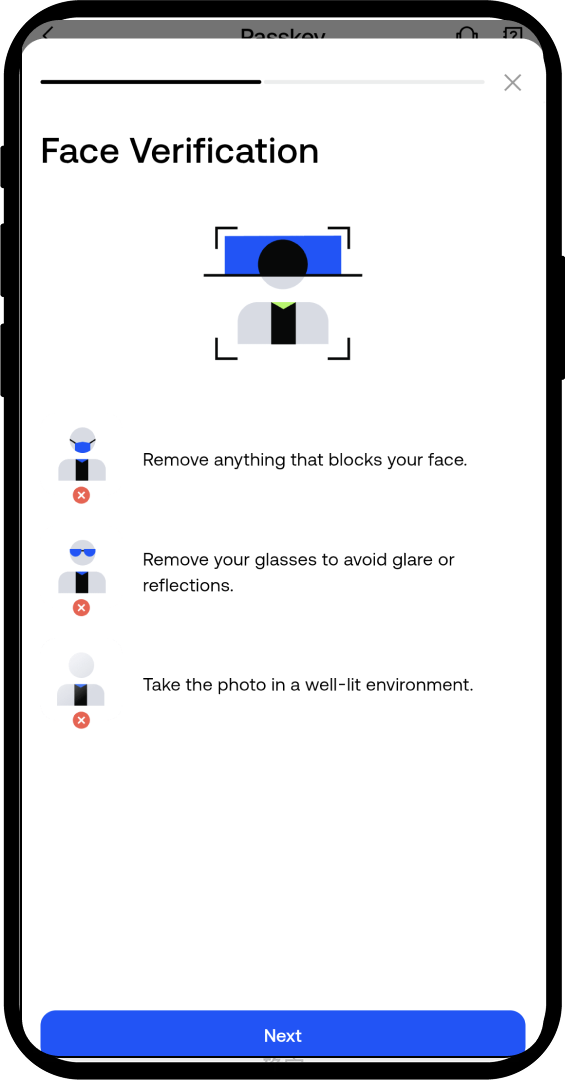
3 | Start creation and complete identity verification On the 【Security Center】→【Passkey】 page, tap 【Add Passkey】 at the bottom, then follow the prompts to complete identity verification using a linked security verification method. |
4 | Verify your account email Confirm that the linked email displayed on the page is correct, then tap 【Continue】. |
   | |
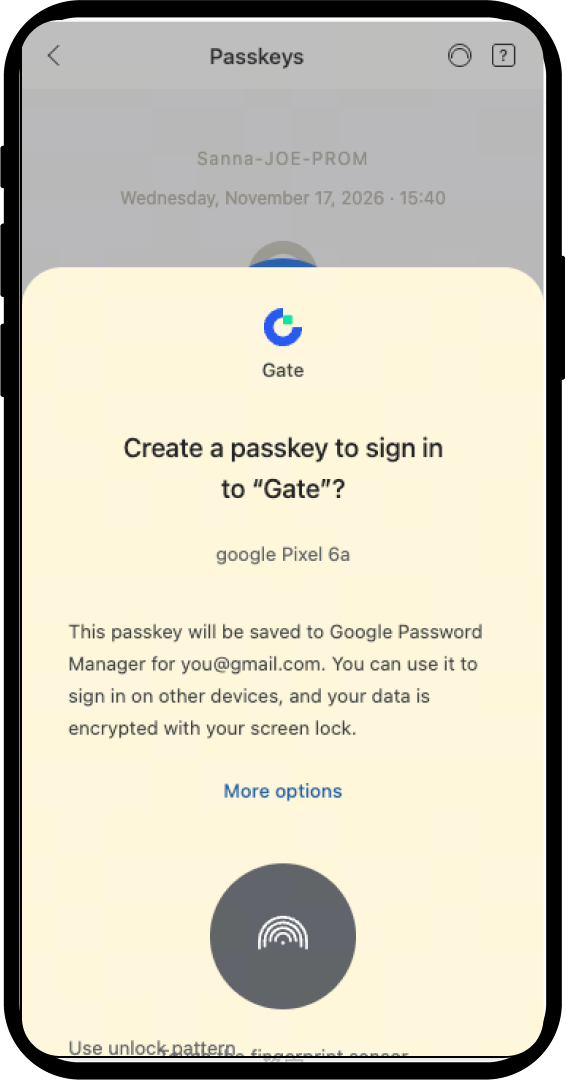
5 | Select 【Google Password Manager】 (Android devices only) If you are using an Android device that supports Google Password Manager, a system pop-up will appear. Tap 【Continue】, then complete verification using a screen lock method such as your fingerprint, PIN, or password. |
 | |
6 | If Google Password Manager does not appear You can instead select a USB security key that supports the FIDO2 protocol (insert it into the USB port and touch it as prompted to verify), or use another device signed in to the same Google account to scan a QR code for authorization. |
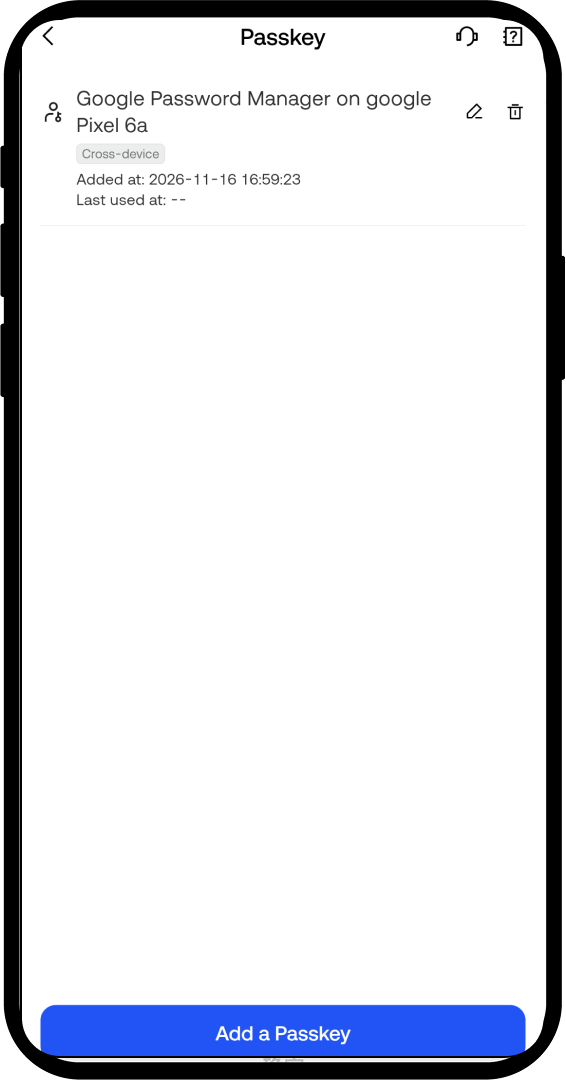
7 | Confirm successful creation After successfully creating a passkey, you can view its details on the 【Passkey】 page. We recommend logging out and logging back in with the passkey to confirm that it is active. |
 | |
IV. Still unable to bind a passkey after meeting all requirements? Contact Customer Support
Tap the headset icon (Online Customer Support) or the “?” icon (Help) in the upper-right corner of the 【Passkey】 page to submit an inquiry.
Disclaimer
The content provided herein is for reference and educational purposes only and does not constitute any financial, investment, trading, or legal advice, nor does it constitute an offer or solicitation to buy or sell any digital assets. Gate makes no express or implied representations or warranties regarding the accuracy, completeness, or timeliness of the information contained herein. Product features, interfaces, rules, and fee structures may be updated or adjusted at any time. Please refer to the latest announcements and the actual information displayed on the Gate platform for the most accurate details.
Digital asset investments involve significant risk, and prices may fluctuate substantially. You may lose the entire amount of your investment. Please make decisions cautiously based on your own financial situation and risk tolerance after fully understanding the associated risks. If necessary, you are advised to consult an independent professional financial or legal advisor.
For more information about potential risks, please refer to Gate's Risk Disclosure and User Agreement.
