


Applicable Scope
This guide applies to Gate Web
Before you start: A valid identity document in your own name, such as a passport, ID card, or driver’s license. If you choose to upload documents, please prepare clear and complete photos of your identity document in advance.
Estimated time: 5–10 minutes
Objective
This guide will walk you through how to complete KYC (Know Your Customer) identity verification on Gate Web.
Steps
Step 1: Access the Identity Verification Page
- Log in to your Gate account.
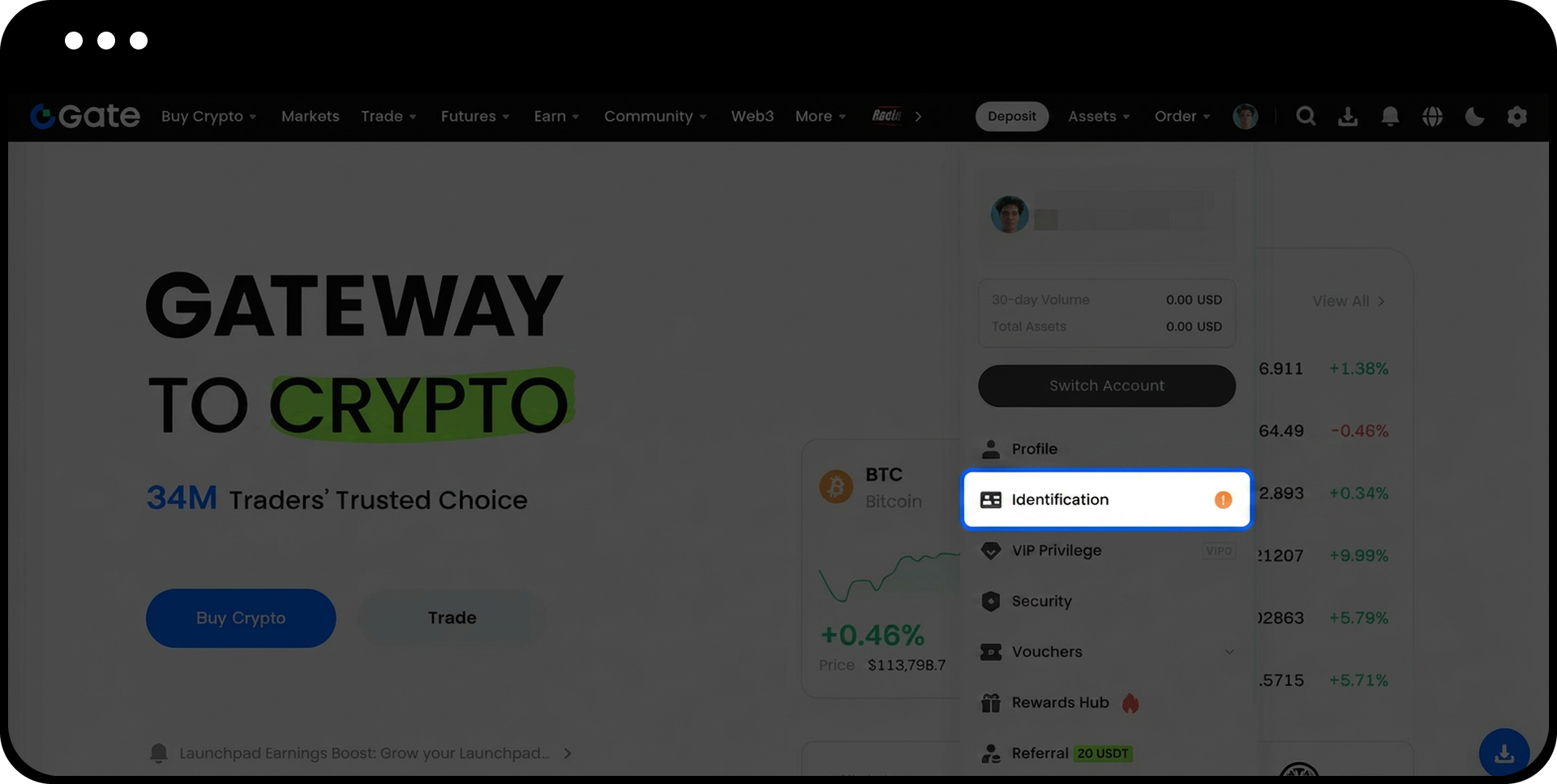
- Click the【Avatar】icon in the upper-right corner.
- Select【Identification】.
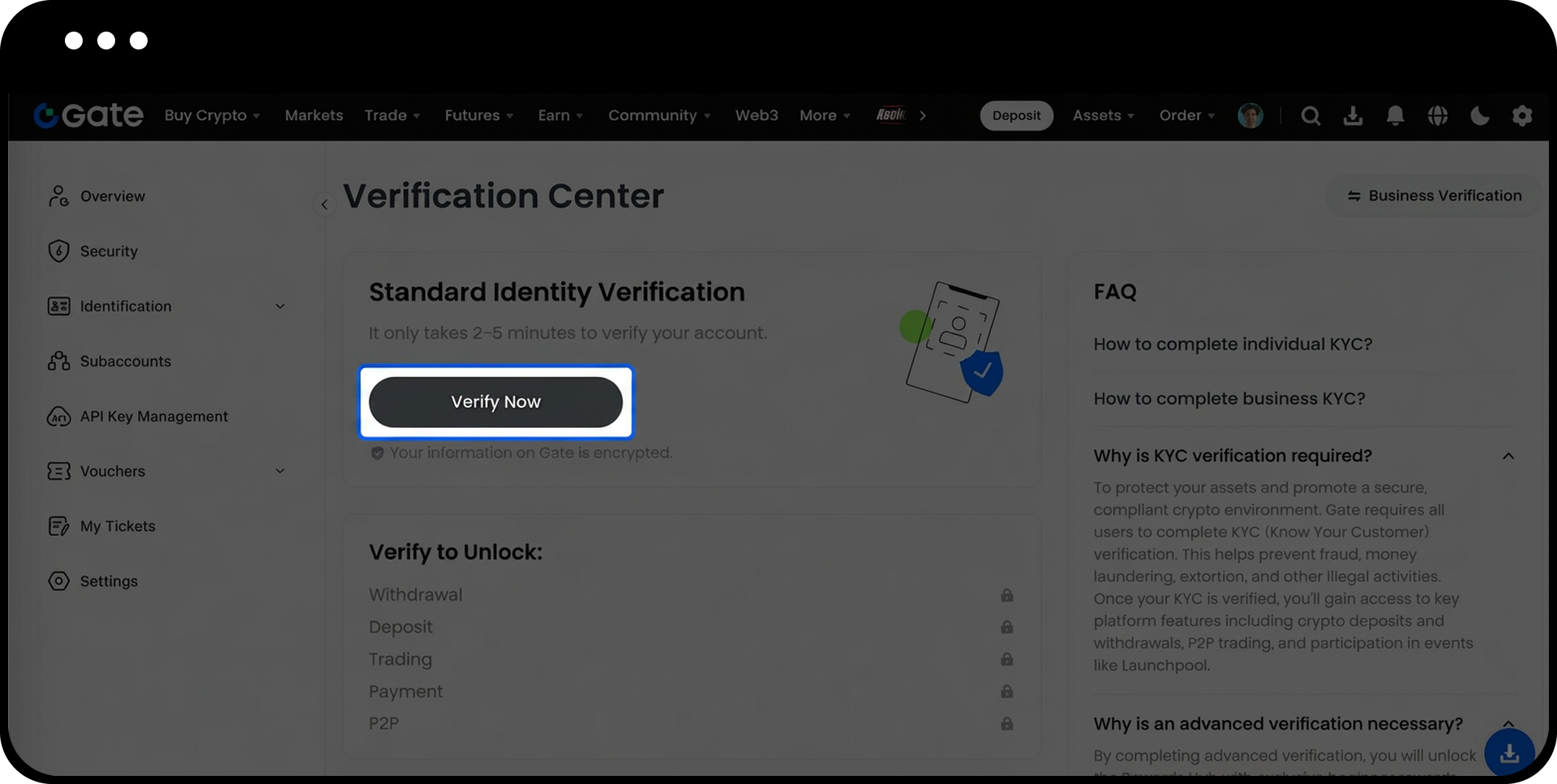
- Click【Verify Now】.
Step 2: Enter Basic Information
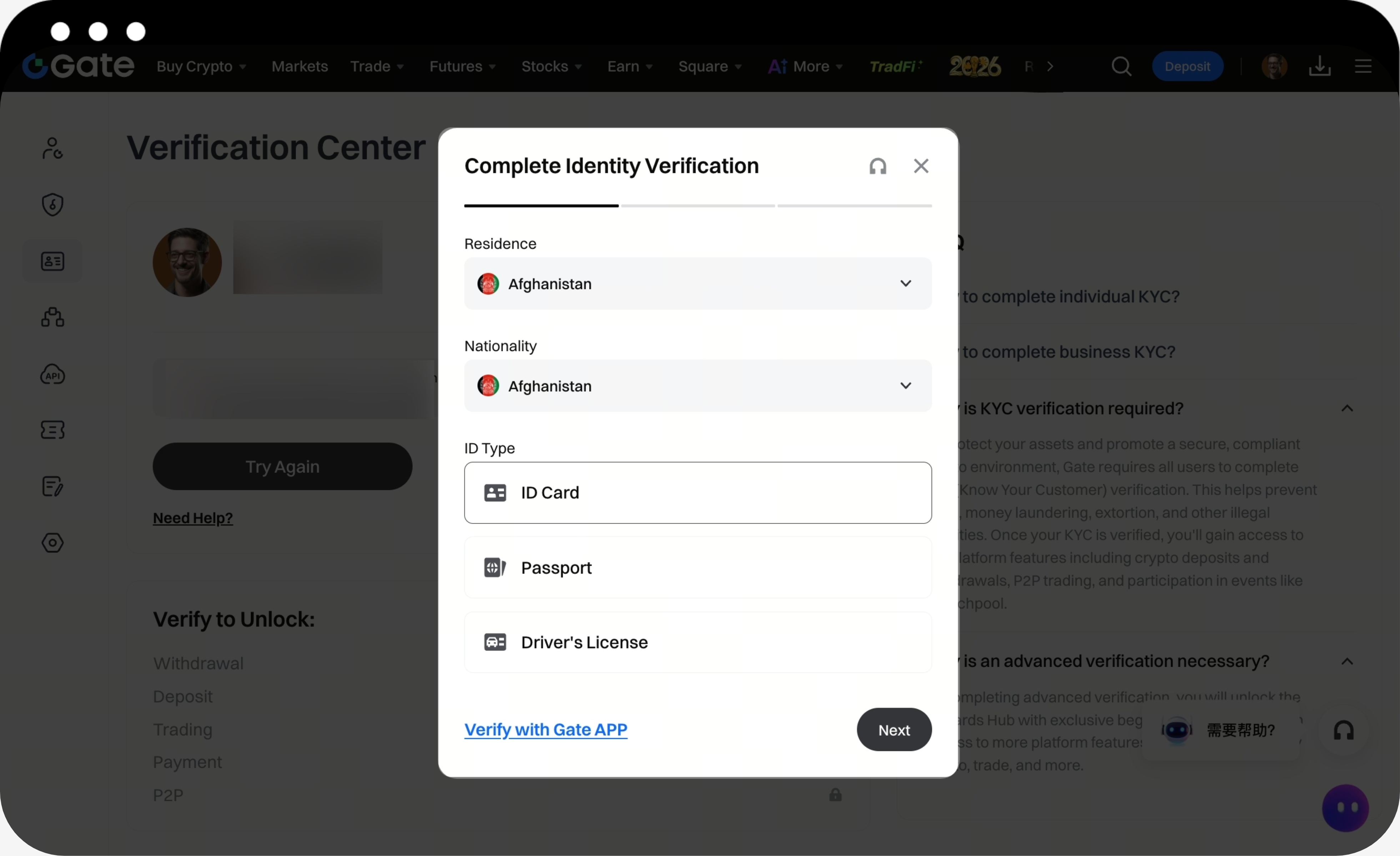
After entering the verification page, follow the on-screen instructions to fill in your basic information.
- Select the following information in order:
- Residence
- Nationality
- ID type
- After confirming that the information is accurate, click【Next】.Note: Please ensure that the information you provide is exactly the same as the information on your identity document. Inconsistent information may result in verification failure or a longer review time.
Step 3: Complete Identity Document Verification
After submitting your basic information, the system will automatically redirect you to the identity verification page. You can choose any of the following methods to complete verification based on your situation.
Method 1: Verify by Scanning the QR Code with Your Mobile Phone
If you prefer to use your mobile phone to take photos of your document and complete facial recognition, you can choose mobile phone verification.
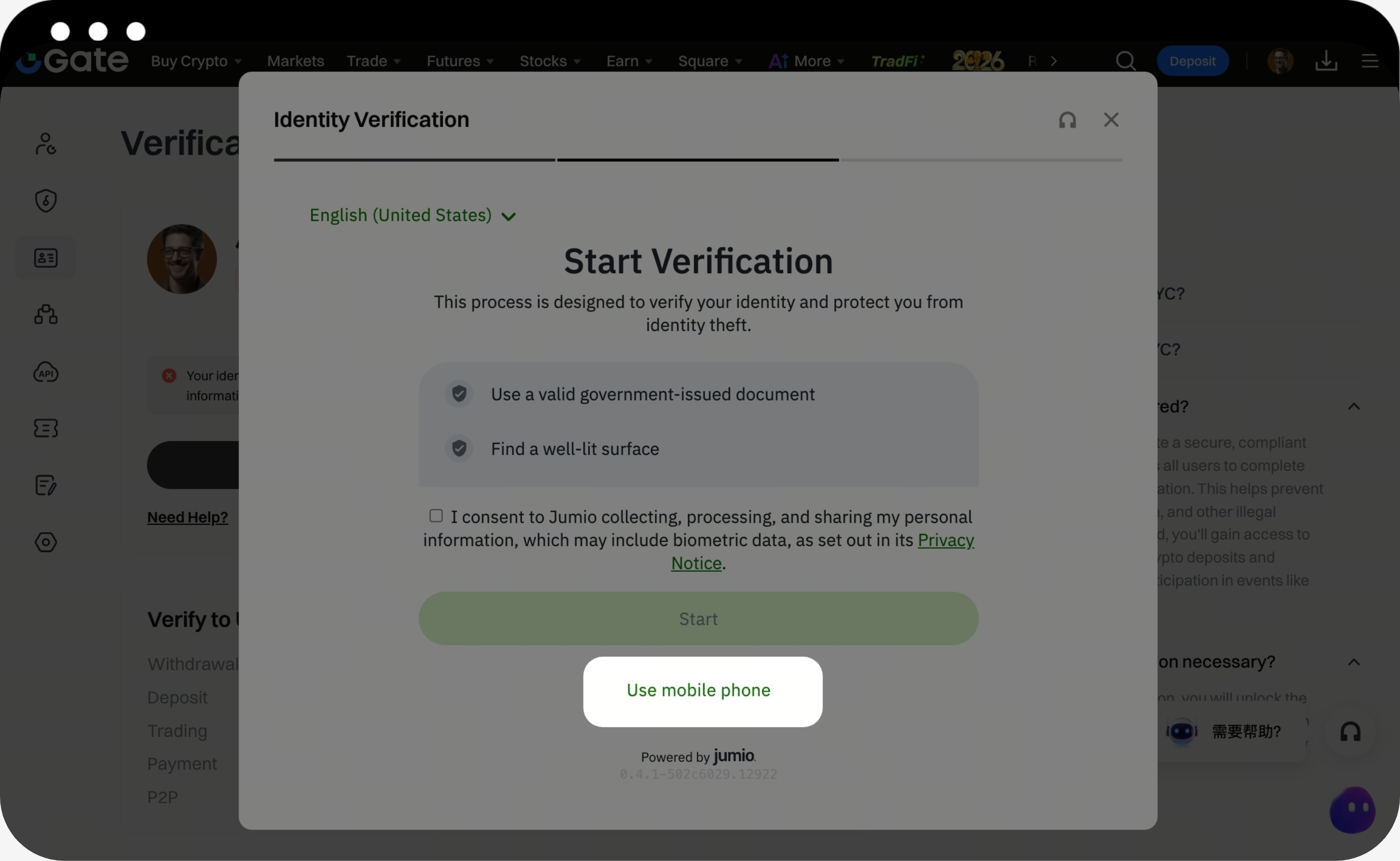
- Select【Use mobile phone】on the Web page.
- Use your phone camera or a QR code scanning app to scan the QR code displayed on the Web page.
- Follow the instructions on your phone to take or upload photos of your identity document.
- Complete facial recognition as instructed.
- After the mobile page shows that the verification is successful, return to the Web page and wait for it to redirect.
- Enter your name, document number, and other basic information on the Web page.
- After confirming that the information is correct, click【Submit】.
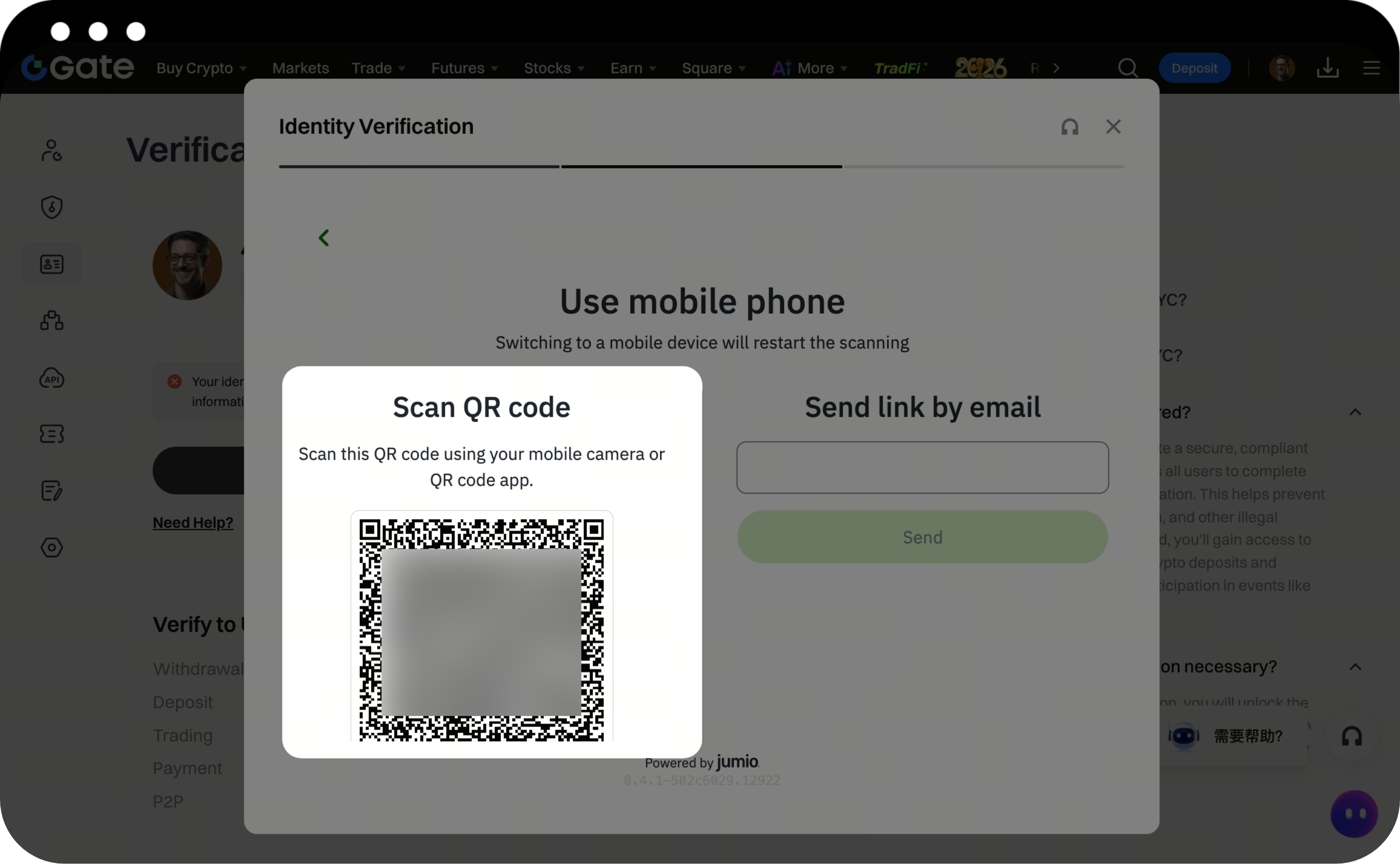
Method 2: Verify Directly on Web
If your computer camera is working properly, you can complete identity verification directly on the Web page.
- Read and check the consent statement, then click【Start】.
- Take or upload photos of your identity document as instructed on the page.
- Complete facial recognition as instructed.
- After facial recognition is completed, enter your name, document number, and other identity information.
- After confirming that the information is accurate, click【Submit】.
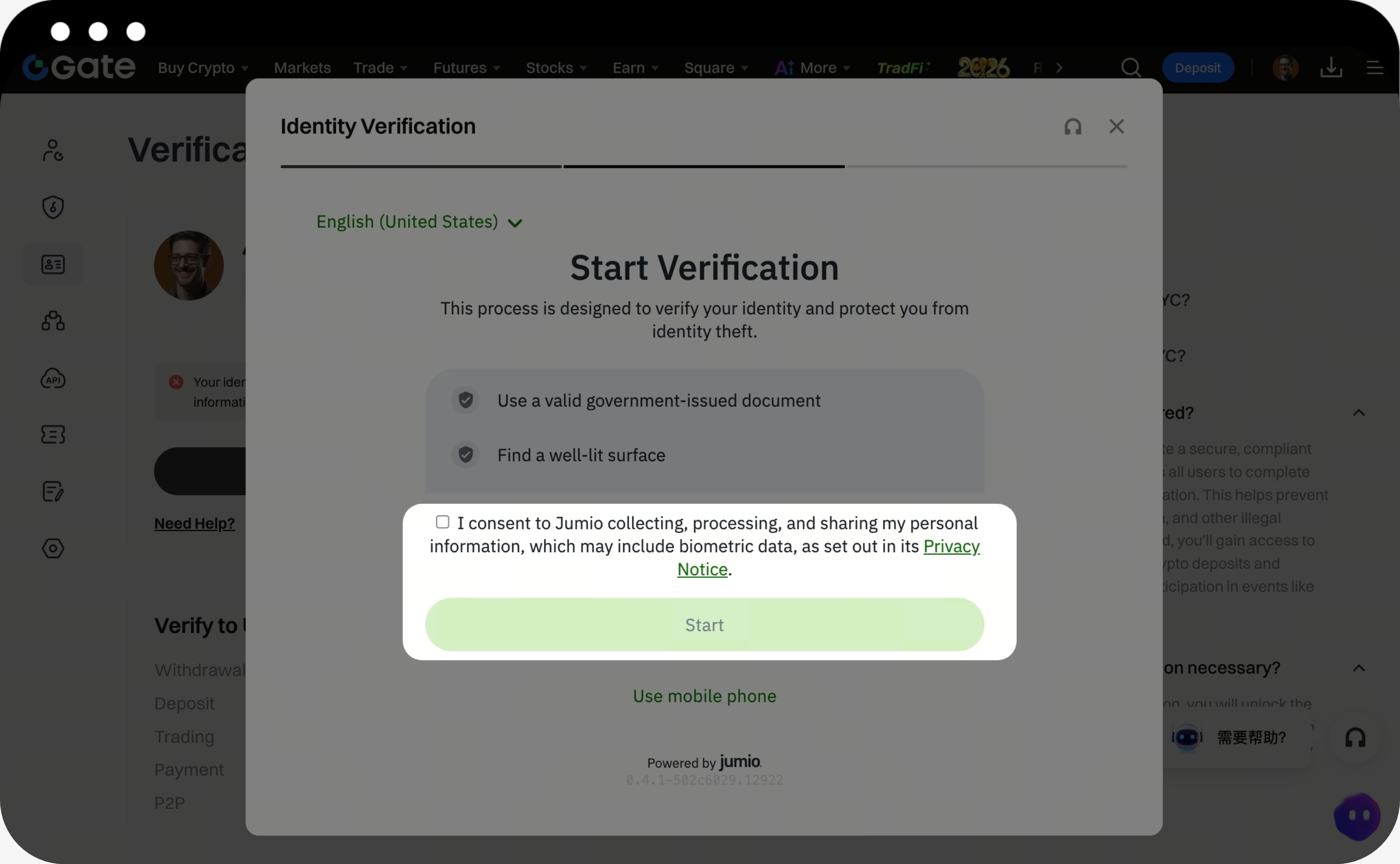
Method 3: Complete Verification with a Gesture Photo
If you are unable to complete facial recognition, you can try gesture photo verification as an alternative method.
- Close the current facial recognition page.
- On the confirmation page before leaving, select【Gesture Recognition】.
- Fill in the basic information as required and upload photos of your identity document.
- Follow the on-screen instructions to take or upload a gesture photo of yourself.
- After confirming that the photo is clear and accurate, click【Next】to submit.
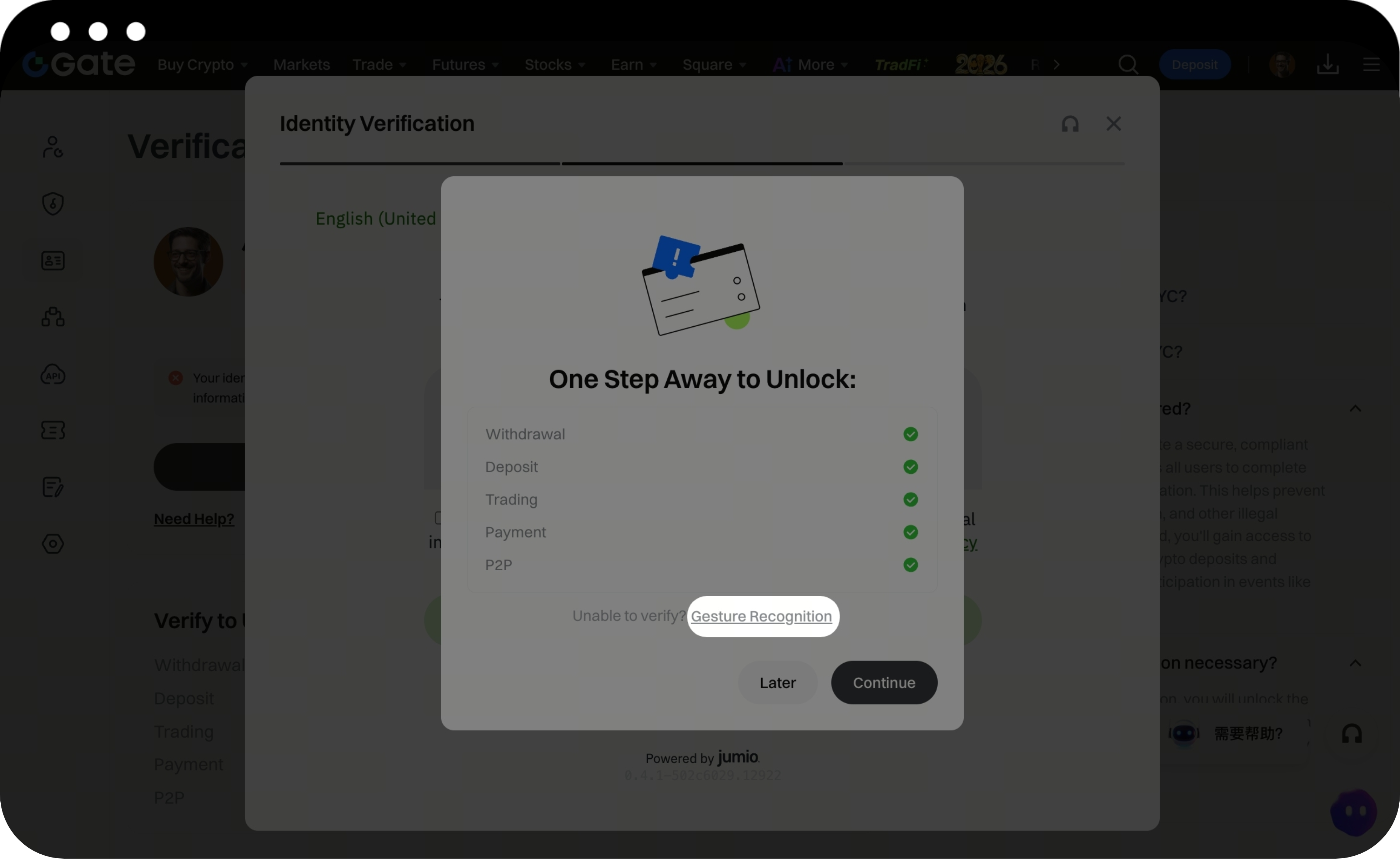
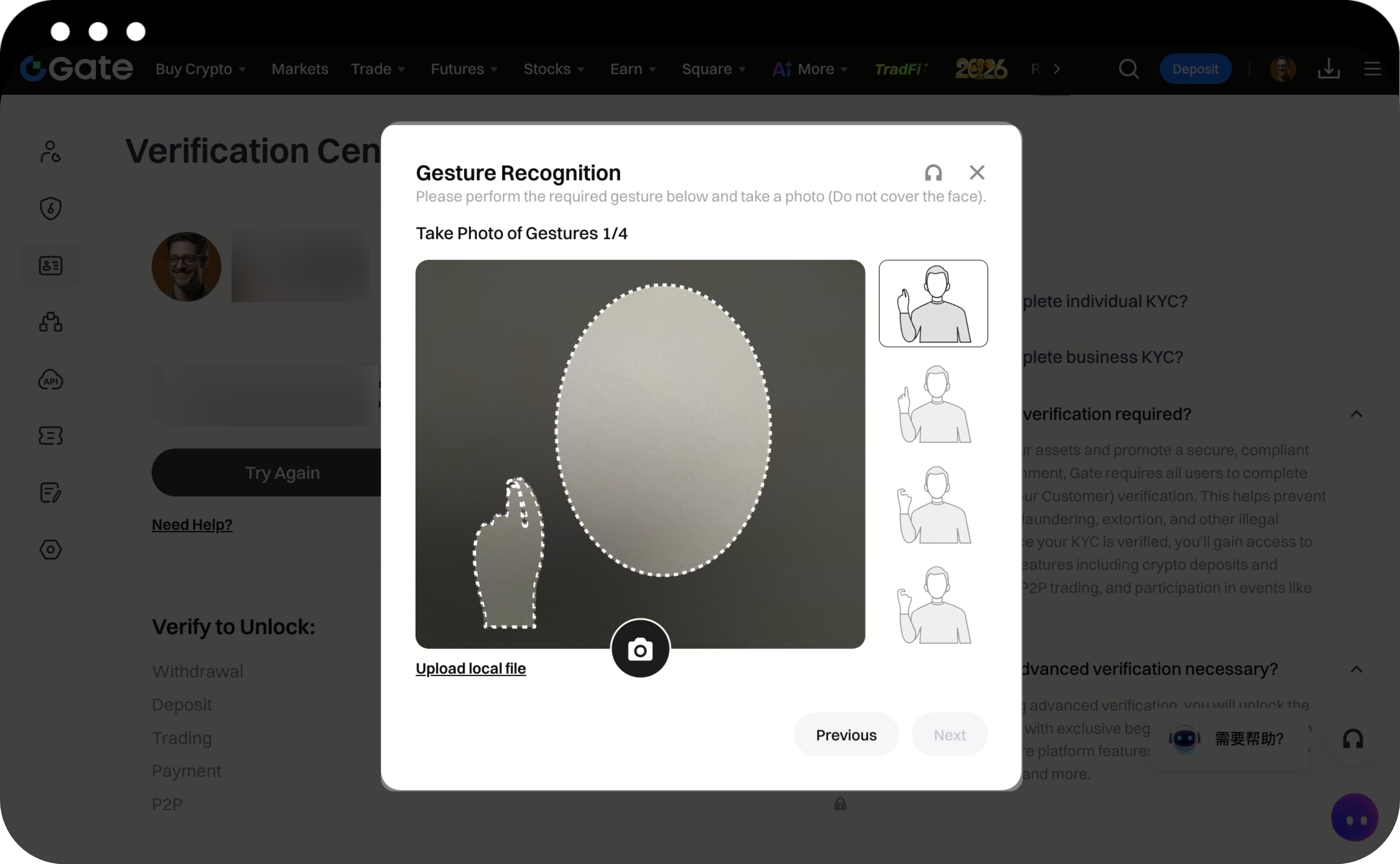
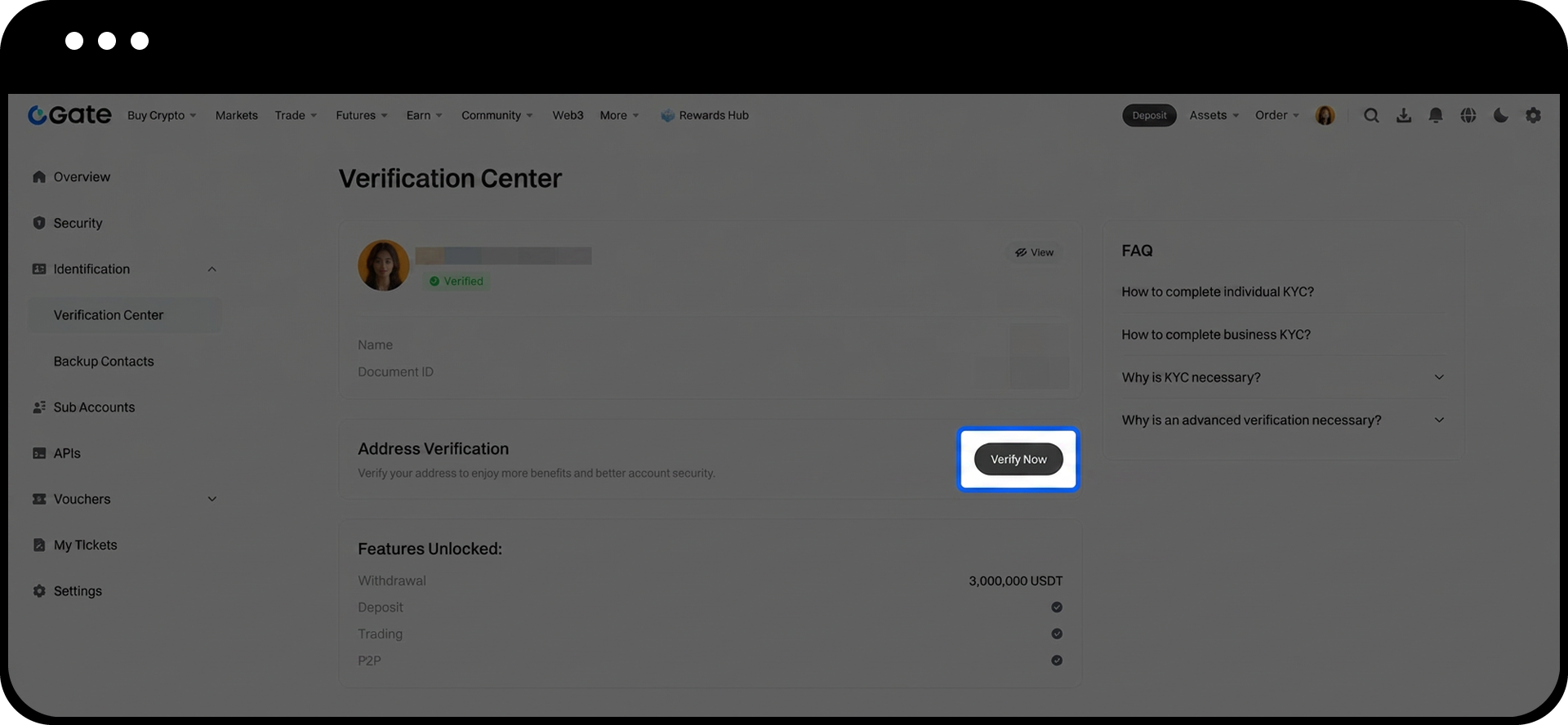
Step 4: Submit Address Verification Optional**
After your identity verification is approved, you can continue to complete address verification to increase your account privileges:
- Click [Verify Now] to proceed with address verification.
- Follow the on-screen instructions and complete the required information.
- If the page requires you to upload proof of address, please submit a valid proof of address document, such as a utility bill or bank statement.
- Confirm all details are accurate.
- Click [Submit].
- Wait for the review to be completed.
Notes
- Please use your own valid identity document for verification. Do not use another person’s document or complete verification on behalf of others.
- Your basic information must exactly match the information on your identity document, including your name, document number, nationality, and other details.
- Uploaded photo files must be larger than 10 KB and no larger than 4 MB. The supported file formats are JPG and PNG.
- Document photos must be clear, complete, unobstructed, free of reflections, watermarks, stains, or smudges.
- Verification requirements may vary by country or region. Please refer to the actual information displayed on the page.
FAQ
Q1: What should I do if the page does not respond after I upload my verification information?
A:Please first check whether your network connection is normal. You can try refreshing the page and uploading again, or switch to another browser and try again. You can also complete verification again using the Gate App.
Q2: Why does it show “Not the account holder” or “Non-self verification”?
A:This message usually means that the system has detected that the person currently performing the verification may not match the submitted identity document information. Please make sure that the document holder completes the verification in person, and try the following:
- Make sure the lighting is sufficient and avoid backlighting or dark environments.
- Remove hats, masks, sunglasses, or other items that may cover your face.
- Make sure the document photo is clear and matches the person being verified.
If you still cannot pass verification, you can choose【Gesture Recognition】as an alternative method.
Q3: Is address verification required?
A: Address verification is optional. Completing it can increase your account privileges and allow you to enjoy higher withdrawal limits.
However, in certain cases, such as compliance requirements, limit increases, or account security reviews, Gate may require you to complete address verification. Please submit the required materials according to the on-screen instructions.
Q4: How long does it take to complete the review after submission?
A: Usually, the system completes the automatic review within a few minutes after submission. The actual review time may vary depending on factors such as:
- Clarity of the submitted materials
- Completeness of the information
- Current review volume
In some cases, it may take up to 1 business day. If the page shows “Under Review,” please wait patiently. The review result is usually sent by email, so please check your registered email address and page notifications.
Q5: Can I resubmit after verification fails?
A: Yes. If verification fails, please check the failure reason shown on the page, then modify the information or re-upload the required materials before submitting again.
Common reasons for failure include:
- Blurry or incomplete document photos
- Information entered does not match the identity document
- Facial recognition failed
If you are temporarily unable to resubmit due to special reasons, please refer to the specific rejection reason displayed on the page.
Disclaimer
The content provided herein is for reference and educational purposes only and does not constitute any financial, investment, trading, or legal advice, nor does it constitute an offer or solicitation to buy or sell any digital assets. Gate makes no express or implied representations or warranties regarding the accuracy, completeness, or timeliness of the information contained herein. Product features, interfaces, rules, and fee structures may be updated or adjusted at any time. Please refer to the latest announcements and the actual information displayed on the Gate platform for the most accurate details.
Digital asset investments involve significant risk, and prices may fluctuate substantially. You may lose the entire amount of your investment. Please make decisions cautiously based on your own financial situation and risk tolerance after fully understanding the associated risks. If necessary, you are advised to consult an independent professional financial or legal advisor.
For more information about potential risks, please refer to Gate's Risk Disclosure and User Agreement.
