


What is video identity verification?
Video identity verification is a security checkpoint set up by Gate to protect your account, confirming that it is really you. When your account triggers a scenario that requires additional verification, we will invite you to have a short video call with a Gate certification specialist to confirm your identity and ensure that the operation is indeed performed by you.
The entire process is protected by the platform. The call content is used only for this verification and will not be used for any other purpose, so please rest assured. You can schedule the call time at your convenience, so there is no need to feel pressured.
When might you encounter video verification?
You may be invited for video verification in the following scenarios. Please refer to the instructions in your ticket for specifics:
Resetting account security information, such as changing the bound email, phone number, two-factor authentication method, etc.
High-amount withdrawals or transfers, and other operations related to fund security
Before the call, let's get ready together
To make sure the verification goes smoothly in one go, please confirm the following points before joining the call:
Original ID document: Prepare the original ID document used at registration (ID card or passport); you will need to show it during the call. If the document has expired, also have the latest one ready.
Comfortable, quiet environment: Find a place with good lighting and no other people around.
App is the latest version: Make sure it is updated to the latest version (this step can be skipped on the web).
Enable device permissions: Allow camera and microphone permissions in your phone settings in advance.
Show your face: Remove masks, hats, sunglasses, headphones, and other coverings (regular glasses are fine).
Stable internet connection: Good Wi-Fi or mobile data signal.
Close other communication apps: Avoid running other video/call apps at the same time to prevent device issues.
Other information: Think in advance about what you want to handle and related information, such as the new phone number and the reason; this will help the specialist verify faster.
Important note:
In certain scenarios, customer support may ask you to read a specified statement aloud or provide a simple verbal explanation of your request;
Video verification only accepts the account owner. If there are any special circumstances, you must apply to customer support / the issue handler in advance;
Video verification generally only accepts the original ID document used at account registration. If there are special circumstances, you need to apply to customer support / the issue handler in advance;
How to join the video call
We will notify you to join the video call through the following channels: customer support, in-app messages, system notifications, or emails to your registered email address.
Method 1: Join via the Gate app (recommended)
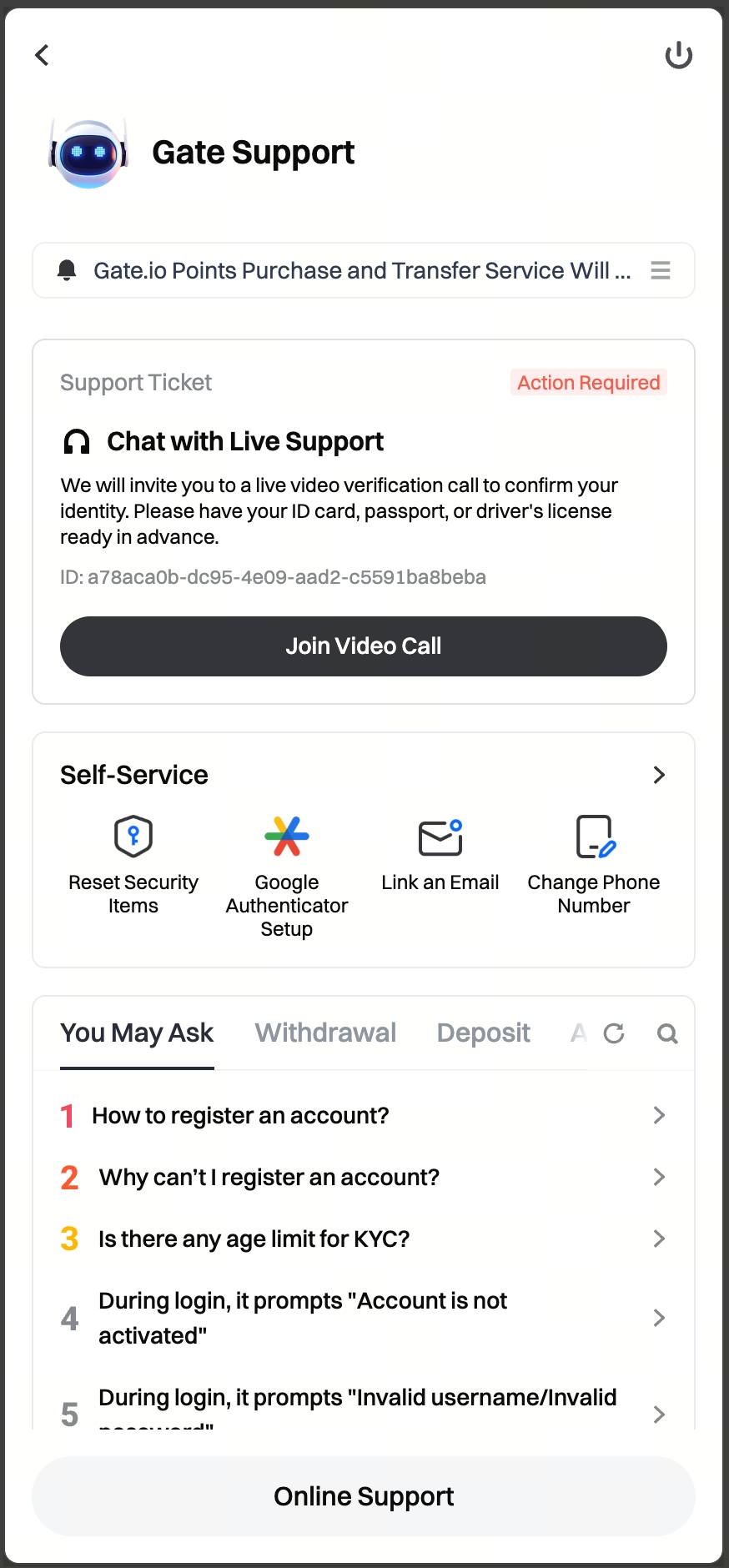
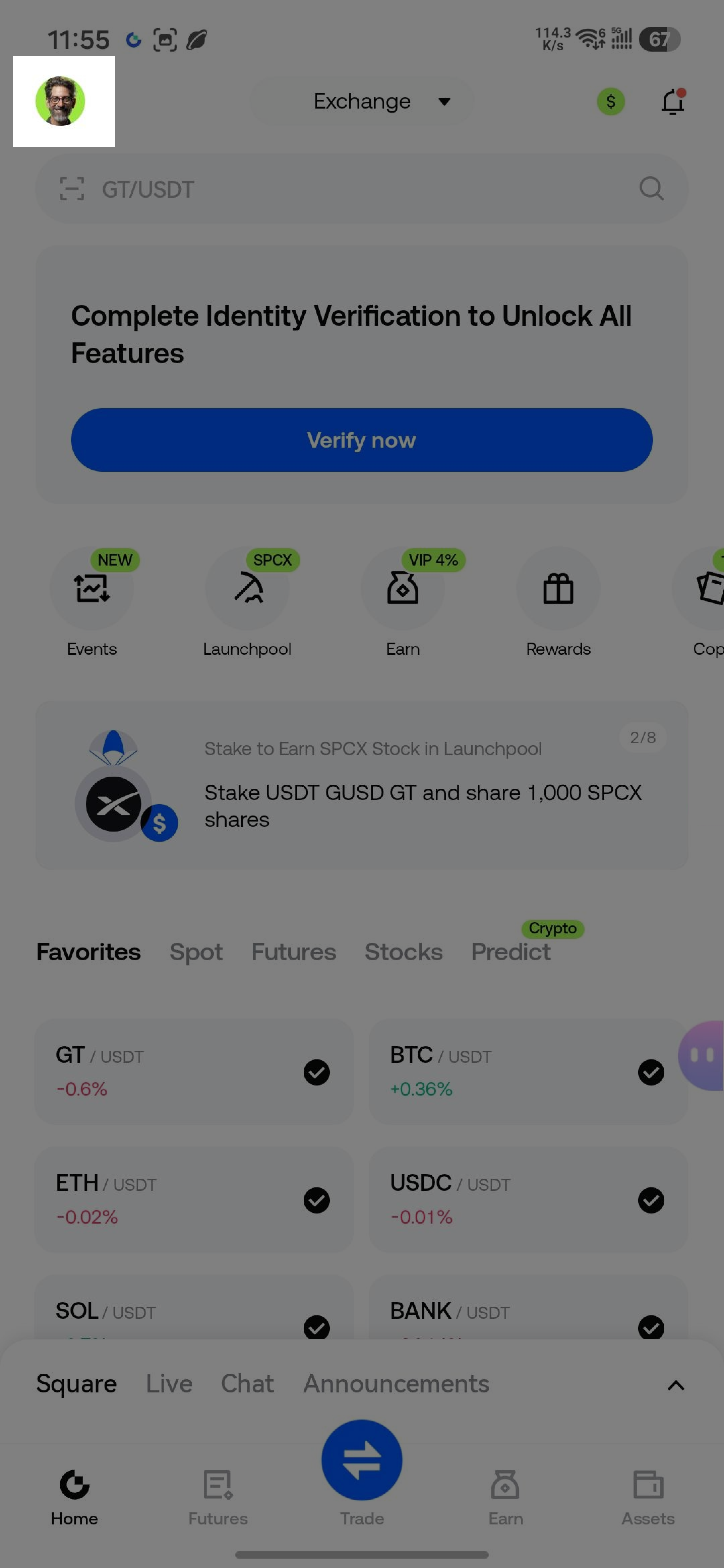
Step 1: Open the App, tap the avatar in the upper-left corner, then tap the customer service icon in the upper-right corner to enter [Gate Support], and find the ticket that prompts for video verification
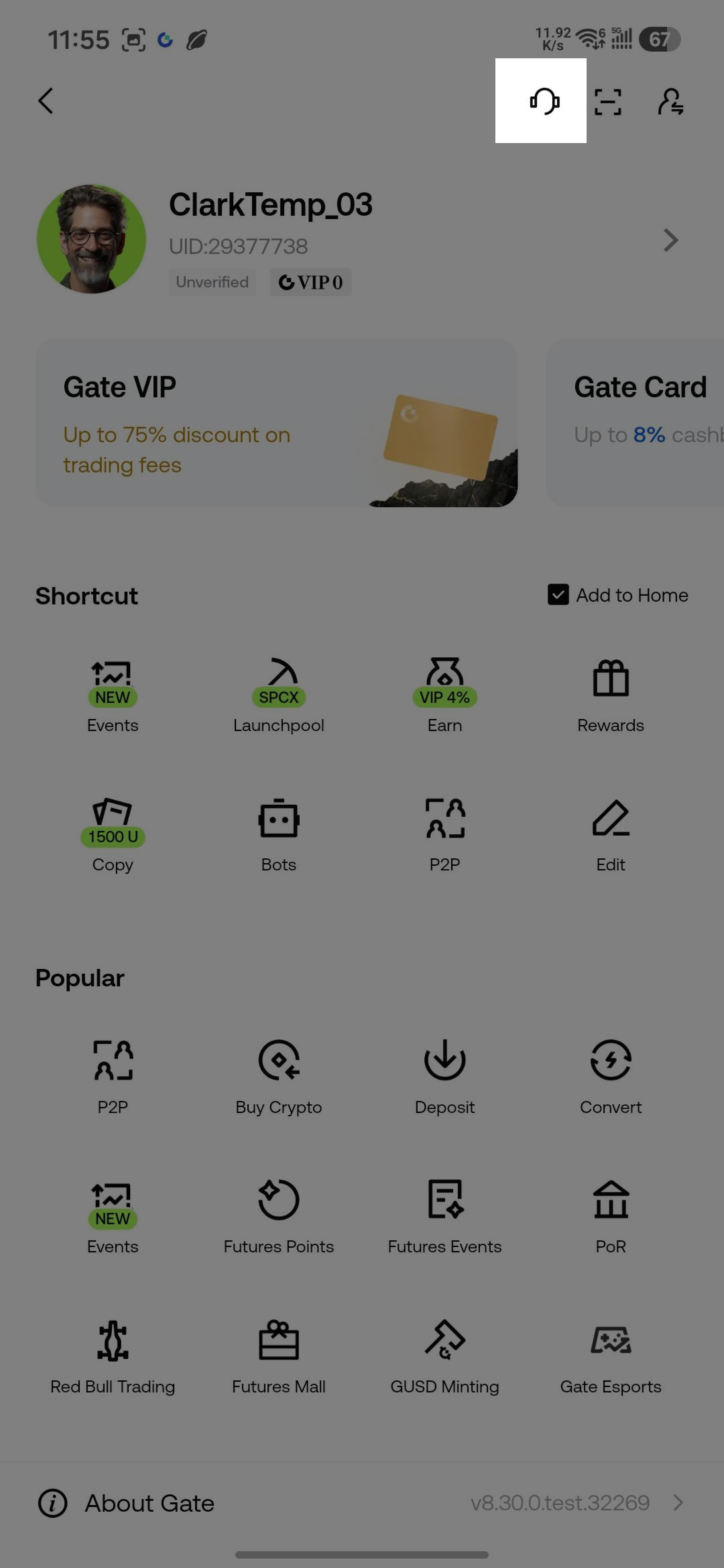
Step 2: Tap [Join Video Call]
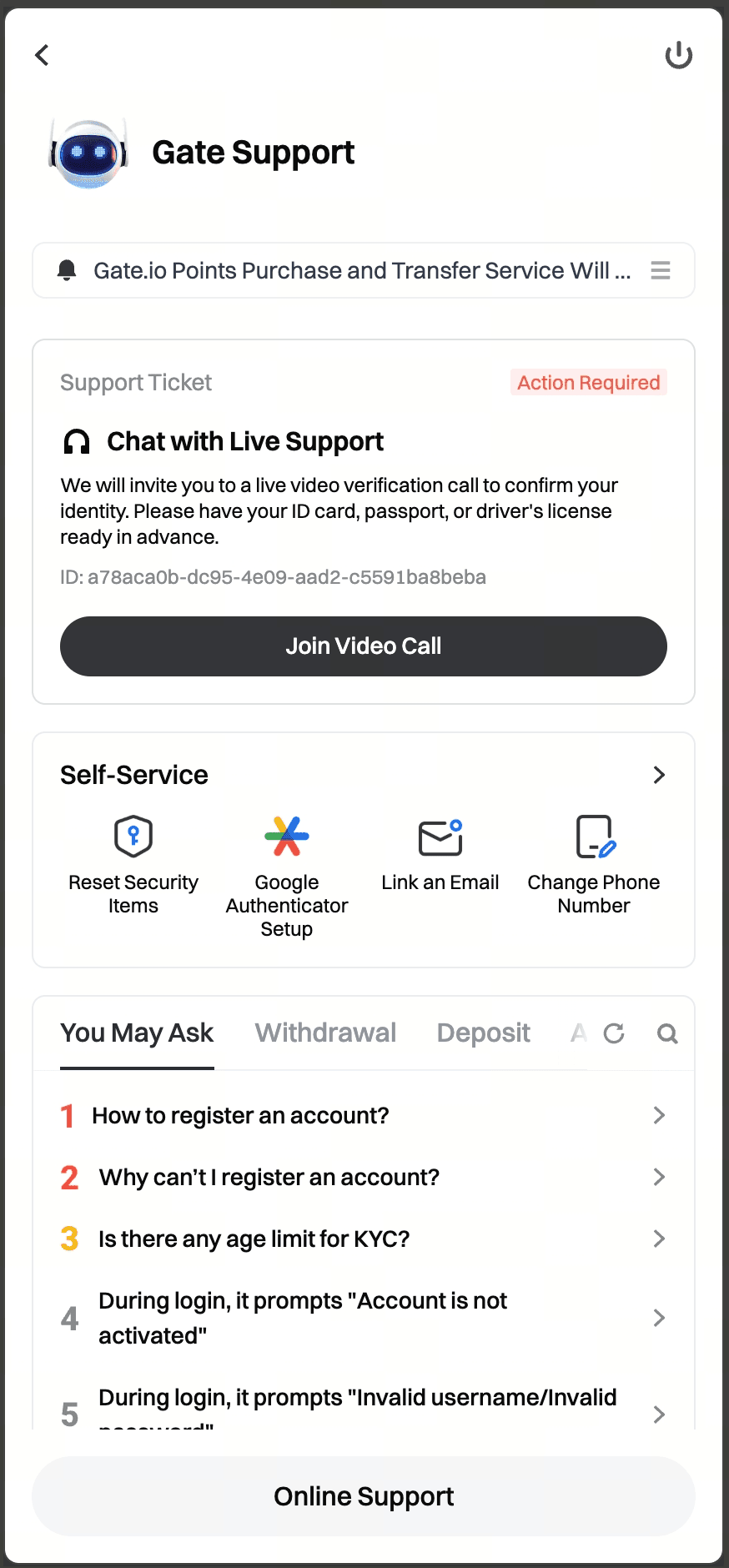
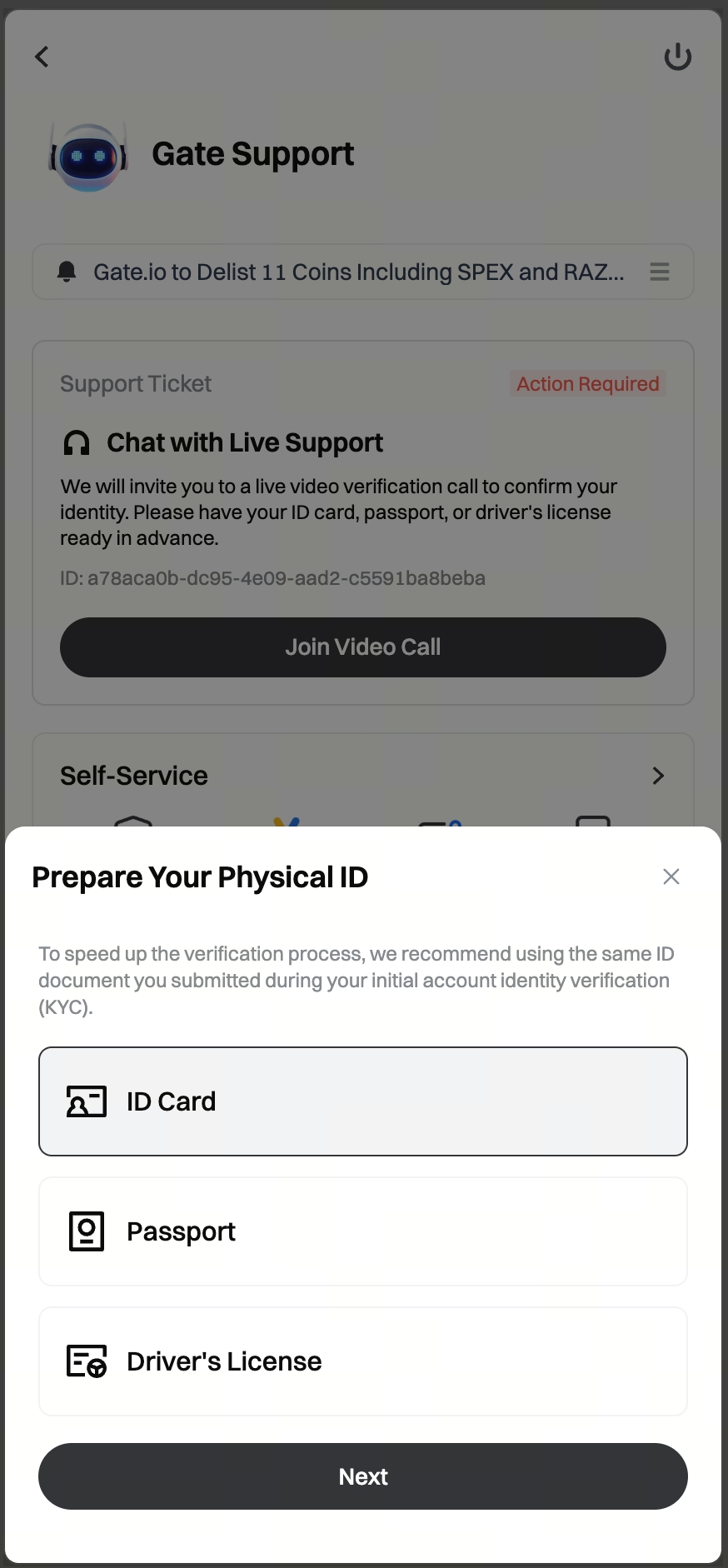
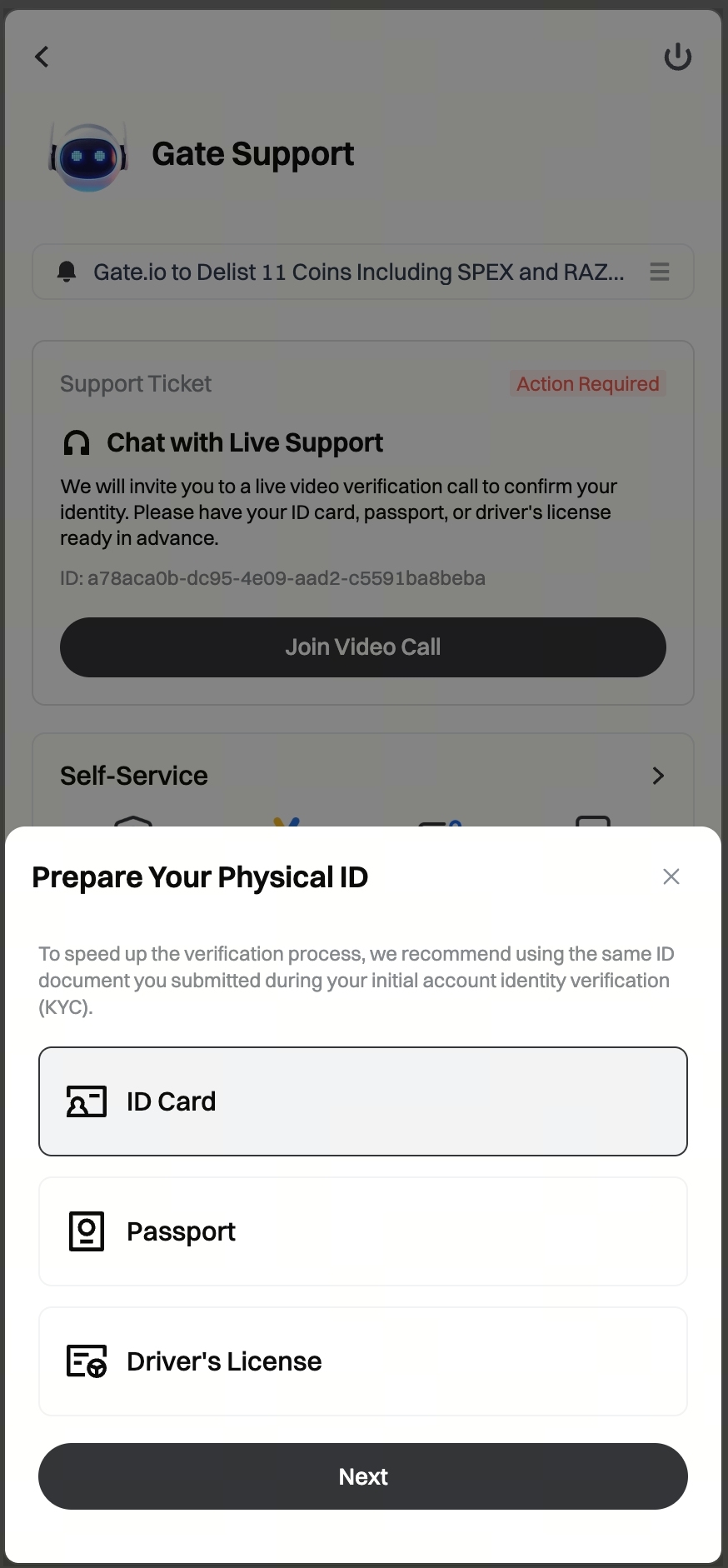
Step 3: Before the call officially starts, the system will remind you to prepare the original ID document used at registration (if not prepared, the video specialist will refuse the verification):
You need to select your registration document type [ID card / Passport / Driver's license];
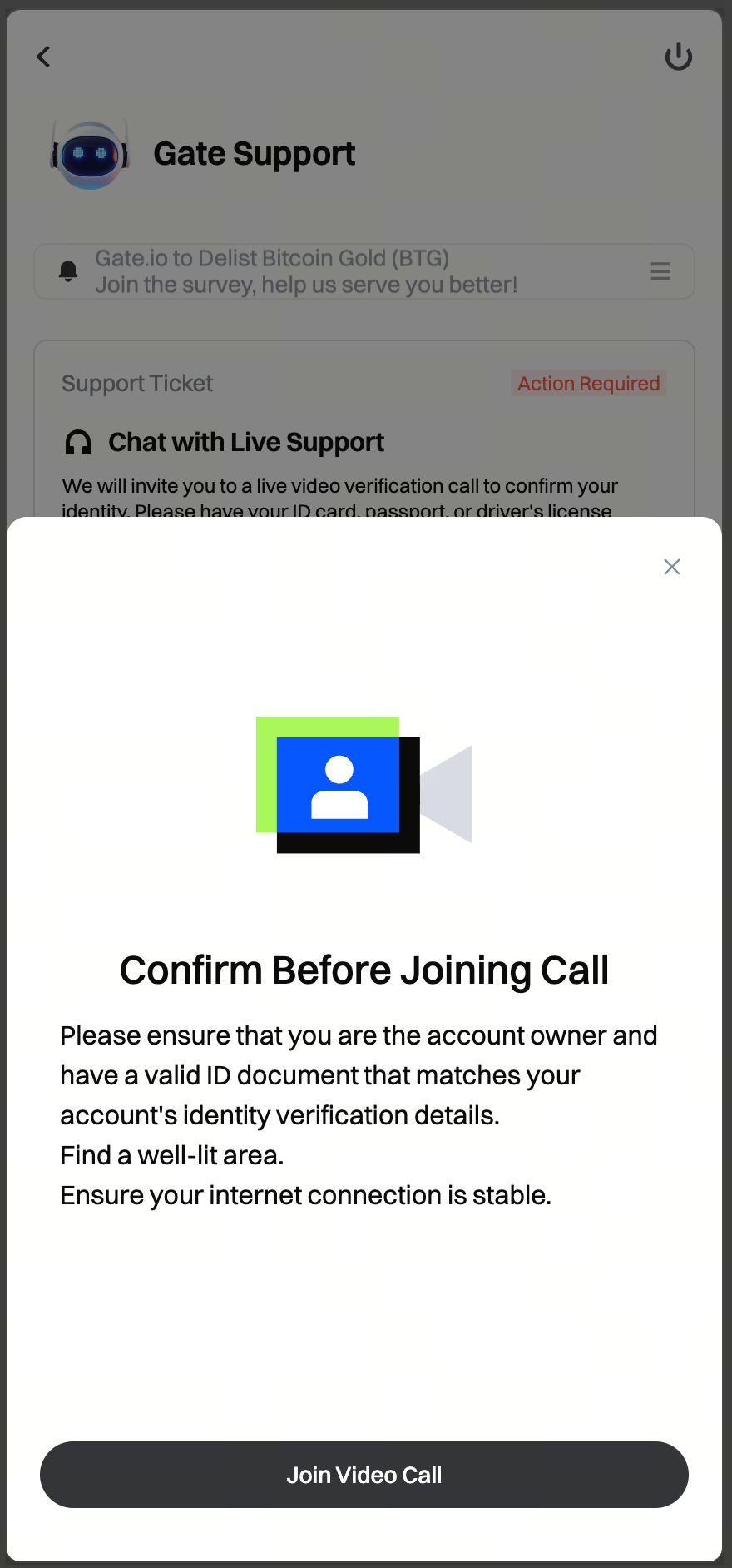
After clicking [Next], you will see the remaining reminders;
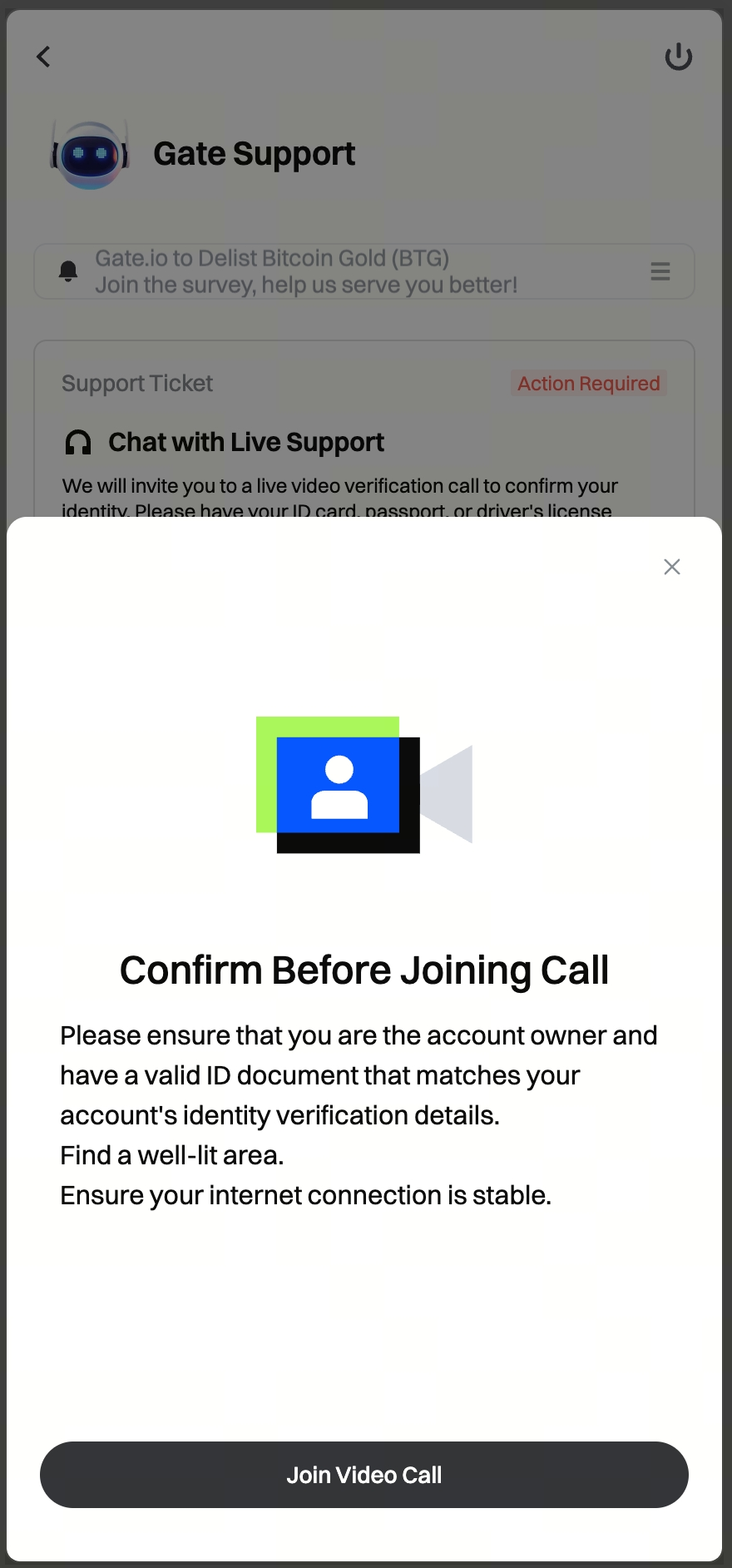
Step 4: After clicking [Join Video Call], you will enter the video verification process. Expected time: 10-30 secondsto complete the transfer.
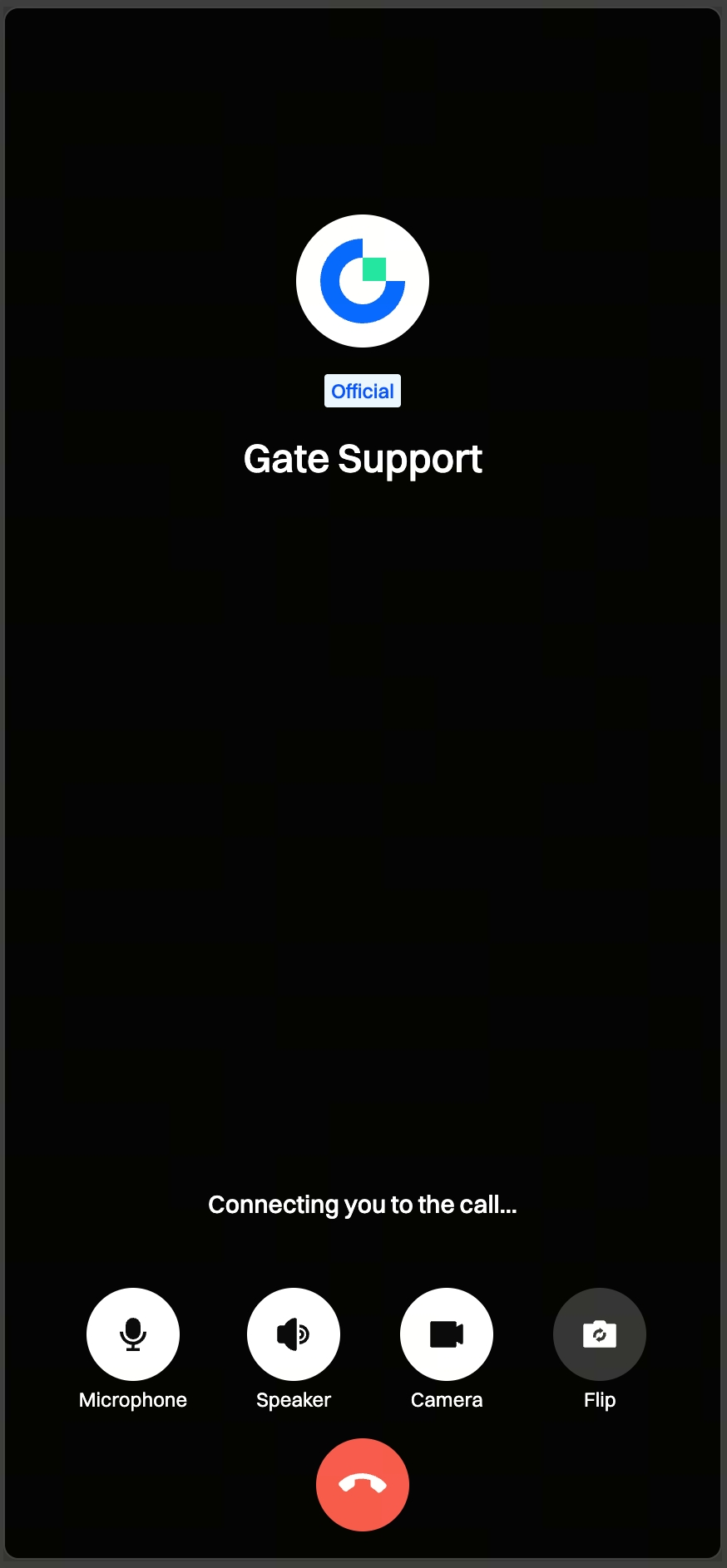
Friendly reminder:
When you click the [Join Video Call] button, in some cases the system may pop up a permission request, such as asking you to allow the Gate app to access the microphone and camera.
To ensure your video verification goes smoothly, please go to [Settings] in advance and allow all relevant permissions to prevent the call from being interrupted. Once authorization is complete, the system will automatically connect you to the video call.
Method 2: Join via the web
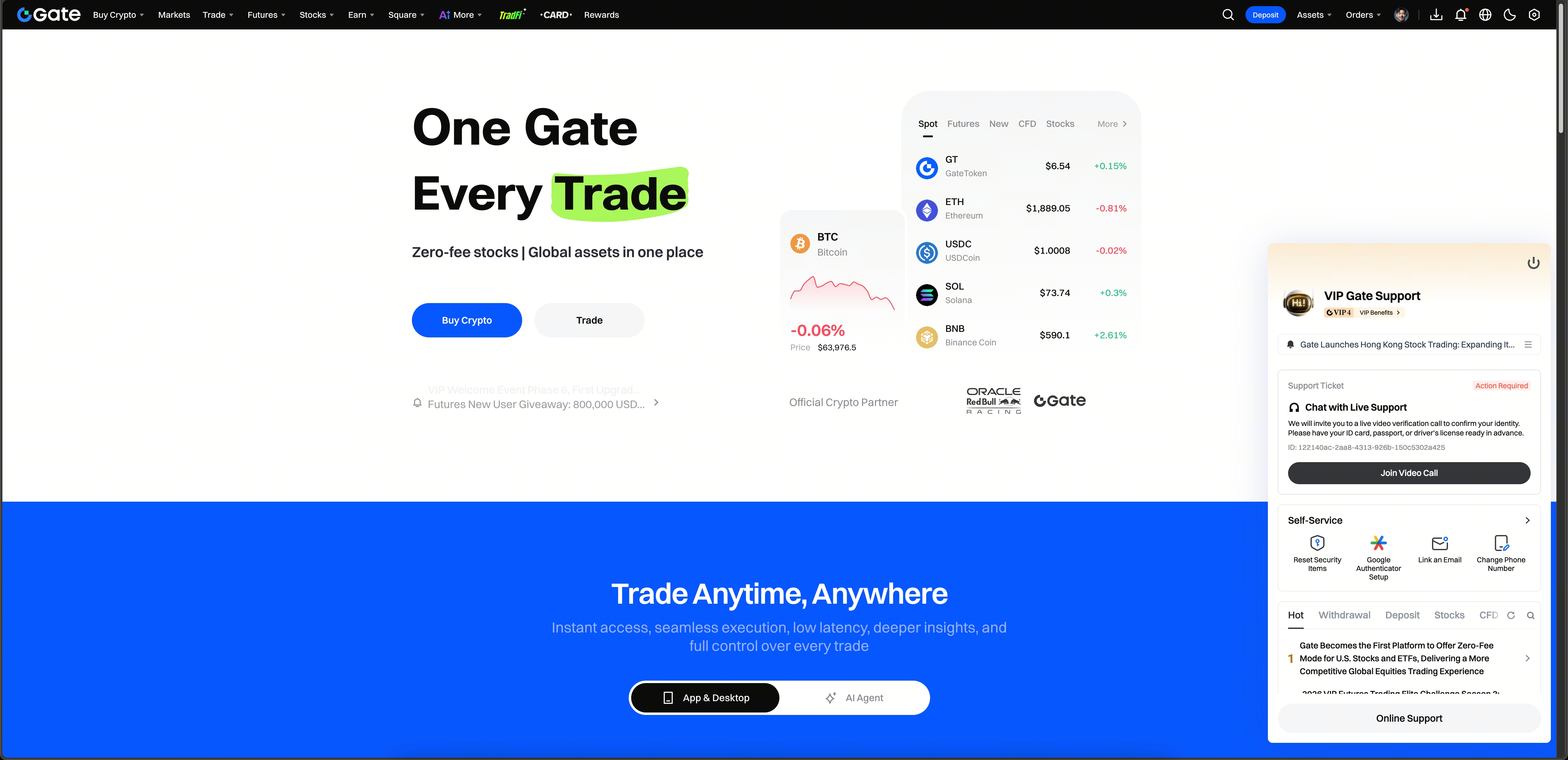
Log in to the Gate official website, go to [Online Support] in the bottom-right corner, find the corresponding ticket, click [Join Video], and after confirming the preparation items, you will enter the call interface.
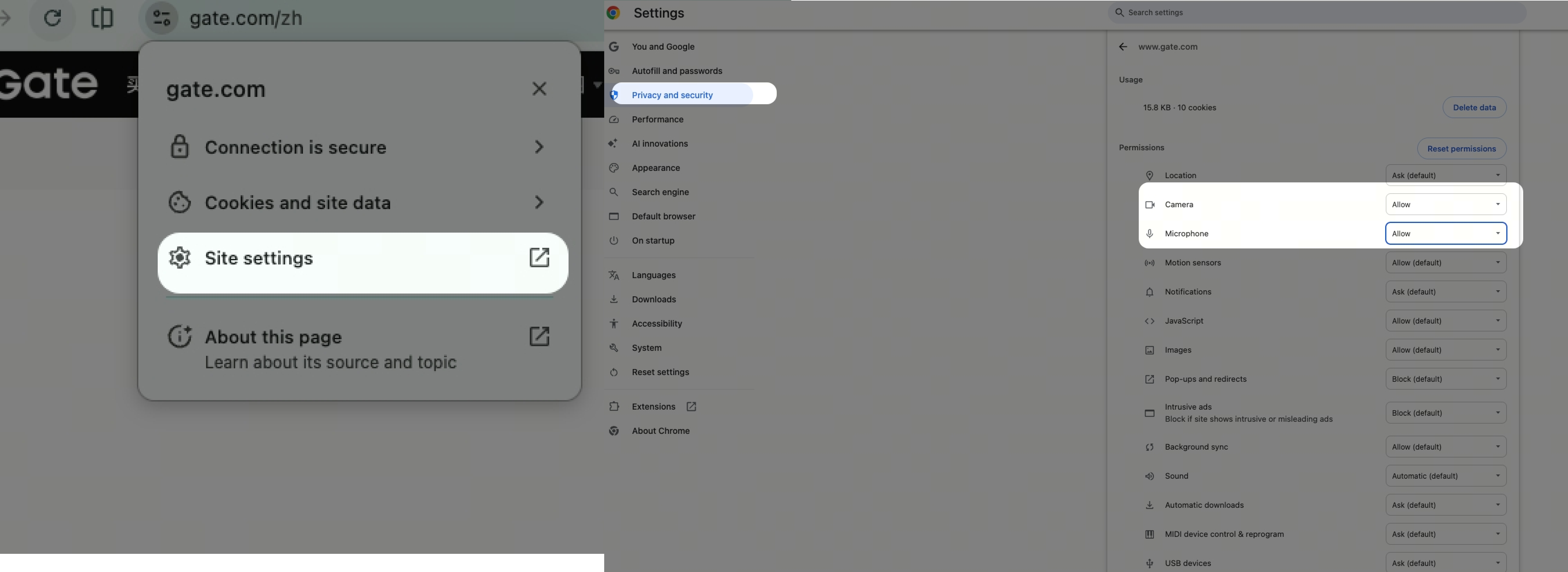
Friendly reminder:After clicking the [Join Video Call] button, in some cases the system may pop up a permission request asking you to allow microphone and camera permissions.Note:To ensure your video verification goes smoothly, please go to [Website Settings] in advance and allow all relevant permissions to ensure the call succeeds
Method 3: Unable to log in to your account for now
If your account has an issue and you cannot log in to view the ticket, the specialist will send the join link to your email. Click the link to complete email verification, and you will be able to enter the web-based video (no login required) verification process.
What does the video verification process generally look like?
Identity confirmation: The specialist will ask you to show the original ID document and check that the photo on the document matches you.
Information verification: Confirm basic account information, such as the registered name and the bound phone number or email.
Simple cooperation and explanation: In some scenarios, you may need to verbally explain the reason for your request or perform a simple operation as instructed by the specialist.
Frequently asked questions
Will the verification leak my privacy?
No. The call content is used only for this identity verification. The system does not support screenshots or screen recording during the process, and the information will not be used for any other purpose.
What should I do if I can't find the video verification entry?
First check whether the app is the latest version. If you still can't find it, try the help center on the web, or contact online customer support to help you look into it.
Can the specialist see my screen during the call?
No. The specialist can only see your camera feed, not anything else on your device, so please rest assured.
If something urgent comes up during the call, can I pause and continue later?
Yes. Just let the specialist know on the spot. The specialist will end the call, and you can return through the same channel to complete the verification when it's convenient for you.
Why do I need to read a passage aloud or give a verbal explanation?
In scenarios such as account unfreezing or dispute handling, the specialist may ask you to give a simple verbal confirmation. This is to further confirm that it is your genuine intention. It is a routine security measure, so there is no need to worry.
What if the verification fails or the call drops midway?
First, check whether your network connection is working properly. Try switching between Wi-Fi and mobile data. Then return to the [Gate Support] page and tap [Join Video Call] again. You can try multiple times.
How can I check the verification progress?
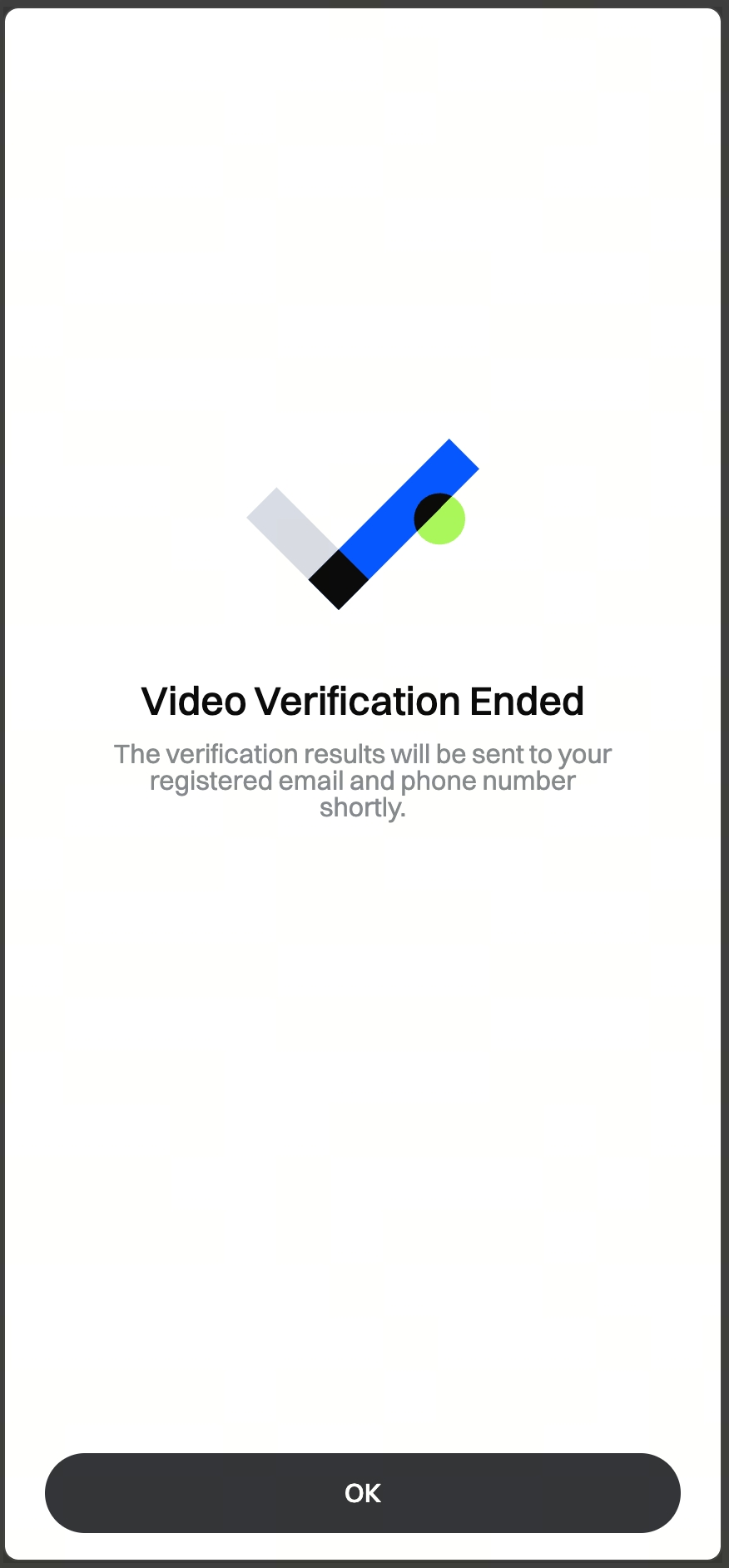
After the video verification is completed, the review result will be sent to your registered email address. Please check your inbox.
Disclaimer
The content provided herein is for reference and educational purposes only and does not constitute any financial, investment, trading, or legal advice, nor does it constitute an offer or solicitation to buy or sell any digital assets. Gate makes no express or implied representations or warranties regarding the accuracy, completeness, or timeliness of the information contained herein. Product features, interfaces, rules, and fee structures may be updated or adjusted at any time. Please refer to the latest announcements and the actual information displayed on the Gate platform for the most accurate details.
Digital asset investments involve significant risk, and prices may fluctuate substantially. You may lose the entire amount of your investment. Please make decisions cautiously based on your own financial situation and risk tolerance after fully understanding the associated risks. If necessary, you are advised to consult an independent professional financial or legal advisor.
For more information about potential risks, please refer to Gate's Risk Disclosure and User Agreement.
