


GatePay's current fiat payment capabilities rely on Stripe for merchant onboarding, verification, and certain fund operations. After merchants complete Stripe account registration and verification, end users will be able to see the fiat payment option at the GatePay checkout and proceed with payment.
Step 1: Log in to the GatePay Merchant Portal
Visit the official Gate login page and log in to the merchant portal (https://www.gate.com/zh/login)
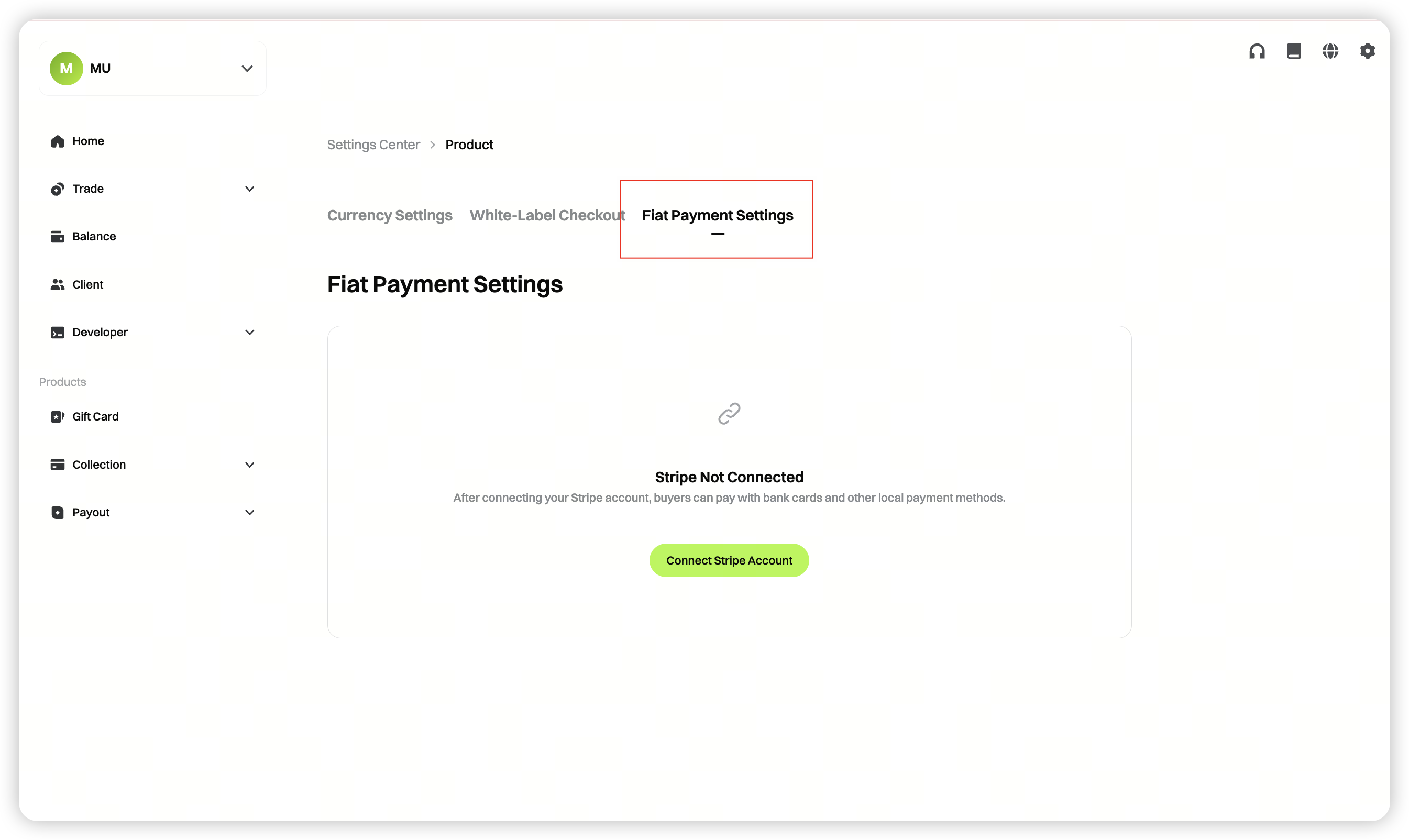
Step 2: Go to the Settings Center and select "Payments" under Product Settings.
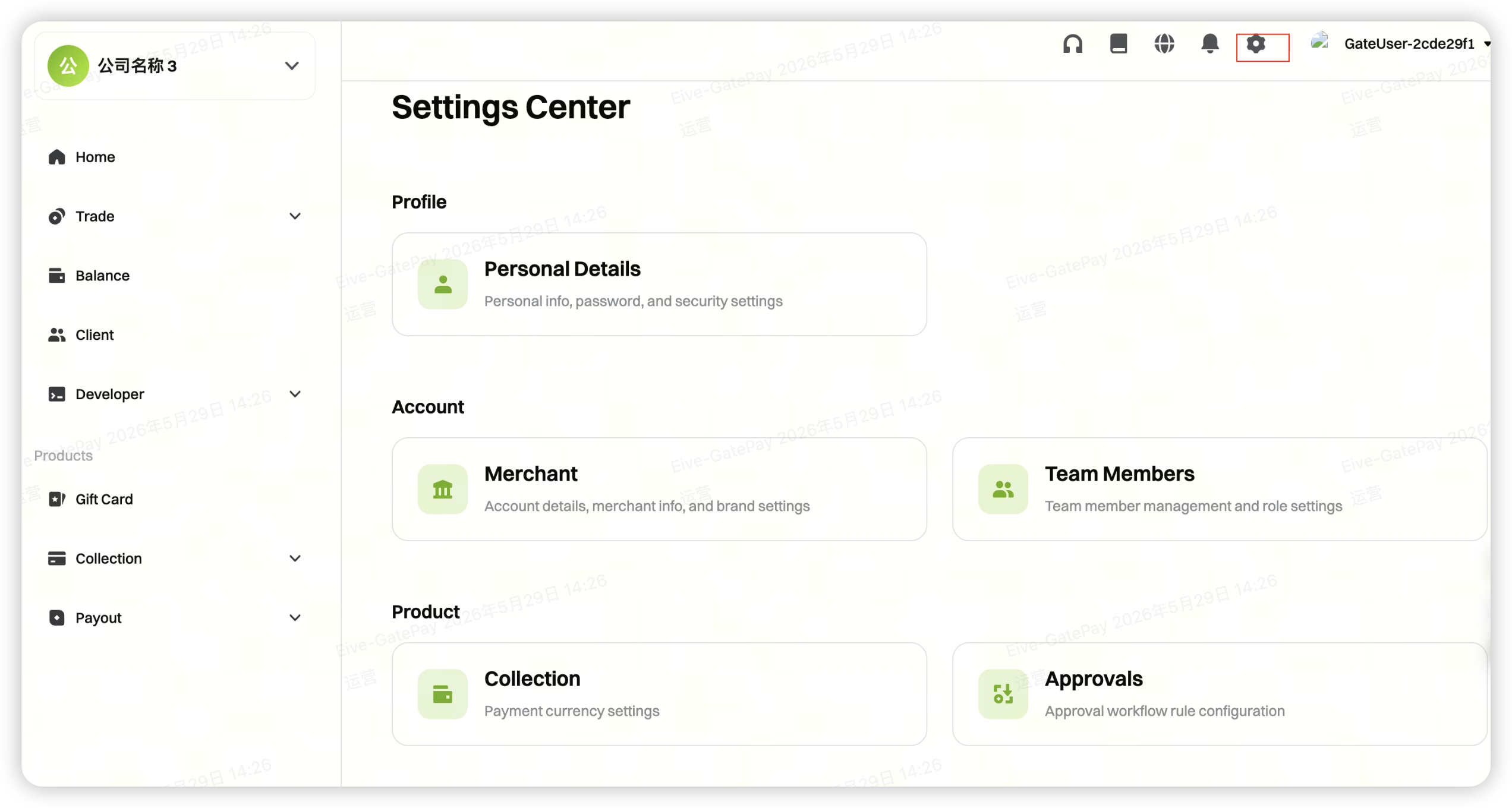
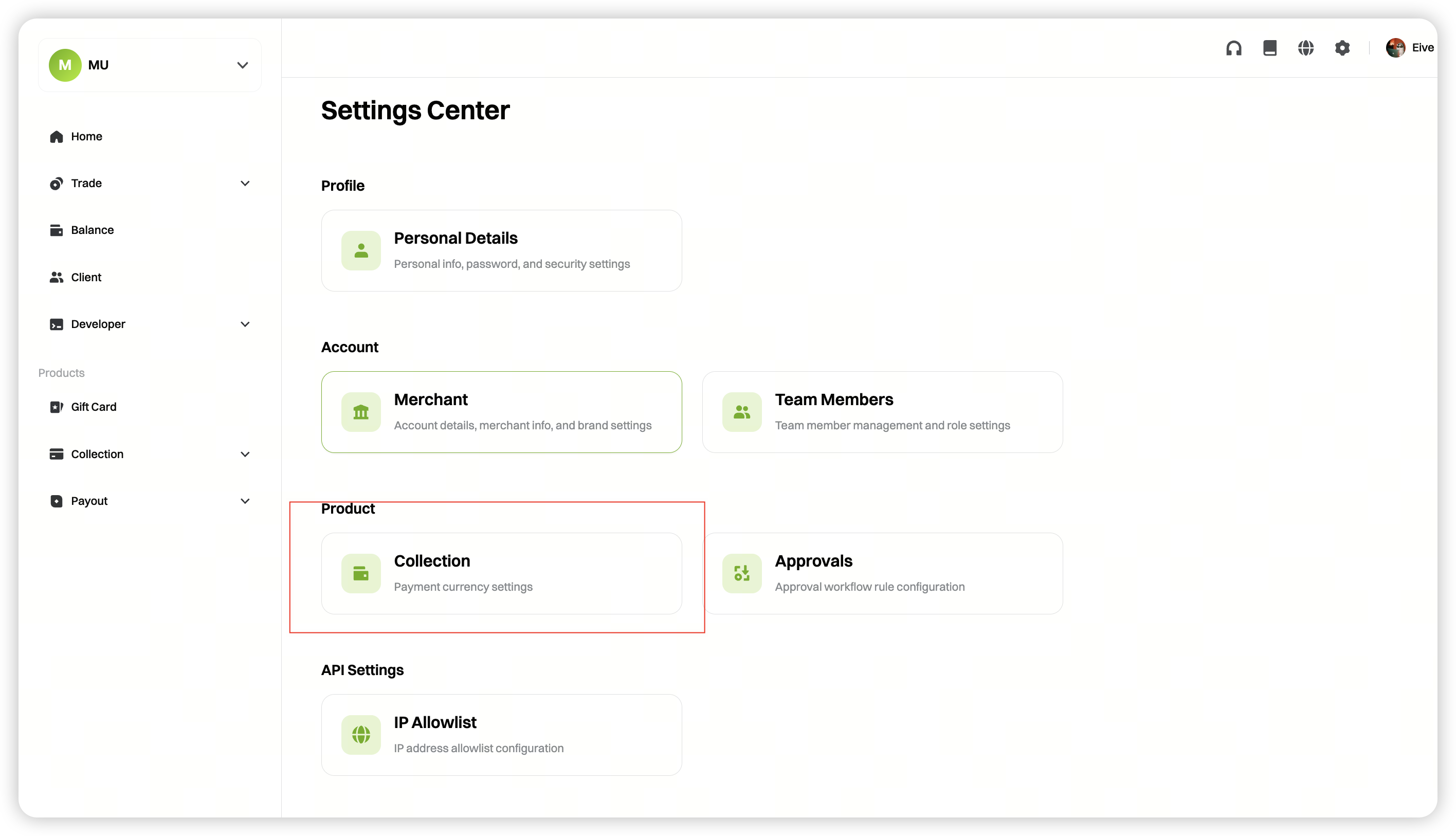
Step 3: Access "Fiat Payment Settings" and Link Your Stripe Account
On the payments settings page, switch to the "Fiat Payment Settings" tab and click "Connect Stripe Account."
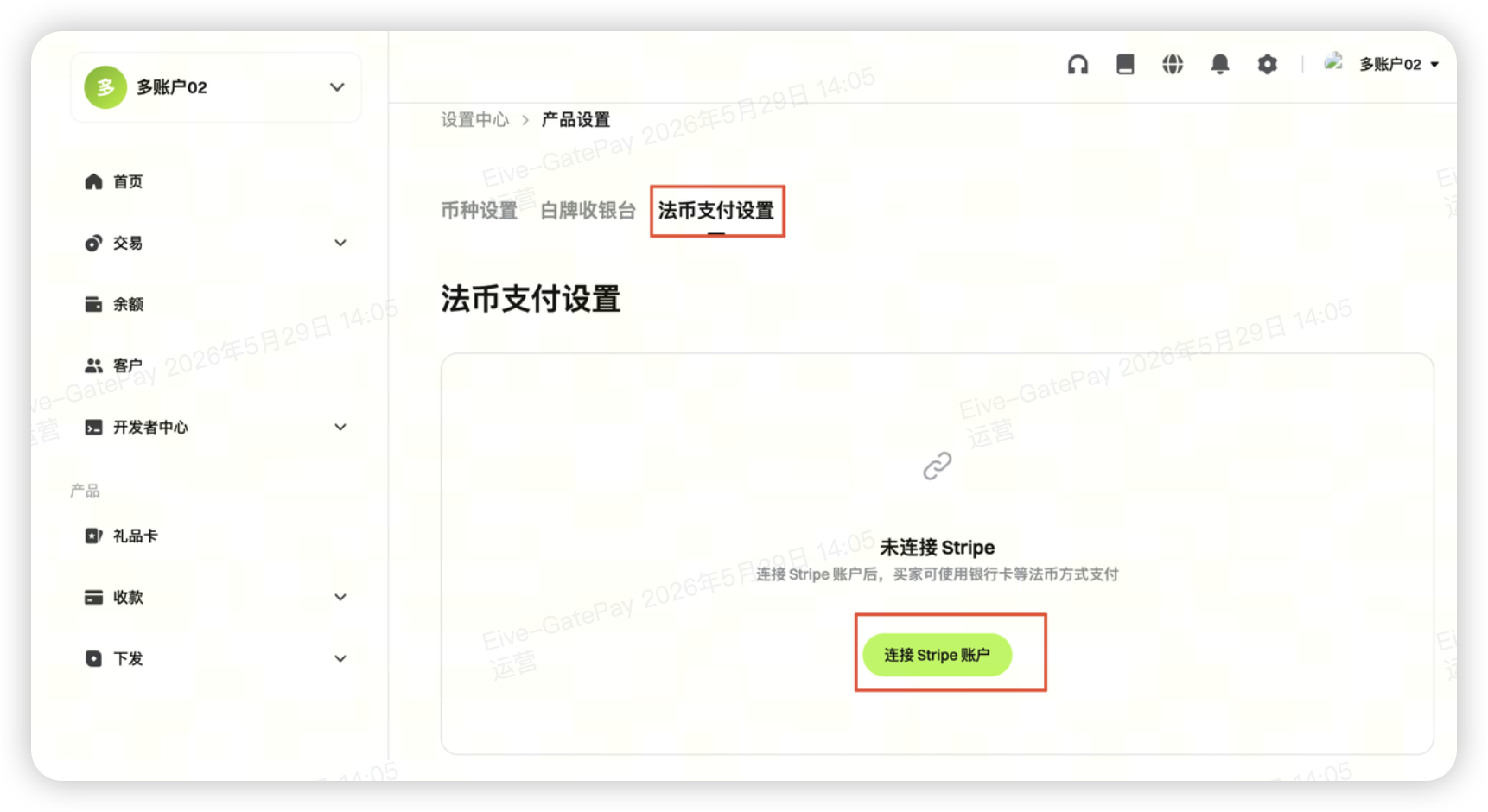
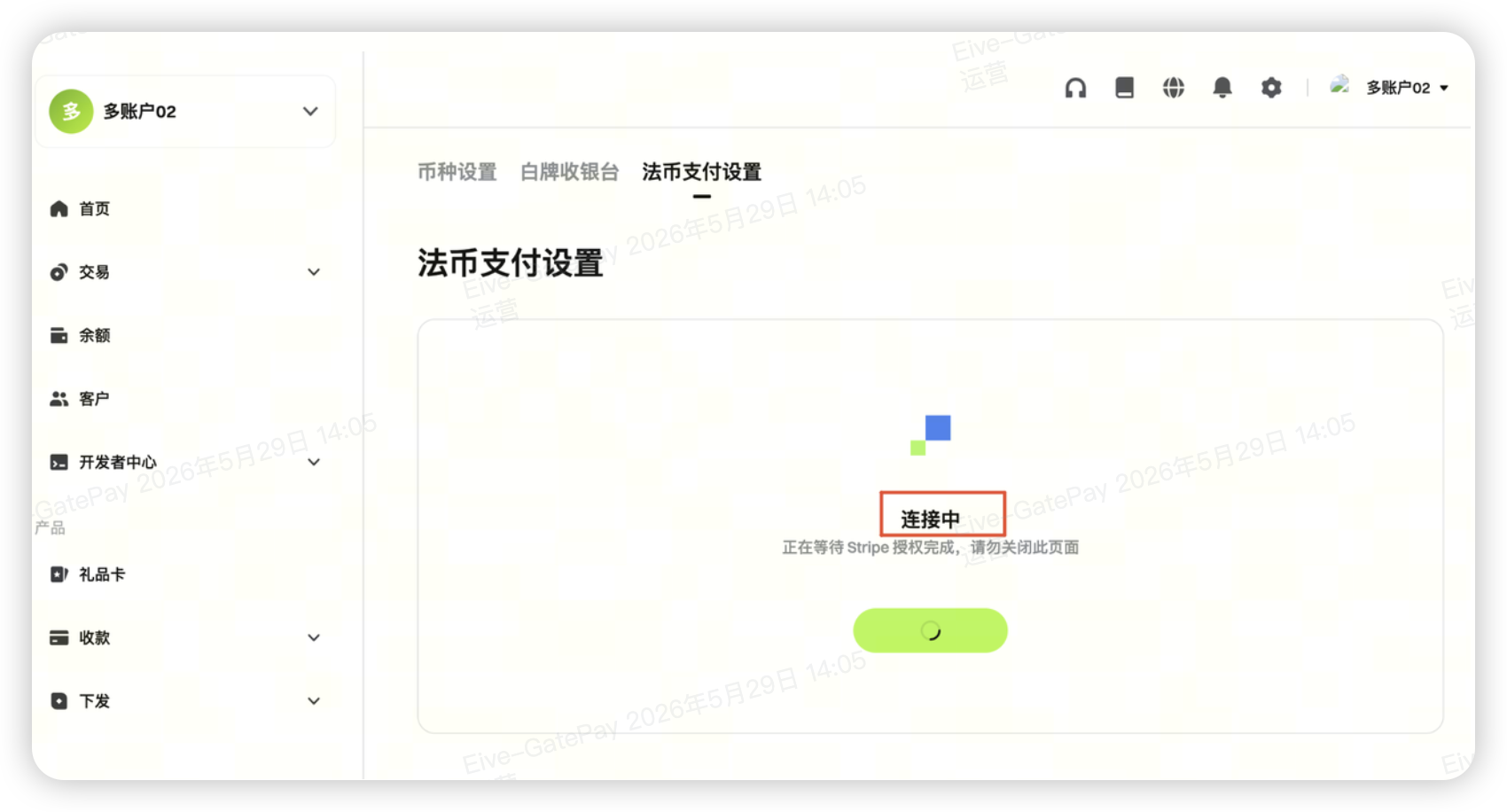
Step 4: Redirect to the Stripe Registration Page and Complete Registration
If you do not have an active Stripe account, the system will redirect you to Stripe's registration/binding page. Follow the prompts on the Stripe page to enter your email, phone number, business information, and representative details to complete account registration.
Frequently Asked Questions
1. Stripe Standard Onboarding: Common Documentation Checklist
Below is a list of documents commonly required during Stripe Standard Onboarding. The actual fields and files needed will vary based on the merchant’s country or region, entity type, business type, and settlement requirements. Please refer to the real-time requirements shown on the Stripe page.
| Document Category | Document Content | Purpose | Common Notes |
|---|---|---|---|
| Basic Business Information | Company/entity name, registered address, contact number | Used to create the Stripe merchant profile | Must match business license or registration documents |
| Business Information | Website URL, store link, description of goods or services | Explains actual business activity and payment purpose | If no website, prepare a clear business description |
| Business Registration Documents | Business license, company registration certificate, articles of incorporation, tax documents, etc. | Verifies entity’s existence | Document name, entity name, and address must match entered info |
| Tax Information | Tax ID, tax registration info, tax certificates | For tax identification and compliance review | If a tax ID is required, ensure correct format |
| Representative Information | Legal representative, actual controller, or authorized person’s name, date of birth, contact info, address | For KYC identity verification | Info must match identity documents |
| Representative Identity Documents | Passport, driver’s license, national ID, or other government-issued documents | For identity verification | Documents must be valid, photos clear, complete, and unobstructed |
| Address Proof | Bank statement, utility bill, address proof from government or financial institution | Verifies personal or business address | Usually must be recent, name/address must match account info |
| Bank Account Information | Settlement account holder name, account number, bank details, bank proof | For settlement to bank account after payment | Account holder name usually must match business entity or compliance representative |
| Ownership/Director Information | Beneficial owners with 25%+ shares, directors, executive info | For beneficial owner and control relationship review | If ownership structure is complex, extra control relationship proof may be needed |
| Authorization Documents | Authorization letter, signature authorization statement | Confirms submitter has authority to open account for business | More common if submitter is not legal representative or cannot be auto-verified |
Document Preparation Tips:
- Ensure all entered information and uploaded files match entity name, address, and representative name.
- Uploaded documents should be clear, complete, unobstructed, and uncropped.
- Identity documents must be valid; if documents have front and back sides, upload both as required.
- Avoid uploading screenshots, compressed/distorted images, or files with obvious edits.
2. Stripe Review Status Explanation
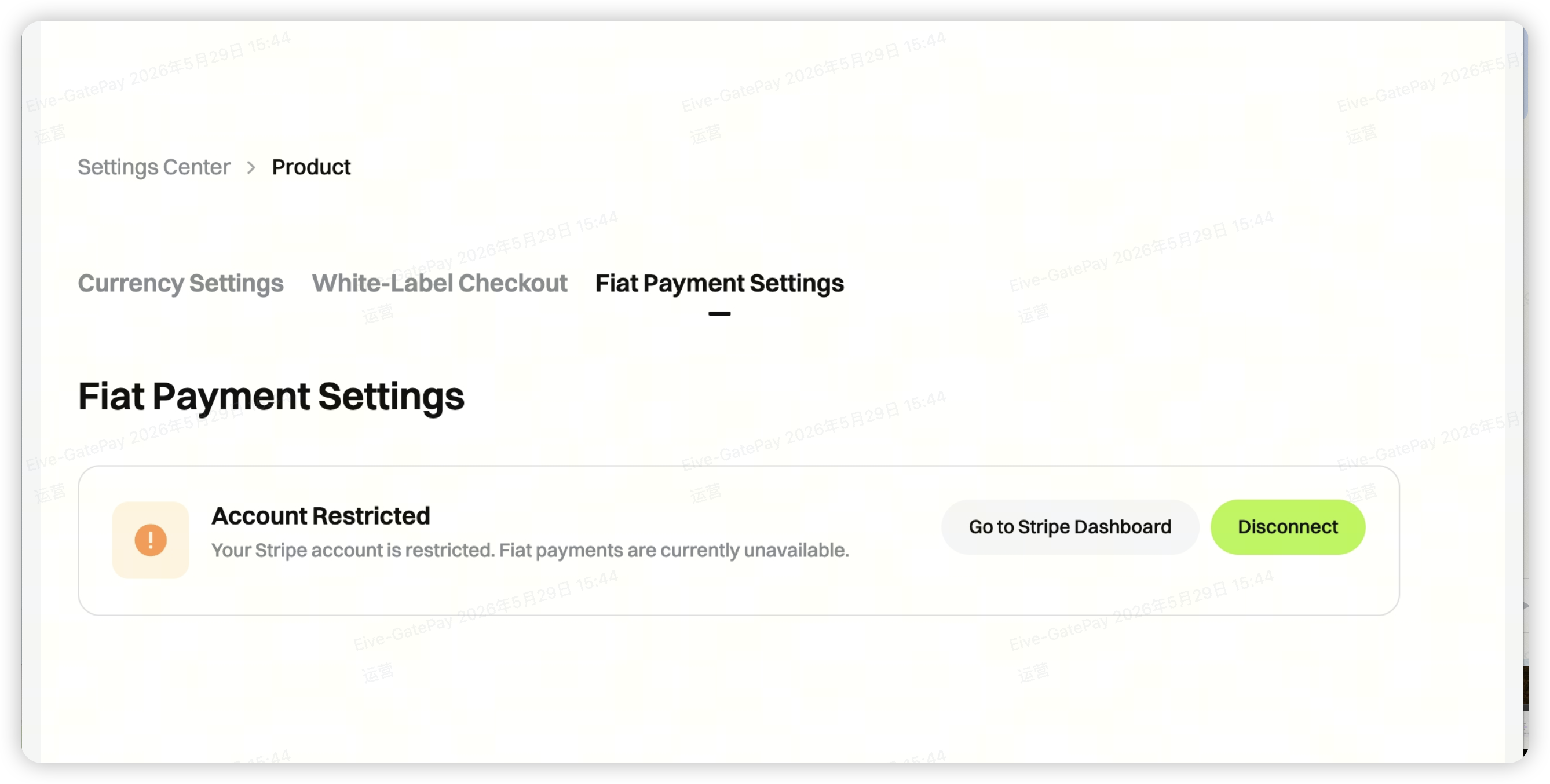
2.1 Under Review: Account Restricted
Before Stripe verification is complete, the account is usually in a restricted state. At this stage, fiat payment capabilities are not yet active, and end users will not see the fiat payment option at the GatePay checkout. If Stripe requests additional or corrected documents, follow the prompts on the Stripe Dashboard page.
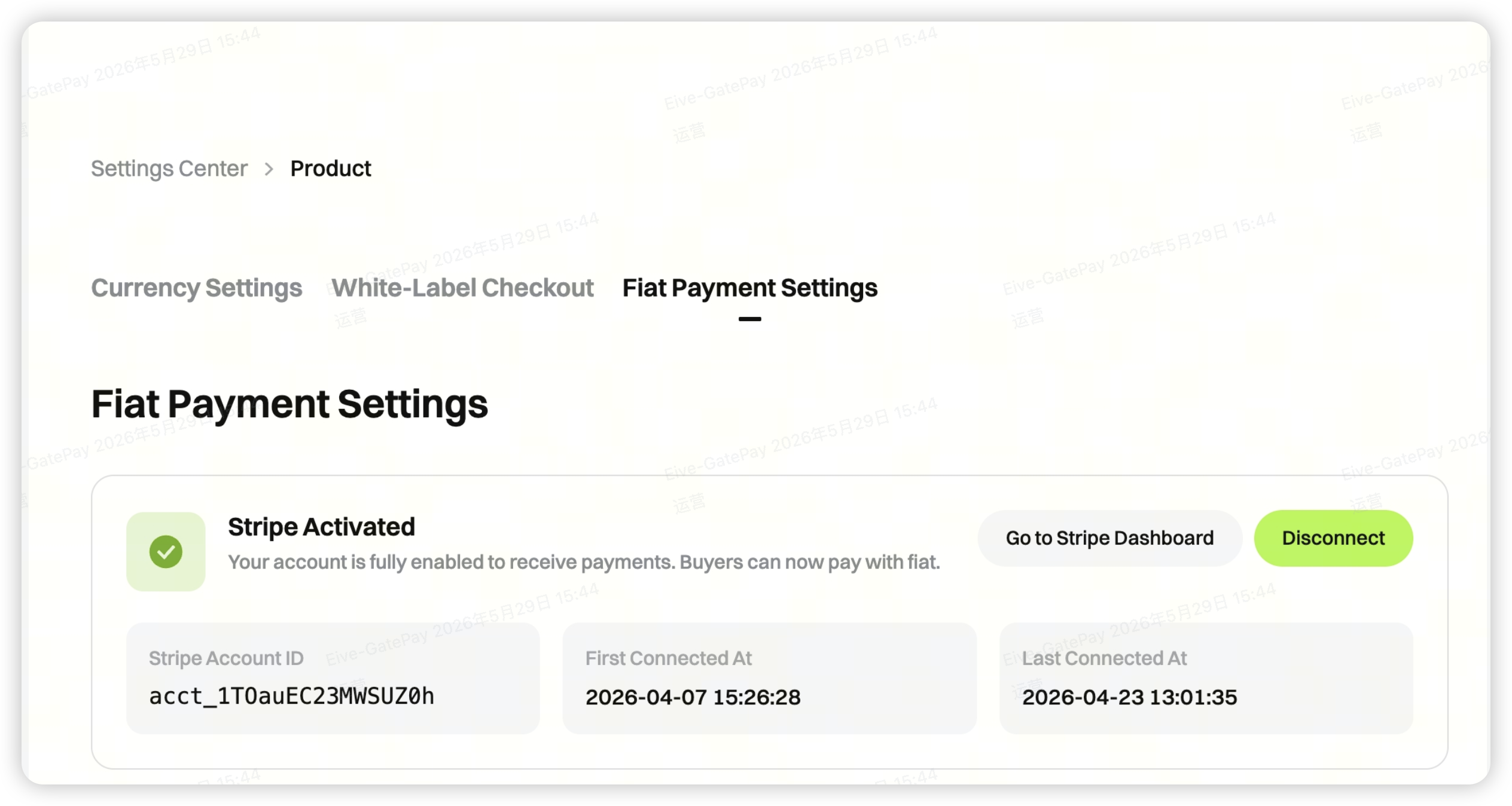
2.2 Approved: Account Activated
Once Stripe verification is approved, the fiat payment settings page will display that Stripe is activated, indicating the account is eligible to receive payments. Buyers can now use fiat payment in supported scenarios.
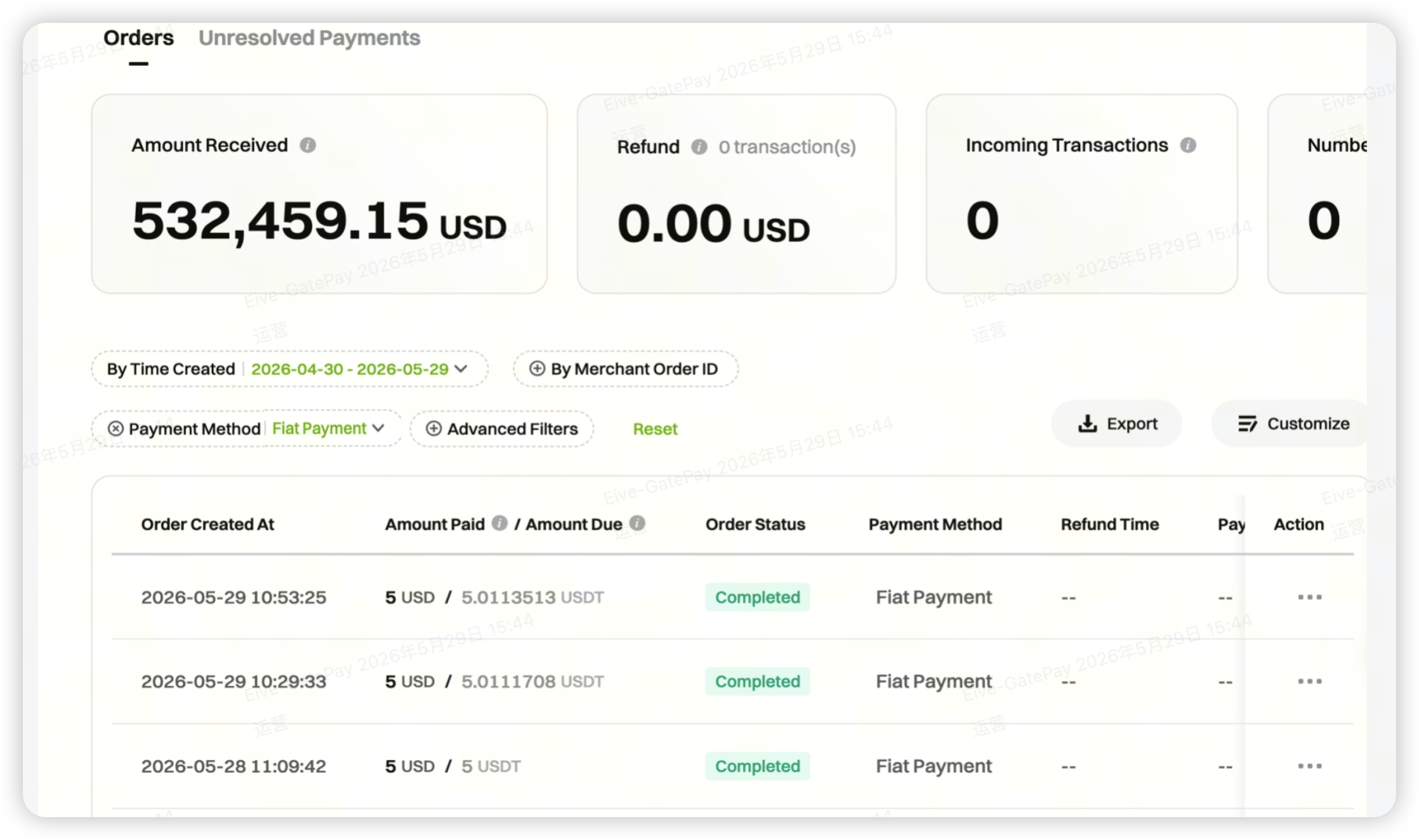
3. Order Viewing
After payment is completed, merchants can view fiat payment orders in the GatePay merchant portal. It is recommended to carefully check the merchant order number, GatePay order number, payment amount and currency, payment status, creation time, and completion time.
4. Refund Instructions
In the current version, if a merchant needs to initiate a refund for a fiat payment order, please complete the refund operation in the Stripe backend. Future versions of GatePay will further integrate Stripe refund capabilities.
- For this release, refunds should be processed via the Stripe backend.
- Before refunding, it is recommended to confirm the original order payment status, refund amount, and internal after-sales policy.
- If the Stripe page indicates risk control or review restrictions, please handle according to Stripe's requirements.
5. Why is the fiat payment option not showing?
- Stripe account has not been approved.
- Stripe is still in a restricted state.
- Merchant still needs to submit additional documents.
- The current order scenario does not meet the conditions for displaying fiat payment.
6. Why does Stripe require more documents?
Stripe dynamically determines required documents based on the merchant’s country or region, business type, transaction risk, settlement requirements, and compliance policies. Even after submitting basic documents, additional materials may be requested during review.
7. Can I submit without a website?
In some cases, a detailed business description can be used instead, but acceptance ultimately depends on Stripe page requirements and review results. It is recommended to provide a website, store link, or product description page that proves real business activity whenever possible.
8. Stripe Official Reference Materials
Stripe Connect Onboarding: https://docs.stripe.com/connect/onboarding
Stripe Hosted Onboarding: https://docs.stripe.com/connect/hosted-onboarding
Stripe Required Verification Information: https://docs.stripe.com/connect/required-verification-information
Stripe Acceptable Verification Documents: https://docs.stripe.com/acceptable-verification-documents
Disclaimer
Stripe account opening, verification, supplemental documentation, and compliance requirements may change dynamically based on national/regional policies, business type, and Stripe platform rules. This article serves only as a general guide for enabling and using GatePay fiat payments and does not constitute legal, tax, or compliance advice. For specific review requirements, please refer to prompts on the GatePay merchant portal, Stripe page, and final review results.
Disclaimer
The content provided herein is for reference and educational purposes only and does not constitute any financial, investment, trading, or legal advice, nor does it constitute an offer or solicitation to buy or sell any digital assets. Gate makes no express or implied representations or warranties regarding the accuracy, completeness, or timeliness of the information contained herein. Product features, interfaces, rules, and fee structures may be updated or adjusted at any time. Please refer to the latest announcements and the actual information displayed on the Gate platform for the most accurate details.
Digital asset investments involve significant risk, and prices may fluctuate substantially. You may lose the entire amount of your investment. Please make decisions cautiously based on your own financial situation and risk tolerance after fully understanding the associated risks. If necessary, you are advised to consult an independent professional financial or legal advisor.
For more information about potential risks, please refer to Gate's Risk Disclosure and User Agreement.
