


1. What Are Easy Options?
Easy Options is a tool designed to help you select option contracts more easily. All you need to do is answer two questions:
- Do you think the underlying asset will rise or fall?
- What price do you hope it will reach before expiration?
Based on your target price, the current index price, and the expiration date, the system will automatically filter contracts from the option chain and display recommended cards. You can review each card’s estimated profit, maximum loss, and a profit/loss diagram before deciding whether to proceed with a one-click trade.
2. What You Need to Know Before Getting Started
1. Scope of Application
Easy Options supports both live trading and simulated trading.
If your account is disabled, you won’t be able to use these trading services.
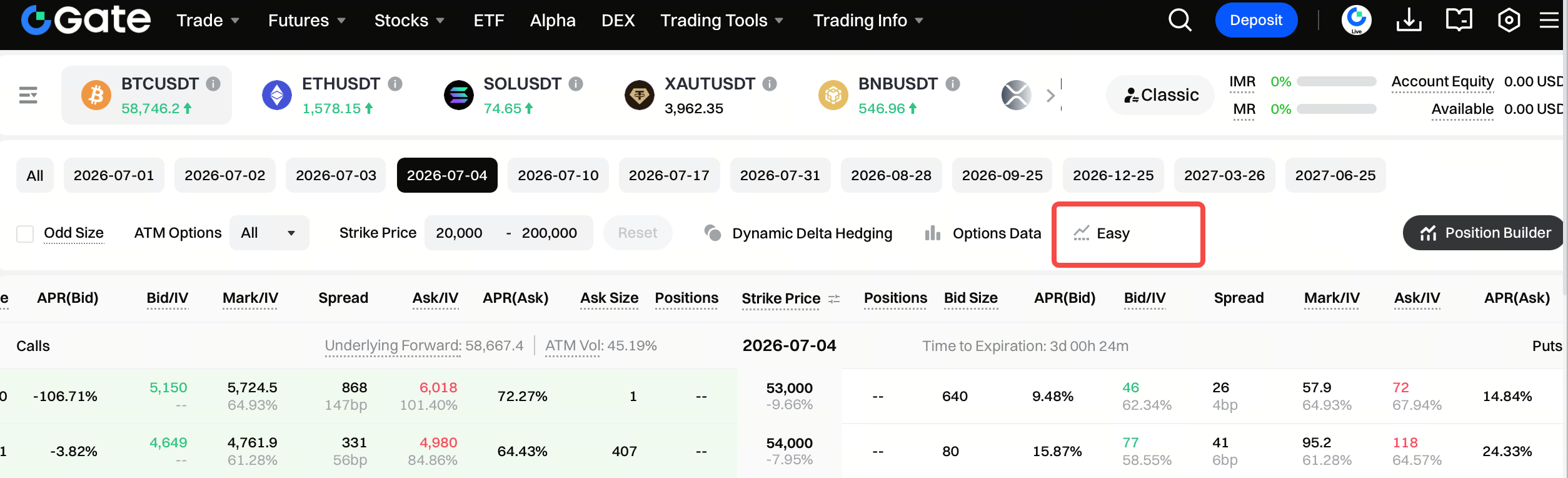
2. Where to Find It
You can access Easy Options from two locations:
3. Default Target Price
If you haven’t entered a target price before, the system will use:
Target Price = Current Index Price × 105%
In other words, by default, it assumes you expect the underlying asset to rise by about 5%.
3. How to Complete Your First Easy Options Trade Quickly
Step 1: Open the Options Trading Page
Go to the options web trading page and select the underlying asset you want to trade, such as BTC or ETH.
The page will display the option chain, index price, different expiration dates, and corresponding contracts for your chosen asset.
Step 2: Open the Easy Options Panel
Click the Easy Options entry on the page.
Once opened, the Easy Options panel will appear on the right. The panel will automatically read the current index price for your selected asset and default to the nearest available expiration date.
If you open from the toolbar entry:
- The main area will originally display the option chain at full width.
- After opening, the Easy Options area will expand.
- The default target price will be 105% of the current index price.
- Previous input data will not be loaded.
If you open from the trading area entry:
- The system will prioritize loading your last inputted target price and expiration date.
- If there’s no previous data, the default target price will be 105% of the current index price.
Step 3: Choose Your Market View
At the top of the panel, you’ll see four sentiment options:
| View | Meaning | Default Target Price |
|---|---|---|
| Rise | Expect a slight rise | Current Index Price × 105% |
| Strong Rise | Expect a significant rise | Current Index Price × 110% |
| Strong Fall | Expect a significant drop | Current Index Price × 90% |
| Fall | Expect a slight drop | Current Index Price × 95% |
Clicking any sentiment icon will automatically adjust the target price to the corresponding level and recalculate the recommended contracts.
For example:
If BTC’s current index price is 100,000 and you click “Rise,” the target price will automatically become 105,000.
Step 4: Adjust the Target Price
You can also manually enter your target price.
After entering, the system will instantly calculate the percentage change relative to the current index price and automatically match the corresponding market view.
The target price can be set between 0.5x and 2x the current index price.
If you enter a value outside this range, the system will automatically adjust it to the nearest boundary.
Step 5: Switch Between Price and Percentage Input
Next to the target price input box, you can switch input modes:
- Price Mode: Enter the target price directly.
- Percentage Mode: Enter the percentage increase or decrease you expect.
When you switch input modes, the system will automatically calculate the percentage based on the current target price, or calculate the target price based on the percentage.
Calculation formulas:
Percentage Change = (Target Price ÷ Current Index Price - 1) × 100%
Target Price = Current Index Price × (1 + Percentage Change)
Percentage input range: -50% to 100%
Step 6: Choose the Expiration Date
Select the expiration date below the target price.
The system will default to the nearest available expiration date. You can scroll horizontally to switch to other expiration dates.
When you change the expiration date, the system will only recommend contracts within that date’s range. The strike price, profit metrics, and profit/loss chart in the recommended cards will all update.
Note:
The expiration date selected in the Easy Options panel takes precedence. Manually switching expiration dates in the option chain table will not affect the recommendations in the Easy Options panel.
Step 7: Review the Recommended Contract Cards
Once you’ve chosen your target price and expiration date, the system will display recommended contract cards.
Each card typically includes:
- Recommended strategy title
- Contract direction (e.g., Buy Call, Buy Put, Sell Call, Sell Put)
- Expiration profit rate
- Estimated profit at expiration
- Maximum loss
- Profit/loss diagram
- Trade button
4. What Will Be Recommended for Different Market Views
Easy Options will recommend different types of contracts based on your market view.
| Your View | Common Recommendation Direction | How to Interpret It |
|---|---|---|
| Rise | Buy Call, Sell Put | Bullish, with options for low cost or premium collection |
| Strong Rise | Buy higher Delta Calls, low-cost out-of-the-money Calls | More bullish, seeking higher upside participation |
| Fall | Buy Put, Sell Call | Bearish, or generate income by selling Calls |
| Strong Fall | Buy higher absolute Delta Puts, low-cost out-of-the-money Puts | More bearish, seeking downside protection or returns |
In simple terms:
- Buy Call: The more the asset rises, the higher the potential profit.
- Buy Put: The more the asset falls, the higher the potential profit.
- Sell Call: Suitable if you believe upside is limited, but risk can be higher.
- Sell Put: Suitable if you believe downside is limited, but risk can be higher.
Selling options can carry higher risk. Beginners are advised to use the simulated trading mode first to understand profit and loss changes.
5. Frequently Asked Questions
Q1: Why does the recommended contract change when I adjust the target price?
Because the system calculates the percentage change based on the target price and re-evaluates whether your view is Rise, Strong Rise, Fall, or Strong Fall. When your view changes, the recommended contract type and Delta will also change.
Q2: Why does the strike price change when I switch expiration dates?
The option chain differs for each expiration date. The system will search for the contract closest to your target Delta within the selected expiration date, so the strike price may change.
Q3: Why doesn’t Easy Options update when I switch expiration dates in the option chain table?
The expiration date in the Easy Options panel is independent. Recommendations are based solely on the date selected within the panel.
Q4: Why are there sometimes no recommended contracts?
If there are no contracts within the specified expiration date that meet the Delta range, the system may not recommend any cards. Try switching expiration dates or adjusting the target price.
Q5: Can I place an order directly from the recommended card?
Clicking the trade button will take you to the Trade page with the contract info pre-filled. You’ll still need to review and confirm your order before submitting.
6. A Complete Example
Suppose BTC’s current index price is 100,000 and you believe BTC will rise slightly before the next expiration date.
- Open the options trading page and select BTC.
- Click Easy Options.
- Choose “Rise.”
- The system automatically fills in a target price of 105,000.
- Select the nearest available expiration date.
- Review the recommended card, such as buying a Call or selling a Put.
- Compare the expiration profit rate, estimated profit at expiration, and maximum loss.
- Click the card you want to trade.
- On the Trade page, confirm the contract, quantity, and order details.
- Submit the order after confirming all details are correct.
7. Risk Warning
Easy Options is a tool to assist with contract selection and does not constitute investment advice. Options trading can result in significant losses, and selling options carries particularly high risk. Please make sure you fully understand the product rules and your own risk tolerance before trading.
Disclaimer
The content provided herein is for reference and educational purposes only and does not constitute any financial, investment, trading, or legal advice, nor does it constitute an offer or solicitation to buy or sell any digital assets. Gate makes no express or implied representations or warranties regarding the accuracy, completeness, or timeliness of the information contained herein. Product features, interfaces, rules, and fee structures may be updated or adjusted at any time. Please refer to the latest announcements and the actual information displayed on the Gate platform for the most accurate details.
Digital asset investments involve significant risk, and prices may fluctuate substantially. You may lose the entire amount of your investment. Please make decisions cautiously based on your own financial situation and risk tolerance after fully understanding the associated risks. If necessary, you are advised to consult an independent professional financial or legal advisor.
For more information about potential risks, please refer to Gate's Risk Disclosure and User Agreement.
