


Applicability
This article applies to: Gate Web
Before you begin: Log in to your Gate account and enable futures trading
Estimated time: 3 minutes
Objective
This article explains how to set a liquidation alert threshold on Gate Web.
Steps
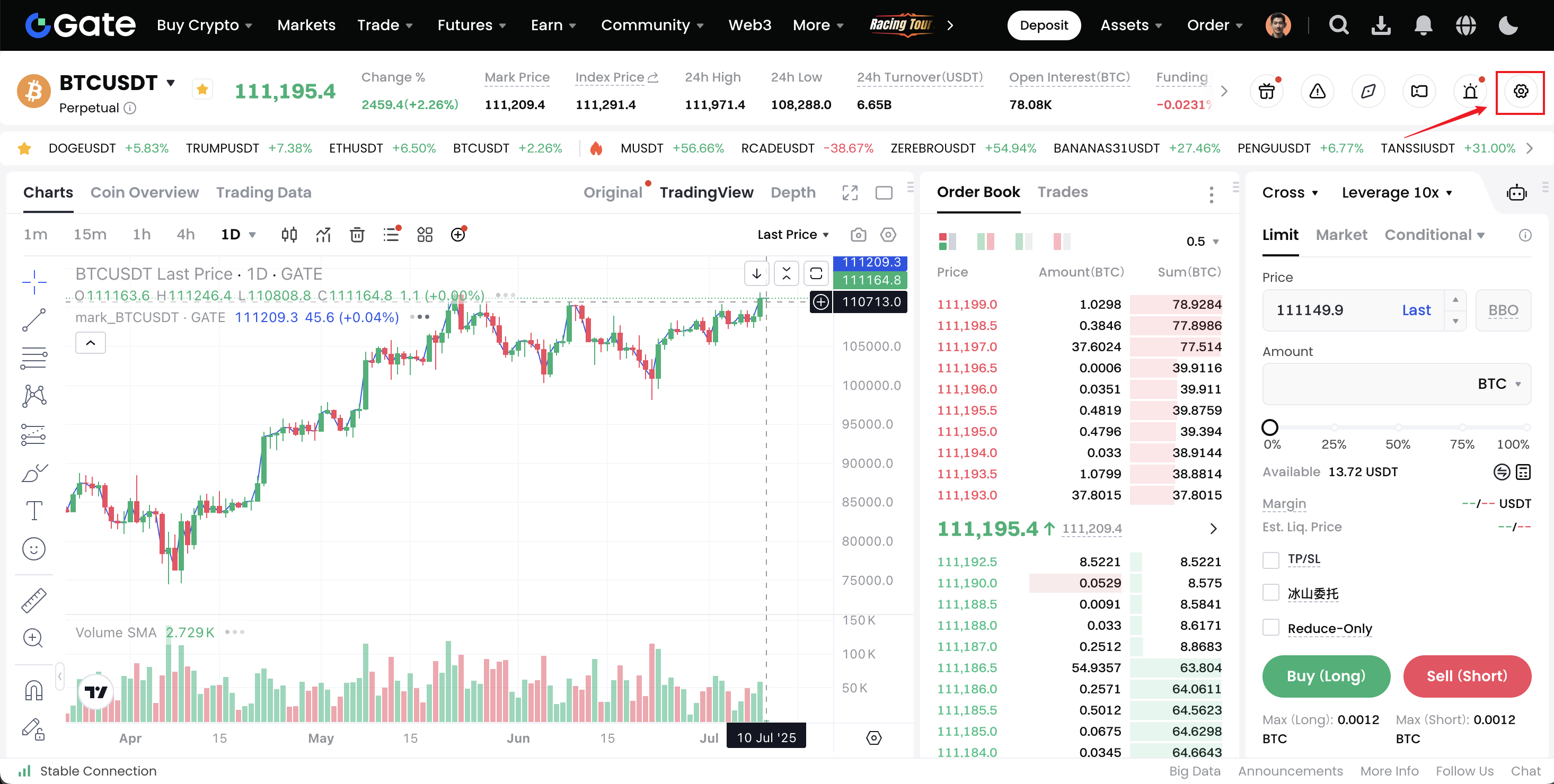
Step 1: Go to the Trading Settings page
- Log in to your Gate account.
- Go to the [Futures] page.
- Click the [Trading Settings] icon in the upper-right corner of the page.
Step 2: Find the liquidation alert option
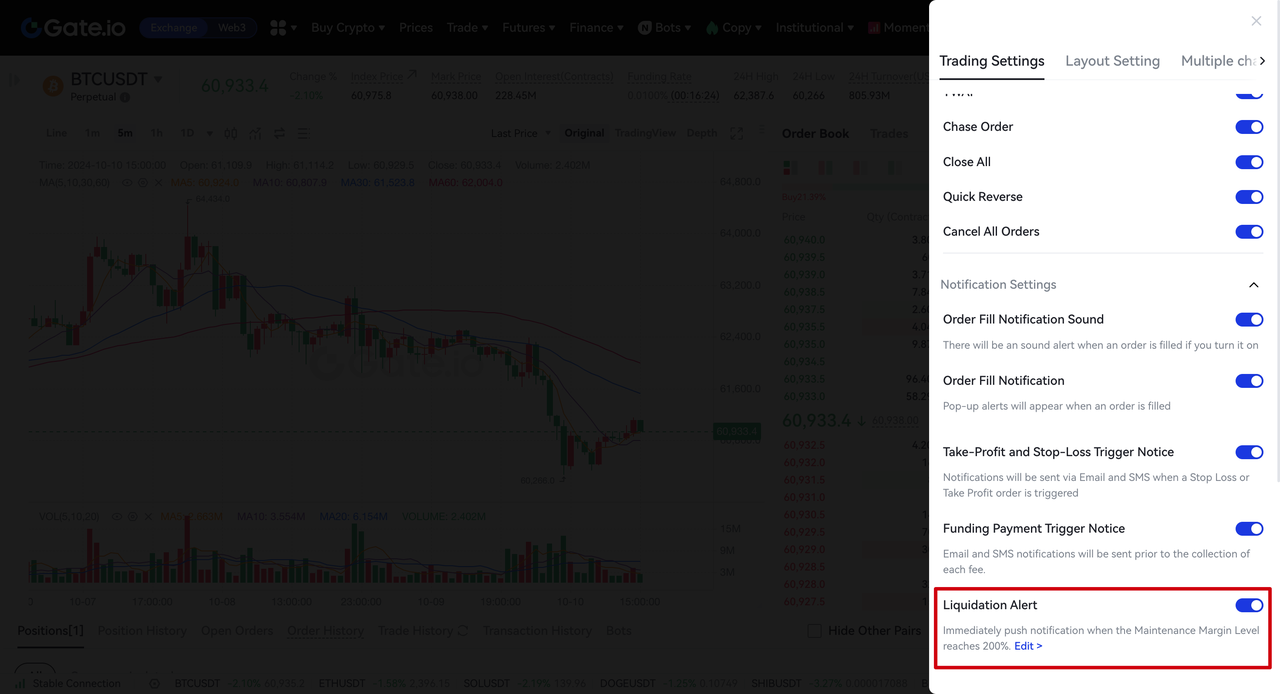
- On the Trading Settings page, find the [Notification] section.
- Locate the [Liquidation Alert] option.
- Click the arrow icon on the right.
Step 3: Set the alert threshold
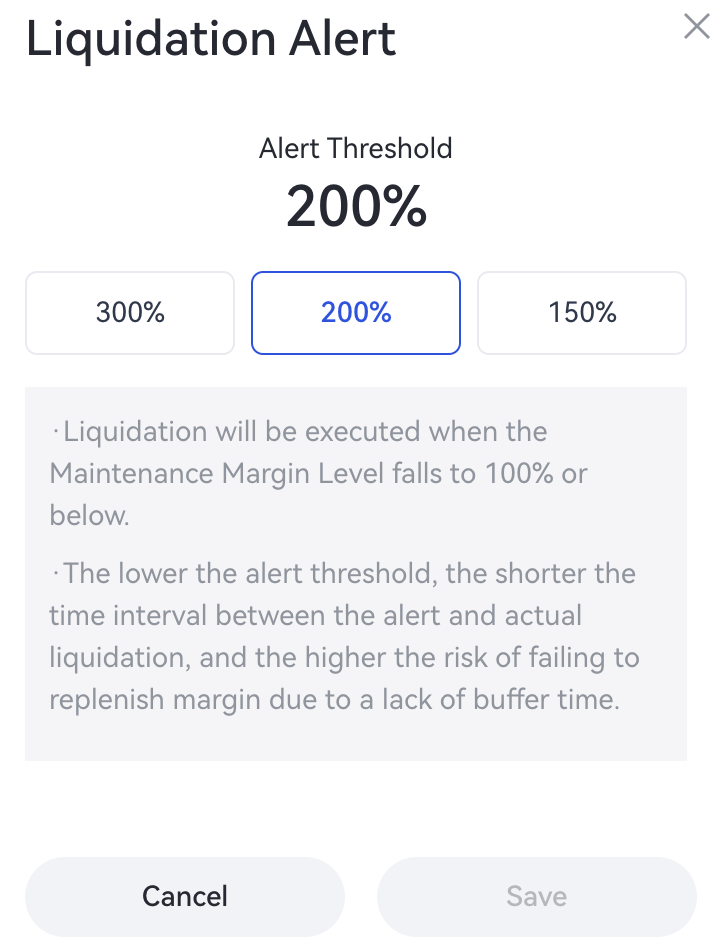
- In the pop-up [Customize Liquidation Alert] window, select a margin ratio alert threshold.
- You can select [300%], [200%], or [150%] ([200%] is the default).
- After making your selection, click [Save] to confirm the setting.
Notes
- Alert notifications are sent once every 4 hours. If you have already received a notification within the past 4 hours, the system will check again and send another notification after 4 hours.
- Under special circumstances, such as extreme market conditions, messages may be delayed. We recommend monitoring changes to your account and positions on the platform in real time and managing risk promptly.
- If you disable the liquidation alert feature, you will not receive any alert notifications. When you re-enable it, the system will automatically restore the default threshold (200%).
- Liquidation alerts are for risk notification purposes only and cannot completely prevent liquidation. Please manage your position size and leverage appropriately.
FAQs
Q1: Why have I not received a notification after setting a liquidation alert?
A: Please check the following: 1) Confirm that the liquidation alert feature is enabled; 2) Confirm that your margin ratio has reached the configured threshold; 3) Confirm that system notification permissions are enabled; and 4) Messages may be delayed during extreme market conditions, so we recommend checking your position status proactively.
Q2: Can I set multiple alert thresholds at the same time?
A: Currently, the system supports only one alert threshold. You can choose one of 300%, 200%, or 150% based on your risk preference.
Q3: If I disable and then re-enable alerts, will my previous settings be retained?
A: No. When you re-enable the liquidation alert feature, the system automatically restores the default threshold setting (200%). You will need to customize it again.
Disclaimer
The content provided herein is for reference and educational purposes only and does not constitute any financial, investment, trading, or legal advice, nor does it constitute an offer or solicitation to buy or sell any digital assets. Gate makes no express or implied representations or warranties regarding the accuracy, completeness, or timeliness of the information contained herein. Product features, interfaces, rules, and fee structures may be updated or adjusted at any time. Please refer to the latest announcements and the actual information displayed on the Gate platform for the most accurate details.
Digital asset investments involve significant risk, and prices may fluctuate substantially. You may lose the entire amount of your investment. Please make decisions cautiously based on your own financial situation and risk tolerance after fully understanding the associated risks. If necessary, you are advised to consult an independent professional financial or legal advisor.
For more information about potential risks, please refer to Gate's Risk Disclosure and User Agreement.
