


Want your live room to be more lively and interactions more engaging?
Gate Live’s co-streaming feature and supporting components are now officially live! Say goodbye to one-way communication from the streamer. With one click, start co-streaming and enjoy real-time voice interaction. Turn viewers from “bystanders” into “participants” and build a high-engagement live streaming ecosystem! Learn more
1. Co-Streaming Use Cases
The co-streaming feature is suitable for a variety of live streaming scenarios, including daily interactions, AMAs, and roundtable discussions. Feel free to explore and unlock more content possibilities:
- Daily Q&A: Viewers can “raise their hand” with one click, and the streamer can respond in real time. Use voice to shorten the distance and make every interaction more lively and personal.
- Expert Roundtables: Multiple guests can stream simultaneously, offering diverse perspectives and in-depth insights. Streamers with overlapping audiences can gather, enabling efficient fan group exchanges.
- Live Market Analysis & Tutorials: During learning sessions or replay reviews, invite viewers to go on mic for demonstrations or Q&A. Co-streaming guidance makes teaching more effective.
- Hot Topic Brainstorms: Discuss industry trends with viewers on mic, plan activities, or do creative PKs, turning the live room into a co-creation stage.
- Fan-Exclusive Events: Host high-engagement, fan-only events. Invite core fans to share on mic, prepare prizes, and conduct draws to build a strong, loyal fan community.
2. Overview of Co-Streaming Workflow
(A) Streamer Side (Web)
1.Apply & Go Live
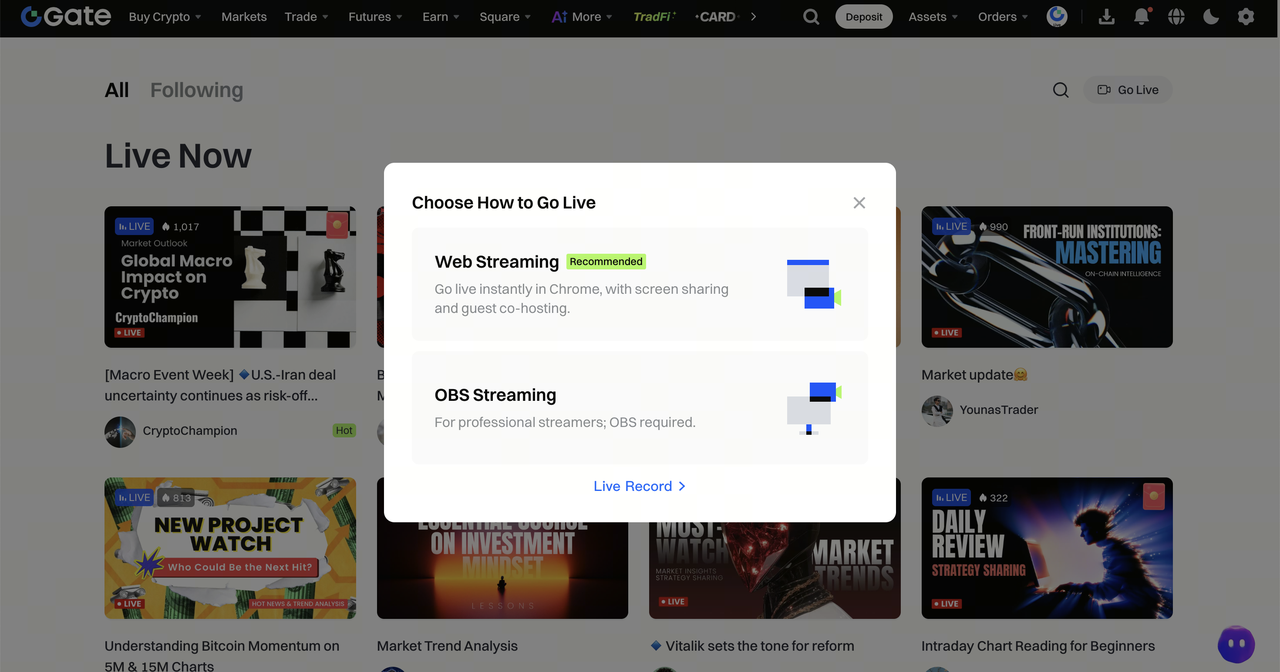
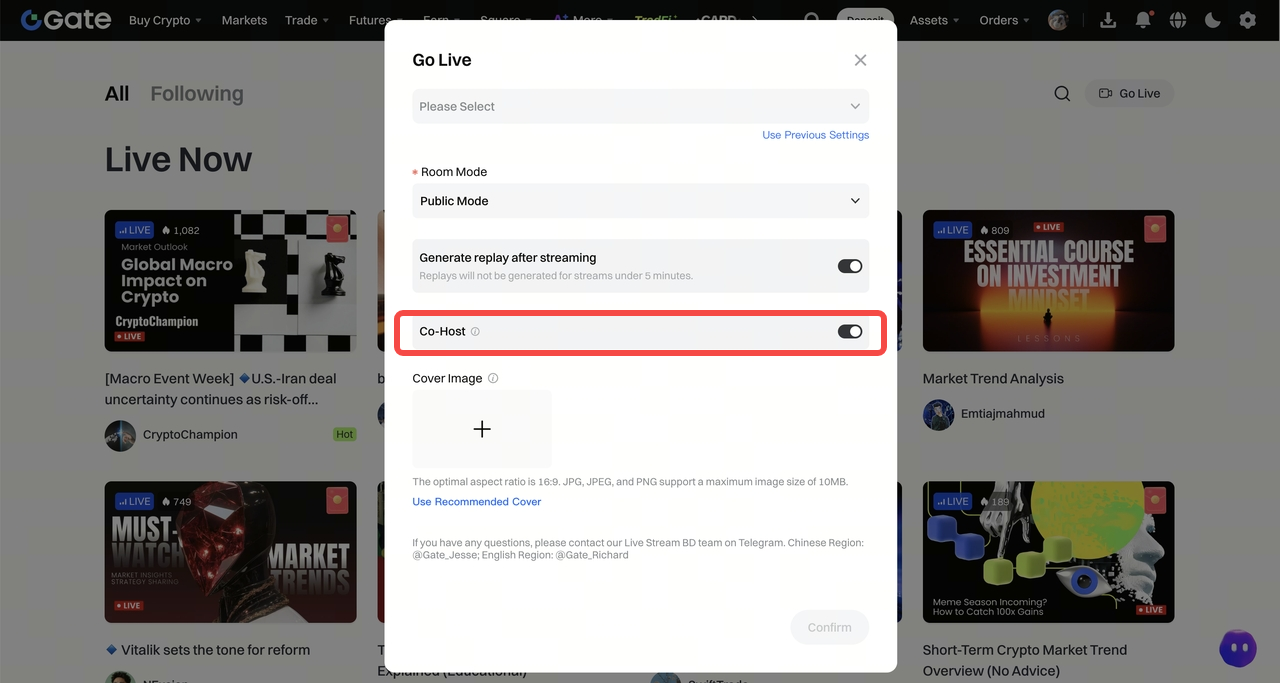
- During the go-live application stage, select the web streaming option and enable the co-streaming feature.
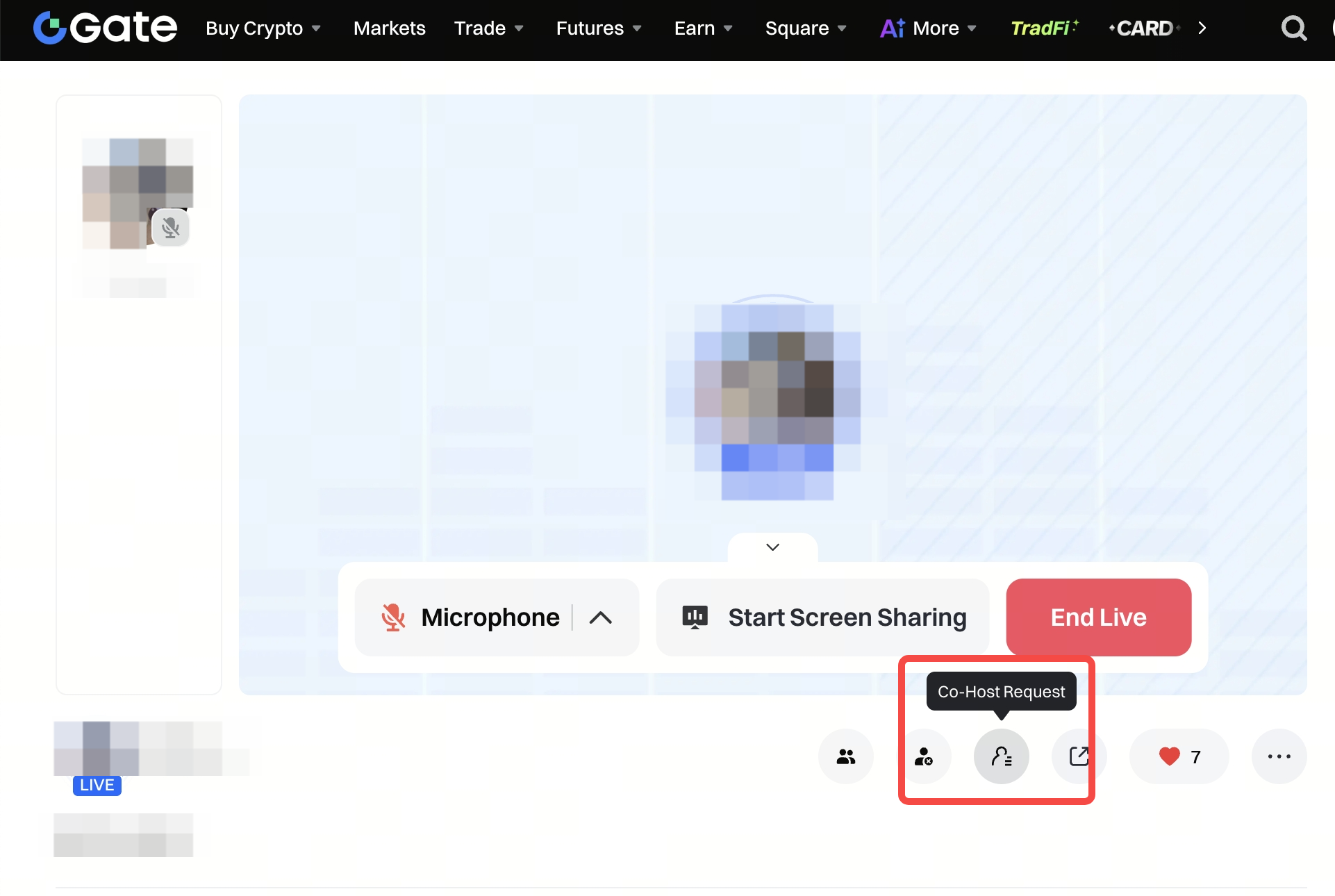
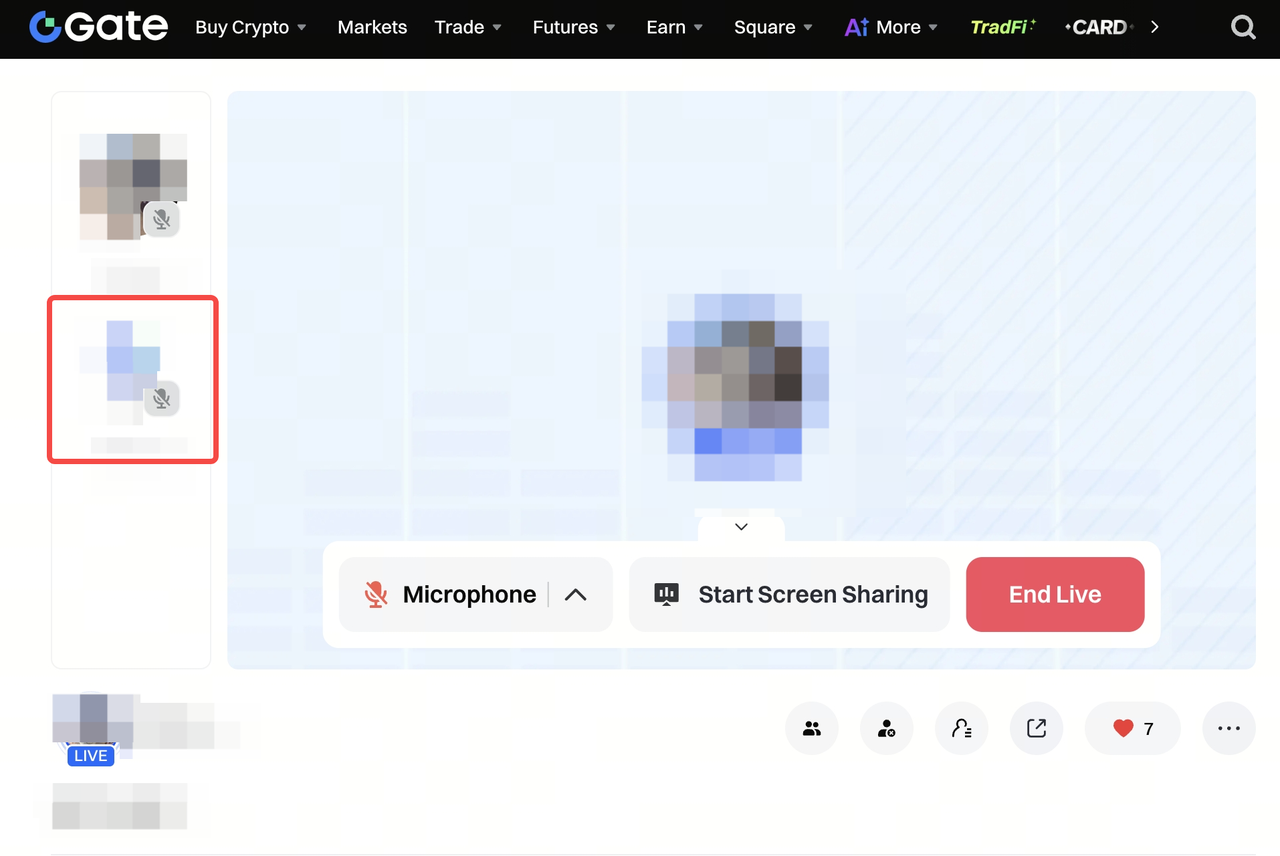
- After going live, co-streaming slots will automatically appear on the left side of the live room. Viewers can send co-streaming requests to the streamer.
2.Handling Co-Streaming Requests
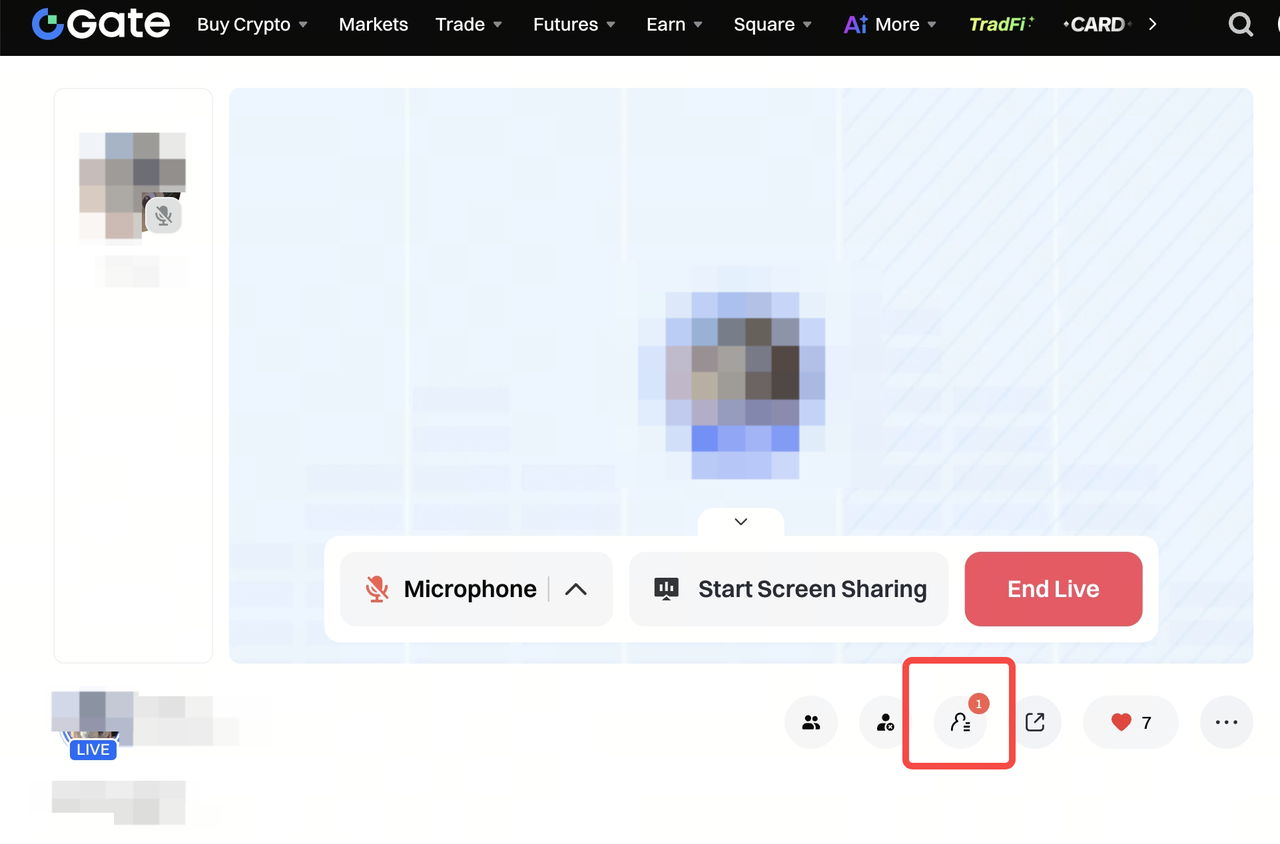
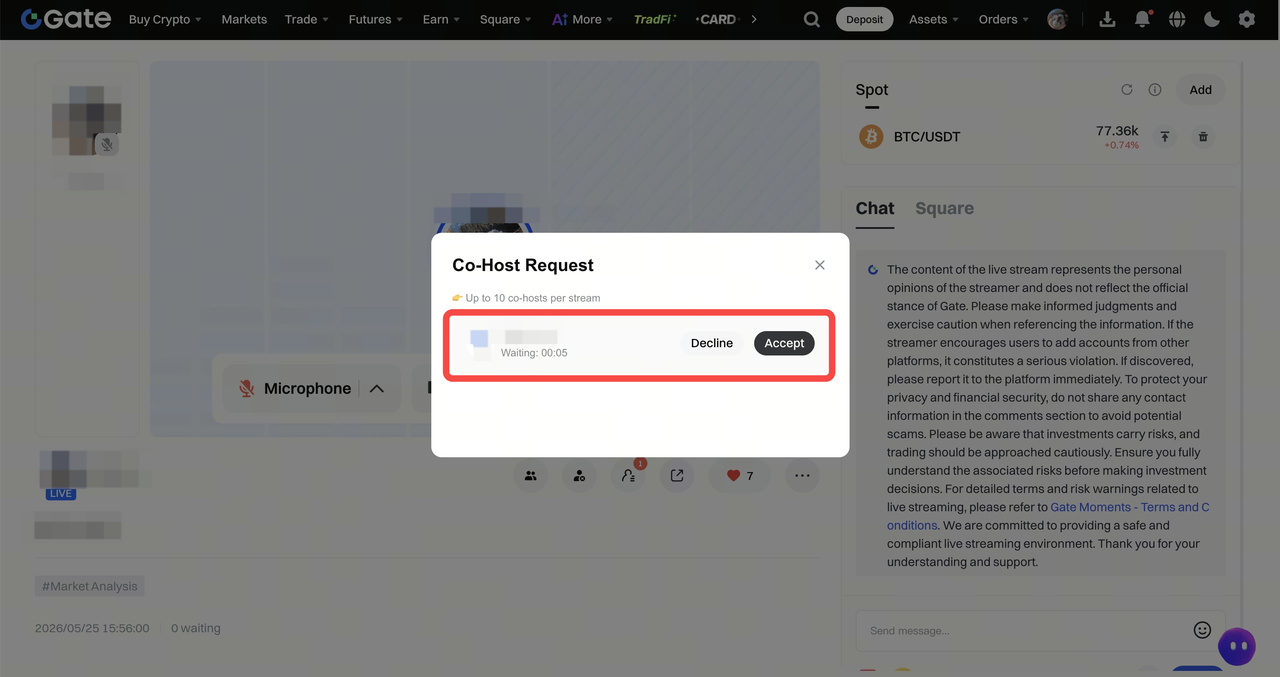
- When there’s a new request, a red dot will appear on the co-streaming icon, showing the waiting time to remind the streamer to respond promptly.
- Click on “Manage Co-Streaming Requests” to view user info and choose Approve or Reject (requests not processed within 5 minutes are automatically rejected).
- Once approved, viewers can go on mic and interact in real time.
3.Mic Control Management
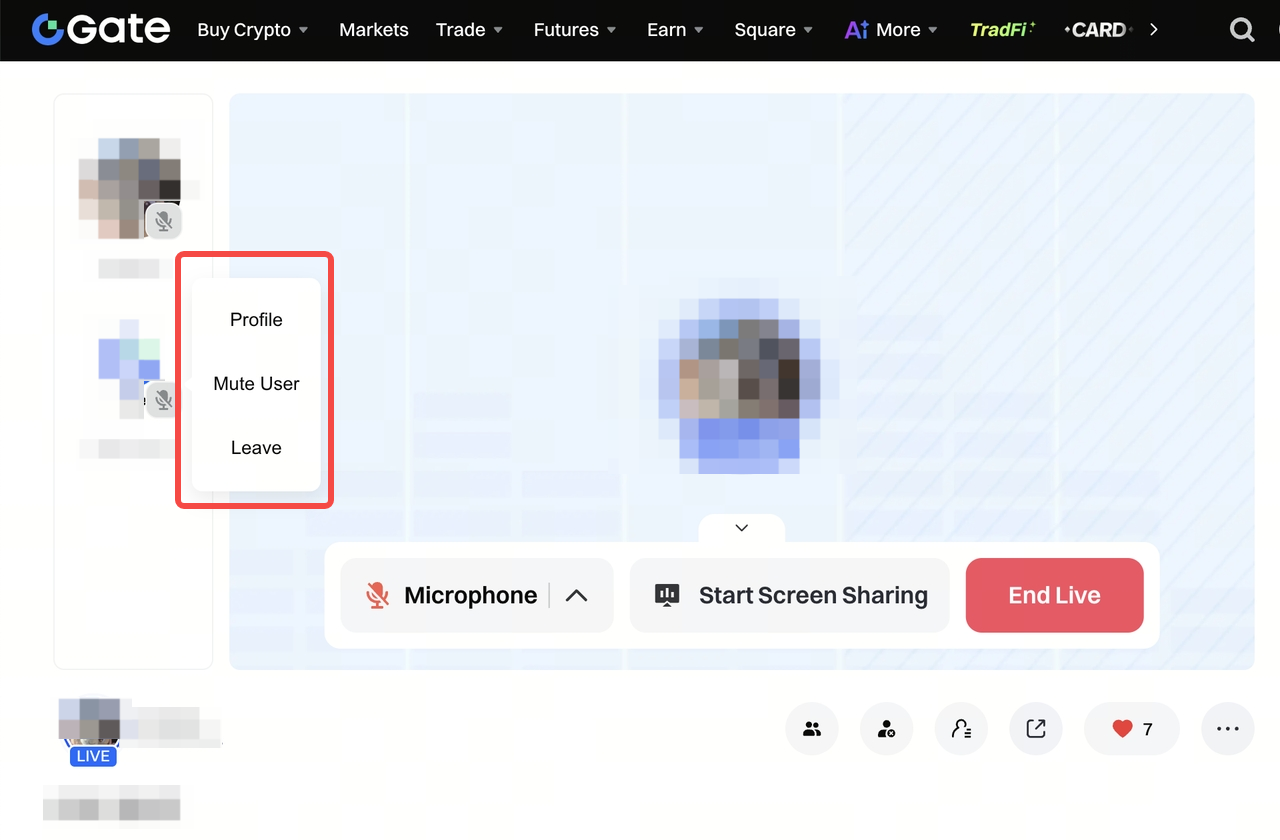
- The host (streamer) can mute or force off any co-streaming viewer to handle emergencies and ensure smooth streaming.
- Maximum co-streaming slots: 10. Plan ahead to avoid too many viewers on mic at once.
- Supported on both Web and App. Using the App for management is recommended.
(B) Viewer Side (Please update the app to v8.19.0 or above)
1.Request to Co-Stream
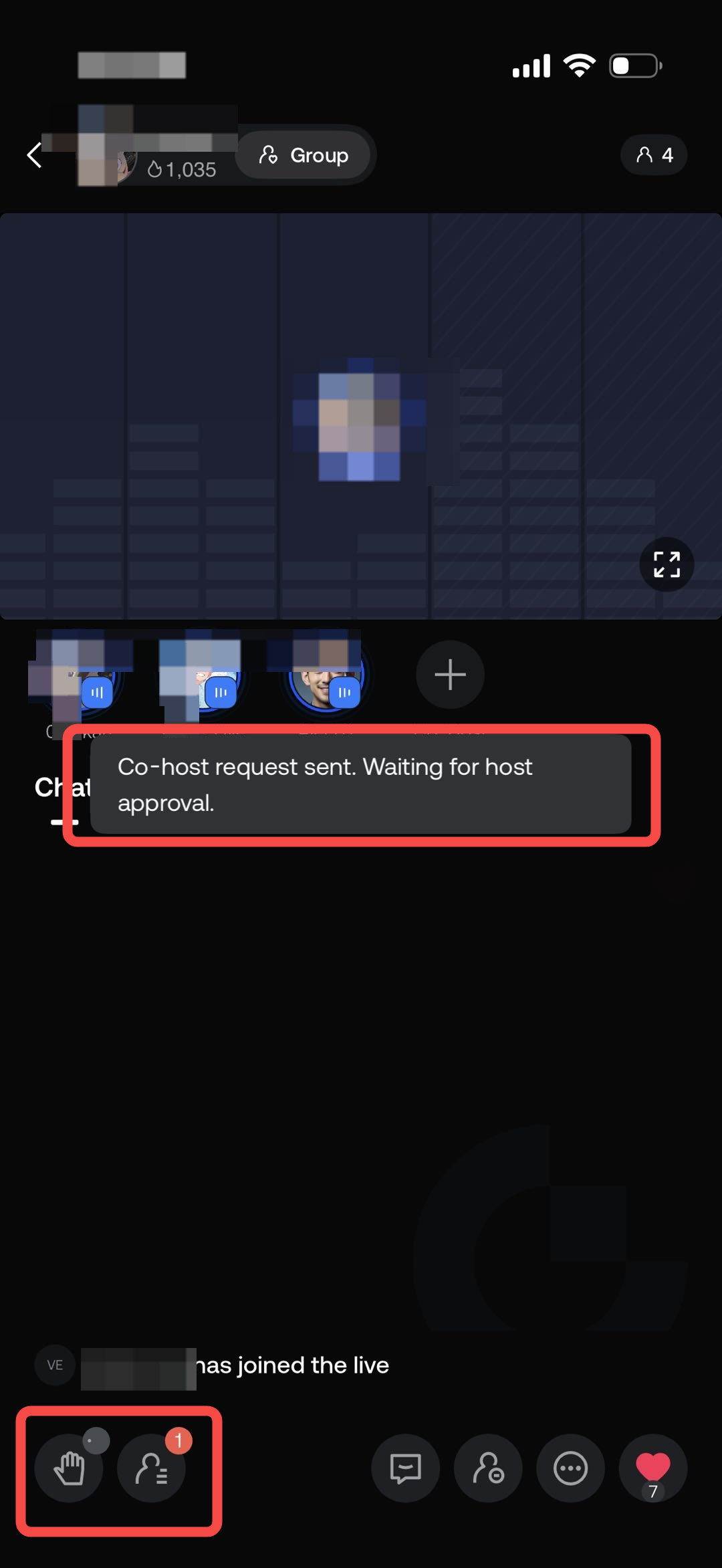
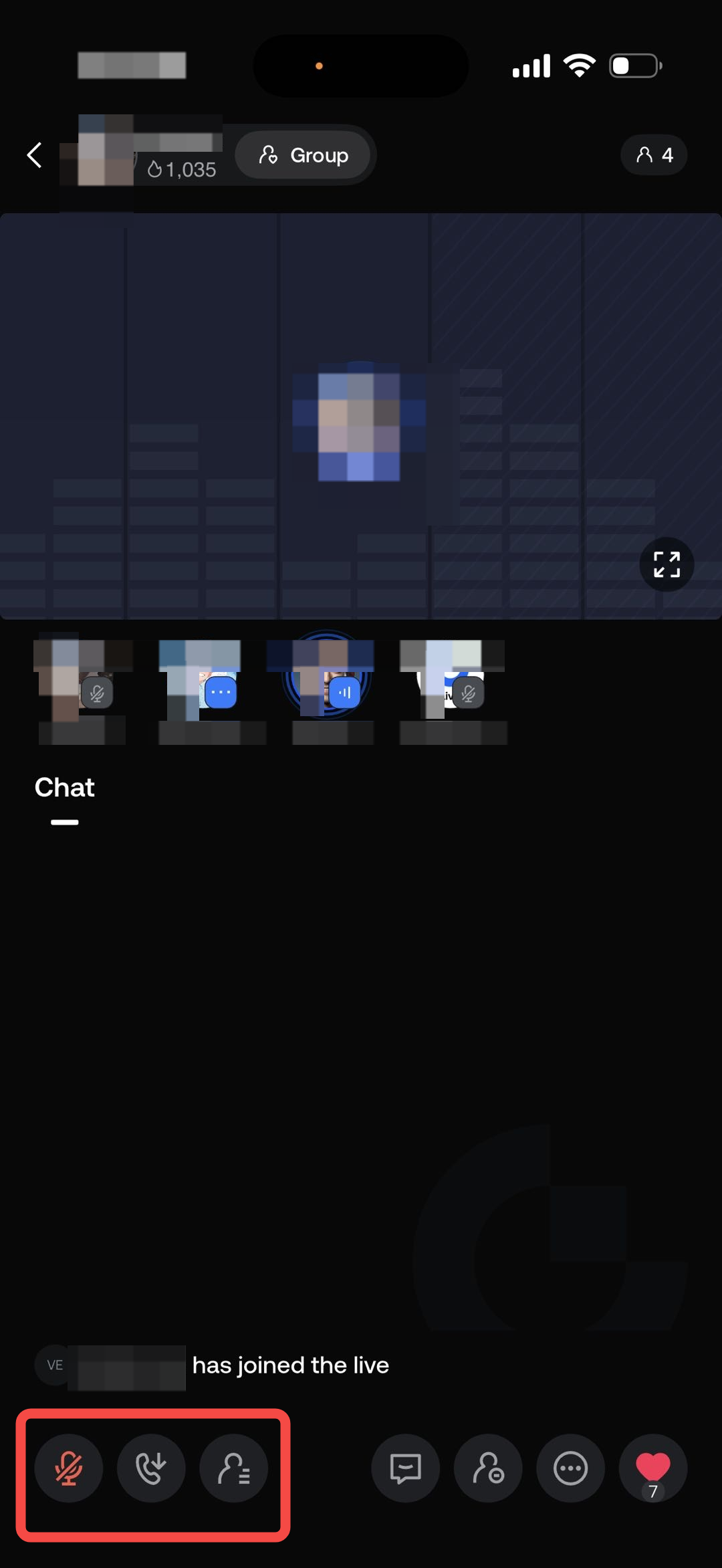
- Tap ➕ Request to Co-Stream or the hand-raise button in the bottom left to send a request to the streamer.
- After submitting, please wait patiently for the streamer’s approval.
2.Post-Approval Interaction
- Once approved, you can go on mic and interact in real time. Please speak politely and maintain good interaction with the streamer and other viewers.
- The microphone control in the bottom left allows you to mute/unmute or go off mic voluntarily.
- Supported on both App and Web, but the App is recommended for more convenient and flexible interaction.
3.Frequently Asked Questions (FAQ)
Streamer Side
Q1: How does a streamer enable co-streaming?
- Enable: Manually check and enable “Co-Streaming Feature” on the go-live application page.
- Requirement: Currently, only Web streaming supports co-streaming.
- Interaction: Once live, viewers can send co-stream requests. Upon approval, real-time voice interaction is enabled.
Note: If the streamer ends the live stream, all co-streaming viewers will be automatically removed.
Q2: What are the permissions for co-streaming?
Streamer Permissions
- Global Control: Enable/disable co-streaming, force all mics off
- Member Management: Approve/reject requests, invite viewers on mic, remove from mic
- Individual Control: Force mute/unmute for specific slots
- Slot Capacity: Max 10 co-streaming slots. New requests cannot be approved once full.
Viewer Permissions
- Apply/cancel co-streaming requests
- Control mic (mute/unmute) or go off mic voluntarily after being approved
Q3: How does a streamer handle co-stream requests?
- Procedure: When a viewer sends a request, a red dot will appear on the co-streaming icon. Click to see the list and select Approve or Reject.
- Timeout: Please handle requests promptly. Requests not processed within 5 minutes are automatically rejected and removed from the list.
Q4: How does a streamer mute a co-streaming viewer?
- Click the viewer’s avatar in the mic slot area and select Mute or Unmute from the menu.
Viewer Side
Q5: Why can’t I request co-streaming in some live rooms?
- App Version Too Low: Make sure your App is updated to v8.19.0 or higher.
- Streamer Permission Not Enabled: The request button only appears if the streamer has enabled the co-streaming feature before going live.
Q6: Can viewers request co-streaming via Web?
- Yes, dual-end requests are supported. However, the App is recommended for better audio quality and lower latency.
Disclaimer
The content provided herein is for reference and educational purposes only and does not constitute any financial, investment, trading, or legal advice, nor does it constitute an offer or solicitation to buy or sell any digital assets. Gate makes no express or implied representations or warranties regarding the accuracy, completeness, or timeliness of the information contained herein. Product features, interfaces, rules, and fee structures may be updated or adjusted at any time. Please refer to the latest announcements and the actual information displayed on the Gate platform for the most accurate details.
Digital asset investments involve significant risk, and prices may fluctuate substantially. You may lose the entire amount of your investment. Please make decisions cautiously based on your own financial situation and risk tolerance after fully understanding the associated risks. If necessary, you are advised to consult an independent professional financial or legal advisor.
For more information about potential risks, please refer to Gate's Risk Disclosure and User Agreement.
