


1. Feature Overview
The Combo Indicator Strategy lets users freely select familiar technical indicators to combine, setting one or more conditions for opening, closing, increasing, or reducing positions. The bot will automatically execute these actions according to the saved rules. Combo Indicator Strategies support both spot and contract trading, and offer two creation methods: copying recommended strategies or manual configuration. When configuring manually, you can first run a backtest to help evaluate the strategy's effectiveness, or directly create the bot.
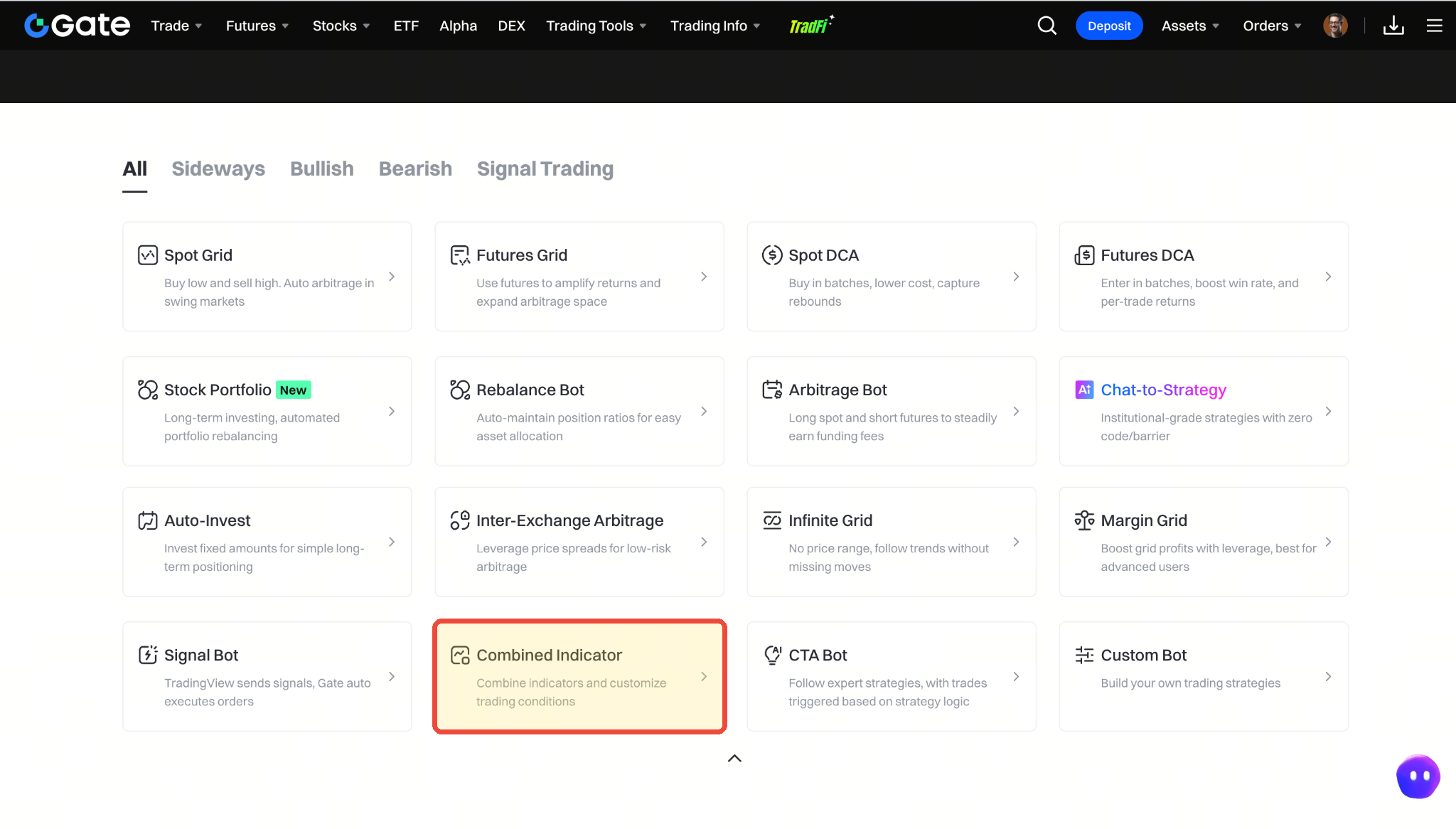
2. Accessing Combo Indicator Strategies
From the bot homepage, click "Combo Indicator" to jump to the corresponding trading interface. The operation area for copying recommended strategies or manually creating your own strategy is located in the right sidebar of the trading page.
3. Copying Other Users' Combo Indicator Strategies
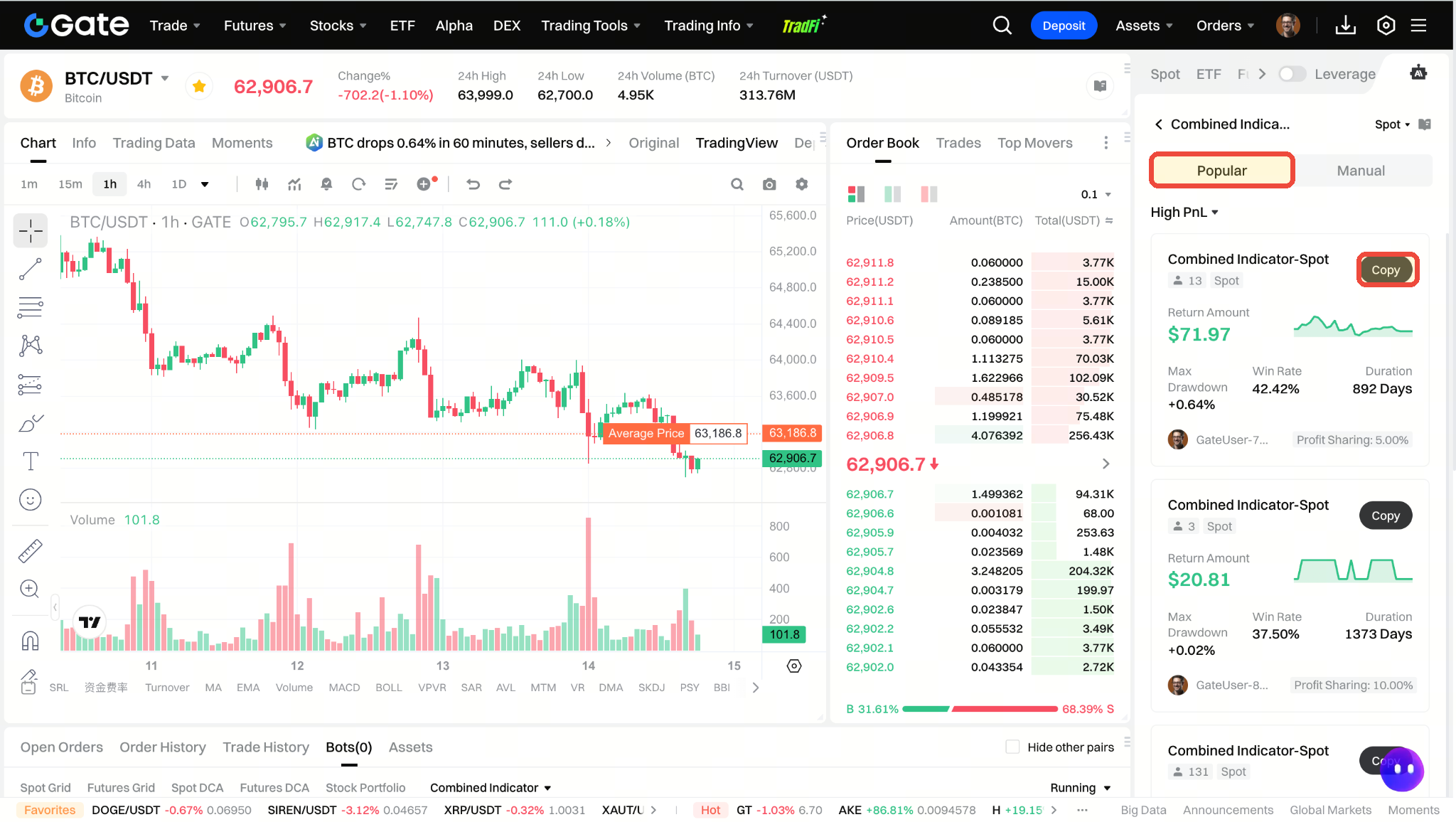
If you want to directly use a strategy from the Bot Plaza or the recommended list, you can first review its performance, then copy it and set your own investment parameters.
Step 1: Select a Recommended Strategy
- Enter the trading page and open "Combo Indicator" in the right sidebar.
- Choose the "Recommended" tab and review the strategy cards for metrics such as direction, leverage, profit, maximum drawdown, win rate, runtime, and profit-sharing ratio.
- Once you've identified your target strategy, click "Copy".
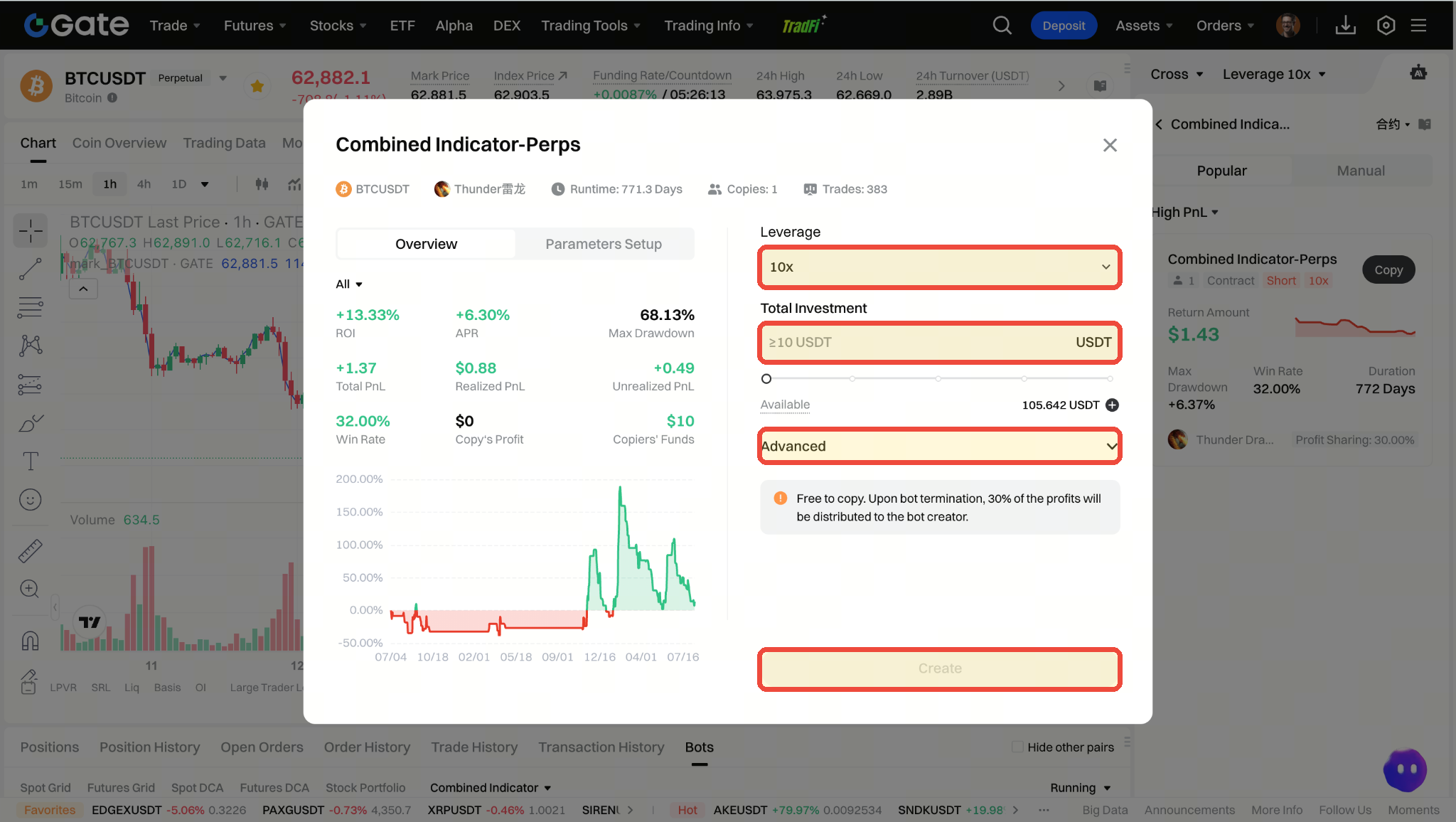
Step 2: Review Performance and Set Copy Parameters
The copy window displays a strategy preview and historical performance on the left, and allows you to set your own operating parameters on the right.
- Copy Parameters: Select leverage and enter the total investment amount. You can expand "Advanced" to further configure risk controls.
- Fees/Profit Sharing: The page will show specific profit-sharing rules. Example strategies may indicate free copying, with profits distributed to the signal provider based on the displayed ratio after the bot is terminated.
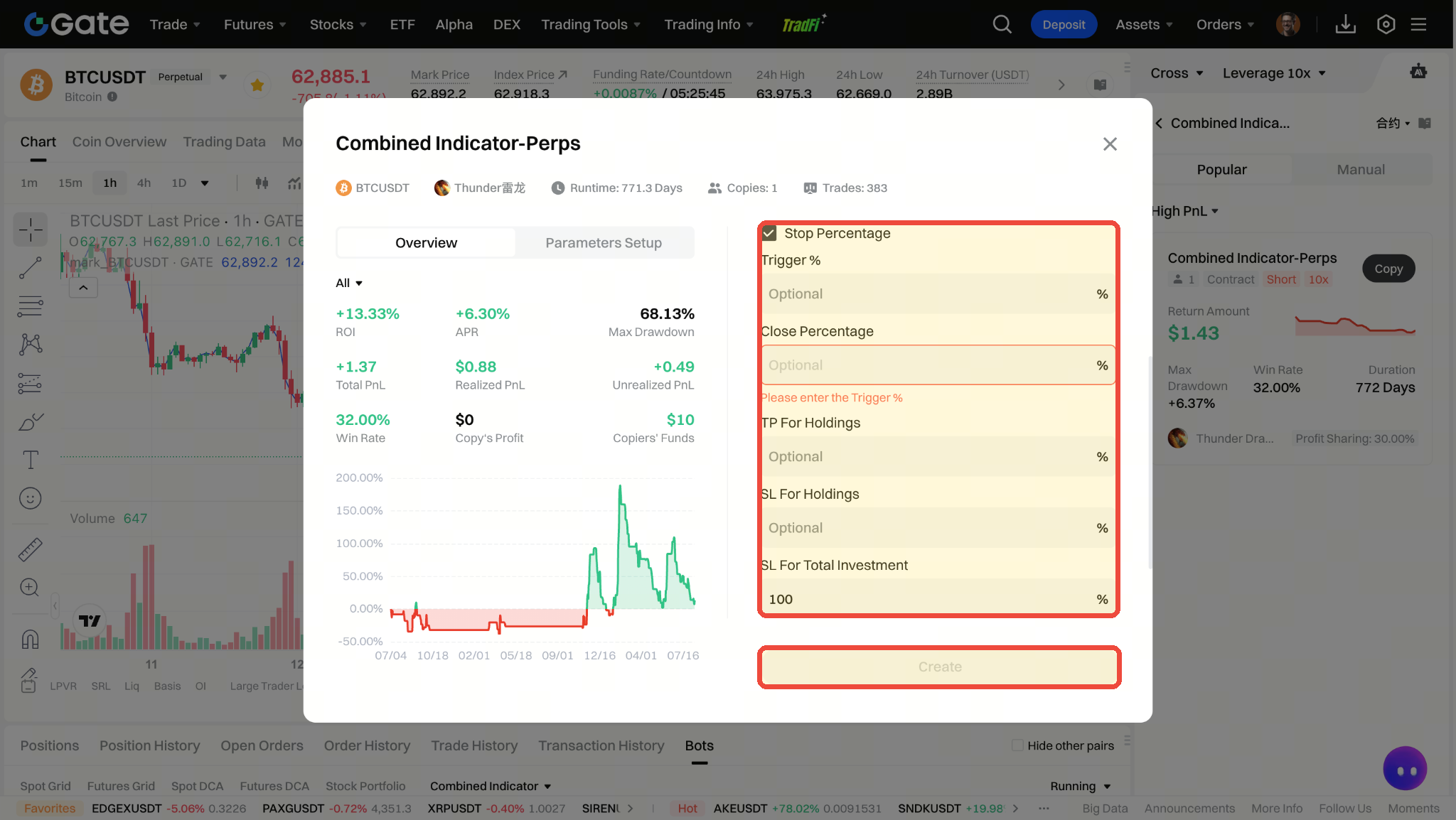
Step 3: Configure Advanced Risk Controls and Create
Expand "Advanced" to set the following items as needed:
- Drawdown Protection: Enable and enter the trigger ratio (optional) and protection ratio.
- Position Take-Profit/Stop-Loss: Triggers risk control when the set ratio is reached.
- Total Investment Stop-Loss: Limits the overall investment loss ratio for the bot.
After confirming all parameters, click "Create".
4. Manually Configuring Your Own Combo Indicator Strategy
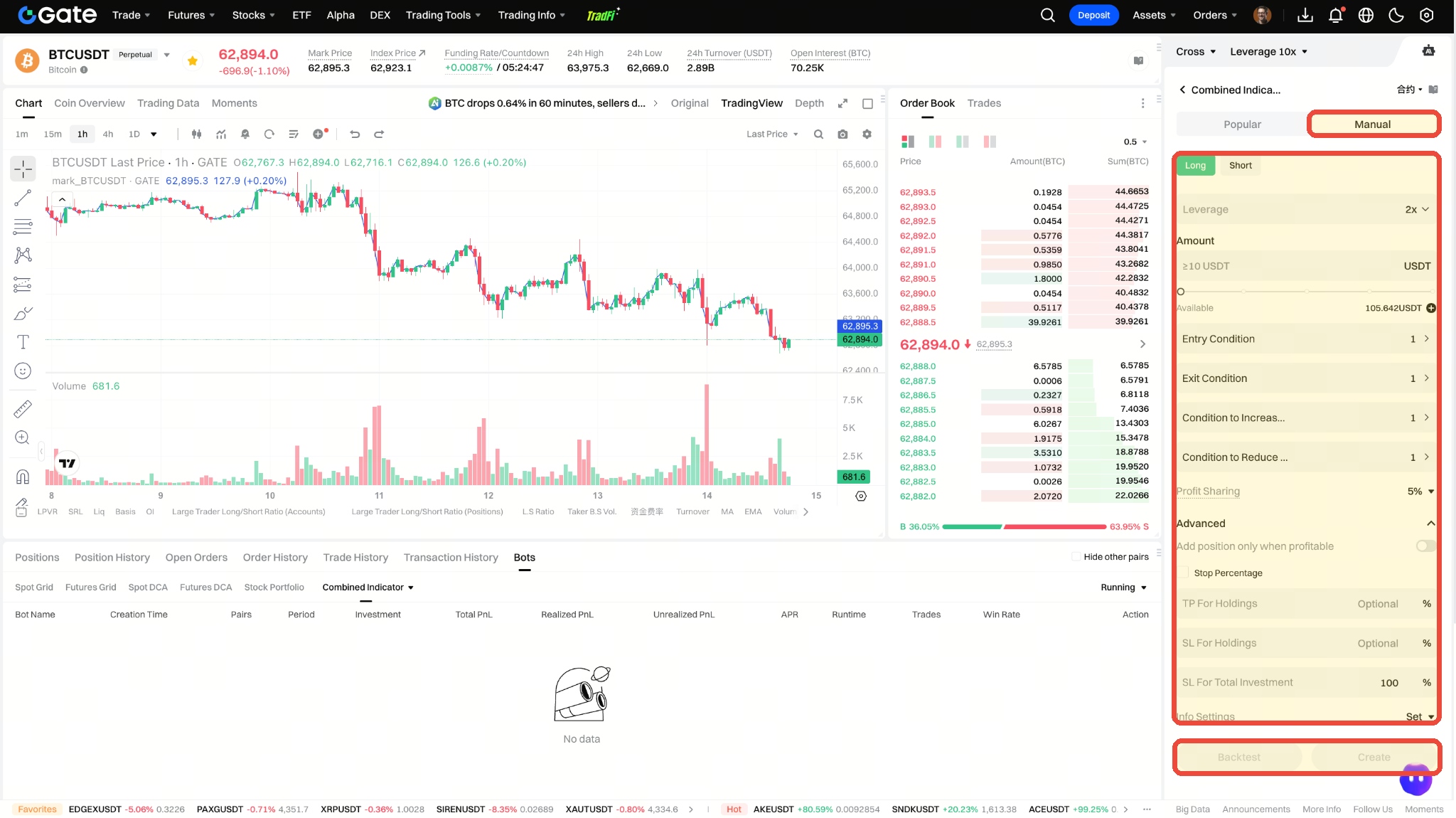
Step 1: Fill in Basic Parameters
- Switch to "Manual Configuration" on the Combo Indicator page.
- Select "Long" or "Short" and set the leverage.
- Enter the investment amount.
- Configure the opening and closing conditions in sequence. If needed, also set conditions for increasing or reducing positions.
- You can also set the profit-sharing ratio, community attributes, and advanced risk controls as required.
- Once the rules are complete, you can click "Backtest" to evaluate the strategy's effectiveness, or click "Create" directly.
Step 2: Configure Indicator Conditions
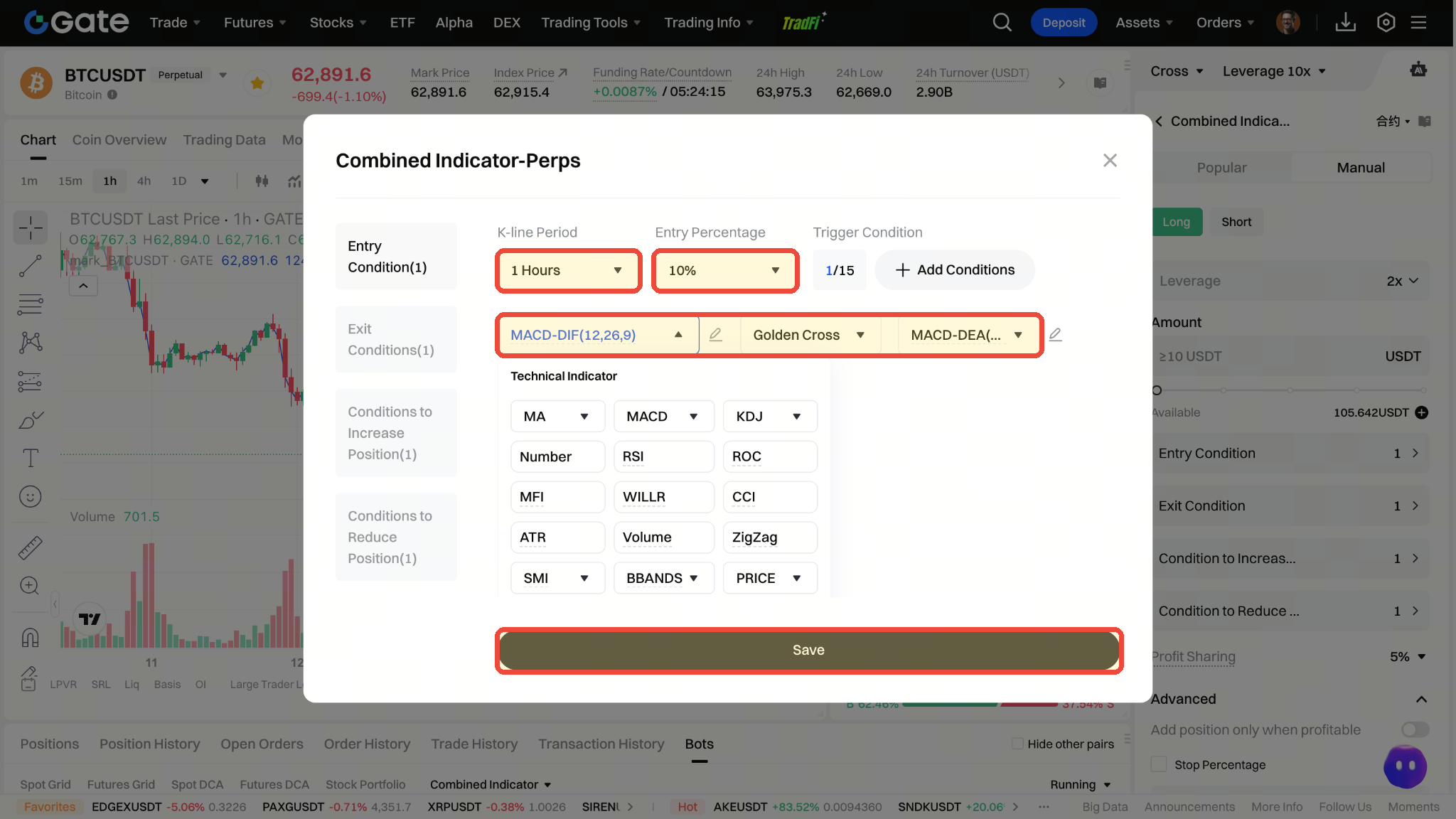
Click on opening, closing, increasing, or reducing position conditions to enter the condition editor. Each type of condition can be configured separately for K-line period, position ratio (except for closing), indicator, comparison relationship, and trigger rule.
- Select the K-line period and the corresponding position ratio for opening/adjusting positions.
- Choose technical indicators or numerical/price conditions. Currently supported indicators include MA, MACD, KDJ, Value, RSI, ROC, MFI, WILLR, CCI, ATR, Volume, ZigZag, SMI, BBANDS, and Price.
- Set the comparison relationship. The system will calculate the current values of Indicator 1 and Indicator 2 within the selected K-line period, then determine if the condition is met based on golden cross, death cross, greater than, less than, greater than or equal to, less than or equal to, or equal. For example, MACD-DIF crossing above MACD-DEA is a golden cross.
- Click "Add Condition" to add more rules, up to a maximum of 15. Once configuration is complete, click "Save".
- Multiple indicator conditions can be connected by "AND" or "OR": "AND" means all conditions must be true to trigger, "OR" means any condition being true will trigger.
Step 3: Backtest the Strategy Before Creating the Bot (Optional)
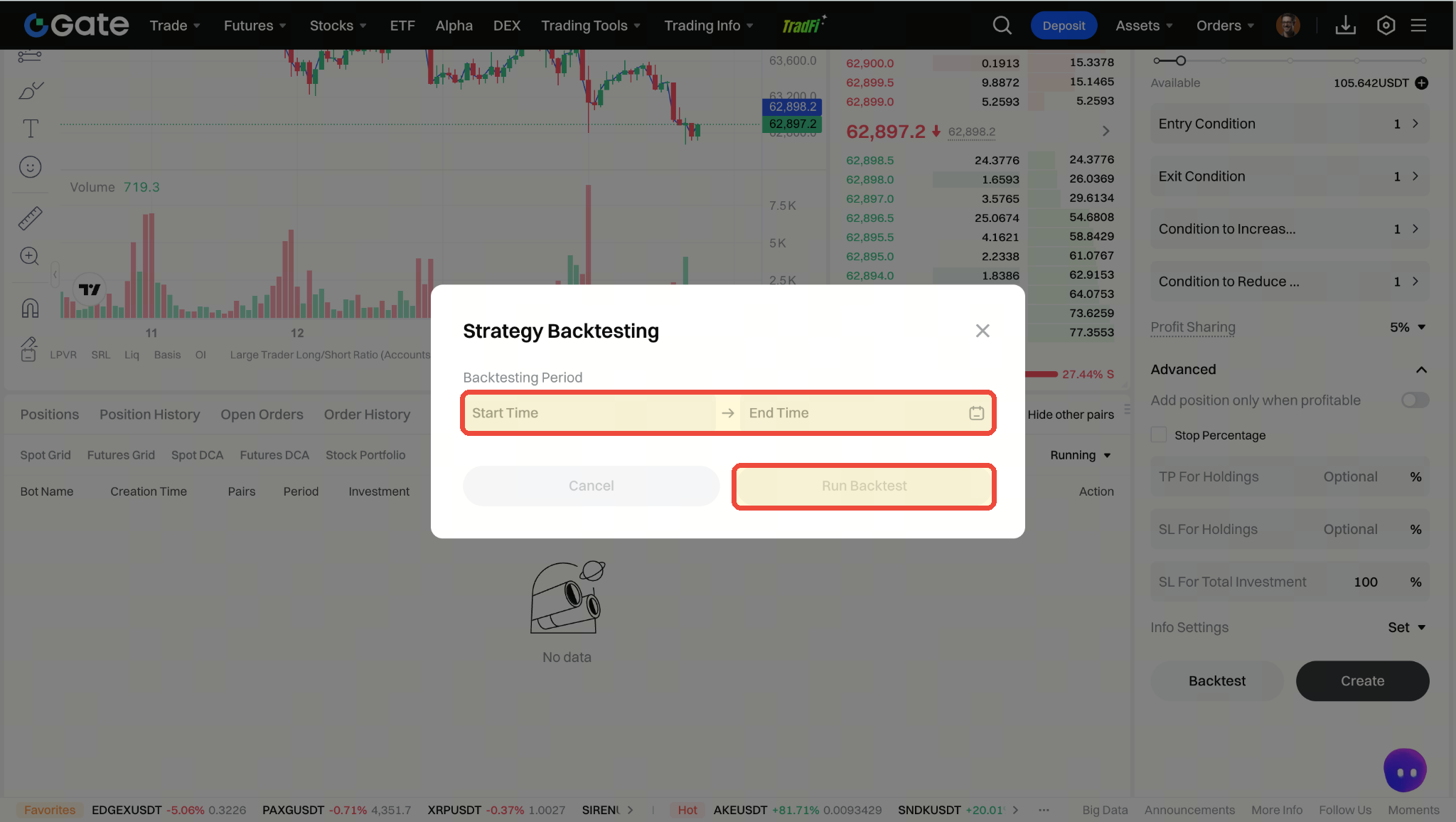
If you want to evaluate the strategy before creating it, after completing the basic parameters and indicator conditions, click "Backtest", select the backtest time period, and run the backtest. The system will review historical data for the selected period and generate a backtest record.
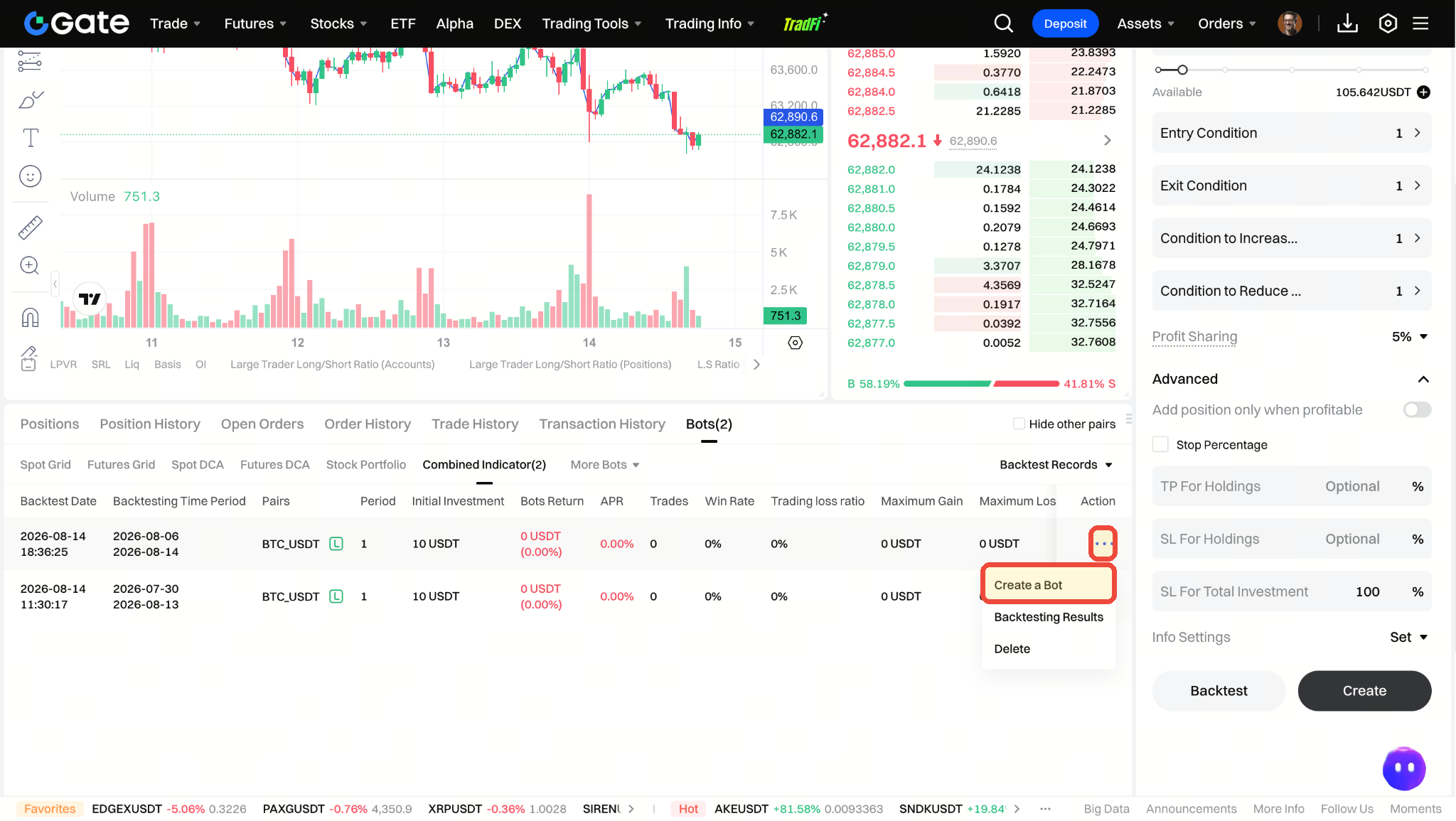
After backtesting, you can switch to "Combo Indicator" in the "Trading Bots" section at the bottom of the trading page, open the status menu on the right, and select "Backtest Records".
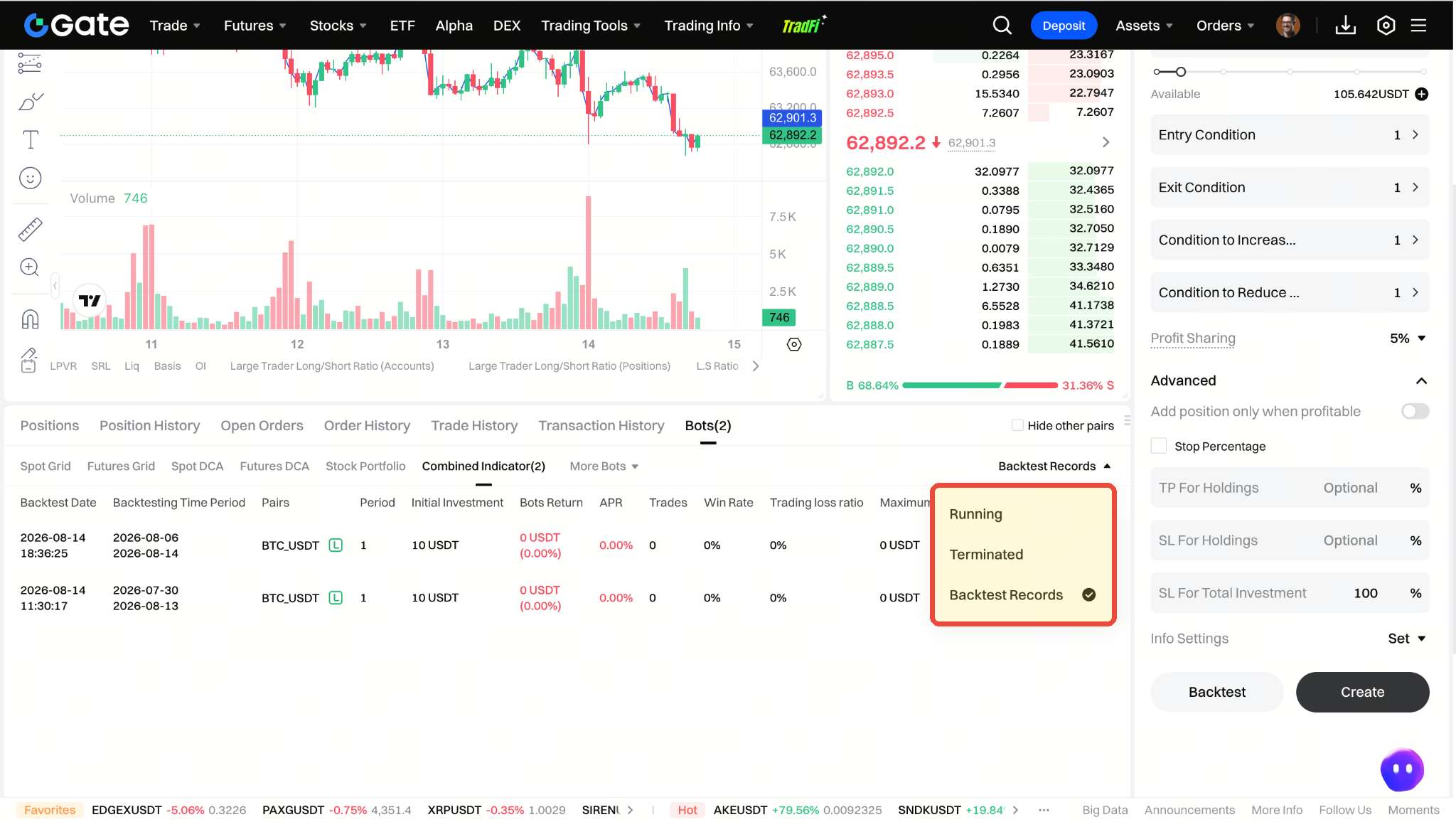
Backtest records display backtest time, data period, trading pair, cycle, initial investment, bot profit, annualized return, number of trades, win rate, and other metrics. Click the "…" on the right of the record row and select "Create Bot" to use the backtest parameters for bot creation.
5. Viewing and Managing Combo Indicator Bots
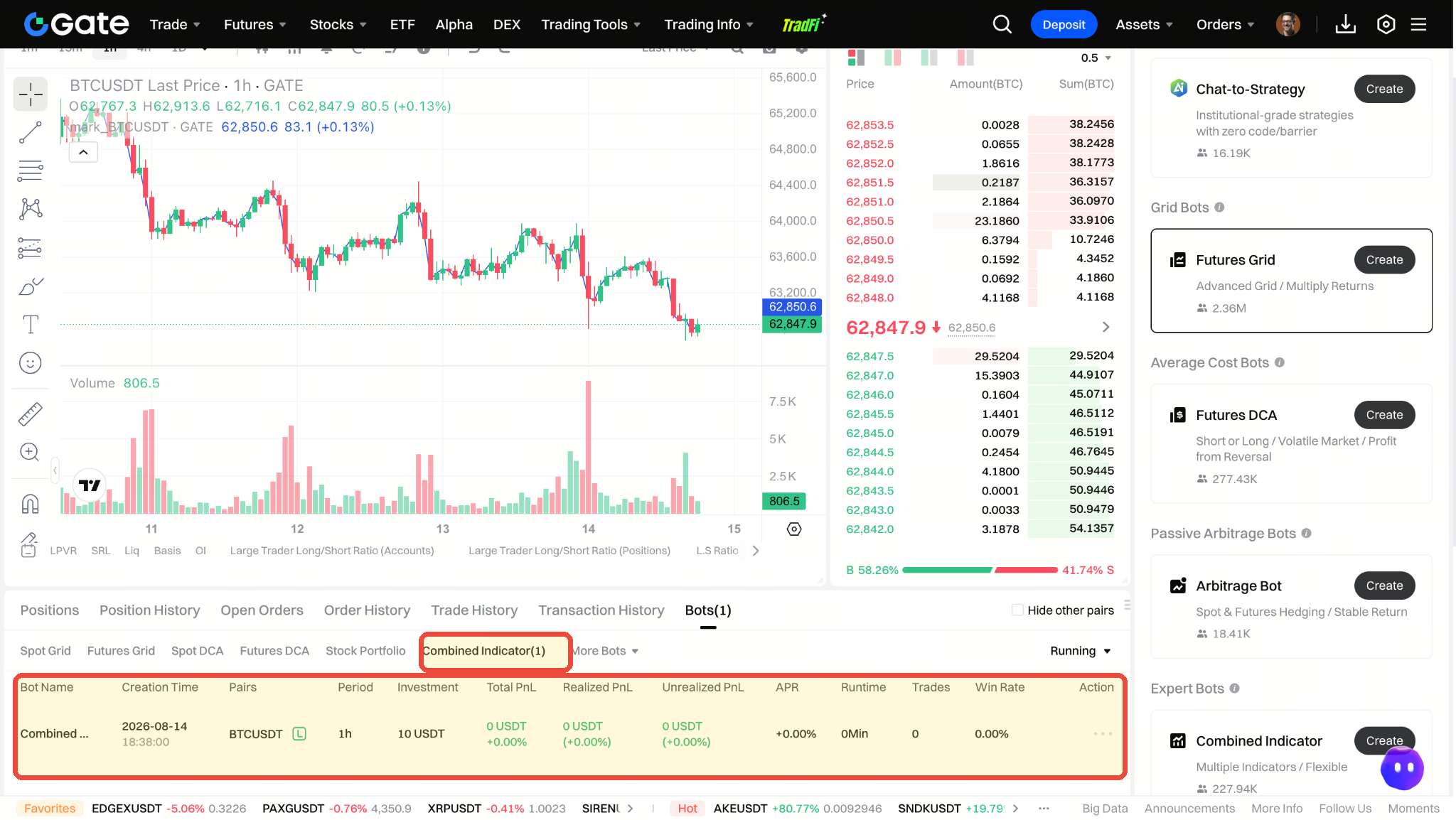
After successful creation, you can select "Trading Bots" at the bottom of the trading page and switch to "Combo Indicator" to view the performance metrics of your bots. Click the corresponding bot row to enter the My Bots page for more information.
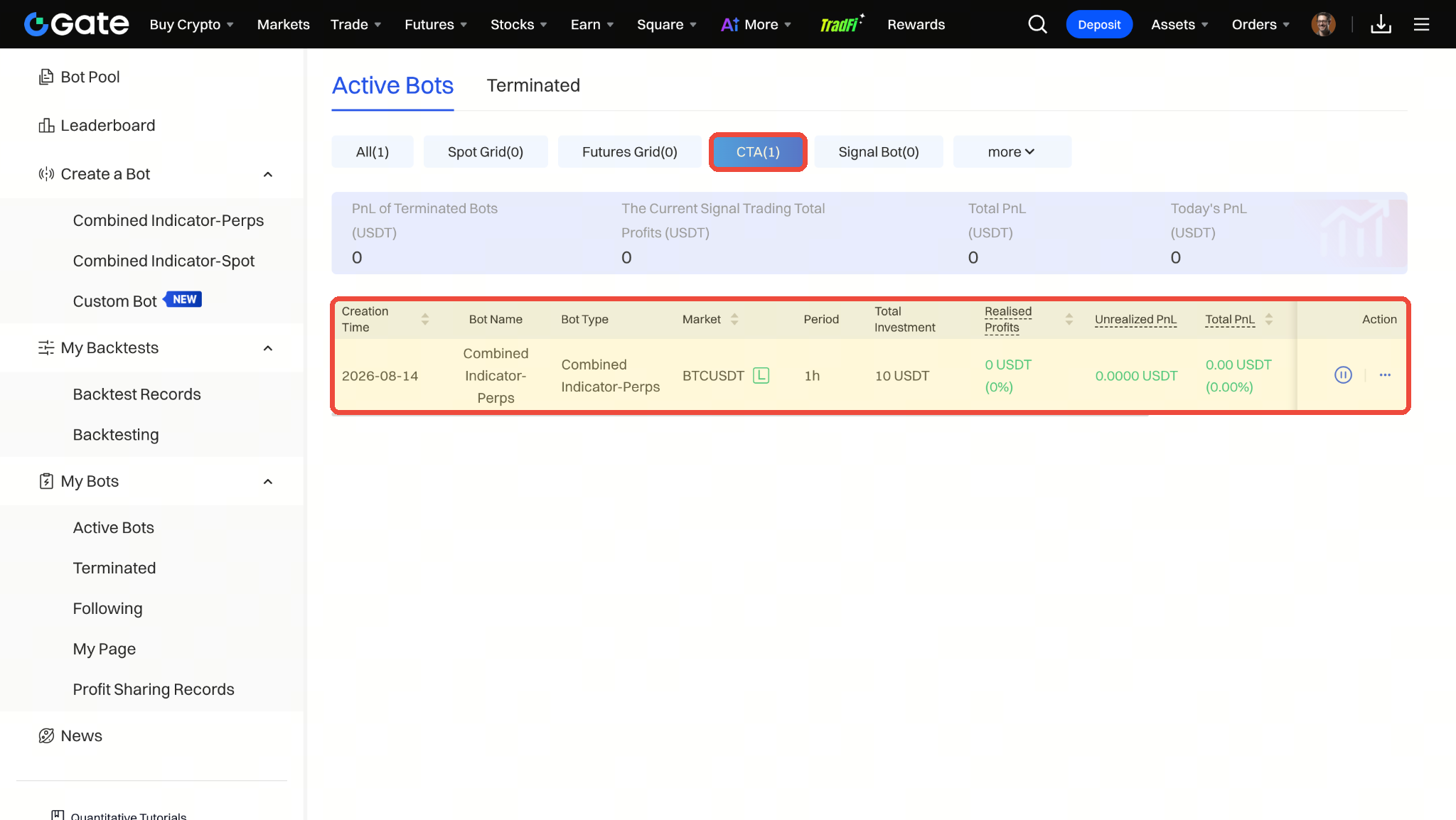
Go to "My Bots" and select "Active Bots", switch to the CTA category to view currently running Combo Indicator bots.
- The list displays creation time, bot name, type, trading market, cycle, total investment, signal profit, floating P&L, and current total copy trading profit.
- Click the bot info row in the list to open details. Historical strategies can be viewed in "Historical Bots".
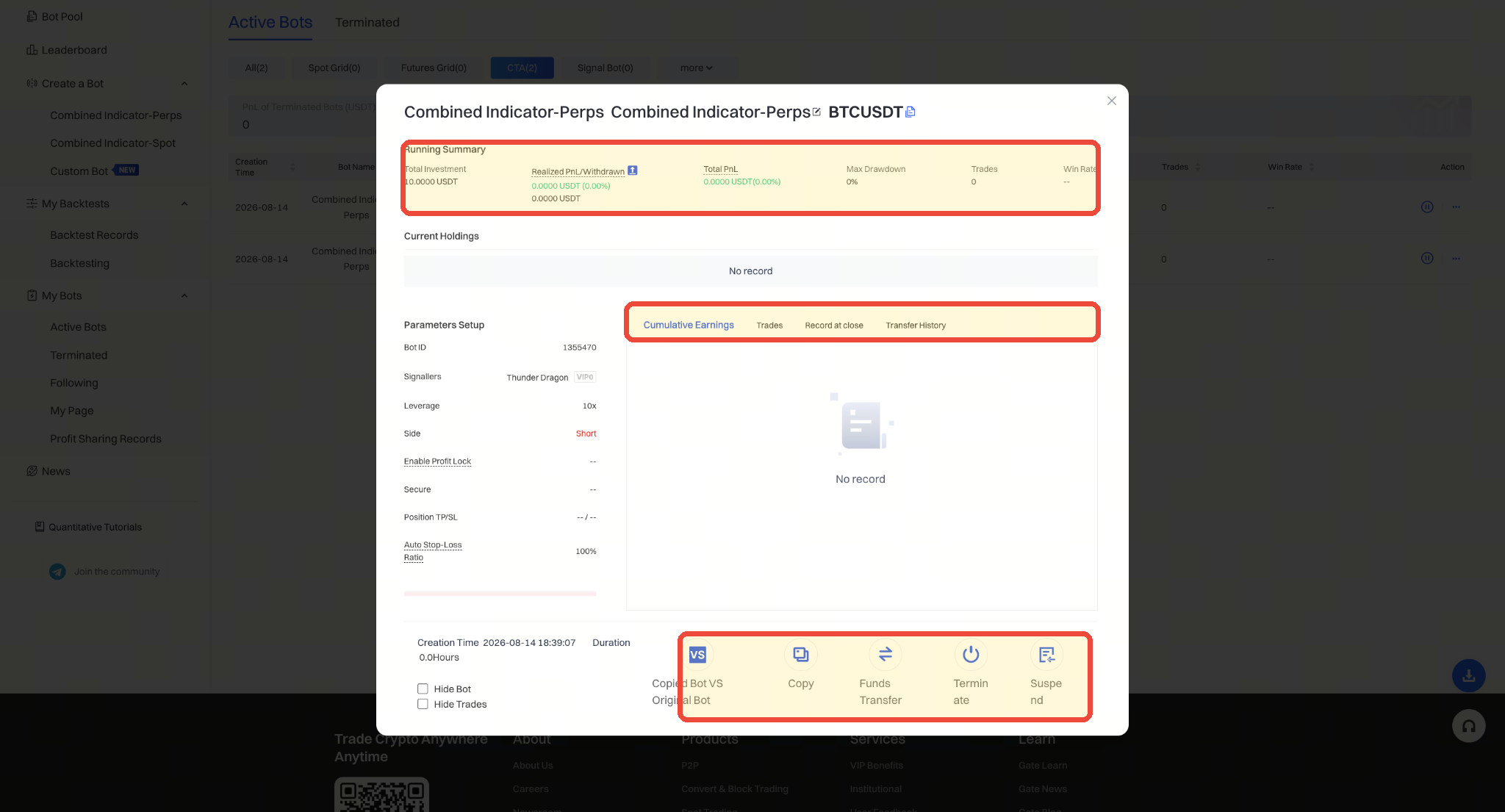
The bot details page provides an overview, current positions, parameter configuration, and historical records.
- Overview: Total investment, realized P&L, current total copy trading profit, maximum drawdown, number of trades, and win rate.
- Parameter Configuration: Bot ID, signal provider, leverage, direction, take-profit/stop-loss, and total investment stop-loss.
- Records Tab: Cumulative profit, trade records, closing records, and transfer records.
- Management Actions: Copy, fund transfer, terminate, and pause. When executing fund transfer, terminate, or pause, please follow the prompts to confirm the impact scope.
- VS Original Bot: If the current bot is a copy of another user's strategy, you can use "VS Original Bot" to compare the performance of the copied bot with the original.
- Display Controls: You can choose to hide the bot or hide trade records.
Gate reserves the final interpretation rights for this product.
For further assistance, please visit the official Gate support page or contact our customer service team.
Disclaimer
The content provided herein is for reference and educational purposes only and does not constitute any financial, investment, trading, or legal advice, nor does it constitute an offer or solicitation to buy or sell any digital assets. Gate makes no express or implied representations or warranties regarding the accuracy, completeness, or timeliness of the information contained herein. Product features, interfaces, rules, and fee structures may be updated or adjusted at any time. Please refer to the latest announcements and the actual information displayed on the Gate platform for the most accurate details.
Digital asset investments involve significant risk, and prices may fluctuate substantially. You may lose the entire amount of your investment. Please make decisions cautiously based on your own financial situation and risk tolerance after fully understanding the associated risks. If necessary, you are advised to consult an independent professional financial or legal advisor.
For more information about potential risks, please refer to Gate's Risk Disclosure and User Agreement.
