


Applicability
Applicable to: Gate Web
Preparation: Ensure you have logged in to GateClaw(Blue Lobster)
Estimated time: 8 minutes
Objective
This guide will show you how to create and manage GateClaw(Blue Lobster) scheduled tasks on Gate Web.
Creating Scheduled Tasks
Steps
Step 1: View Scheduled Tasks
On the GateClaw page, click [Scheduled Tasks]. The interface displays the list of scheduled tasks by default, where you can view the status of all scheduled tasks.
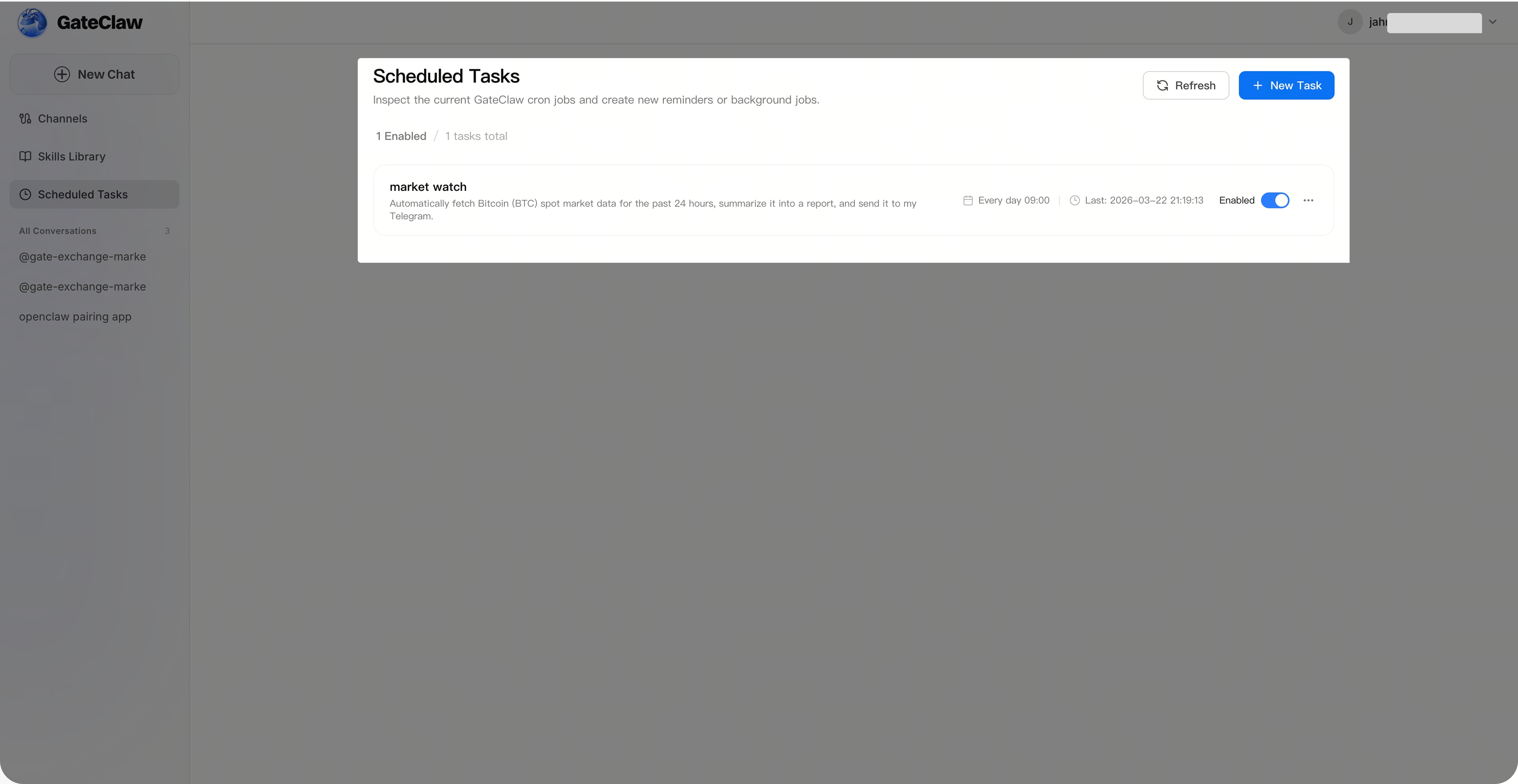
Step 2: Create New Scheduled Task
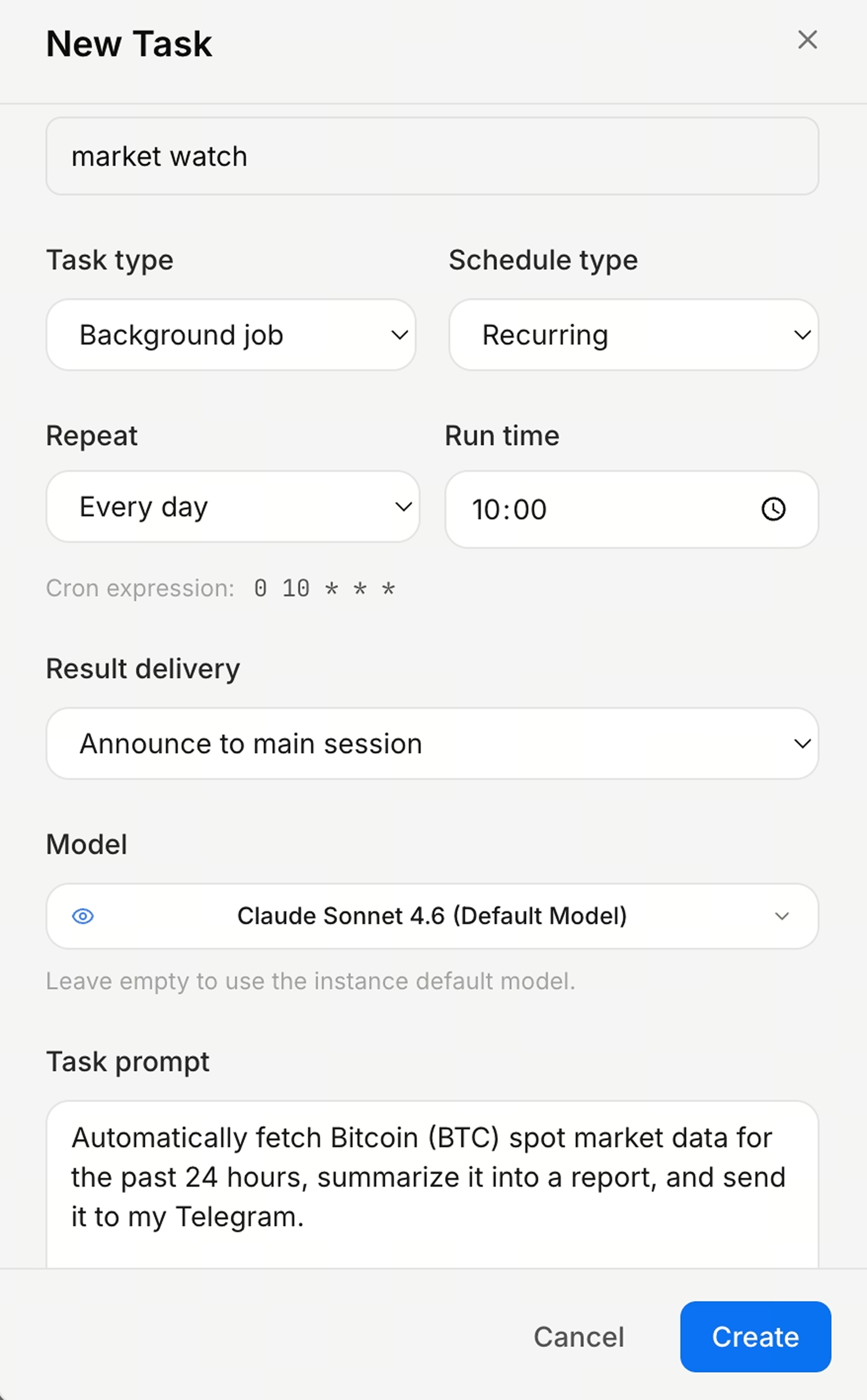
On the [Scheduled Tasks] page, click [New Task]. You can set up background tasks or reminder tasks as needed.
- Task Name: Enter a custom task name
- Task Type: Can select background task (GateClaw does it for you) or reminder task (GateClaw reminds you to do it)
- Schedule: Can select one-time execution or periodic execution and configure the corresponding frequency and execution time
- Execution Result: Background tasks need to configure whether to notify main conversation or execute only in background
- Execution Model: Background tasks need to configure execution model
- Task Content: Describe task content in natural language
Cron Expression Description
Scheduled tasks use Cron expressions to define execution time.
Cron Format
┌───────────── Minute (0 - 59)
│ ┌───────────── Hour (0 - 23)
│ │ ┌───────────── Day (1 - 31)
│ │ │ ┌───────────── Month (1 - 12)
│ │ │ │ ┌───────────── Day of Week (0 - 6, 0 = Sunday)
│ │ │ │ │
* * * * *
Common Examples
| Expression | Description |
|---|---|
0 * * * * |
Execute at minute 0 of every hour |
*/5 * * * * |
Execute every 5 minutes |
0 9 * * * |
Execute at 9 AM every day |
0 9-18 * * 1-5 |
Execute every hour from 9 AM to 6 PM, Monday to Friday |
0 0 * * * |
Execute at midnight every day |
0 0 * * 0 |
Execute at midnight every Sunday |
0 0 1 * * |
Execute at midnight on the 1st of every month |
*/30 9-17 * * 1-5 |
Execute every 30 minutes from 9 AM to 5 PM on weekdays |
Special Characters
| Character | Description | Example |
|---|---|---|
* |
All values | * * * * * = Every minute |
, |
Separate multiple values | 0,15,30 * * * * = At 0, 15, 30 minutes of every hour |
- |
Range | 0 9-17 * * * = Every hour from 9 AM to 5 PM |
/ |
Step | */10 * * * * = Every 10 minutes |
Step 3: Manage Scheduled Tasks
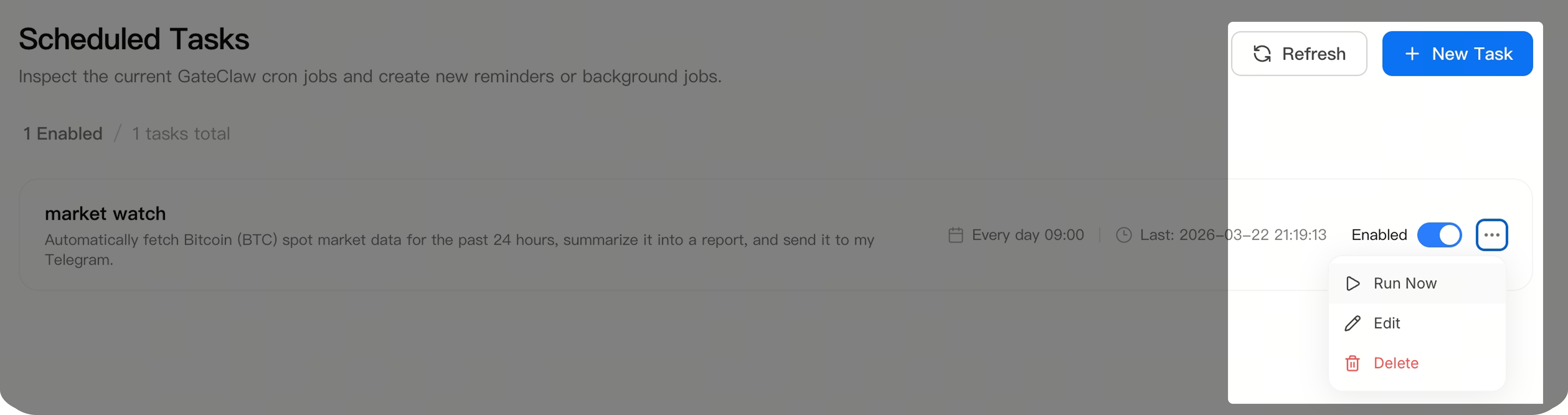
In the task list on the [Scheduled Tasks] page, you can select the corresponding task and use the function area on the right side of the task information to enable/disable, edit, or delete tasks (for new tasks, it's recommended to click "Execute Now" for task verification).
FAQ
Q1: What's the difference between background tasks and reminder tasks?
A: Background tasks are automatically executed by GateClaw and return results, while reminder tasks send you reminder notifications at specified times.
Q2: How do I verify if a scheduled task is configured correctly?
A: After creating a new task, it's recommended to click the "Execute Now" button for verification to confirm the task executes as expected.
Q3: What should I do if a scheduled task fails to execute?
A: Please check if the Cron expression is correct and if the task content description is clear. If the problem persists, please contact Gate customer support.
Q4: How many scheduled tasks can I create?
A: Currently, you can create multiple scheduled tasks as needed. For specific quantity limits, please refer to the latest platform announcements.
Q5: Is there a delay in scheduled task execution time?
A: GateClaw tries to execute tasks at precise times, but there may be slight delays, usually within a few minutes.
Q6: How do I delete unwanted scheduled tasks?
A: Find the corresponding task in the scheduled task list and click the delete button on the right.
Disclaimer
The content provided herein is for reference and educational purposes only and does not constitute any financial, investment, trading, or legal advice, nor does it constitute an offer or solicitation to buy or sell any digital assets. Gate makes no express or implied representations or warranties regarding the accuracy, completeness, or timeliness of the information contained herein. Product features, interfaces, rules, and fee structures may be updated or adjusted at any time. Please refer to the latest announcements and the actual information displayed on the Gate platform for the most accurate details.
Digital asset investments involve significant risk, and prices may fluctuate substantially. You may lose the entire amount of your investment. Please make decisions cautiously based on your own financial situation and risk tolerance after fully understanding the associated risks. If necessary, you are advised to consult an independent professional financial or legal advisor.
For more information about potential risks, please refer to Gate's Risk Disclosure and User Agreement.
