


Applicable Scope
This guide applies to Gate App (Android)
Before you start: Update your Gate App to version V7.21.0 or later
Estimated time: 3 m
Objective
This guide will walk you through how to set up the real-time market tracking widget on your Android device's home screen on Gate App.
Steps
Step 1: Access Real-Time Market Tracking Settings
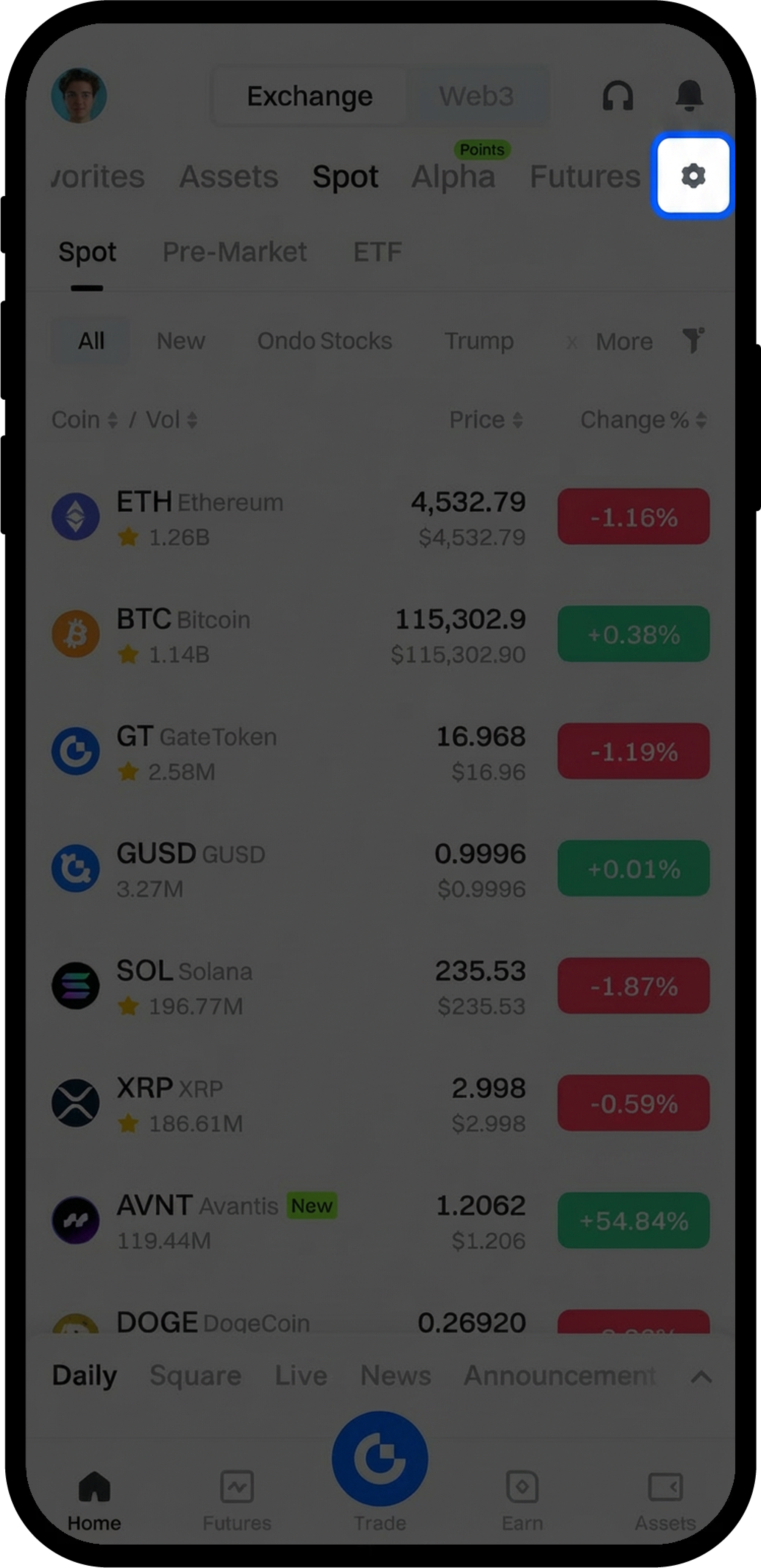
- Open the Gate App and navigate to the homepage.
- Tap the Market [Settings] button.
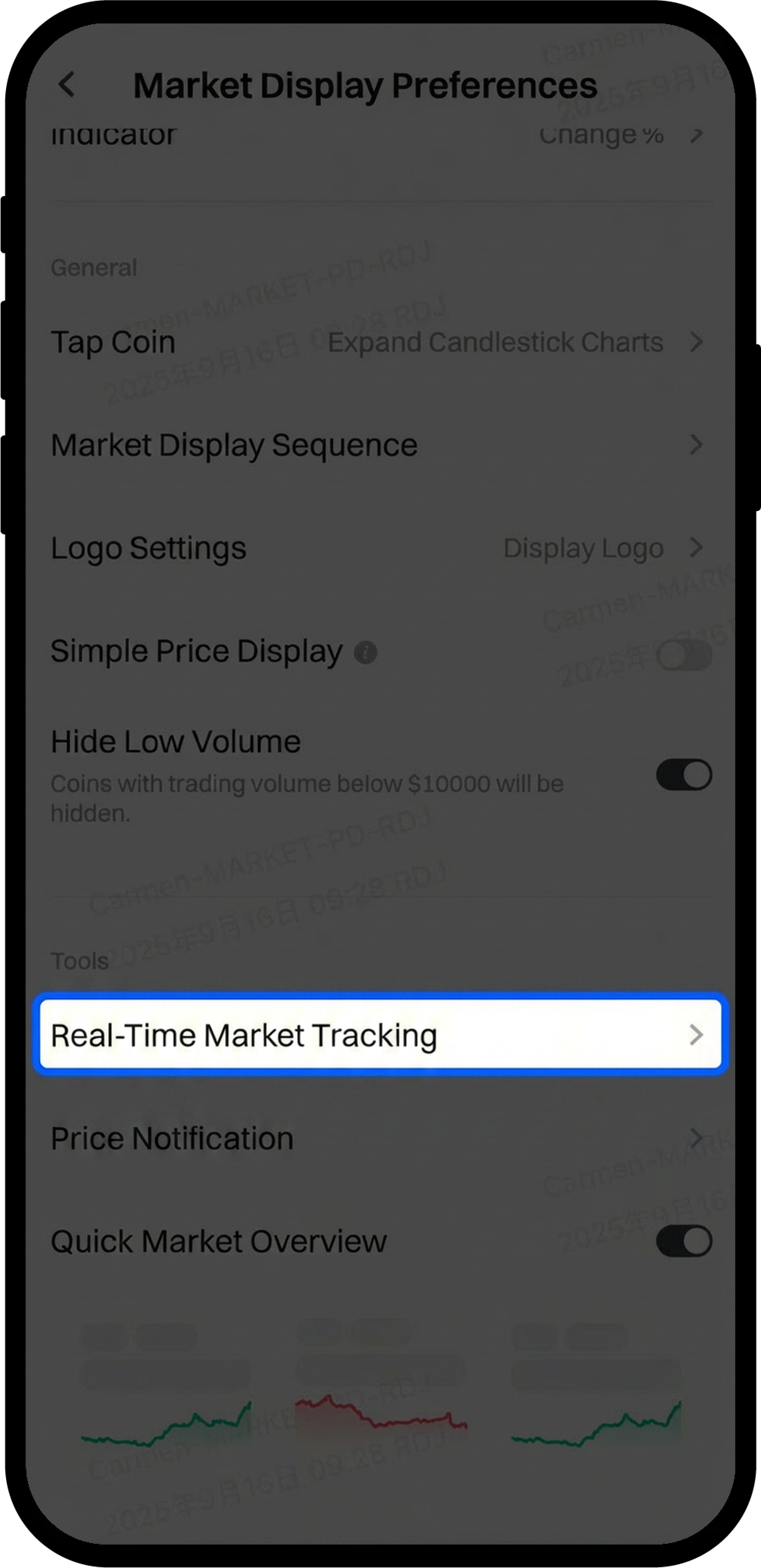
- Under [Tools], select [Real-Time Market Tracking].
Step 2: Enable Floating Window Display
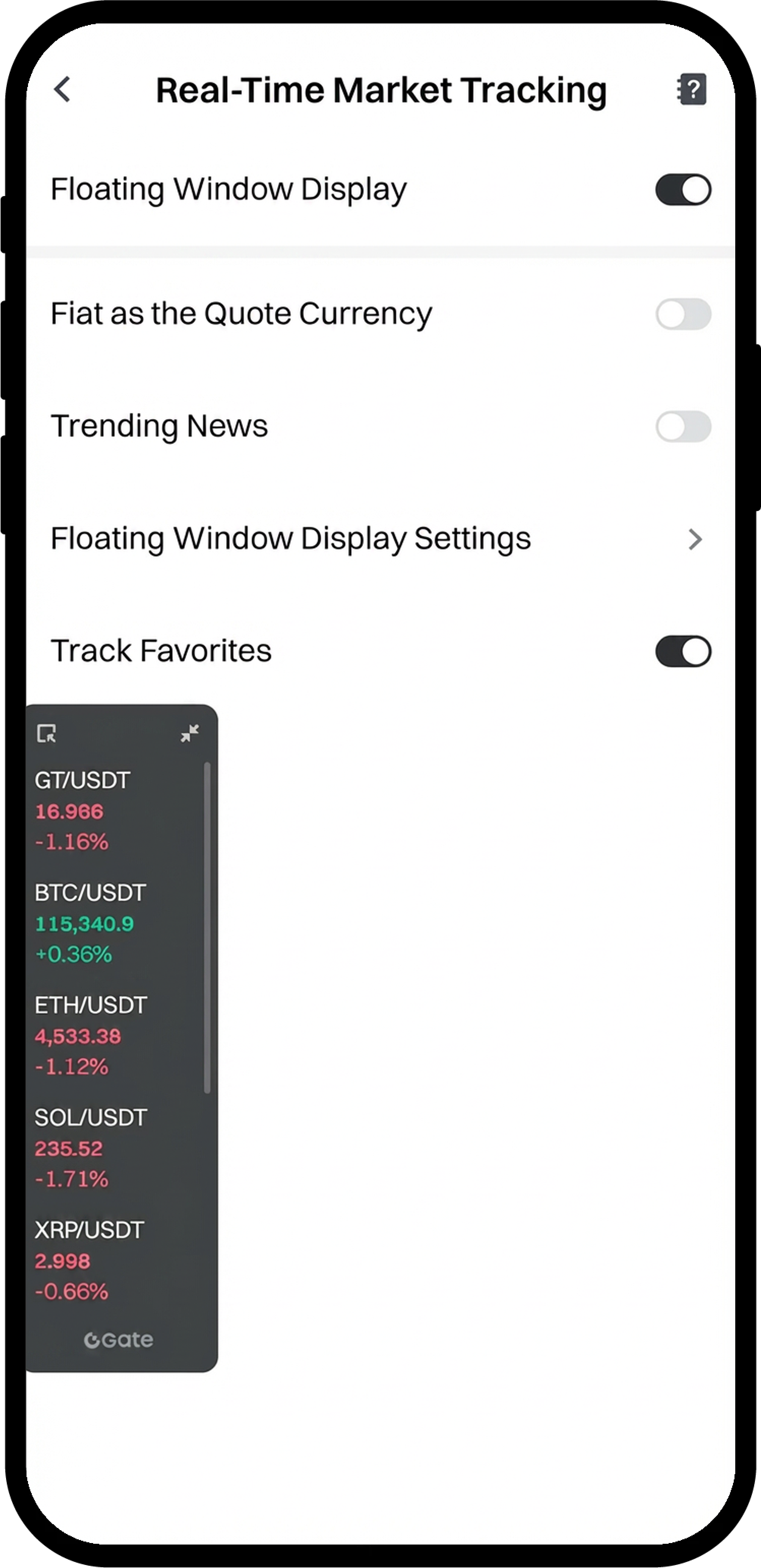
- On the [Real-Time Market Tracking] page, enable [Floating Window Display].
- Grant the required permission when prompted by the system (first-time setup only).
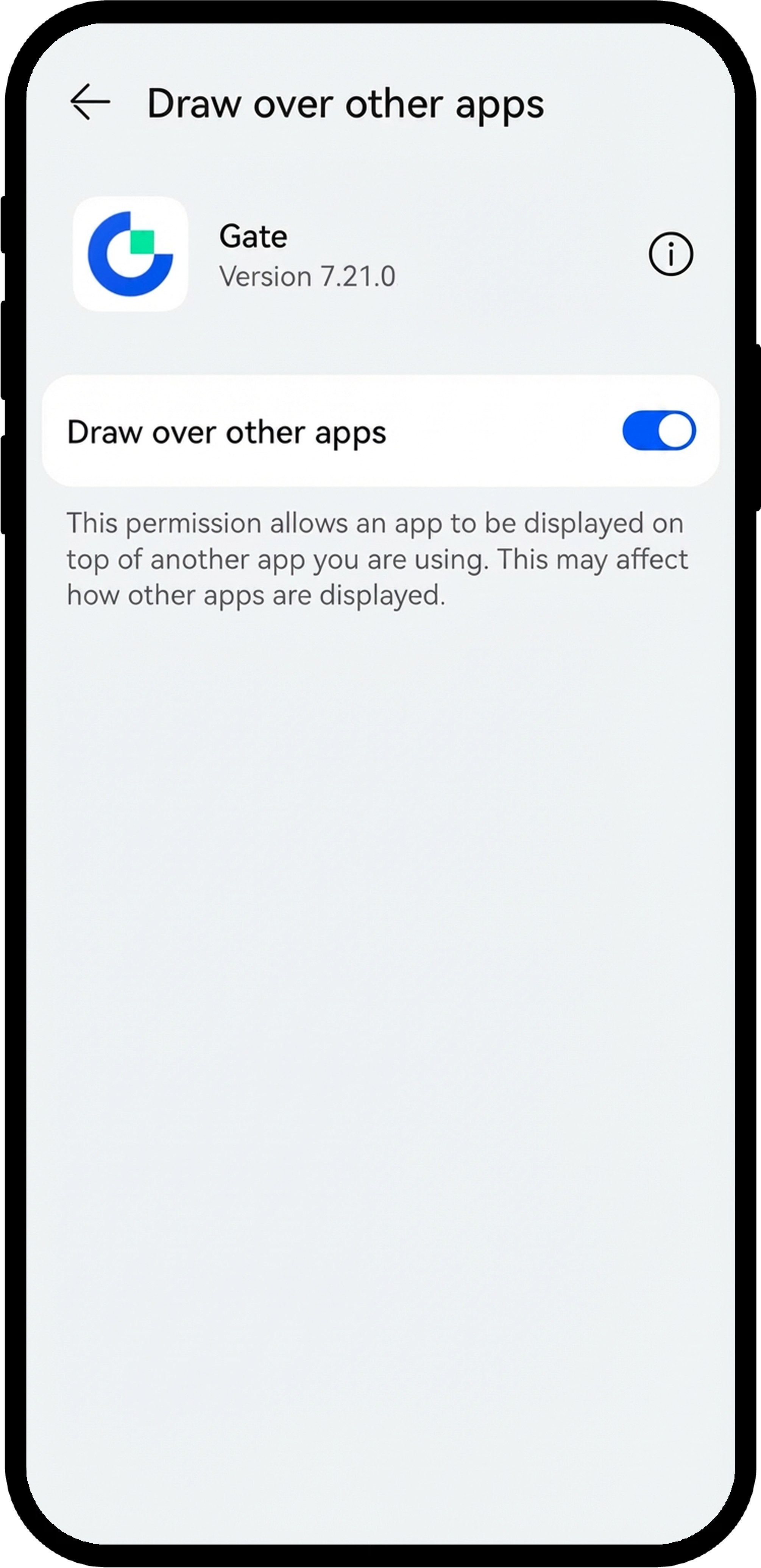
- Alternative method: Go to [Settings] - [App info] - [Gate] - [Advanced settings] - [Draw over other apps] to enable the permission.
Step 3: Customize Widget Settings
Configure your widget preferences according to your needs:
- Fiat as the Quote Currency: Display prices in your preset fiat currency
- Trending News: Enable or disable news notifications
- Track Favorites: Choose between Track Favorites or Custom Coins
- Price Chg % Display: Show or hide percentage change
- Auto Carousel: Enable auto-rotation of coin prices
- Futures Price Display: Switch among Last Price, Mark Price, or Index Price
- Background Transparency: Adjust transparency level from 40% to 100%
- Font Size: Select from small, standard, or large
- Markets Per Page: Display 3–8 coins per page
Step 4: Position the Widget
Drag the floating window to any area of your screen for convenient viewing.
Notes
- The floating window feature requires "Draw over other apps" permission to function properly.
- Widget settings can be adjusted at any time through the Real-Time Market Tracking page.
- Gate reserves the final interpretation rights for this product feature.
FAQ
Q1: Why can't I see the floating window after enabling it?
A: Ensure you have granted the "Draw over other apps" permission. You can verify this by going to your phone's Settings - App info - Gate - Advanced settings - Draw over other apps, and make sure it's enabled.
Q2: Can I display more than one cryptocurrency at a time?
A: Yes, you can display 3–8 coins per page by adjusting the "Markets Per Page" setting. If you enable "Auto Carousel", the widget will automatically rotate through your selected cryptocurrencies.
Q3: Does the market tracking widget work when the Gate App is closed?
A: The floating window requires the Gate App to be running in the background. If you force-close the app, the widget will not display real-time data.
Q4: Will the widget consume significant battery or data?
A: The widget is designed to be lightweight, but continuous real-time data updates may have a minor impact on battery life and data usage. You can adjust the refresh frequency or temporarily disable the feature when not needed.
Disclaimer
The content provided herein is for reference and educational purposes only and does not constitute any financial, investment, trading, or legal advice, nor does it constitute an offer or solicitation to buy or sell any digital assets. Gate makes no express or implied representations or warranties regarding the accuracy, completeness, or timeliness of the information contained herein. Product features, interfaces, rules, and fee structures may be updated or adjusted at any time. Please refer to the latest announcements and the actual information displayed on the Gate platform for the most accurate details.
Digital asset investments involve significant risk, and prices may fluctuate substantially. You may lose the entire amount of your investment. Please make decisions cautiously based on your own financial situation and risk tolerance after fully understanding the associated risks. If necessary, you are advised to consult an independent professional financial or legal advisor.
For more information about potential risks, please refer to Gate's Risk Disclosure and User Agreement.
