


To help merchants manage asset disbursement (withdrawal) processes more securely, we've introduced Disbursement Rule Controls and Multi-Signature Review features. You can customize disbursement rules based on your risk management needs, specify conditions that trigger manual review, and enable multi-person participation in the approval process—effectively reducing the risk of errors and safeguarding your funds.
1. How to Set Up Disbursement Rules
Go to [Settings Center] > [Rule Management] to create and manage your disbursement rules.
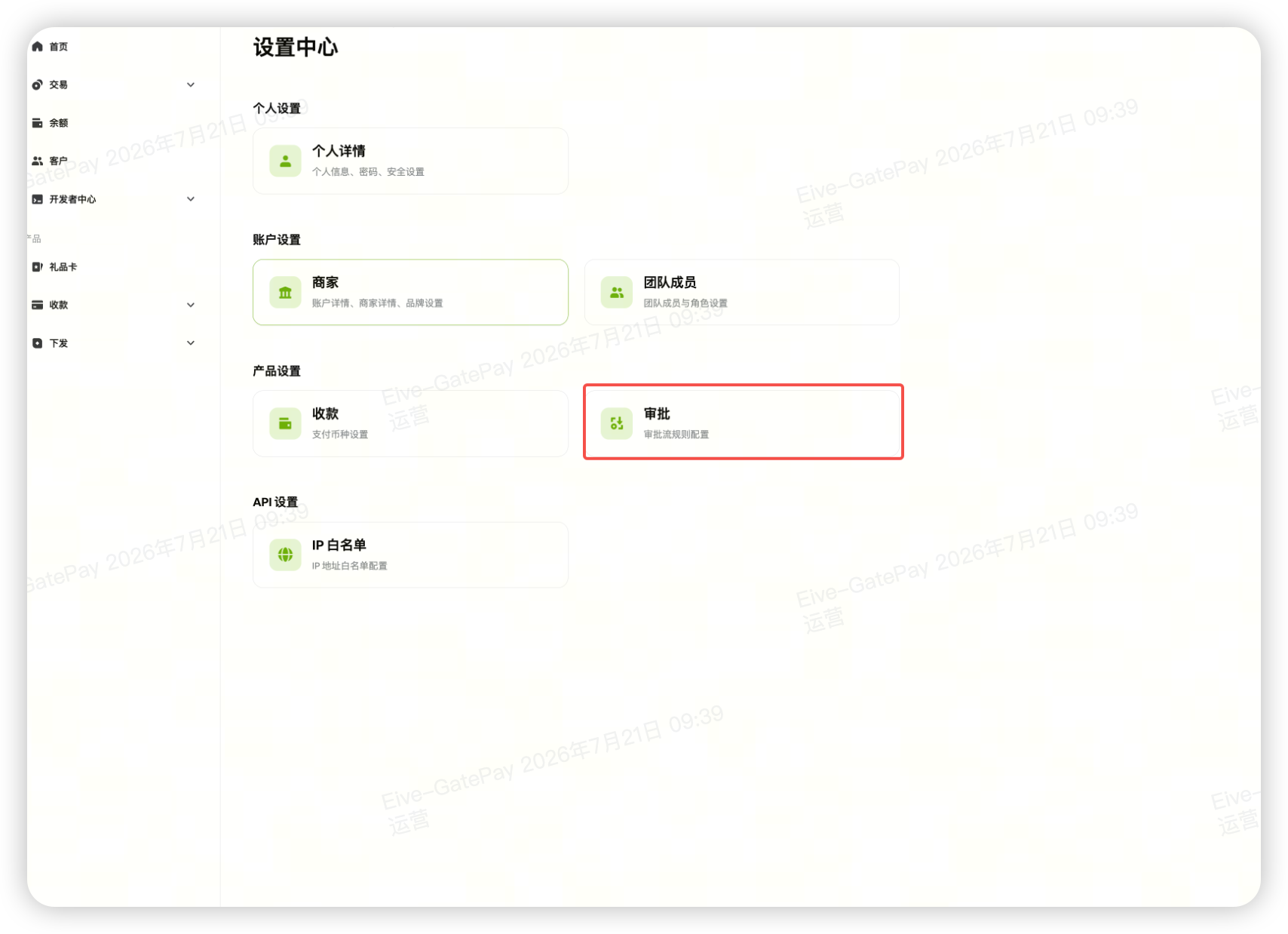
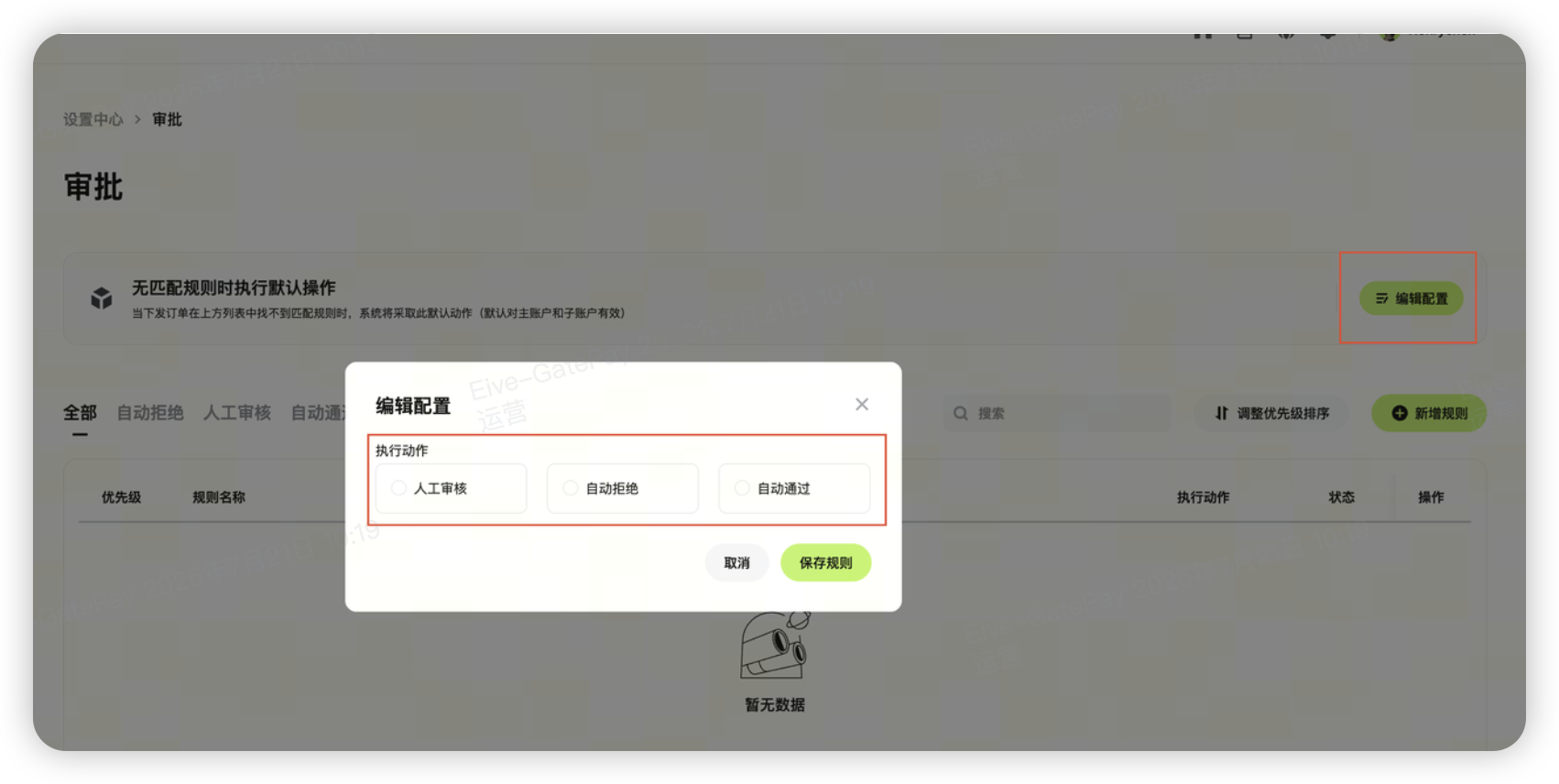
1. Set a Default (Fallback) Rule
All disbursement requests will fall into one of the following states:
- Manual Review: Requires approval from an authorized administrator before proceeding with the disbursement.
- Auto Reject: Disbursement requests are automatically declined by default.
- Auto Approve: Disbursement requests are automatically processed by default.
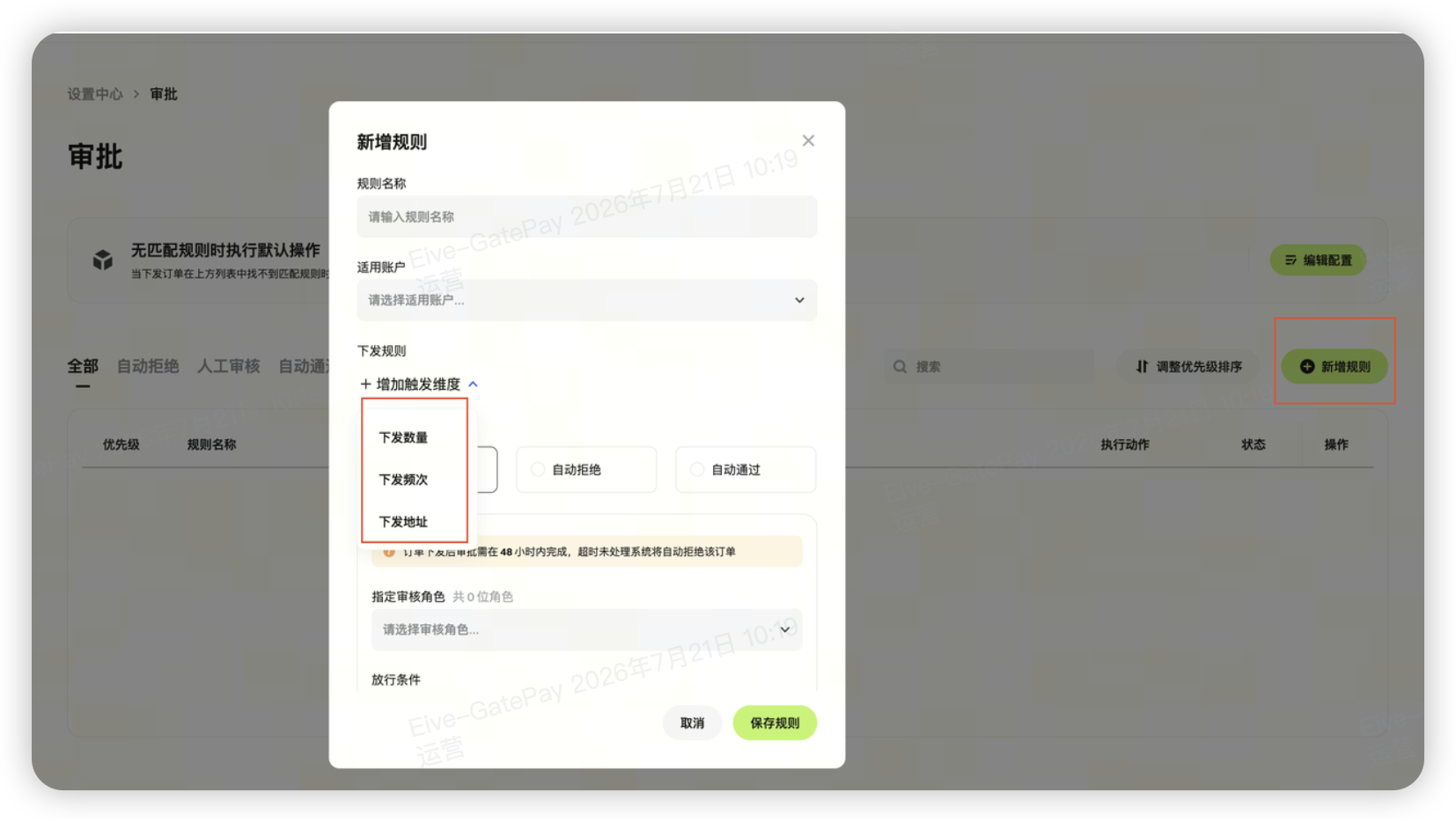
2. Configure Rule Conditions
You can set rule triggers based on the following criteria:
- Disbursement Amount: Threshold for a single transaction or cumulative amount within 24 hours
- Disbursement Frequency: Number of disbursement requests within a certain time frame
- Disbursement Address: Specific recipient addresses or address types
3. Set Execution Actions
Each rule requires you to specify an action to be taken when triggered. There are three types:
| Execution Action | Description |
|---|---|
| Manual Review | Requires members with designated roles to review and approve in the Gate App before execution |
| Auto Reject | Disbursement orders that trigger the rule will be automatically rejected |
| Auto Approve | Disbursement orders that trigger the rule will be automatically processed without review |
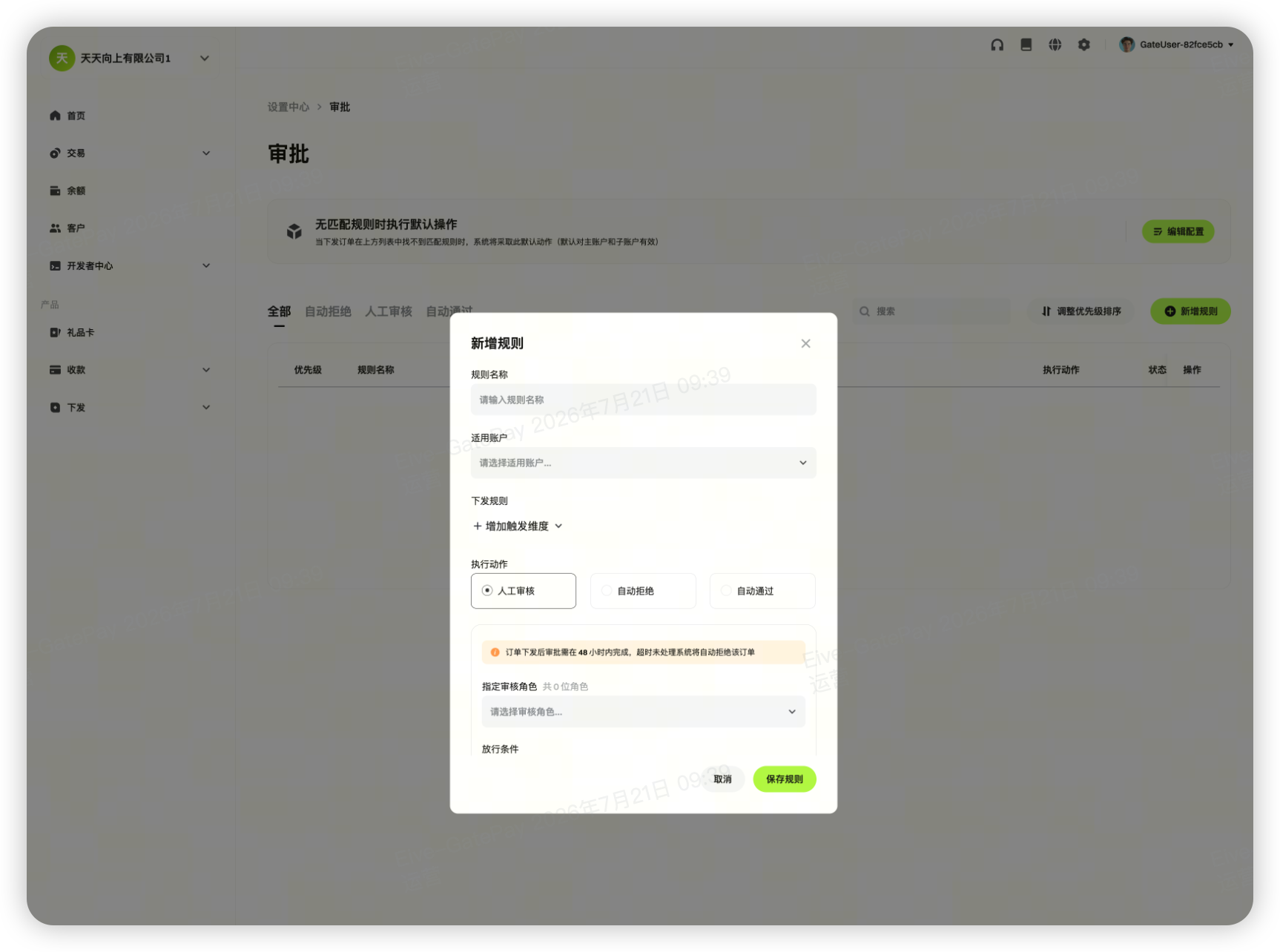
⚠️ Note: If you select "Manual Review," you must assign a role with review permissions, and reviews can only be completed in the Gate App. Web-based review is not supported at this time.
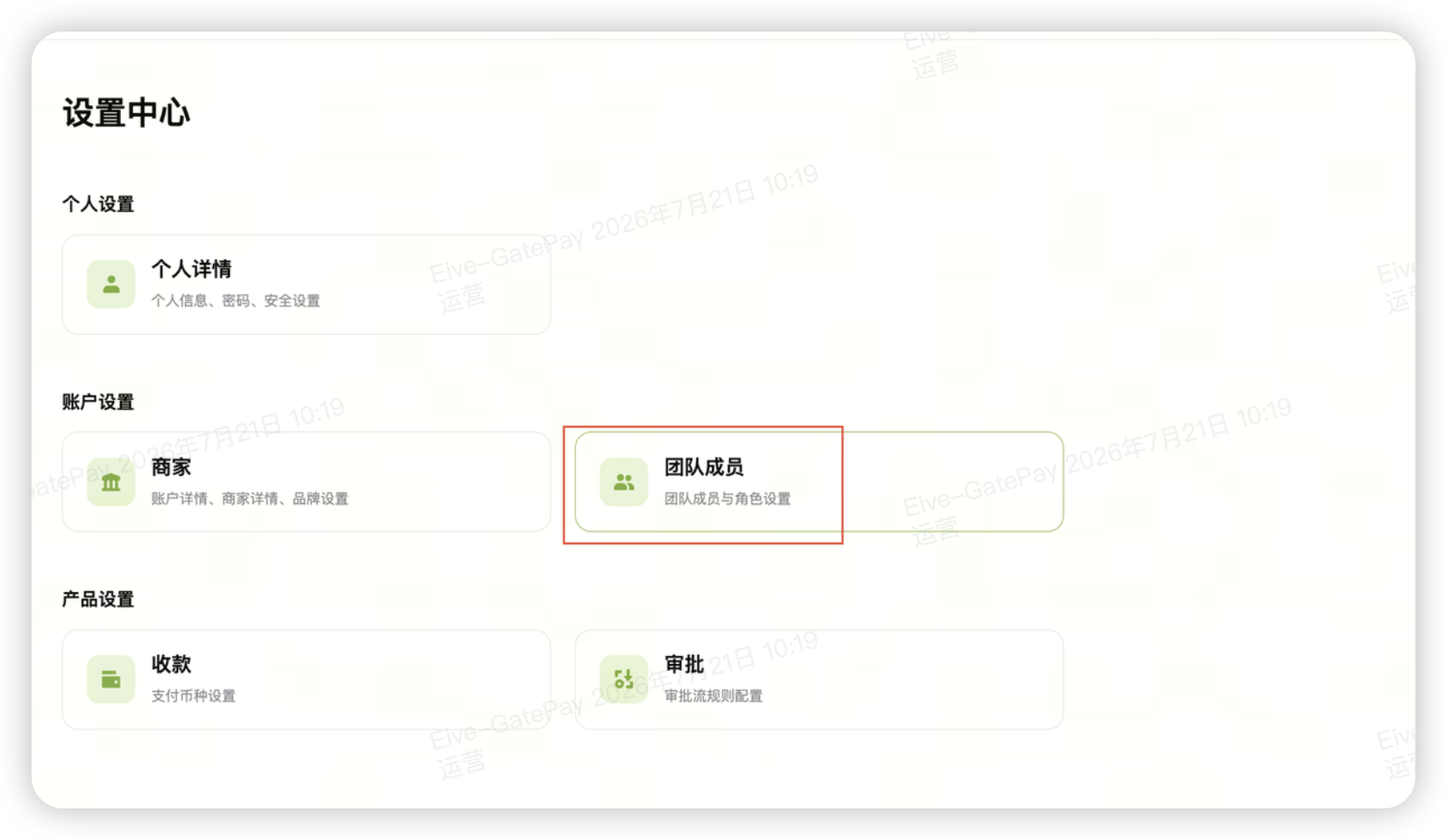
2. Viewing Approval Information for Disbursement Orders
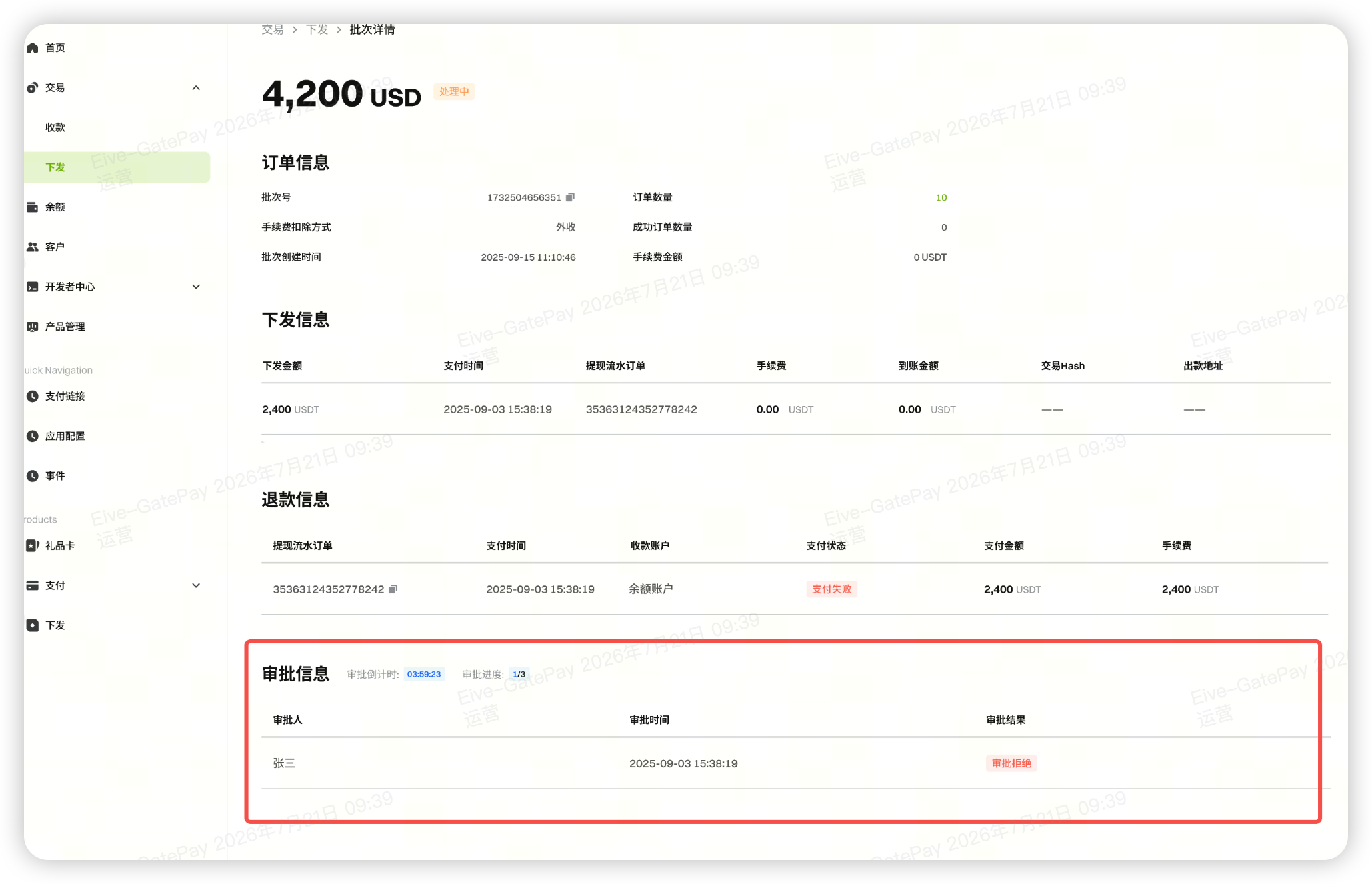
In [Disbursement Order Management], go to the details page of a specific disbursement order to view the new Approval Information section. This includes review status, reviewer, review time, and more—making it easy to track the progress of each approval.
3. How to Complete Approvals in the Gate App
When a disbursement order triggers a "Manual Review" rule, members with review permissions can access the approval page through any of the following methods:
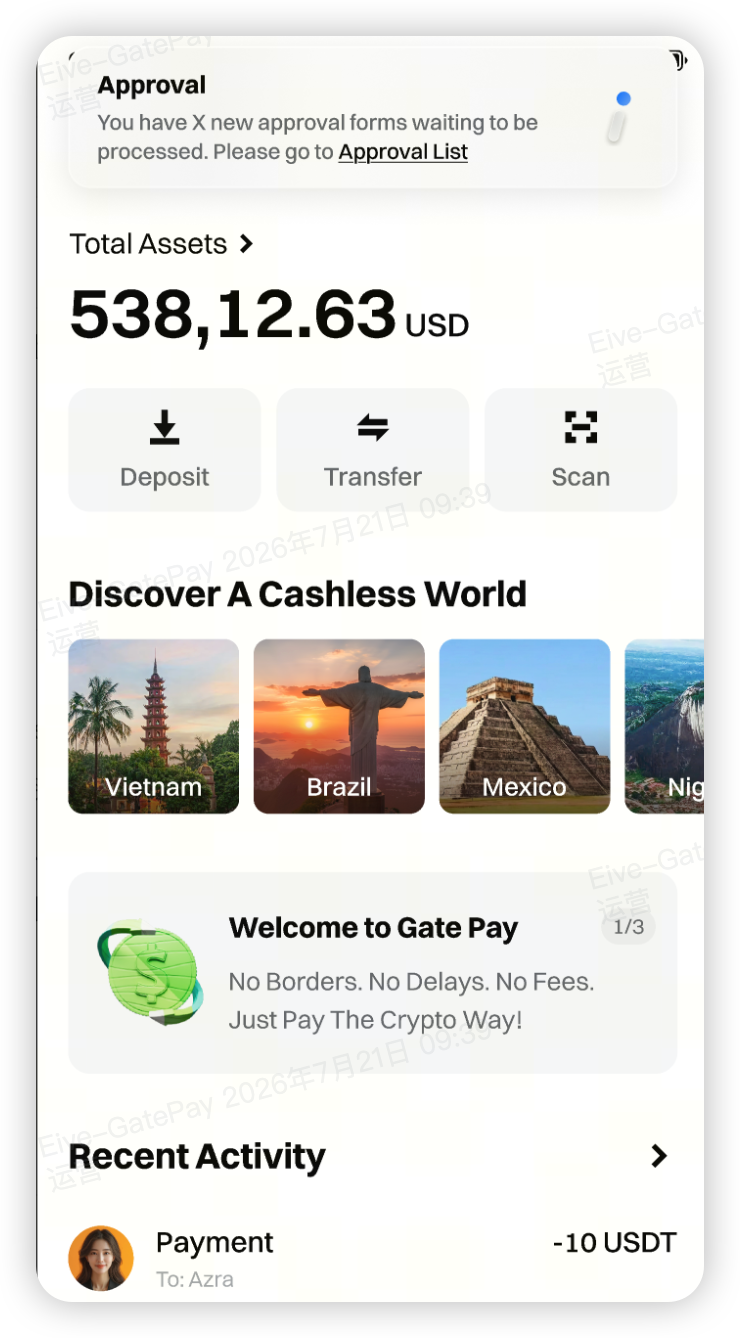
- Push Notification: Tap the Gate App approval notification to go directly to the approval page.
- Pay Page: Tap the profile icon in the top left corner → "Approval"
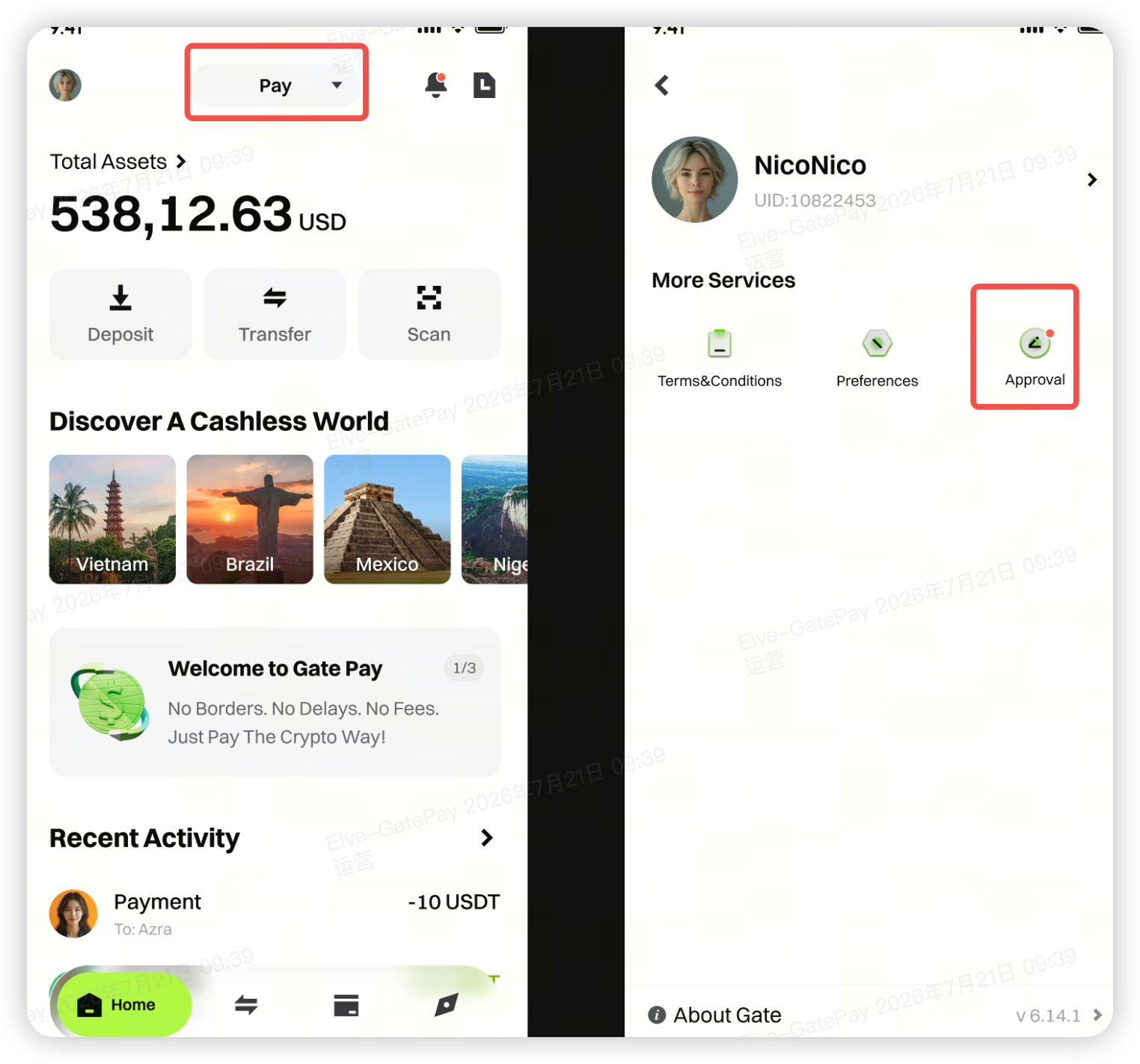
- Exchange Page: Go to "Messages" → "Approval"
Supports Single and Batch Approvals
- If you have multiple orders pending review, you can approve them one by one or select multiple orders for batch approval to improve efficiency.
- Each order's approval details will display key information such as network, address, amount, merchant info, creation time, expiration time, etc., so reviewers can verify details before choosing "Approve" or "Reject."
4. Frequently Asked Questions
Q1: Who can perform manual reviews?
A: Only members designated as "Reviewer Roles" in the rule have permission to review orders that trigger that rule.
Q2: Can reviews be done on the web?
A: Not currently. Manual reviews can only be performed in the Gate App.
Q3: If multiple rules are configured, will they all be executed?
A: No. The system matches rules in order of priority. Once a rule is triggered, the corresponding action is executed and no further rules are checked.
Q4: What happens to orders that don't match any rule?
A: If a fallback rule is configured, the system will automatically execute the action specified by the fallback rule. We strongly recommend setting up a fallback rule to prevent unprocessable orders.
Q5: Can account-level rules be used in a multi-account system (parent-child account setup)?
A: Currently, account-level rules are only supported for institutional accounts and their sub-accounts. Multi-account system scenarios are not supported at this time.
Q6: How do I configure disbursement to a specific address?
A: Set the fallback rule to [Auto Reject]; for sub-rules, select [Disbursement Address] as the trigger, enter the target address, and set the action to [Auto Approve]. Non-target addresses will trigger the fallback rule and be automatically rejected, causing the disbursement request to fail.
Disclaimer
The content provided herein is for reference and educational purposes only and does not constitute any financial, investment, trading, or legal advice, nor does it constitute an offer or solicitation to buy or sell any digital assets. Gate makes no express or implied representations or warranties regarding the accuracy, completeness, or timeliness of the information contained herein. Product features, interfaces, rules, and fee structures may be updated or adjusted at any time. Please refer to the latest announcements and the actual information displayed on the Gate platform for the most accurate details.
Digital asset investments involve significant risk, and prices may fluctuate substantially. You may lose the entire amount of your investment. Please make decisions cautiously based on your own financial situation and risk tolerance after fully understanding the associated risks. If necessary, you are advised to consult an independent professional financial or legal advisor.
For more information about potential risks, please refer to Gate's Risk Disclosure and User Agreement.
