
1. What Is Convert Trading?
Convert Trading allows users to instantly swap between supported digital assets with a simplified one-click experience. The system provides a quoted execution price, and after the user confirms the conversion, the assets are typically settled immediately in the spot account.
Gate US does not charge any additional fees for Convert transactions; however, the execution price may differ from current market prices.
2. How to Use Convert Trading
On the app, submit a conversion request - preview the conversion details - confirm the transaction - conversion completes, and the assets are settled in your spot account.
3. What Are the Minimum and Maximum Limits per Trade?
- When converting to stablecoins: minimum 0.01 USDT
- When converting to cryptocurrencies: minimum 12 USDT
- Maximum limits vary by token pair and will be displayed in real time on the page.
4. How Is the Convert Price Determined?
The Convert execution price may differ from spot market prices.
- When buying, the Convert price may be slightly higher than the spot price.
- When selling, the Convert price may be slightly lower. This price difference reflects market liquidity, volatility, and real-time quote availability.
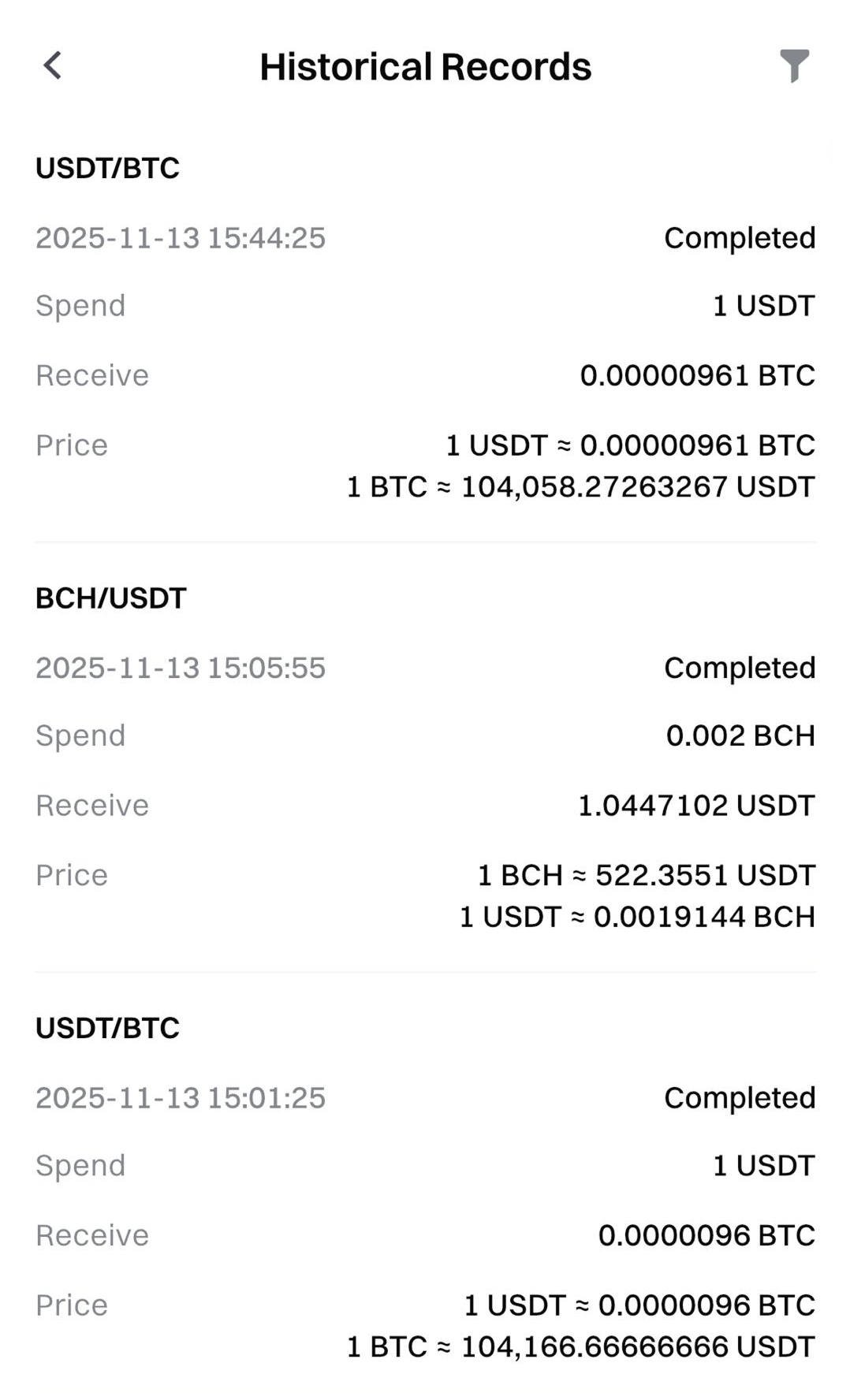
5. How to View Your Conversion History
Log in to your Gate US account - tap your profile icon (top-left) - Trade - Convert - tap the notebook icon (top-right) to view your historical conversion records.
6. How to Deposit and Withdraw for Convert
Convert transactions settle directly in your spot account. You may deposit or withdraw assets through your spot account as usual.
7. Why Do I See “Insufficient Balance”?
To complete a conversion, your spot account must contain enough available balance for the requested transaction.
Example: If you want to convert USDT into BTC, and the quoted Convert price is 90,000 USDT for 1 BTC, you must have at least 90,000 USDT available in your spot wallet to proceed.
Step-by-step Tutorial for Using Convert (App)
1. Open Convert
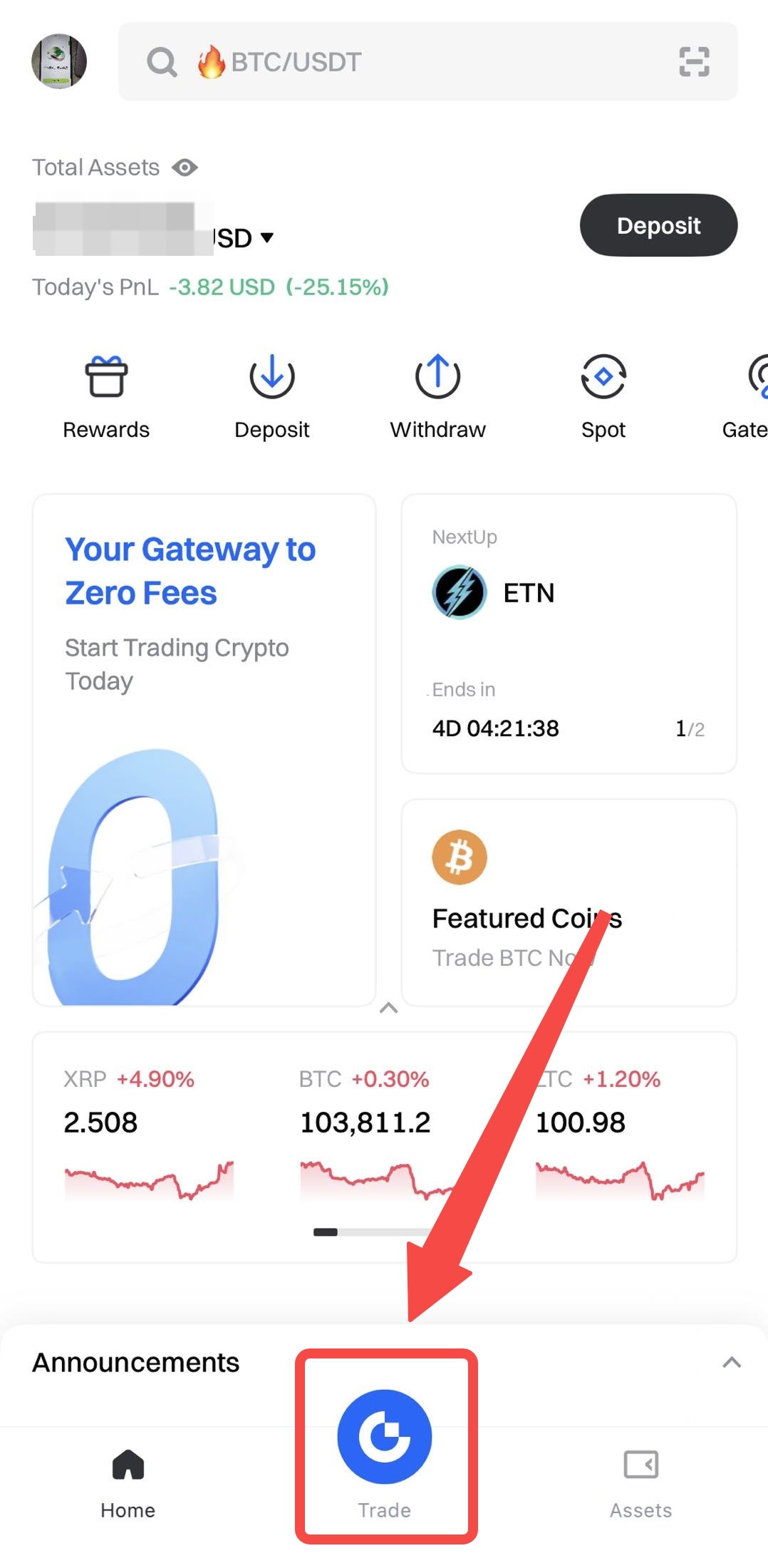
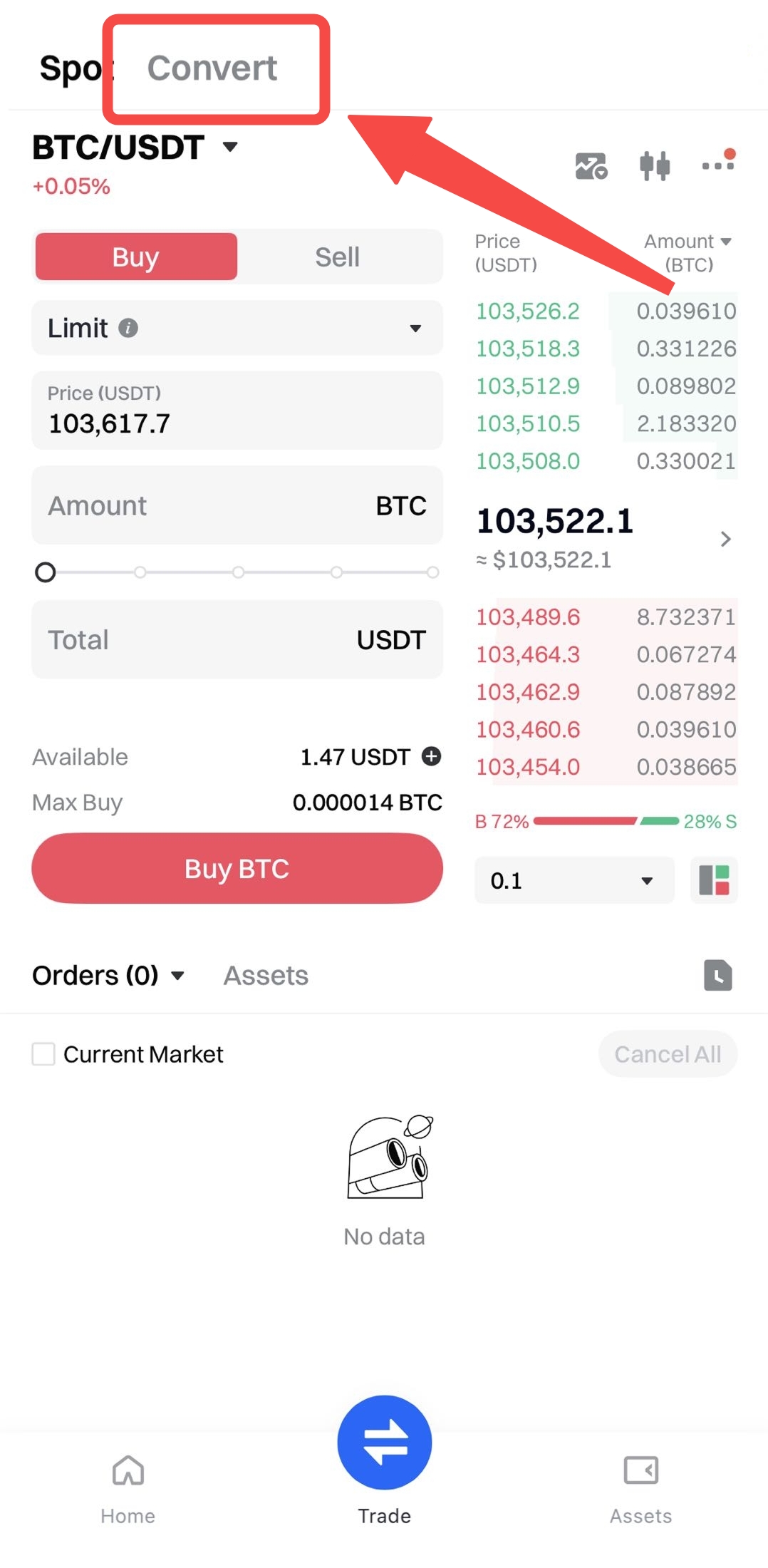
Log in to Gate US, tap Trade in the bottom navigation bar, switch to Convert at the top.
2. Choose Assets
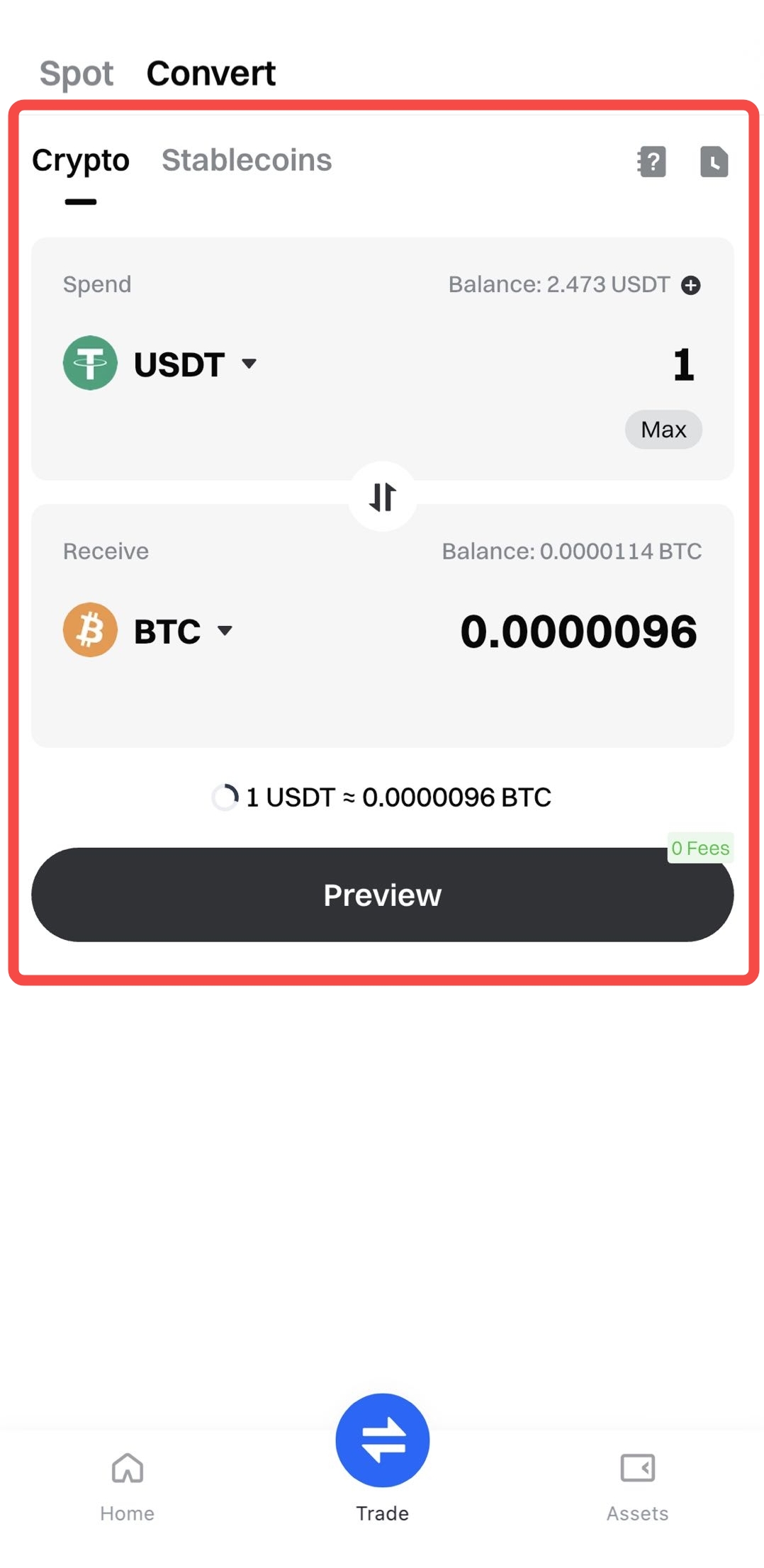
Under Spend and Receive, select the asset you want to convert and enter the amount.
Tap Preview to review the quoted price.
If the quote expires, the system will refresh with a new quote.
3. Confirm Conversion
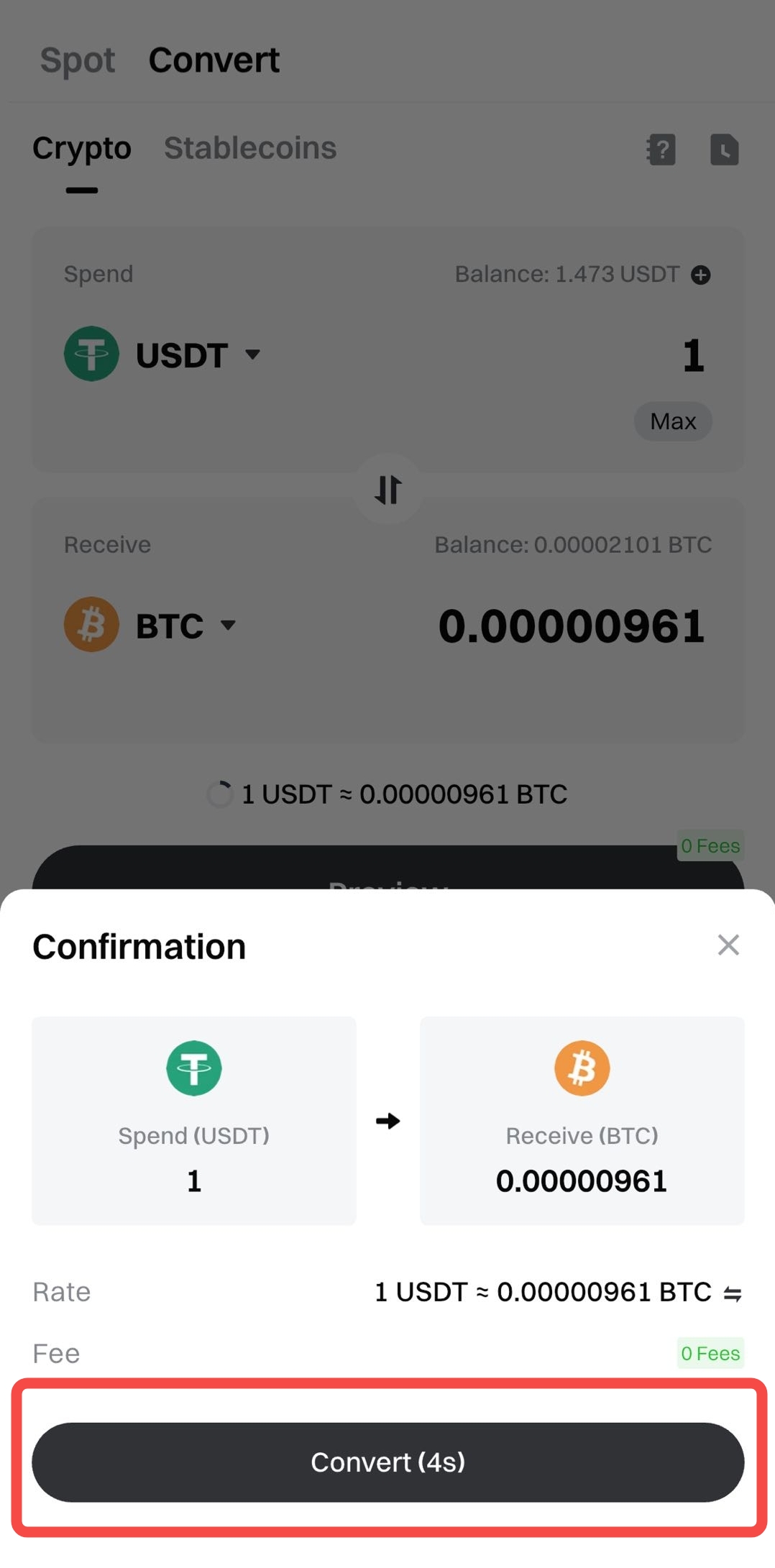
After confirming, the converted assets will typically be settled in your spot account.
You can also view your conversion history by tapping the Notebook icon in the upper-right corner.
Disclaimer:
Gate US reserves the right of final interpretation regarding the rules and conditions of using Trading Fee Rebate Vouchers.
This is not investment advice. The information is provided for informational purposes only and should not be construed as a recommendation to buy, sell or hold any asset. Cryptocurrency trading involves a risk of loss. Gate US services may be restricted in certain jurisdictions. For more information, please see our legal disclosures: https://us.gate.com/legal/disclosures
