
How to View Your Assets
Step 1: On the top navigation bar, click Assets - Funds Management - Spot Account.
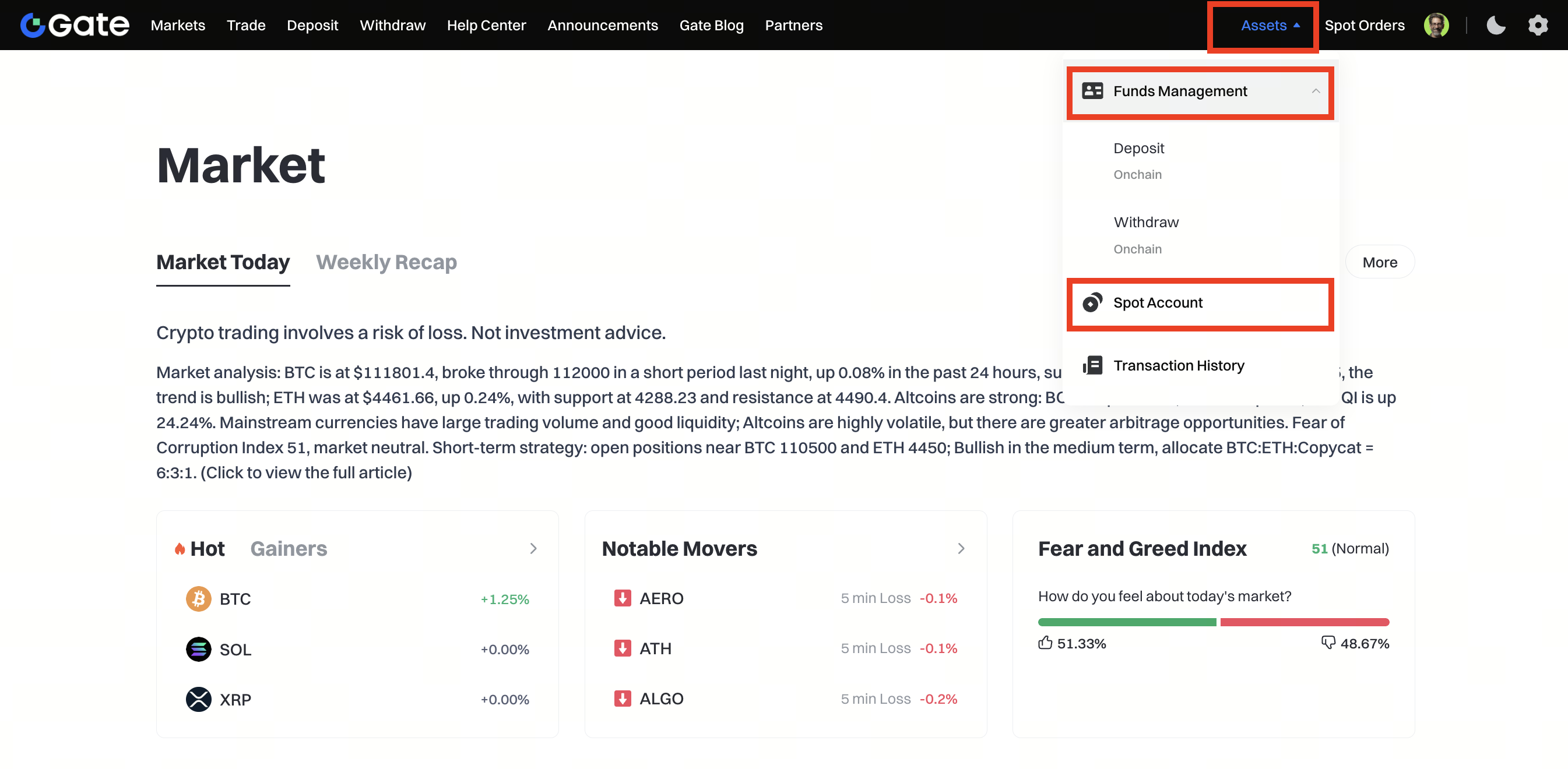
Step 2: You will be redirected to the Spot Account page, where you can check:
- Spot Assets: Your total asset value in USD and BTC equivalent.
- Cumulative PNL and Today’s PNL.
- A list of coins you hold, including Coin Balance, Available amount, and Frozen amount.
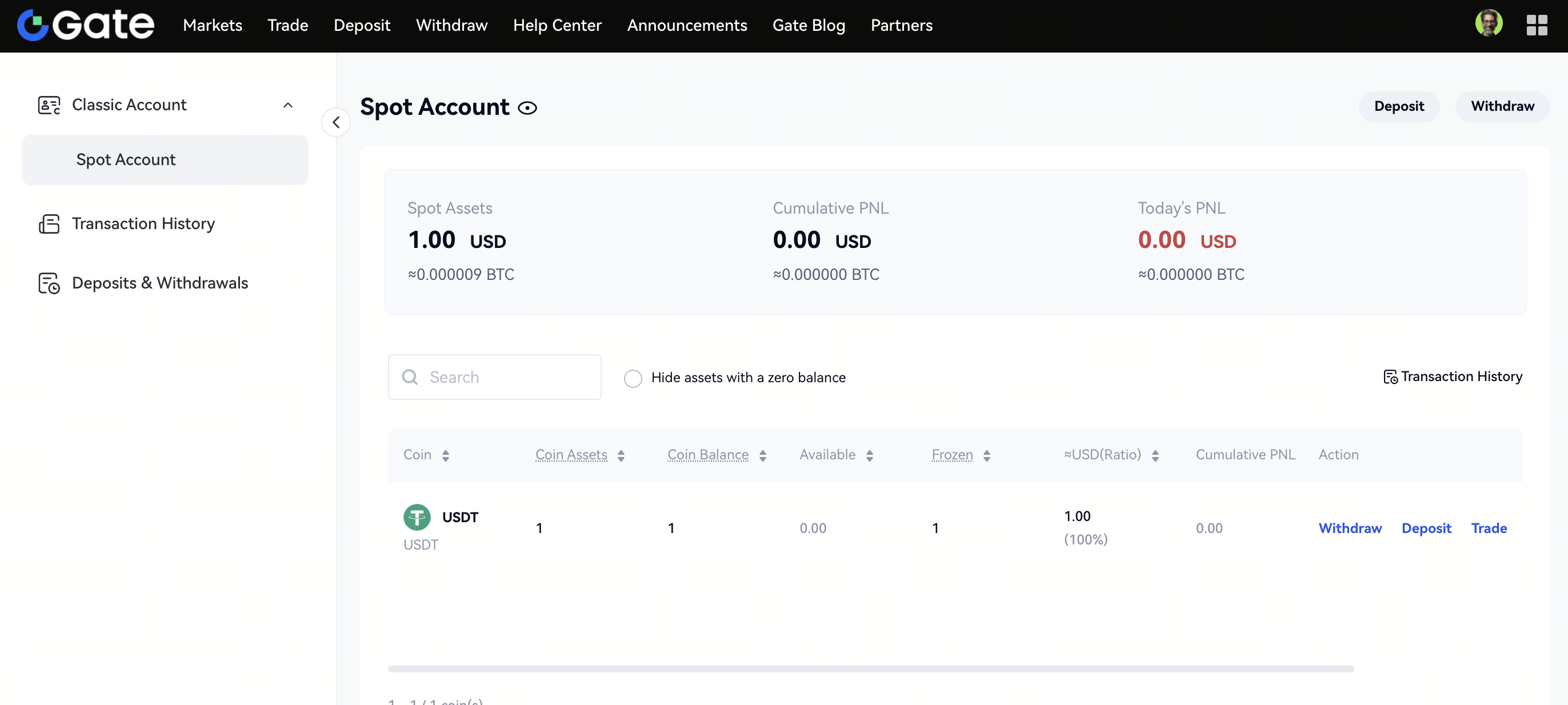
Shortcut actions such as Deposit, Withdraw, and Trade are also available on this page.
What is an Open Order and How to View It
An open order is a pending order placed on the order book with a preset price, amount, and side (buy/sell). Once the market price matches the preset price (or better), the order will be executed.
- Filled orders are completed trades.
- Unfilled orders remain in the order book until matched.
- Placing an open order adds liquidity to the market, and the person placing it is called a Maker.
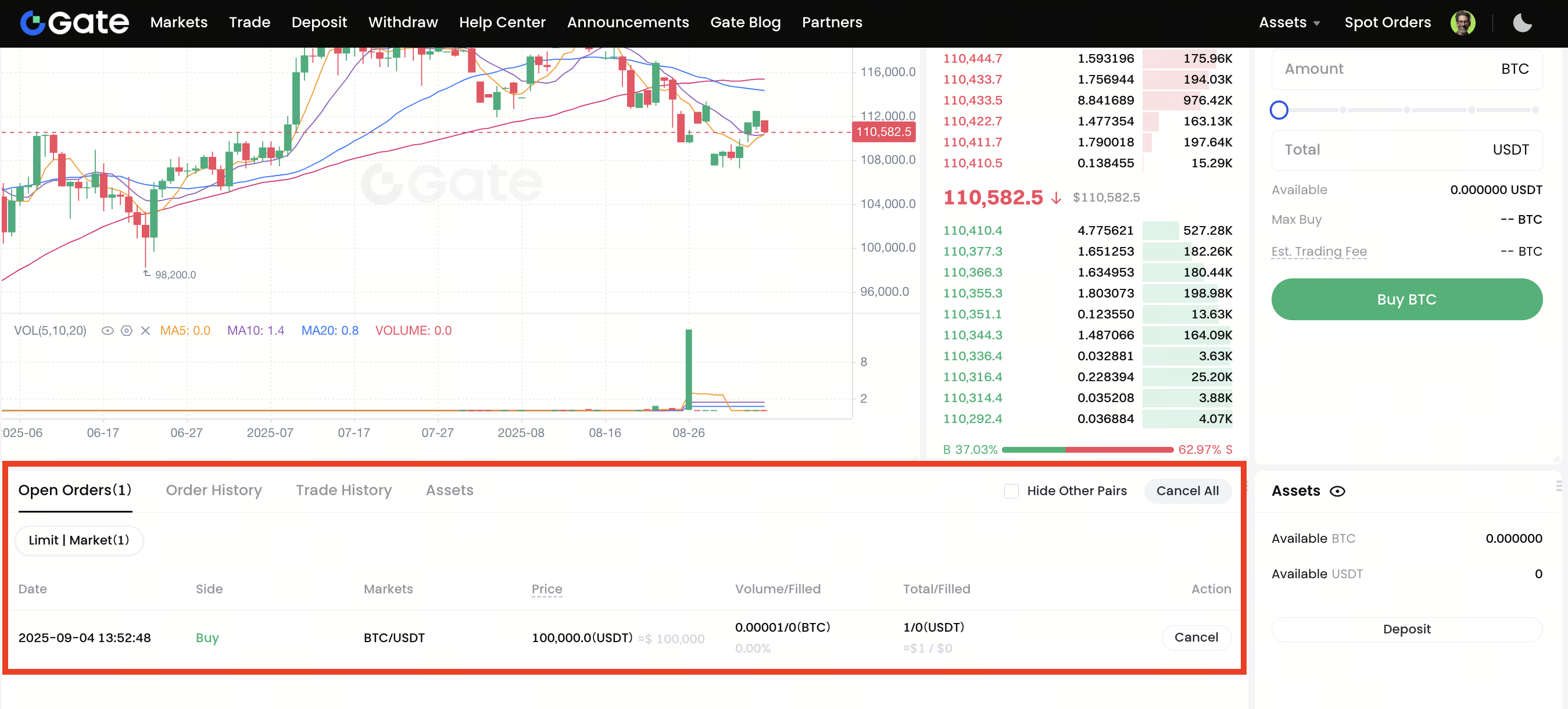
Step 1: Go to the trading page and select the trading pair (e.g., BTC/USDT).
Step 2: Scroll down to the Open Orders section. Here you can view:
- Date & Time of the order
- Side (Buy/Sell)
- Market pair
- Price set
- Volume and filled status
- Action (you can cancel the order)
Disclaimer: This is not investment advice. The information is provided for informational purposes only and should not be construed as a recommendation to buy, sell or hold any asset. Cryptocurrency trading involves a risk of loss. Gate US services may be restricted in certain jurisdictions. For more information, please see our legal disclosures: https://us.gate.com/legal/disclosures
