

Gate Web3 Wallet FAQ

1. Forgot Wallet Password or Recovery Phrase
Gate does not store your wallet password and therefore cannot help you retrieve it. You can reset your wallet password by re-importing your wallet using your recovery phrase or private key. Please note, if you reset your wallet without backing it up, you will lose access to your wallet and all assets within it. Always make sure your wallet is backed up before performing a reset.
Your wallet recovery phrase or private key is the key to accessing your wallet. Be sure to back it up and store it securely. If lost, forgotten, or not backed up, your assets cannot be recovered. Anyone with access to your recovery phrase or private key can transfer your wallet assets.
2. Do I have to pay network fees if a transaction fails?
Yes, you still need to pay network fees even if a transaction fails.
Whenever you send/transfer tokens or perform any on-chain operation, network resources are consumed regardless of the transaction's success. Network fees are paid to miners/validators for processing the transaction.
Network fees are not collected by Gate, so Gate cannot refund or control the amount of these fees.
3. What happens if I send to the wrong address? Can I get my money back?
Gate Web3 Wallet is a non-custodial wallet, allowing users to fully control their assets with strong privacy protection, and offers very limited server-side solutions. If you send assets to the wrong address during a transfer, you will not be able to recover your assets.
Due to the nature of blockchain assets, once a transfer is successful, the transaction cannot be canceled or reversed. Always double-check the recipient's wallet address before making a transfer.
If you accidentally send assets to the wrong wallet address, try the following recovery options:
- If sent to the wrong platform wallet address, contact the platform to discuss a possible return.
- If sent to the wrong token contract address, reach out to the project team to discuss a possible return.
- If sent to the wrong private address, it is difficult to recover funds due to blockchain anonymity.
4. Where can I suggest new features or improvements?
Thank you for your trust and support of Gate! We highly value your experience and look forward to hearing your feedback and suggestions for Gate Web3 Wallet.
If you wish to propose new features or improvement suggestions, please use the following feedback channel:
See 👉 How to provide feedback when encountering problems using the Gate Web3 Wallet
5. How do I import an existing wallet?
Extension:
Click the Gate extension wallet, go to the wallet account switch page, select "Manage Wallet," enter the wallet management page, and click "Add Wallet" at the bottom right. On the add wallet channel selection page, choose "Import Wallet." You can import using a private key or recovery phrase—choose whichever you prefer.
Mobile:
Go to the Gate App Web3 homepage, click the wallet name to enter the wallet page, and tap [Add Wallet] at the bottom. On the add wallet page, select [Import Wallet]. You can import via private key, recovery phrase, or restore from cloud backup—choose whichever you prefer.
For updated detailed steps, see: How to Create or Import the Gate Web3 Wallet?
6. How do I view/backup my wallet recovery phrase or private key?
On the wallet homepage, click the wallet name to enter the wallet page. Tap "Manage Wallet" at the top right to access the wallet management page. For each wallet, click the "..." ellipsis on the right to enter the wallet details page, then select "Recovery Phrase/Private Key." After confirming in the popup, enter your wallet password to view/backup your recovery phrase and private key.
Note: Control over wallet funds depends on ownership and control of the corresponding private key or recovery phrase. Losing your recovery phrase or private key means permanent loss of assets. We recommend manually backing up your recovery phrase or private key and avoiding screenshots or screen recordings to prevent malicious theft.
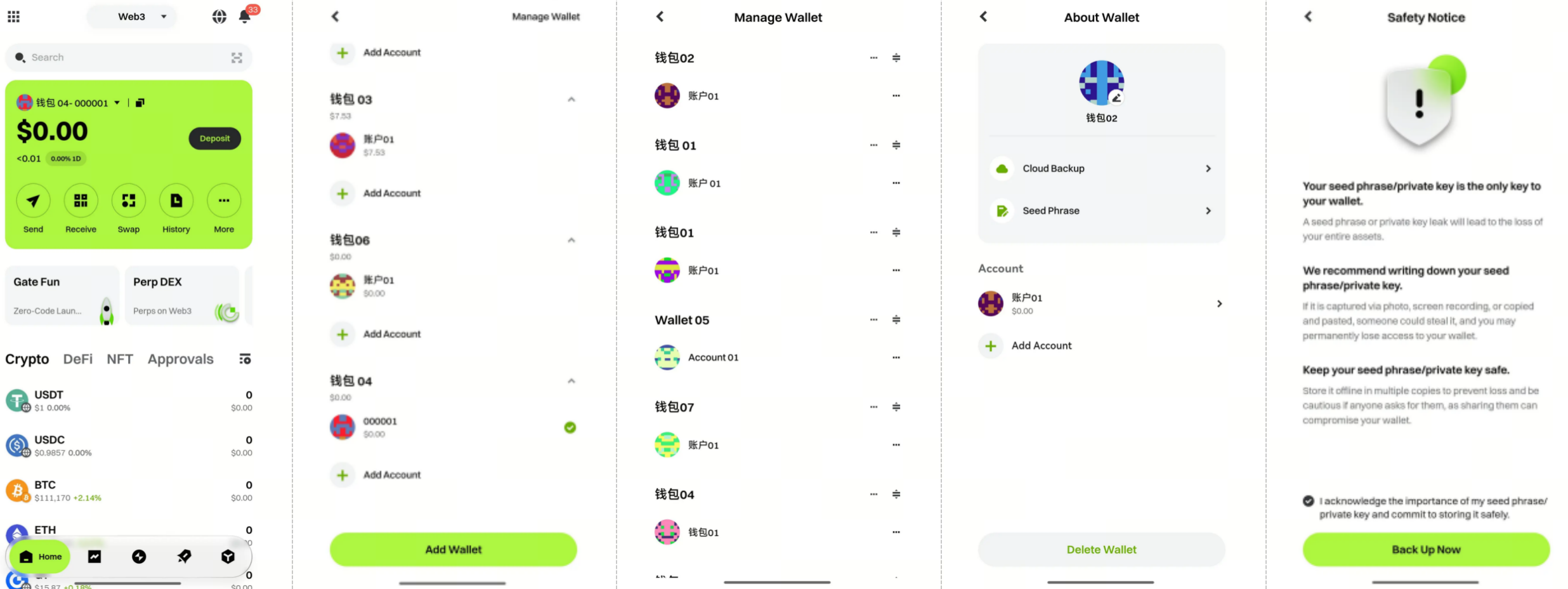
7. Can I delete a created wallet account?
Due to the nature of blockchain, accounts cannot be deleted on-chain once created. However, you can remove them from your wallet.
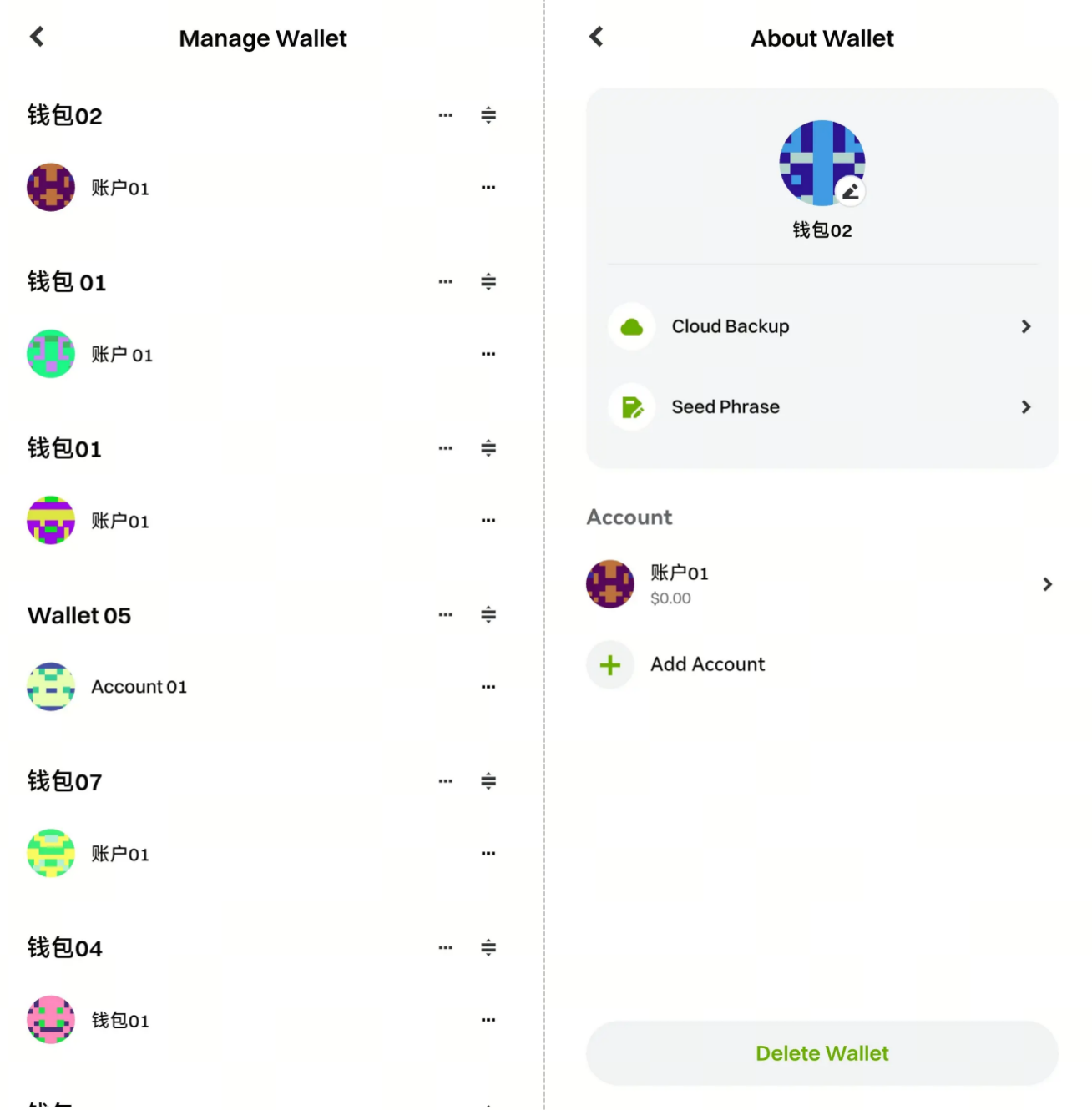
Click the wallet name to enter the "Wallet" page. For each wallet, click the "..." ellipsis on the right to enter the wallet details page, then tap the "Delete Wallet" button at the bottom. Enter your wallet password to remove the wallet from your device. You can always re-import it later using your recovery phrase or private key.
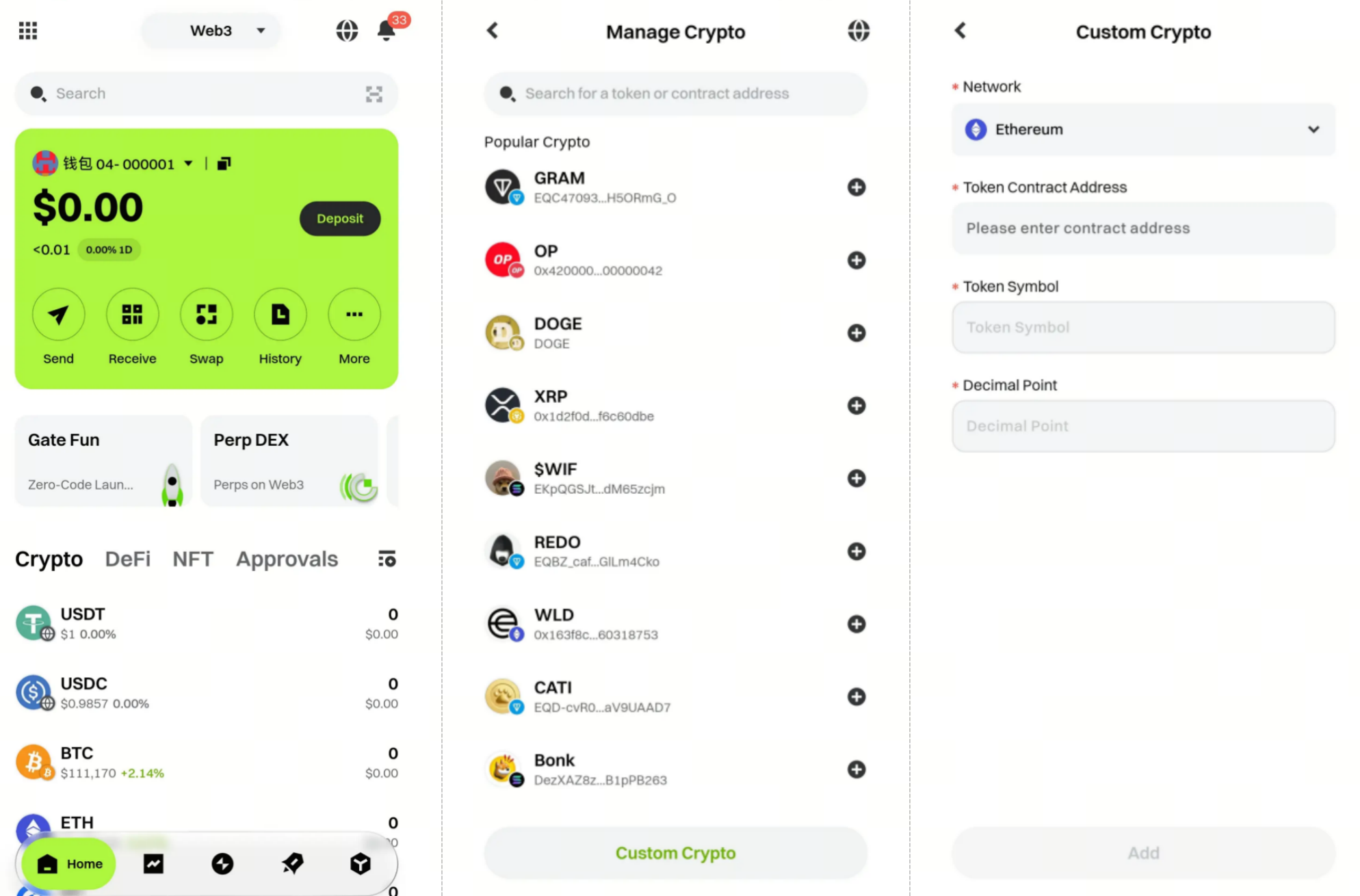
8. How do I search for and add tokens?
On the wallet homepage, use the search bar on the right to search for tokens. After clicking the add option, enter the token name—tokens found can be added by clicking the "Add➕" symbol on the right. Once added, you can view them on the wallet homepage. You can also go to the "Token Management" page and click the "Custom Token" button at the bottom to add a custom token. Select the appropriate network, enter the contract address, and click confirm to finish adding.
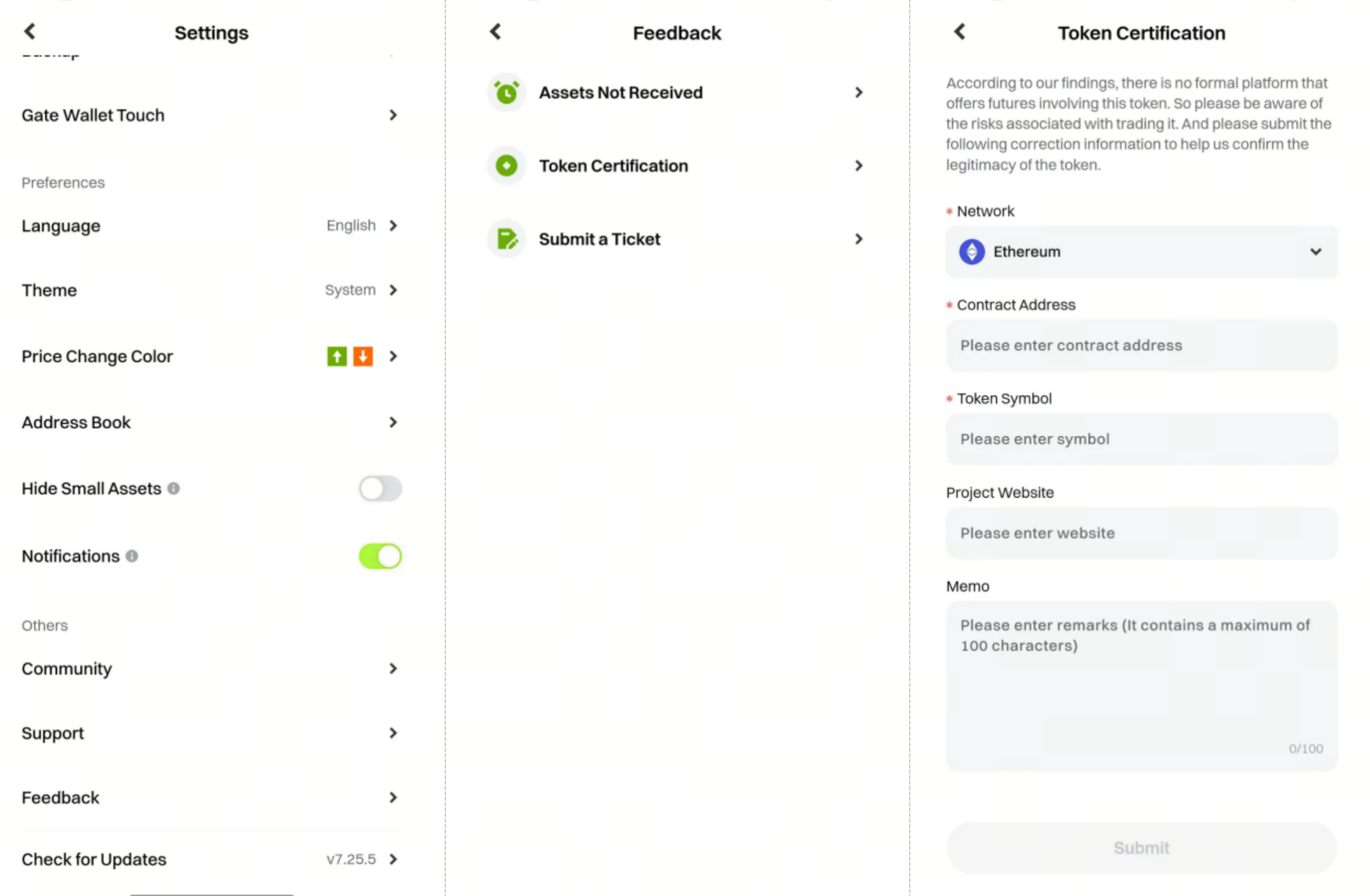
9. What if my held tokens show as unverified?
If your token assets in the Gate Web3 Wallet show as unverified, don't worry—unverified status does not affect your ability to send or receive the token. It only affects display and whether the token counts toward activity eligibility. If you confirm the token is a legitimate project token, you can submit feedback via [Token Verification].
10. Why can't I import a Web3 wallet?
If you can't import your wallet, it may be due to incorrect private key or recovery phrase input, or an invalid format.
- Double-check your private key or recovery phrase for accuracy.
- Make sure you're using a standard import format (such as BIP39 recovery phrase).
11. Why aren't my wallet assets showing?
If your wallet assets aren't displaying properly, it may be because you haven't added the token contract address or there are network sync issues.
- Manually add the relevant token contract address to your wallet.
- Ensure your network connection is stable and wait for your wallet to sync with the latest block.
12. Why can't I switch networks?
Network switching issues are usually due to unconfigured custom networks or incorrect network information.
- Manually add custom networks (such as BSC, Polygon) and make sure to enter the correct RPC URL, chain ID, etc.
- You can also use network switching tools (like Chainlist) to quickly add networks.
13. Why can't my wallet display DeFi synthetic assets?
If your wallet can't display DeFi synthetic assets, it may be because it's not connected to the synthetic asset platform or asset information hasn't been updated.
- Make sure your wallet is properly connected to the synthetic asset platform.
- Check the platform's asset display settings and confirm the asset status is updated.
14. Why can't my wallet display transaction history?
If your transaction history isn't showing, it may be due to network sync issues or block explorer errors.
- Check your network connection and ensure your wallet is synced with the latest block.
- You can manually check transaction history using a block explorer (like Etherscan).
15. Why can't I connect to a DApp?
If you can't connect to a DApp, it may be due to incorrect network settings, your wallet not being connected to the right network, or the DApp not supporting your current network.
- Make sure your wallet is connected to a network supported by the DApp (such as Ethereum mainnet, testnet, etc.).
- Check your wallet's network settings and switch to the correct network.
- Try refreshing the DApp page or reconnecting your wallet.
16. Why can't a DApp access my wallet?
If a DApp can't access your wallet, it may be because you haven't authorized the DApp.
- Check your wallet to confirm the DApp has been granted access.
- Check if the DApp requires specific permissions (such as address access, signing, etc.).
17. Why can't a DApp read my wallet balance?
If a DApp can't read your wallet balance, it may be due to lack of authorization or a network mismatch between your wallet and the DApp.
- Make sure your wallet is connected to the DApp and authorized for access.
- Check that both the DApp and your wallet are on the same network.
18. Why can't I sign transactions or receive signature requests?
If you can't sign transactions or receive signature requests, it may be because your wallet is locked or the signature request was rejected.
- Make sure your wallet is unlocked and available.
- Review the signature request details and confirm before signing.
19. Why is my transaction stuck?
If your transaction is stuck, it could be due to insufficient gas fees, network congestion, or incorrect transaction parameters.
- Try using your wallet's "accelerate transaction" feature (if available).
20. Why was my transaction rejected?
Transactions may be rejected due to insufficient wallet balance, incorrect transaction parameters, or smart contract restrictions.
- Make sure your wallet has enough assets (including gas fees).
- Check your transaction parameters (such as address, amount, etc.) for accuracy.
- If the transaction involves a smart contract, confirm if there are any restriction conditions.
21. Why hasn't my transfer or exchange withdrawal arrived?
If your Web3 transfer or exchange withdrawal hasn't arrived, it may be due to incorrect network selection or an incorrect receiving address.
- Confirm that the network you selected for the transfer matches the network of the receiving address.
- If you mistakenly send ERC-20 tokens to the BSC network, assets may not be recoverable. Always confirm network consistency before transferring.
- Make sure you entered the correct receiving address to avoid asset loss.
Disclaimer
The content provided herein is for reference and educational purposes only and does not constitute any financial, investment, trading, or legal advice, nor does it constitute an offer or solicitation to buy or sell any digital assets. Gate makes no express or implied representations or warranties regarding the accuracy, completeness, or timeliness of the information contained herein. Product features, interfaces, rules, and fee structures may be updated or adjusted at any time. Please refer to the latest announcements and the actual information displayed on the Gate platform for the most accurate details.
Digital asset investments involve significant risk, and prices may fluctuate substantially. You may lose the entire amount of your investment. Please make decisions cautiously based on your own financial situation and risk tolerance after fully understanding the associated risks. If necessary, you are advised to consult an independent professional financial or legal advisor.
For more information about potential risks, please refer to Gate's Risk Disclosure and User Agreement.