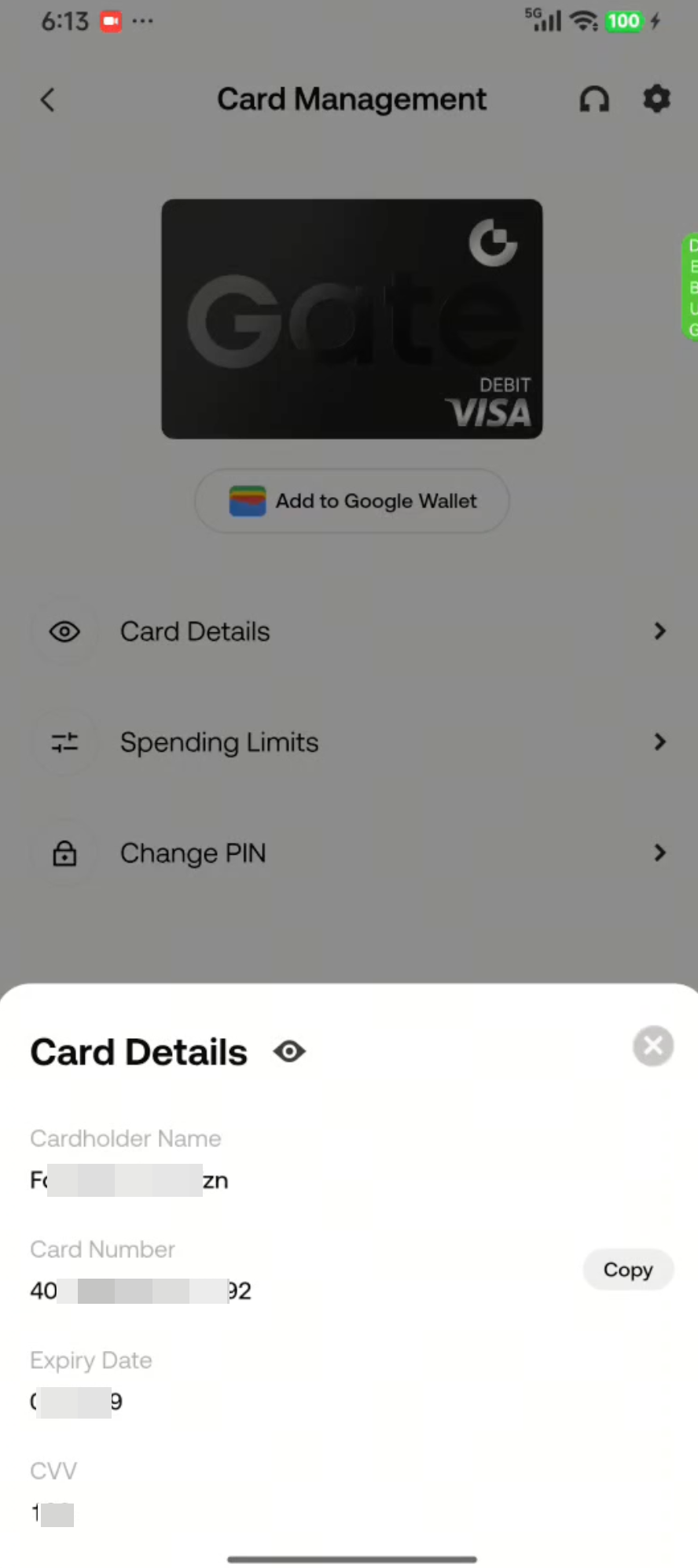
This guide explains how to add funds to your Gate Card and view your card details on the website and in the app, and how to add your card to Apple Wallet or Google Wallet.
Web
Add Funds to Your Gate Card
Step 1. Go to https://www.gate.com/en-us/card and click View My Card .

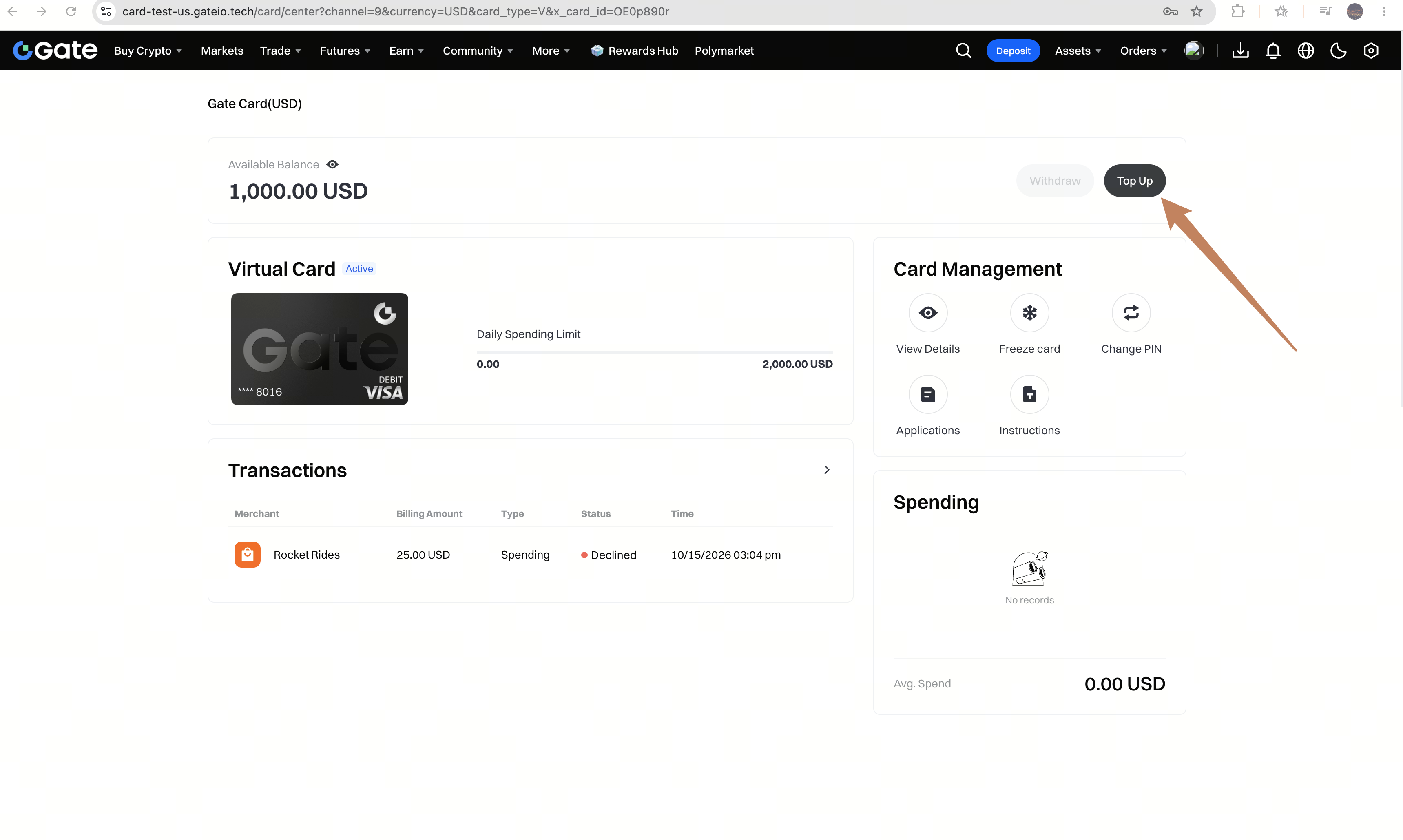
Step 2. Click Top Up .
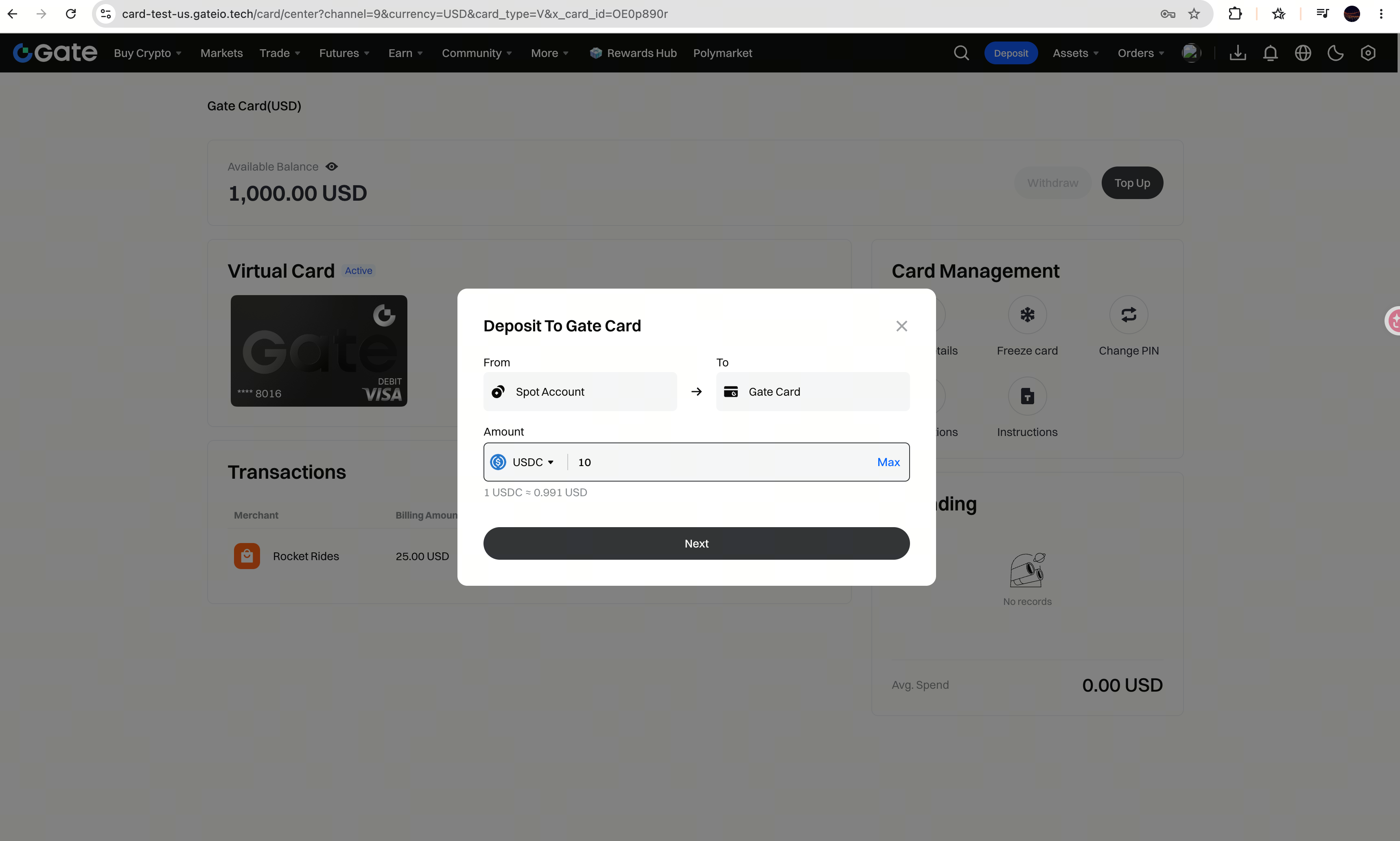
Step 3. Enter the top-up amount and select a cryptocurrency, then click Next . Supported cryptocurrencies are USDC, USDT, BTC, and ETH. The minimum top-up amount is 5 USDC.
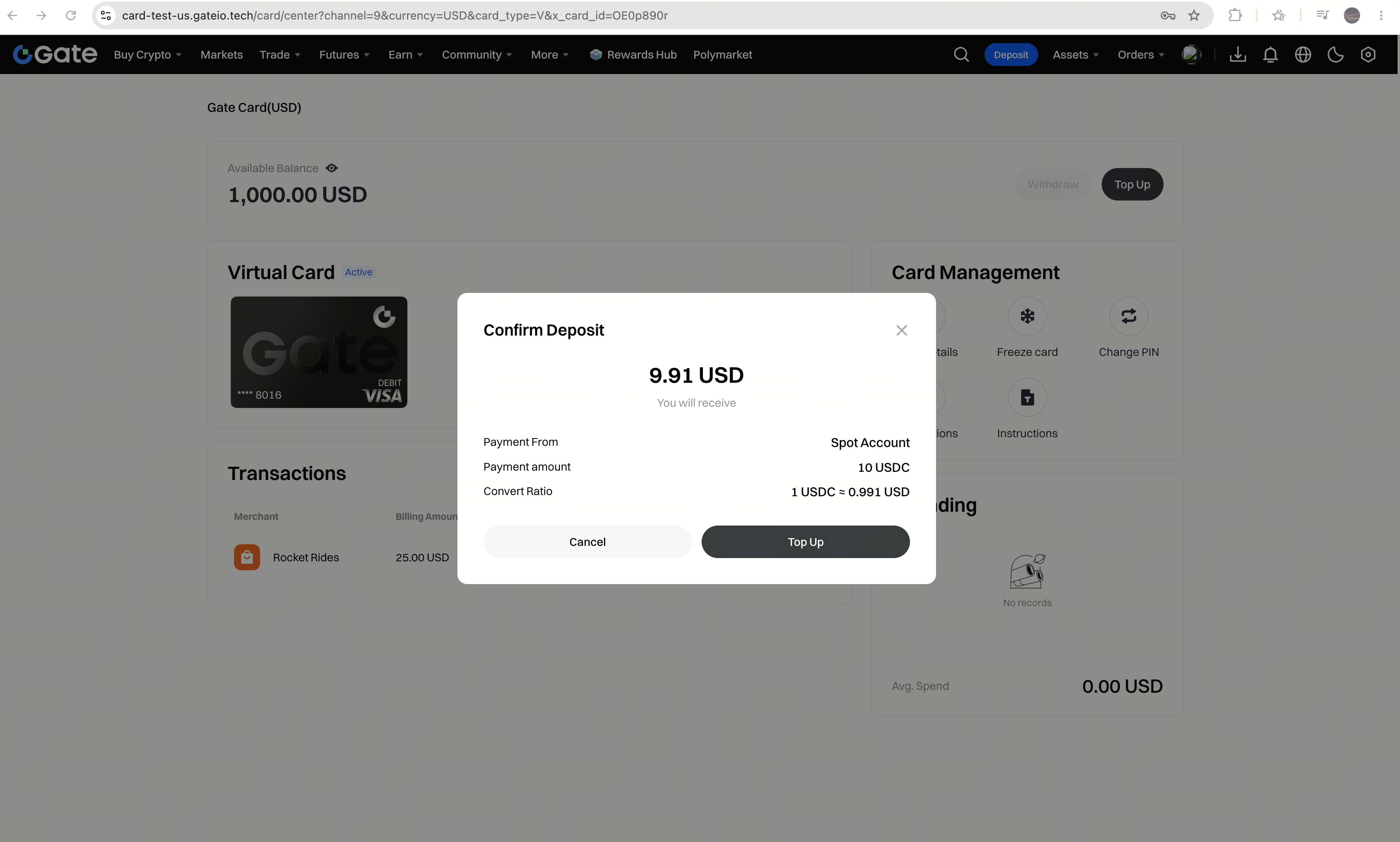
Step 4. Review the top-up details and click Top Up .
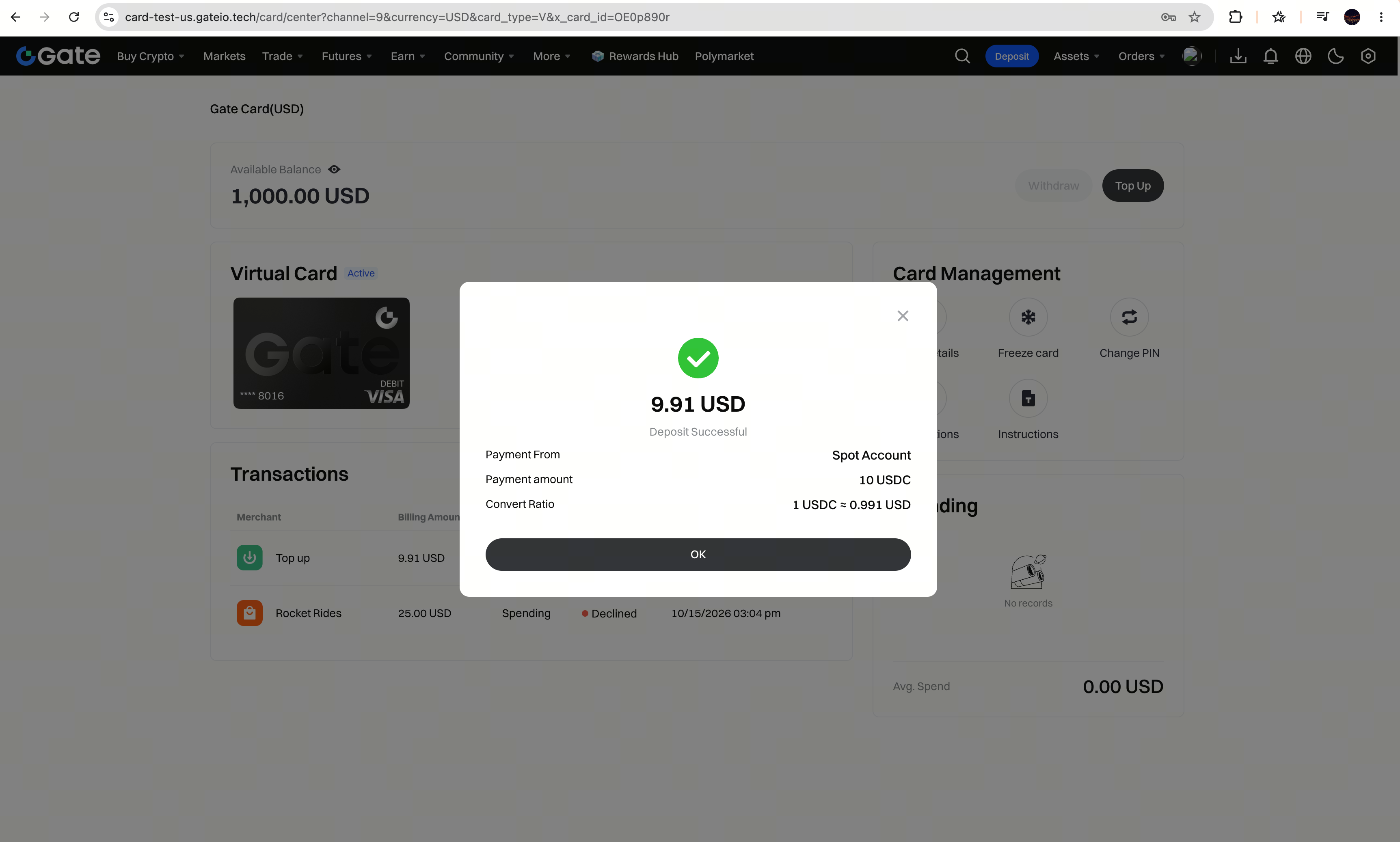
Step 5. A confirmation message will appear when the top-up is successful. On-chain top-ups are usually credited within 3 minutes.
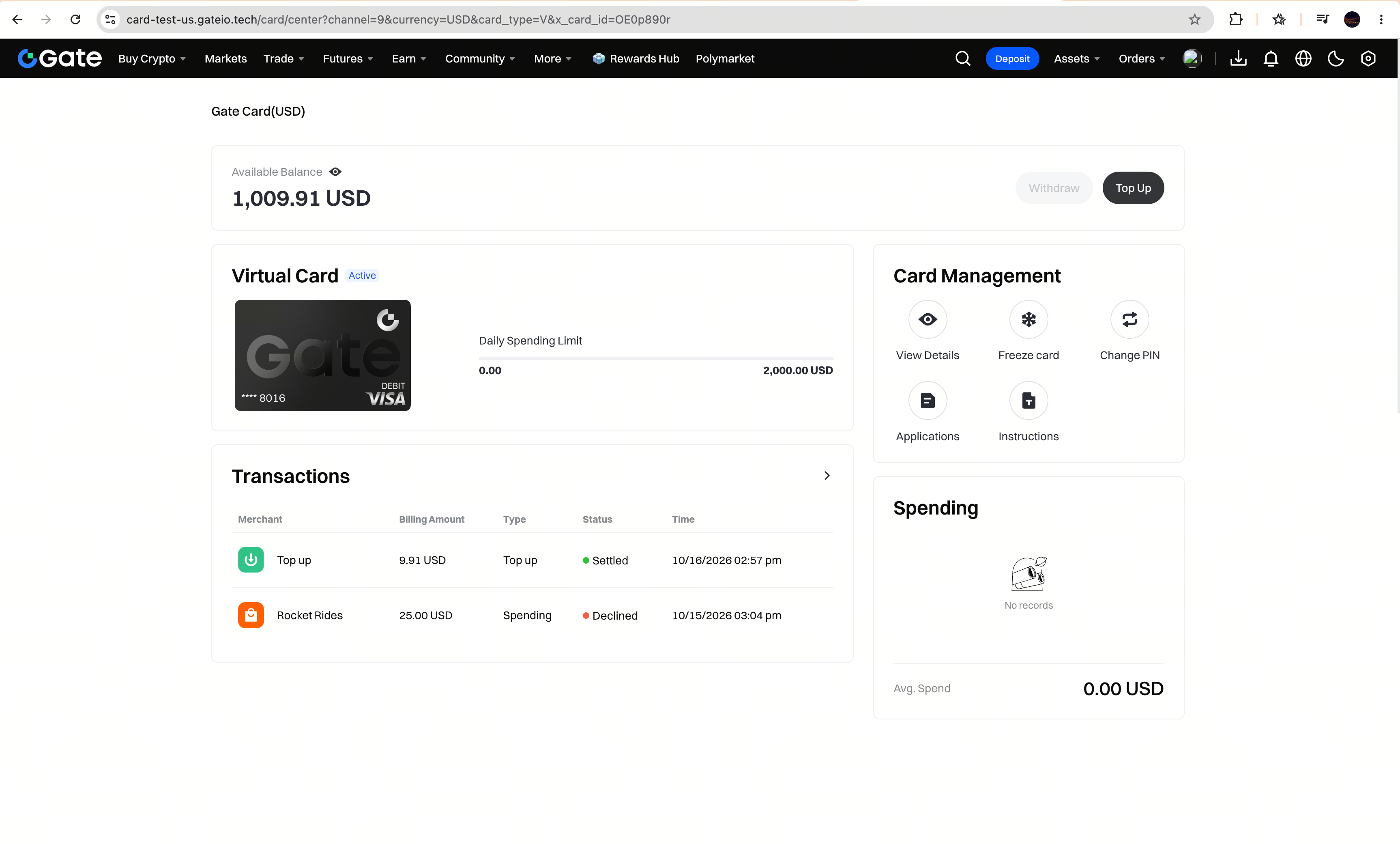
Step 6. Return to the card page and check that your Available Balance has increased.
View Your Card Details on the Website
When adding your card to Apple Pay or Google Pay manually, follow these steps to view and copy the required card details.
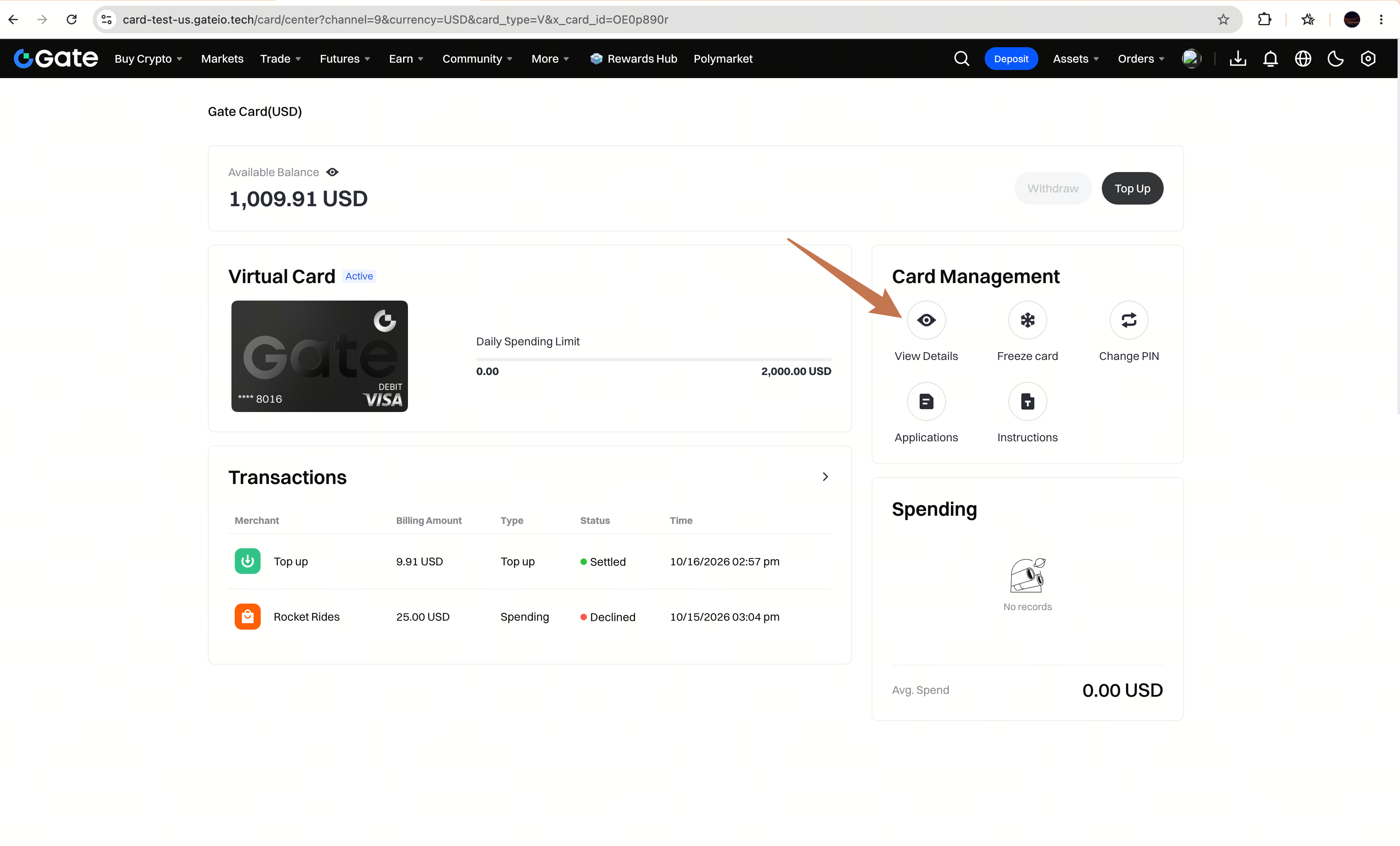
Step 1. On the card page, click View Details .
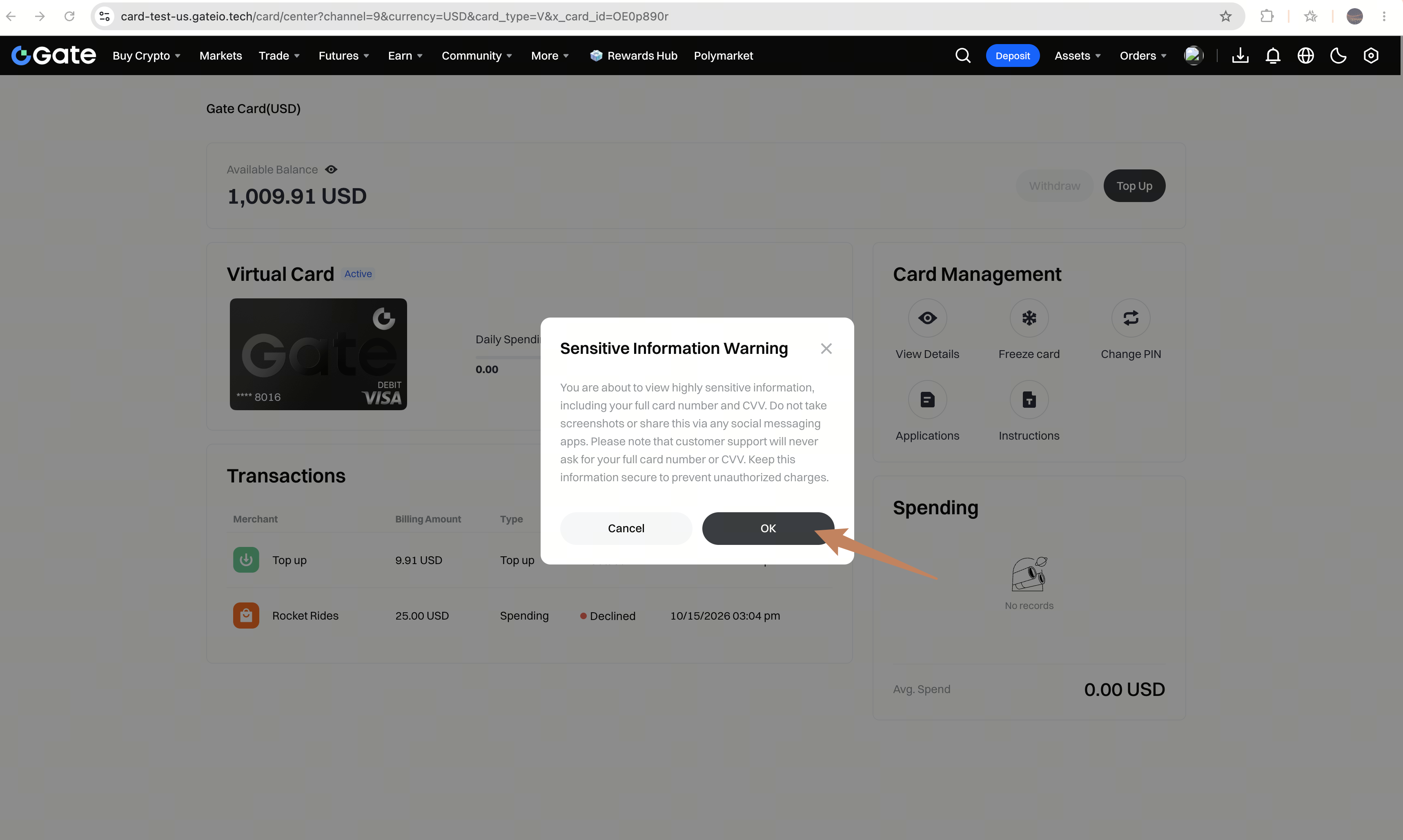
Step 2. Read the notice and click OK .
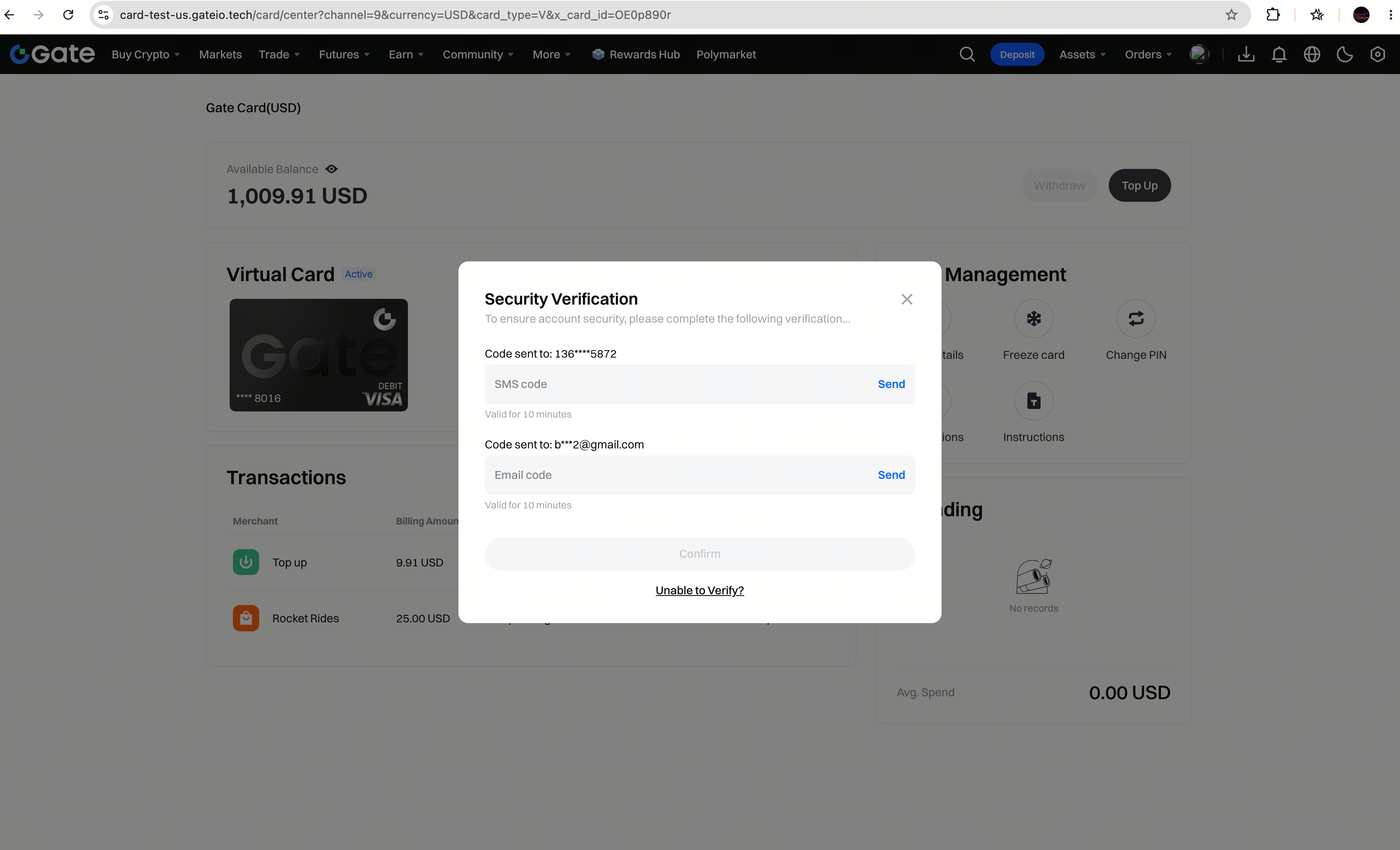
Step 3. Enter the OTP (one-time password) to complete verification.
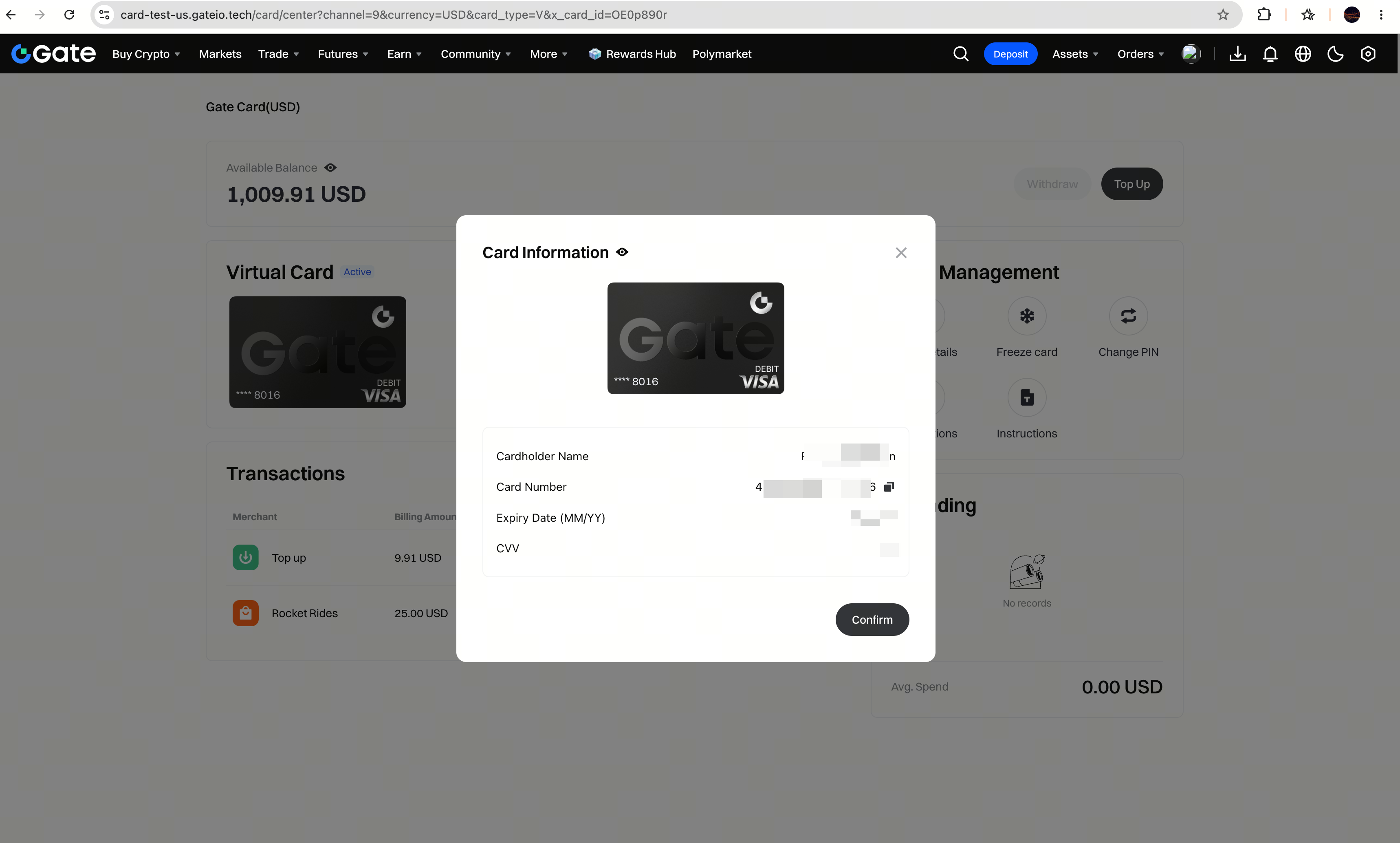
Step 4. View and copy the card details you need, then enter them in Apple Wallet or Google Wallet when adding your card.
App
Add Funds in the App
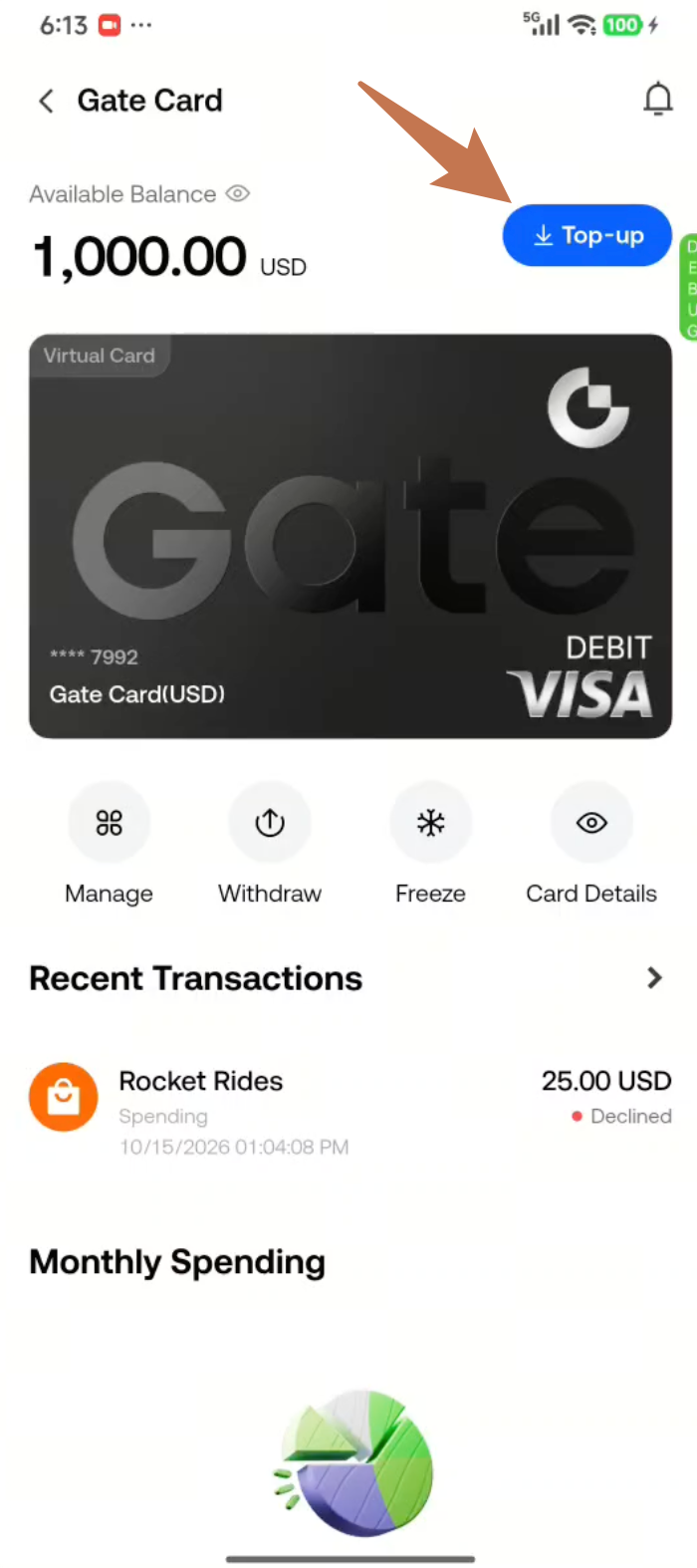
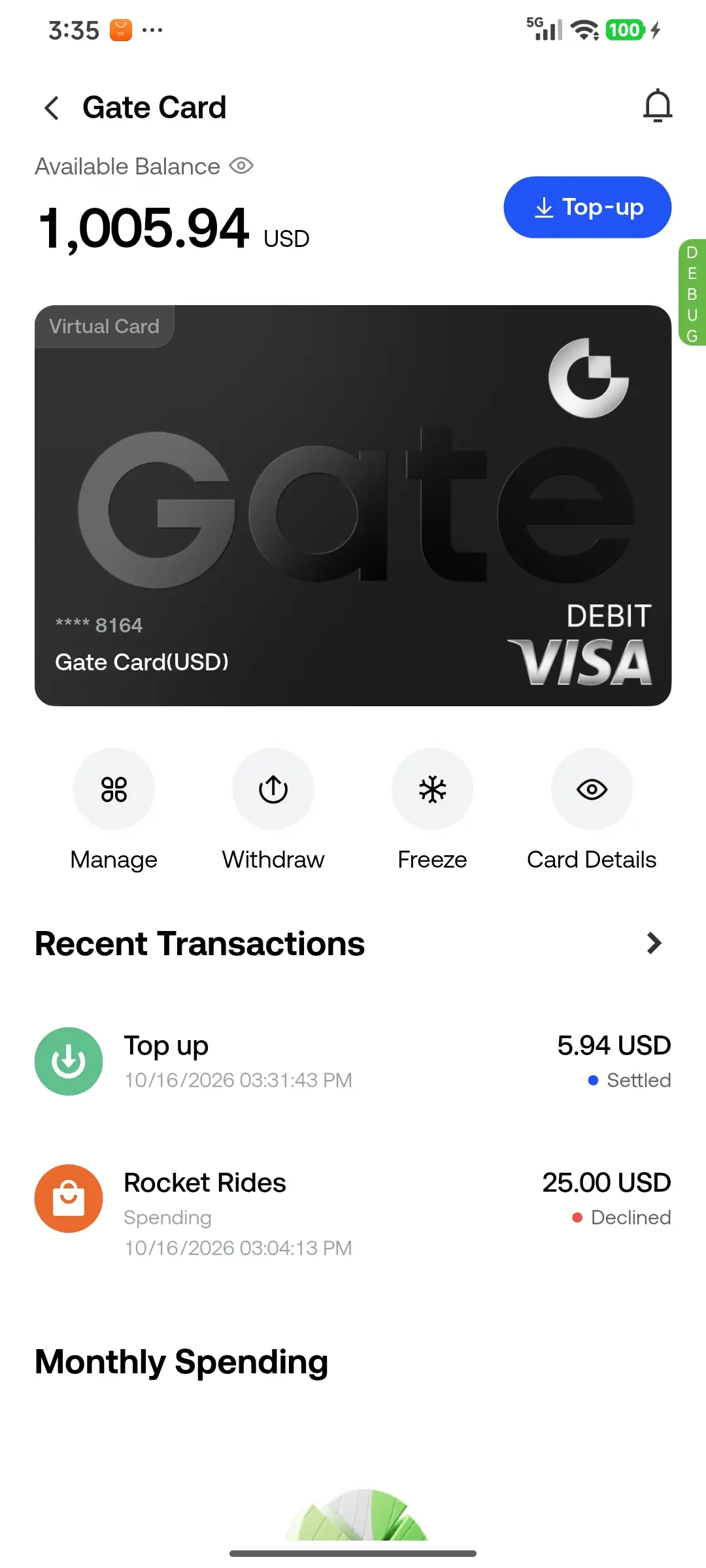
Step 1. Open the Gate app, go to the Gate Card page, and tap Top-up .
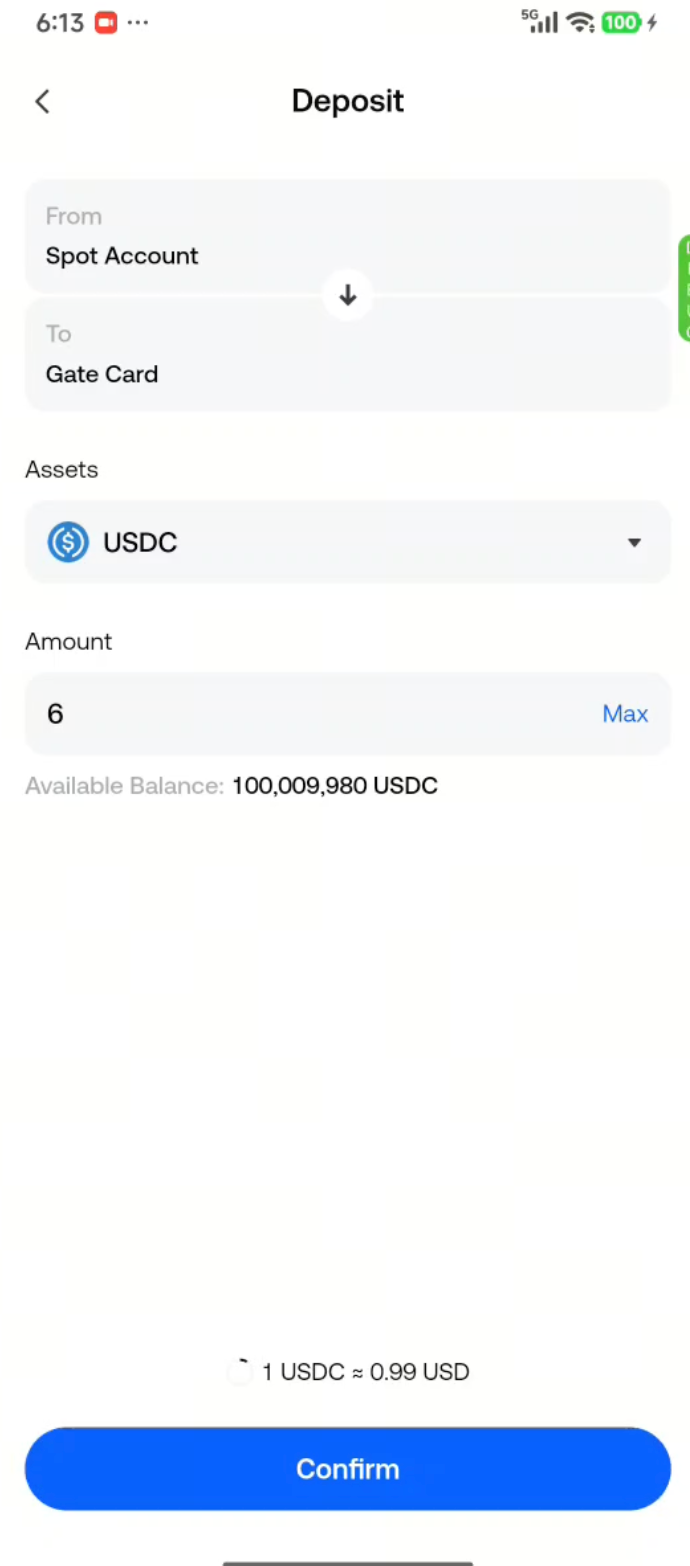
Step 2. Enter the top-up amount and tap Confirm .
Step 3. Review the amount again and tap Confirm to submit the top-up.
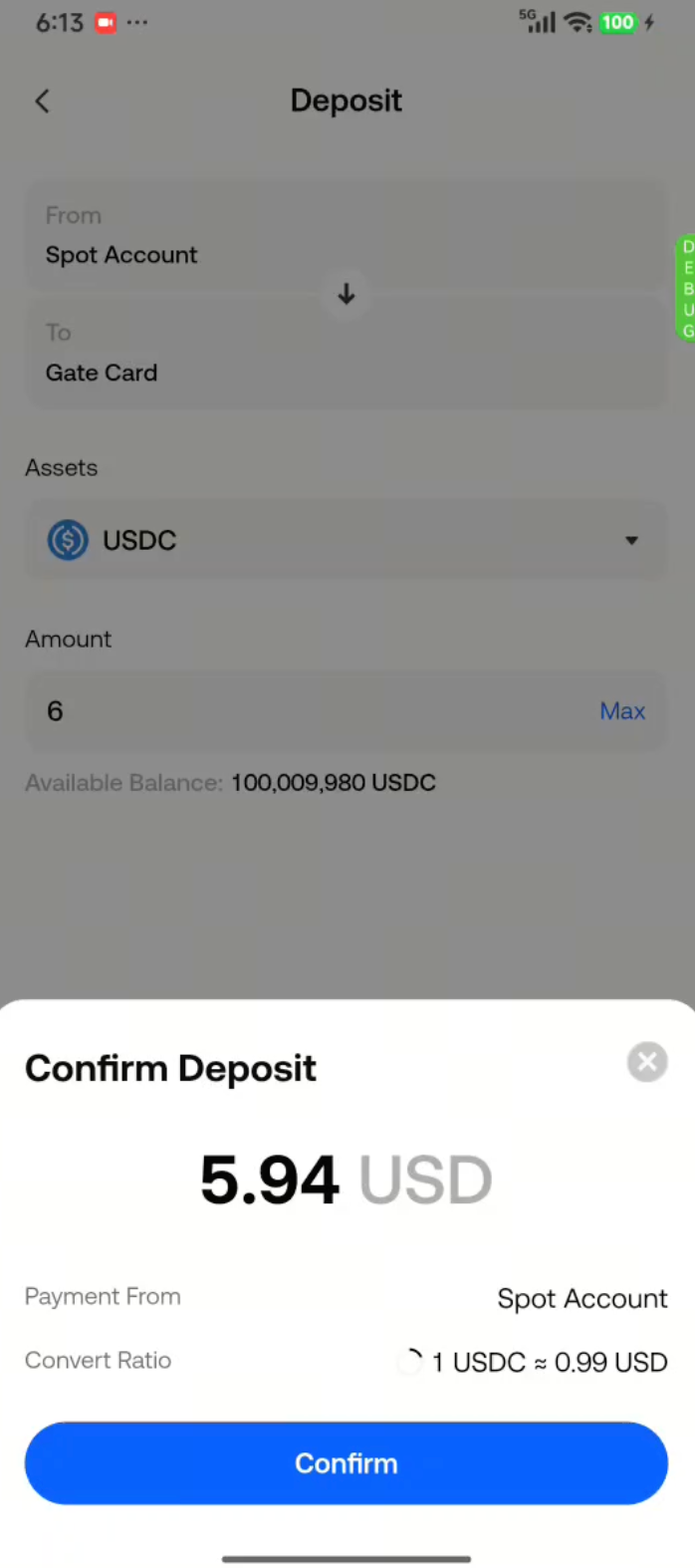
Step 4. A confirmation message will appear when the top-up is successful.
Add Your Gate Card to Google Pay
Use the Google Wallet app to add your card for Google Pay. If you need your card details, follow the “View Your Card Details” steps for the website or app in this guide.
Step 1. Open Google Wallet on your Android device. Sign in to your Google Account if prompted, then tap Add to Wallet (+) .
Step 2. Select Payment card , then choose the option to add a new credit or debit card.
Step 3. Choose Enter details manually , enter your Gate Card details, and follow the on-screen instructions to complete setup and any required verification.
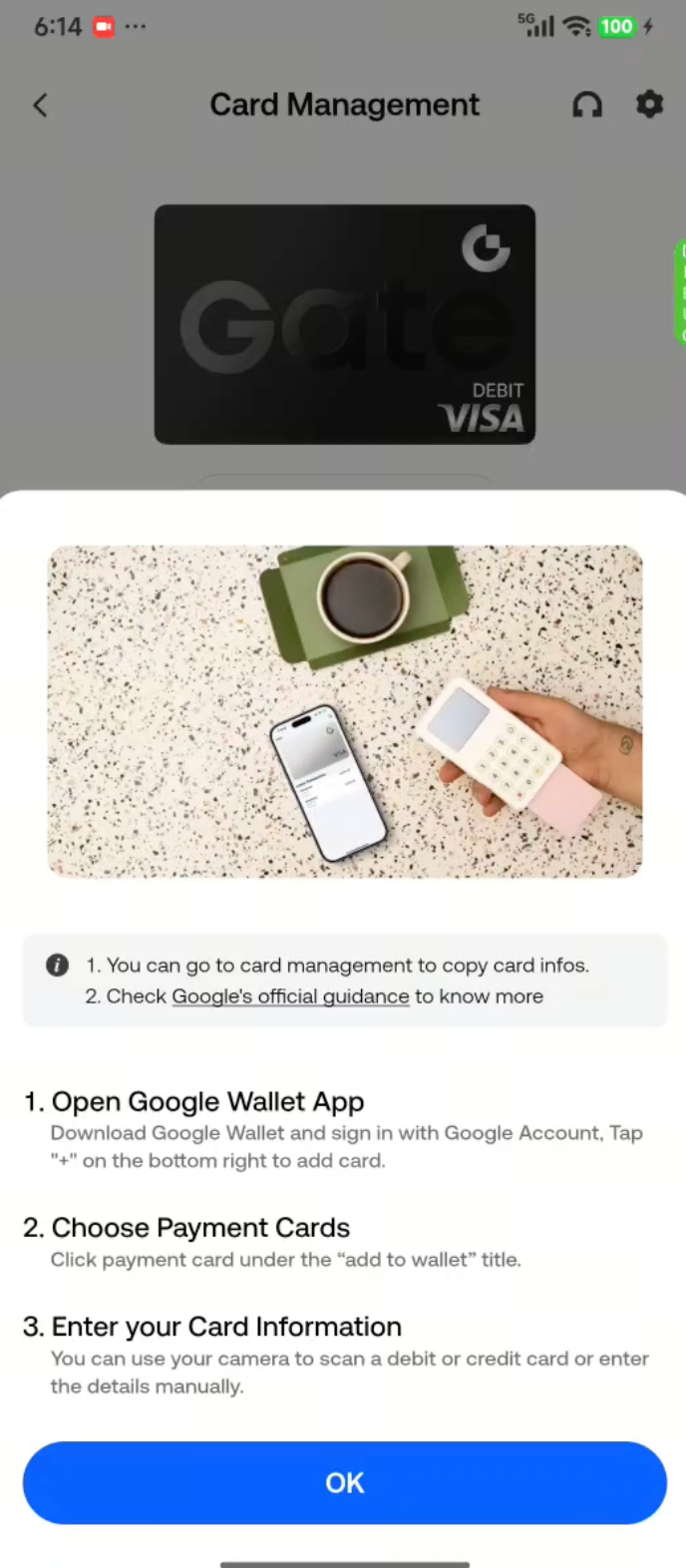
For the latest wallet setup instructions, see Google’s official guide to adding a debit or credit card .
Add Your Gate Card to Apple Pay
Use Apple Wallet on your iPhone to add your card for Apple Pay. If you need your card details, follow the “View Your Card Details” steps for the website or app in this guide.
Step 1. Open Wallet on your iPhone and tap the + button in the upper-right corner. Sign in to your Apple Account if prompted.
Step 2. Select Debit or Credit Card . If prompted, choose the option to add a different card and enter the details manually.
Step 3. Enter your Gate Card details and follow the on-screen instructions to complete setup and any required verification.
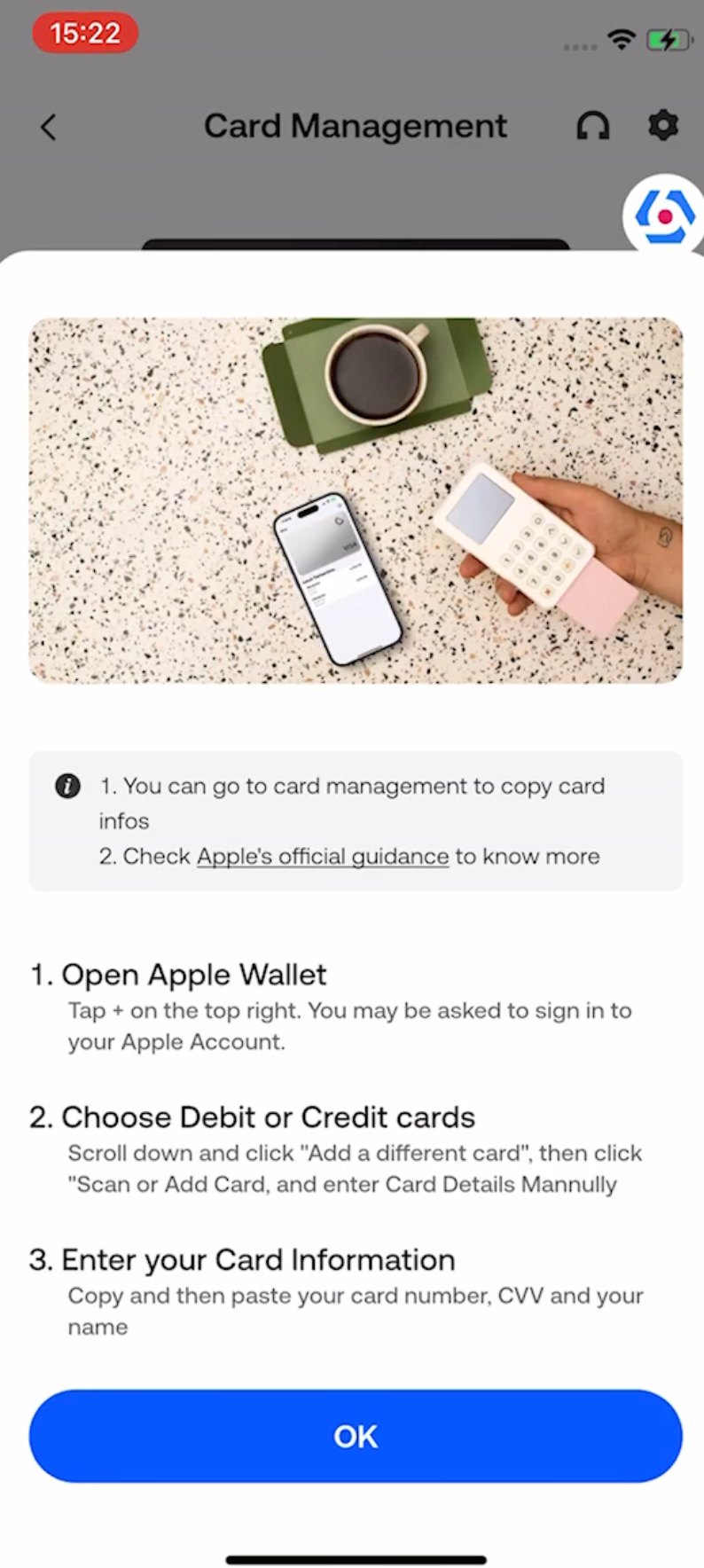
For the latest wallet setup instructions, see Apple’s official guide to setting up Apple Pay .
View Your Card Details in the App
When adding your card to Apple Pay or Google Pay manually, follow these steps to view and copy the required card details.
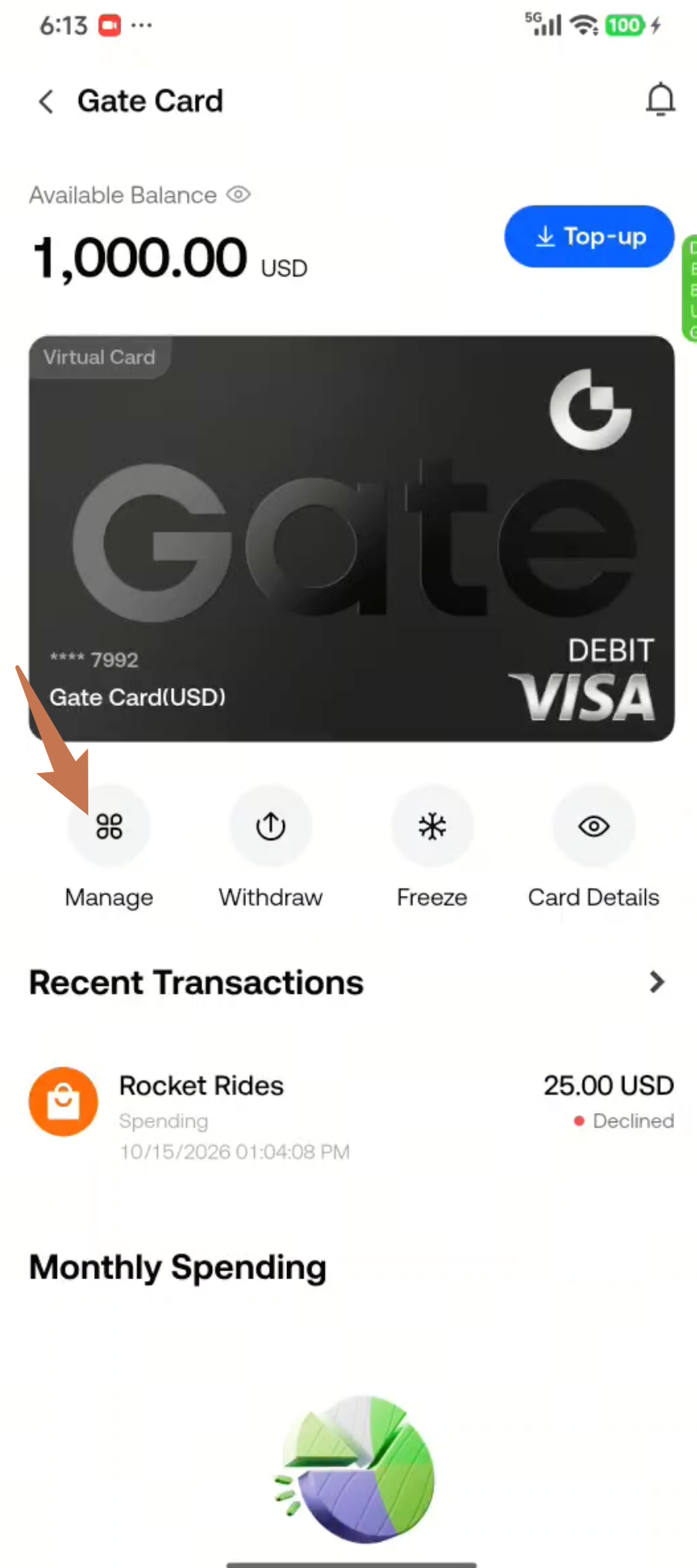
Step 1. Go to the Gate Card page and tap Manage .
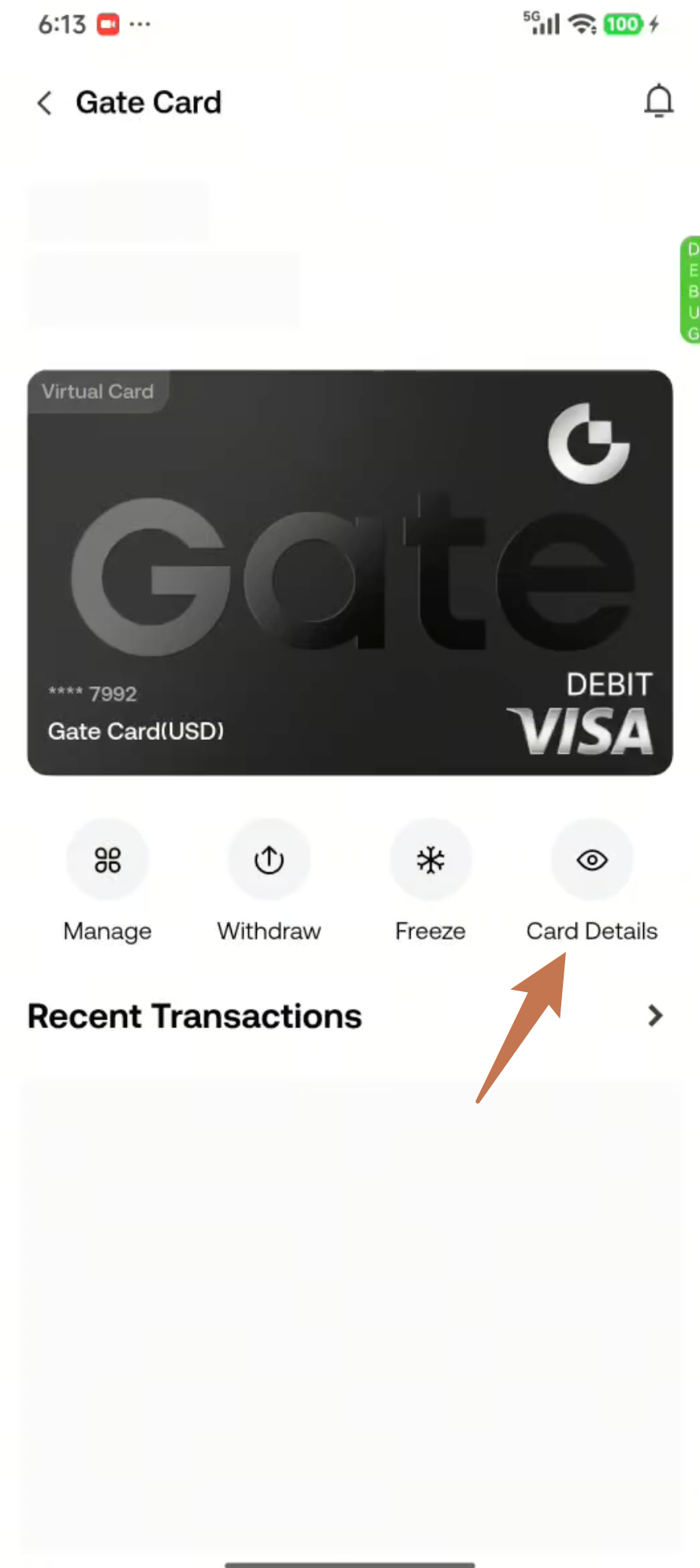
Step 2. Tap Card Details .
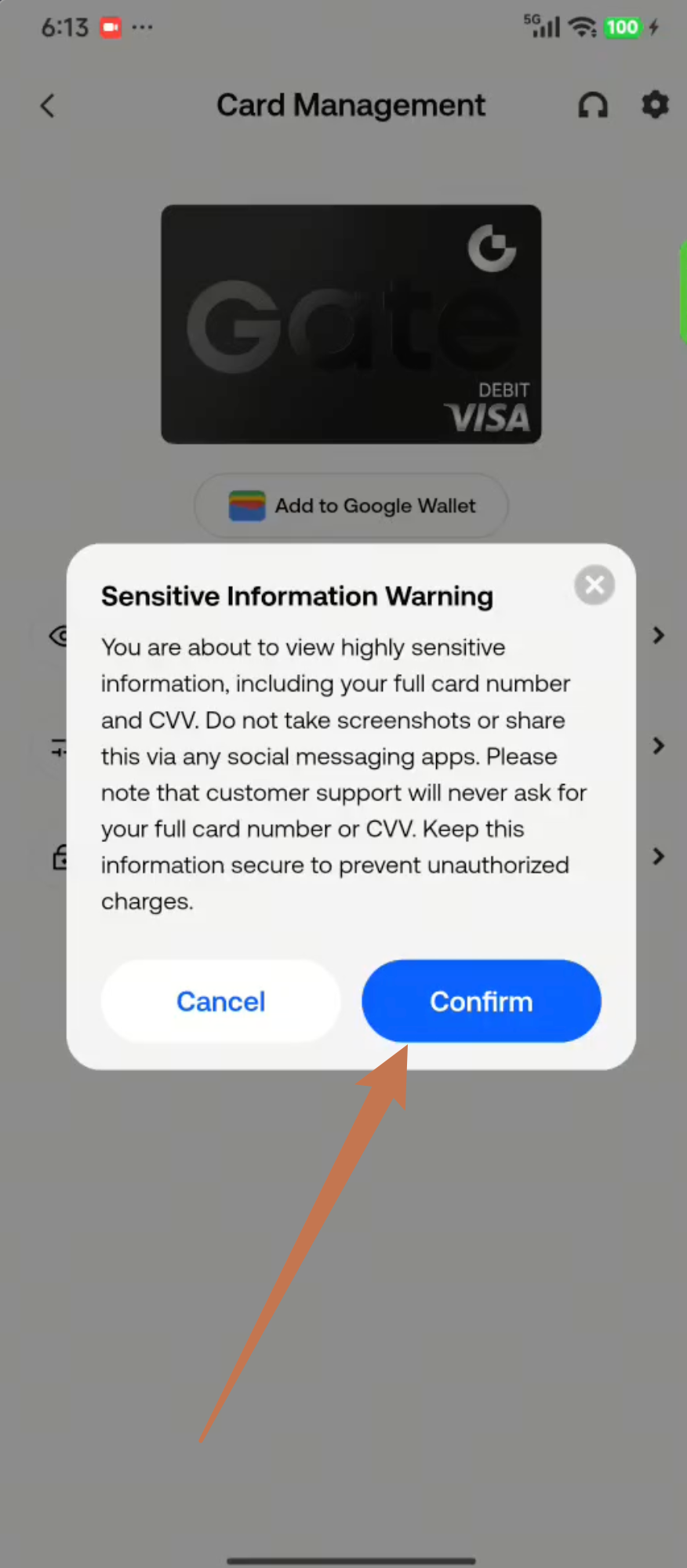
Step 3. Read the sensitive information warning and tap Confirm .
Step 4. View and copy the card details you need, then enter them in Apple Wallet or Google Wallet when adding your card.