
To enhance the security of your account, we recommend enabling Google Authenticator. This guide explains how to bind, unbind, or reset Google Authenticator on Gate’s website.
How to Bind Google Authenticator
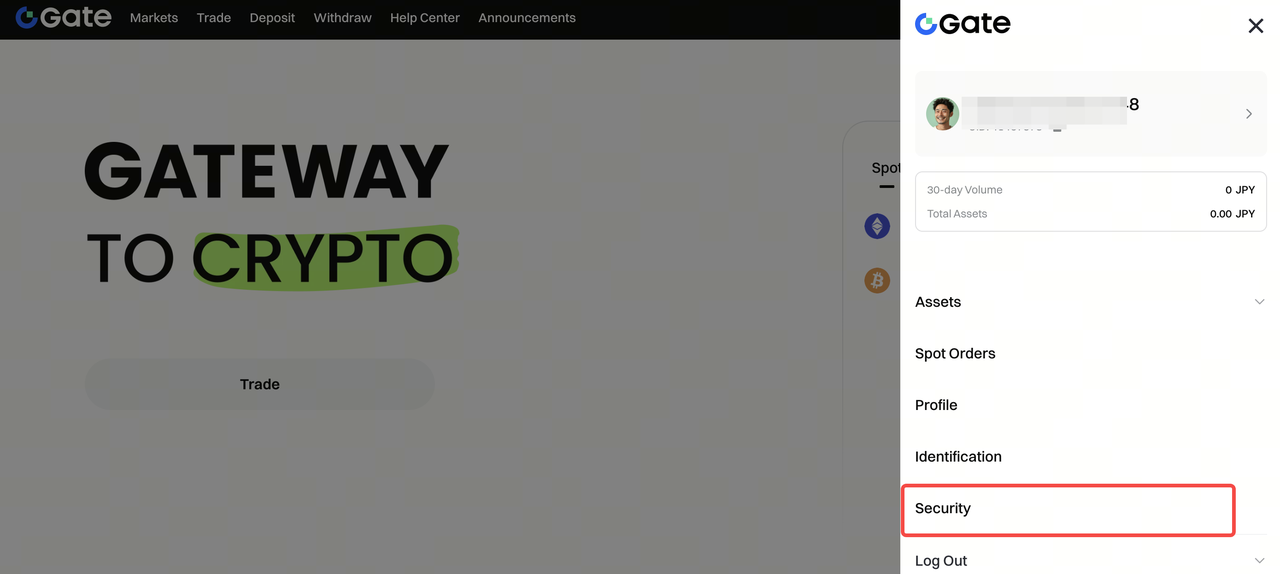
Step 1: Log in to your Gate account. Click your avatar in the top-right corner and navigate to the Security settings page.
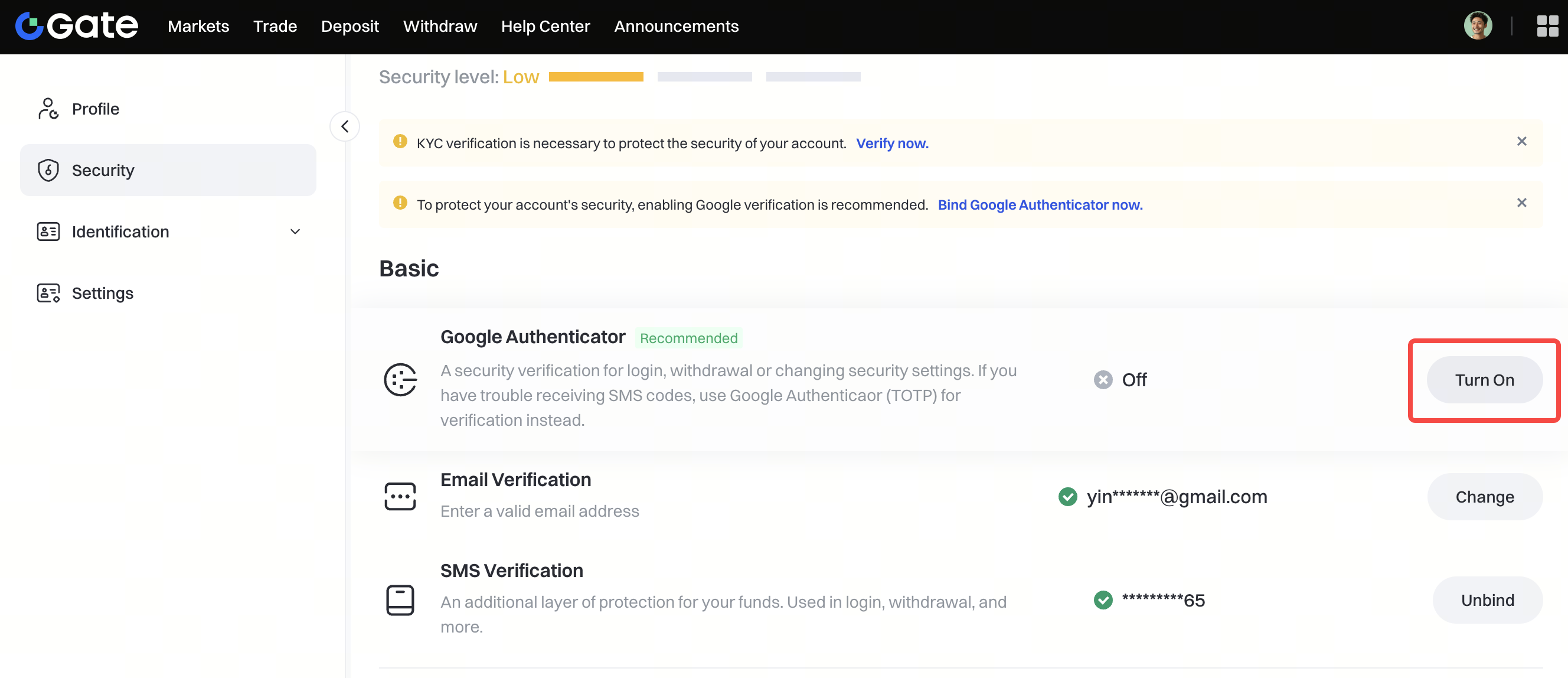
Step 2: On the security settings page, find Google Authenticator under the Basic section and click Turn On to enter the binding page. Follow the on-screen instructions to complete the setup.
First, you’ll need to Install Google Authenticator app on your smartphone . You can do this by clicking the App Store or Google Play button directly on this page. Alternatively, you can search for “Google Authenticator” in your phone’s app store and install it.
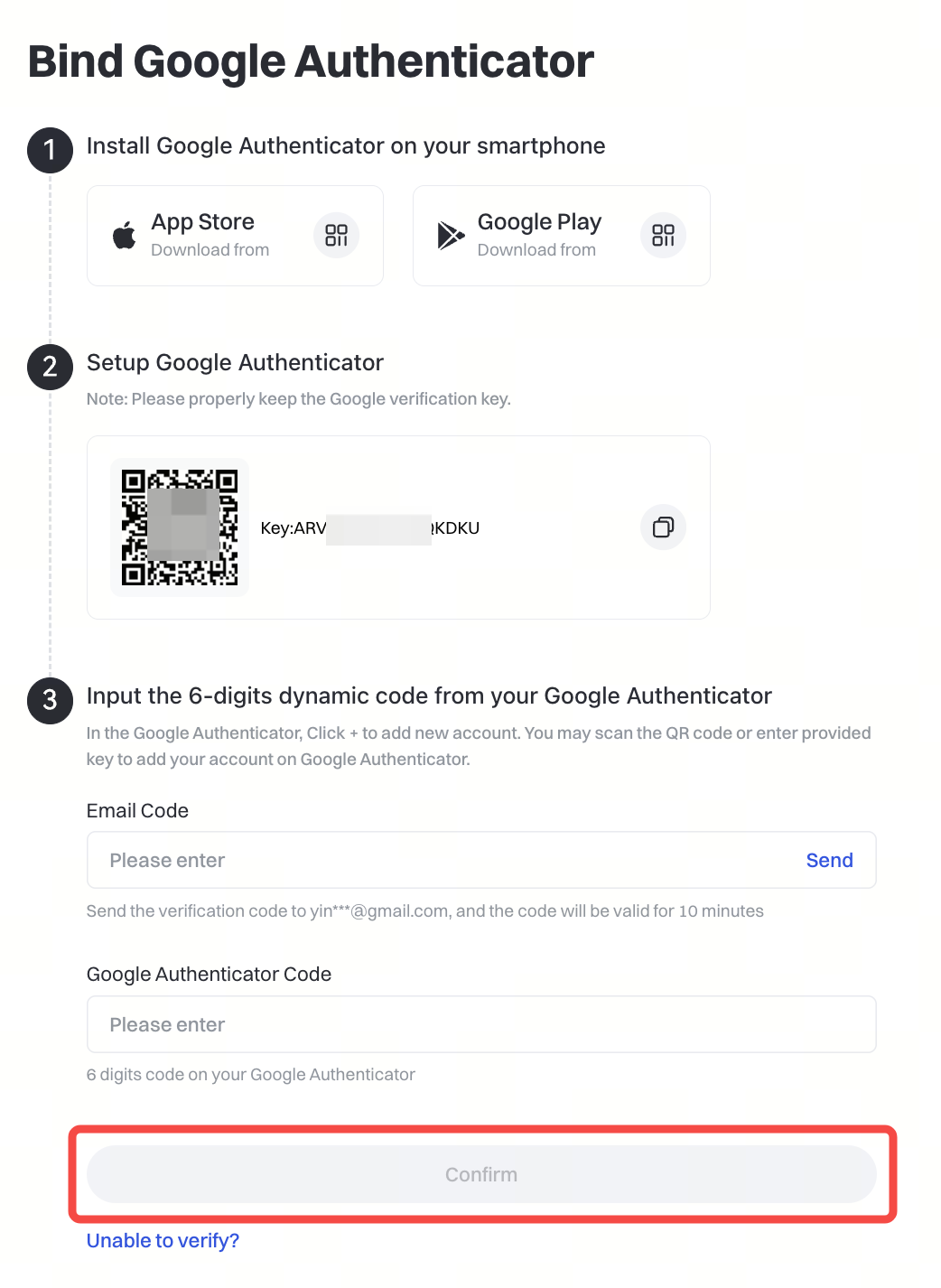
Once installed, you can proceed to scan a QR code or Enter a setup key to bind your Gate account.

Step 3: Once added successfully, a 6-digit code and your account name will be displayed. The 8-digit code is your one-time verification code.

Enter verification codes:
- Click Send to receive an email code, then enter it.
- Enter the 6-digit code generated in your Google Authenticator app.
- Click Confirm to complete the binding process.
How to Unbind an Authenticator
There are two scenarios for unbinding:
Scenario 1: If you can access your Google Authenticator code, you can unbind it yourself via Security on the Web.
Scenario 2: If you can’t access the code (e.g., phone lost or app deleted), request unbinding through either method below:
-
Use the security reset form and submit the required information. You’ll receive a response within 1–3 business days.
-
Send an email to support@gateio.jp explaining your situation. Please include your Gate account username and UID, registered email address, full name, city of registration, traded currencies, the phone number linked to your account, and a photo of yourself holding your ID along with a handwritten note showing your Gate account name, date of the day, and a brief description of the request.

Notes:
- The authenticator is used for login, withdrawals, password changes, and other security-related actions. If you frequently don’t receive SMS codes, we recommend enabling an authenticator.
- If your authenticator code keeps showing as incorrect, please check and sync your phone’s time settings.
