Applicable Scope
This guide applies to Gate Web
Before you start: Ensure you have a Gate account and are logged in
Estimated time: 2 m
Objective
This guide will walk you through how to view and export your trade history on Gate Web.
Steps
Step 1: Navigate to Spot Orders
Log in to your Gate account. Click [Order] - [Spot Orders] from the top navigation menu.
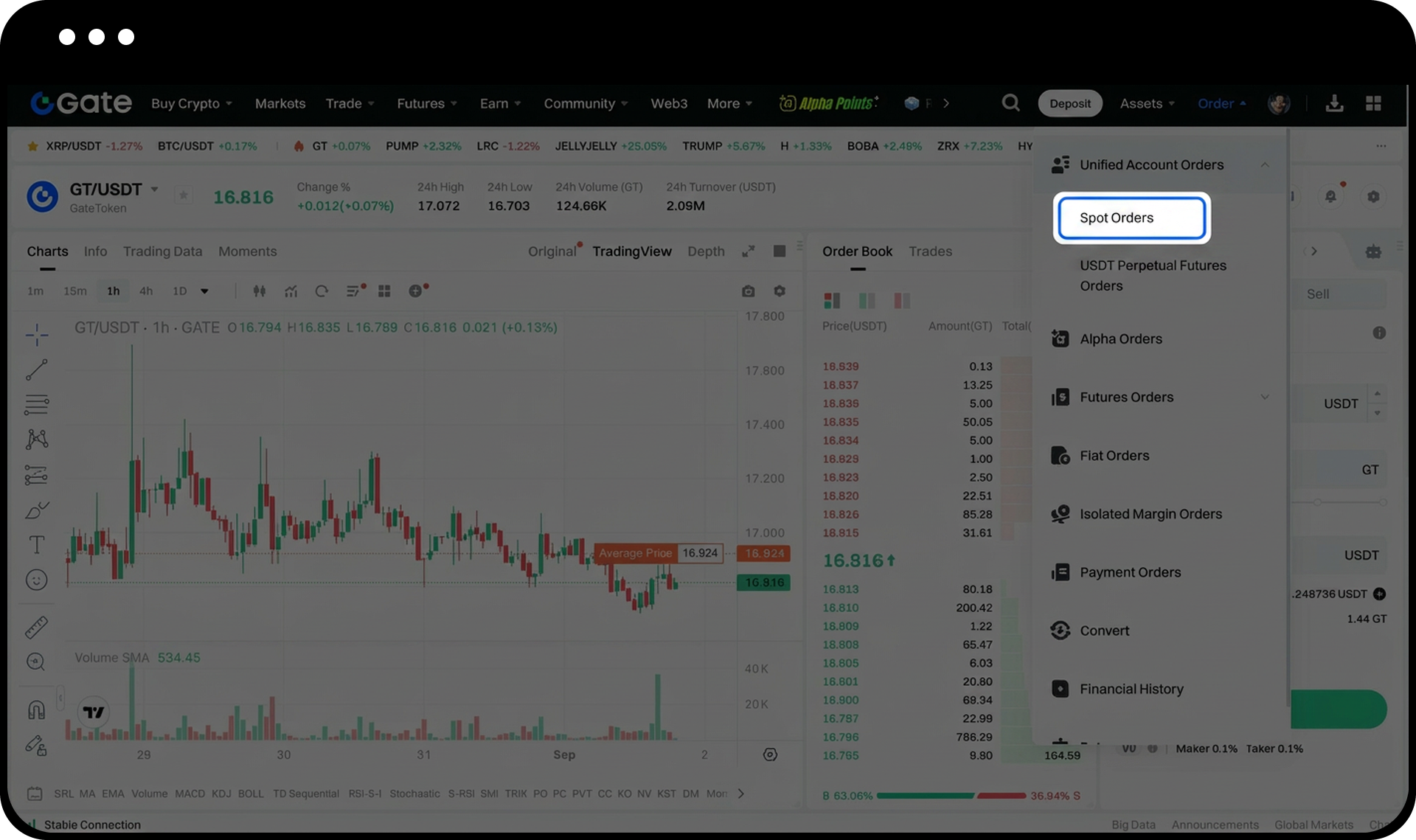
Step 2: Access Trade History
Click on [Trade History]. Select the trading pair and timeframe to view your trade history for that specific market during the selected period.
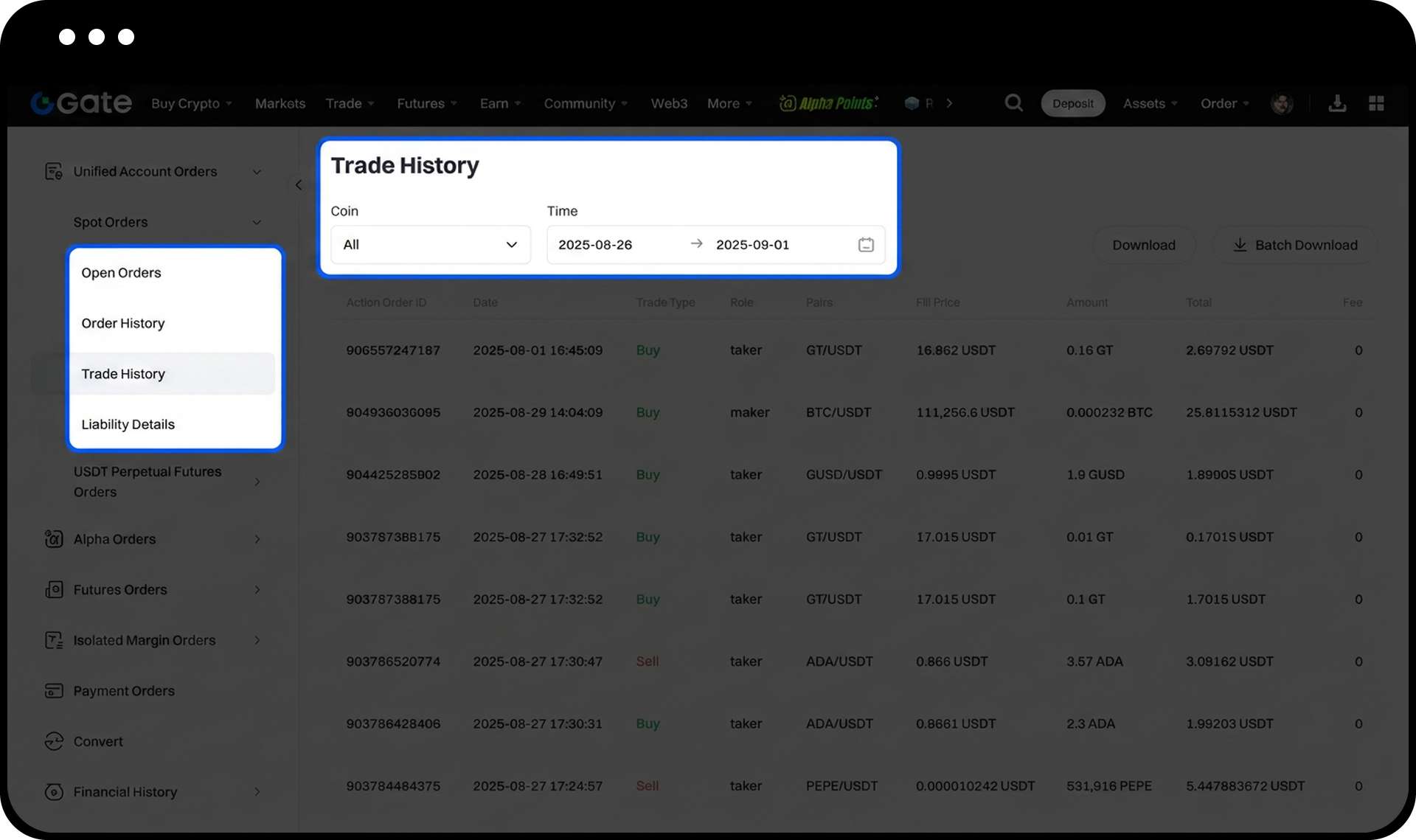
Step 3: Export Trade History (Optional)
Click the "download" button in the top right corner to export your trade history. The exported file will contain detailed information about your completed trades.
Notes
- Each user can download trade history up to 30 times per day.
- Digital asset trading involves significant risk and prices may fluctuate substantially.
- Gate may update product features, interfaces, and fee structures at any time.
- Please refer to the latest announcements and actual information displayed on the Gate platform for the most accurate details.
- This information is for educational purposes only and does not constitute financial, investment, trading, or legal advice.
- For comprehensive risk information, please refer to Gate's Risk Disclosure and User Agreement.
FAQ
Q1: How long is the trade history retained on Gate?
A: Gate retains your complete trade history for your account. You can access historical trades by selecting different timeframes in the Trade History section.
Q2: What information is included in the exported trade history file?
A: The exported file contains detailed information including trading pair, order type, price, amount, fees, and execution time for each completed trade.
Q3: Why can't I download my trade history?
A: If you've reached the daily download limit of 30 times, you'll need to wait until the next day. Ensure you're logged in and have completed trades during the selected timeframe.
