Applicable Scope
This guide applies to Gate Web
Before you start: Ensure you have at least 2 authentication methods (phone number, Google/Gate authenticator, or email) linked to your account
Estimated time: 2 m
Objective
This guide will walk you through how to enable or disable Double Authentication (Two-Step Verification) on Gate Web.
Steps
Step 1: Navigate to Security Settings
Log in to your Gate account. Move your cursor to the top-right profile icon and select "Security authentication" from the dropdown menu.
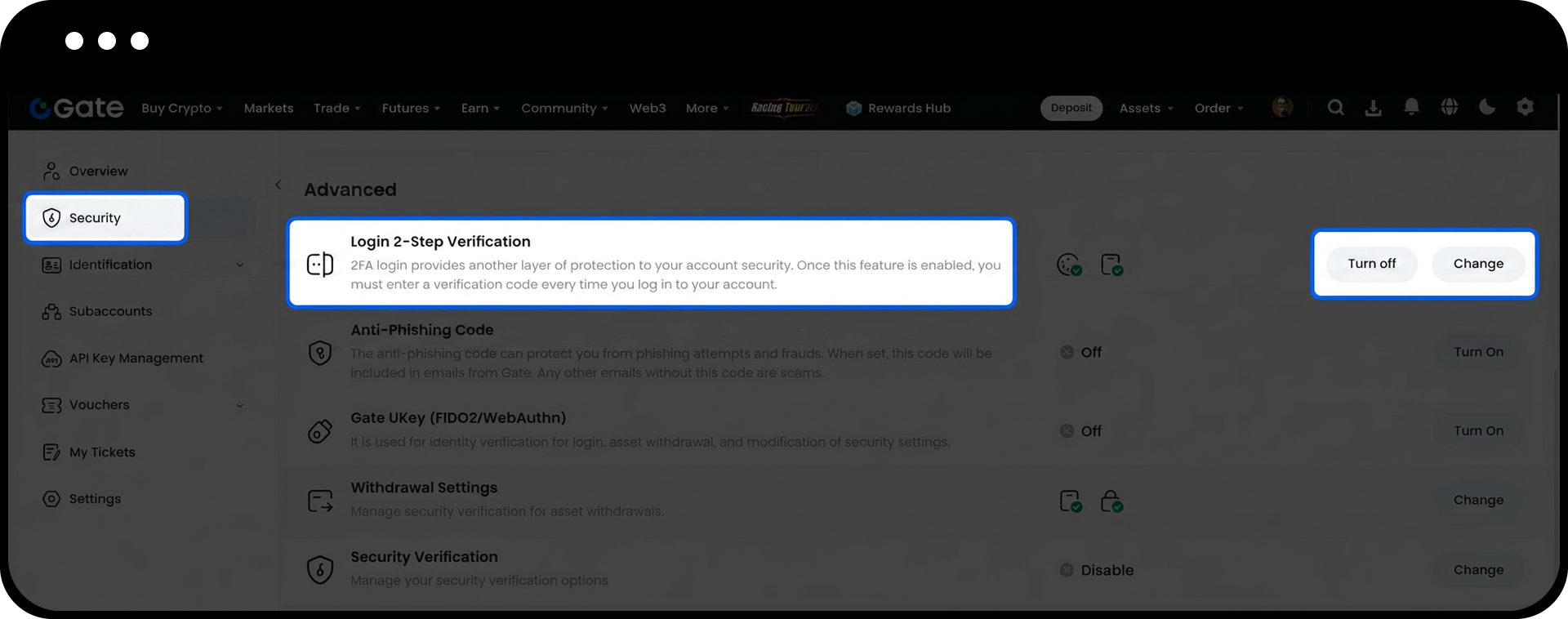
Step 2: Access Two-Step Verification Settings
Click on "Login 2-Step Verification" to access the Double Authentication settings page.
Step 3: Enable or Disable the Feature
Click the "Turn on" button to enable Double Authentication. To disable it, return to the same page and click "Turn off".
Notes
- Double Authentication requires at least 2 authentication methods (phone number, Google/Gate authenticator, or email) to be linked to your account before activation.
- Once enabled, anyone attempting to log in must provide verification codes from 2 different authentication methods.
- Gate may update product features, interfaces, and security settings at any time.
- This information is for educational purposes only and does not constitute security or legal advice.
- Please refer to Gate's Risk Disclosure and User Agreement for comprehensive information.
FAQ
Q1: What is Double Authentication?
A: Double Authentication is an additional security layer that requires verification codes from 2 different authentication methods during login, significantly improving account security.
Q2: What happens if I don't have 2 authentication methods linked?
A: You must link at least 2 authentication methods (phone number, Google/Gate authenticator, or email) to your account before you can enable Double Authentication.
Q3: Can I disable Double Authentication after enabling it?
A: Yes, you can disable Double Authentication by returning to the "Login 2-Step Verification" page and clicking the disable option.
