Applicable Scope
This guide applies to Gate Web
Before you start: Prepare all required corporate documents and ensure directors/authorized representatives have completed individual KYC
Estimated time: 15-20 m
Objective
This guide will walk you through how to complete corporate identity verification for your organization on Gate Web.
Steps
Step 1: Prepare Required Documents
Gather the following documents before starting the verification process:
- Certificate of Incorporation
- Letter of Authorization
- Company ownership structure (showing the organization chart of all ultimate beneficiaries)
- Register of Shareholders / Certificate of Incumbency / Business Registry or equivalent to verify the UBO (Ultimate Beneficial Owner)
- Identification documents of directors, authorized representatives, and all ultimate beneficiaries (showing ownership percentage or holding of over 25%)
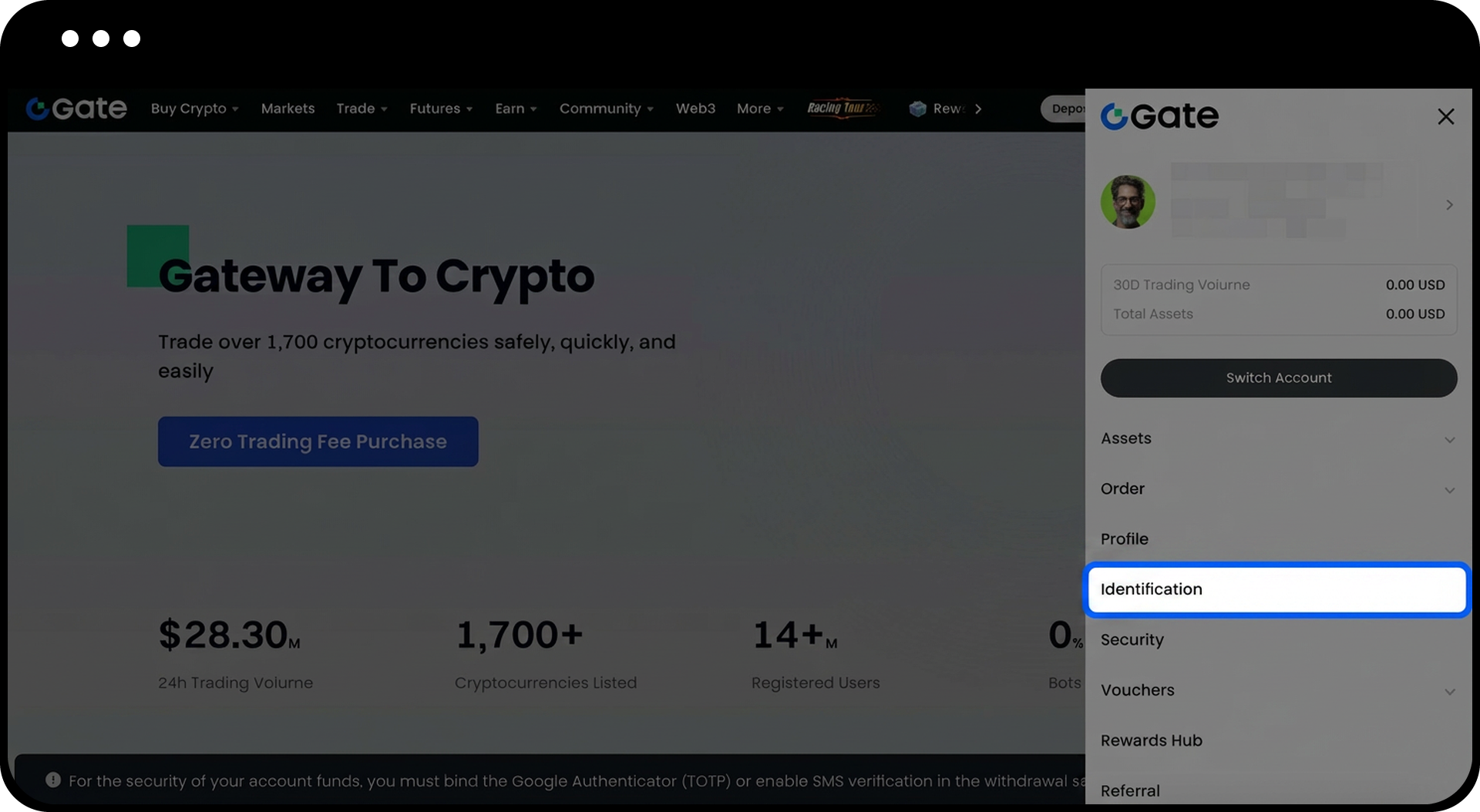
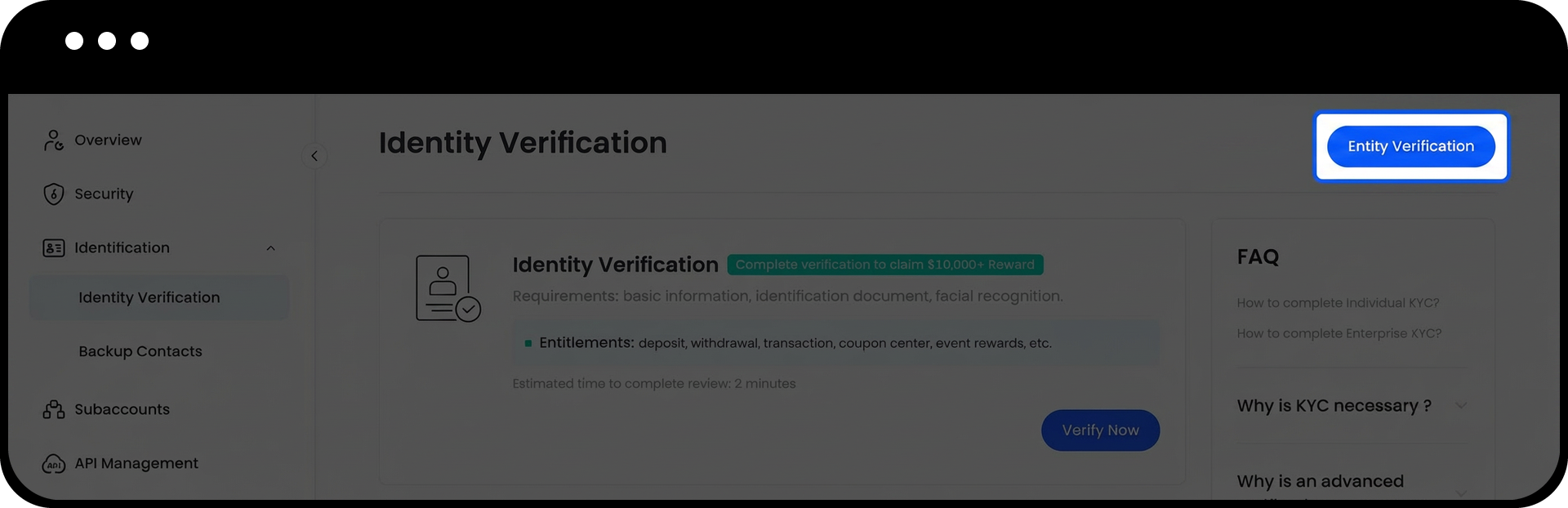
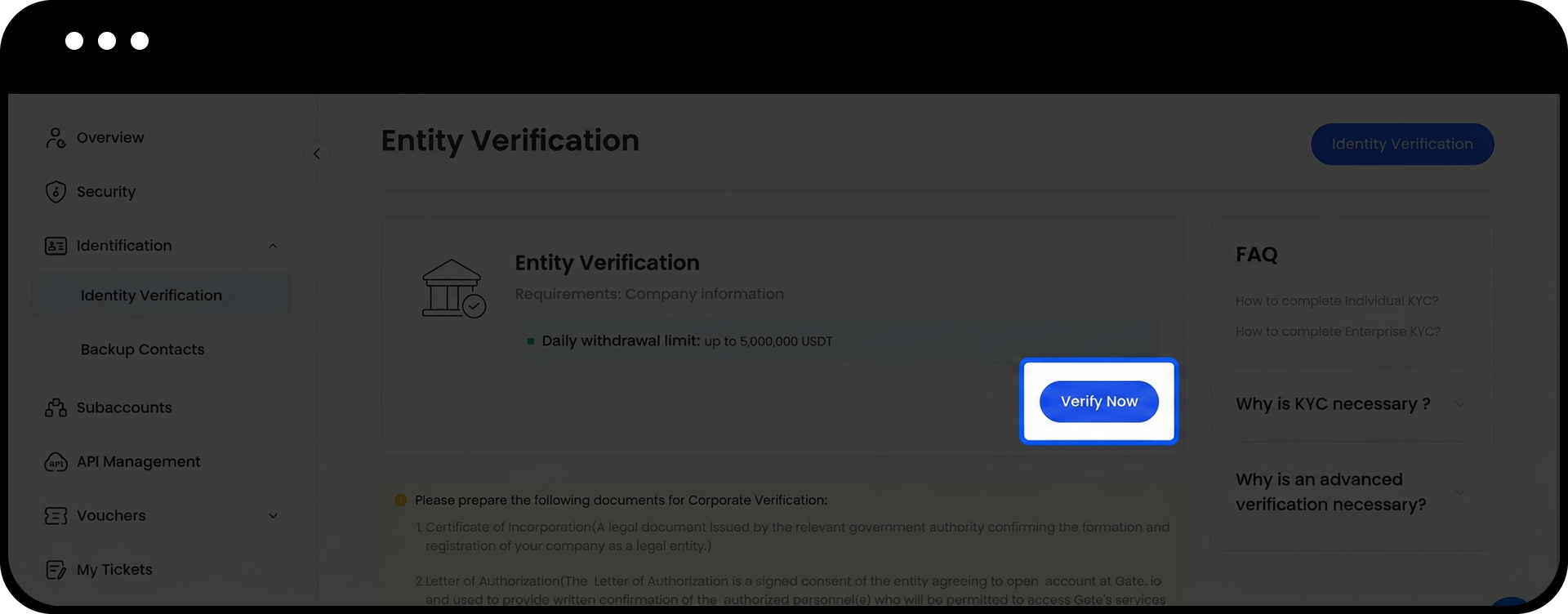
Step 2: Access Corporate Verification Page
- Log into your Gate account.
- Click on the profile icon in the upper right corner.
- Navigate to "KYC (Identification)" > "Enterprise Verification" > "Verify Now".
Step 3: Fill in Company Information
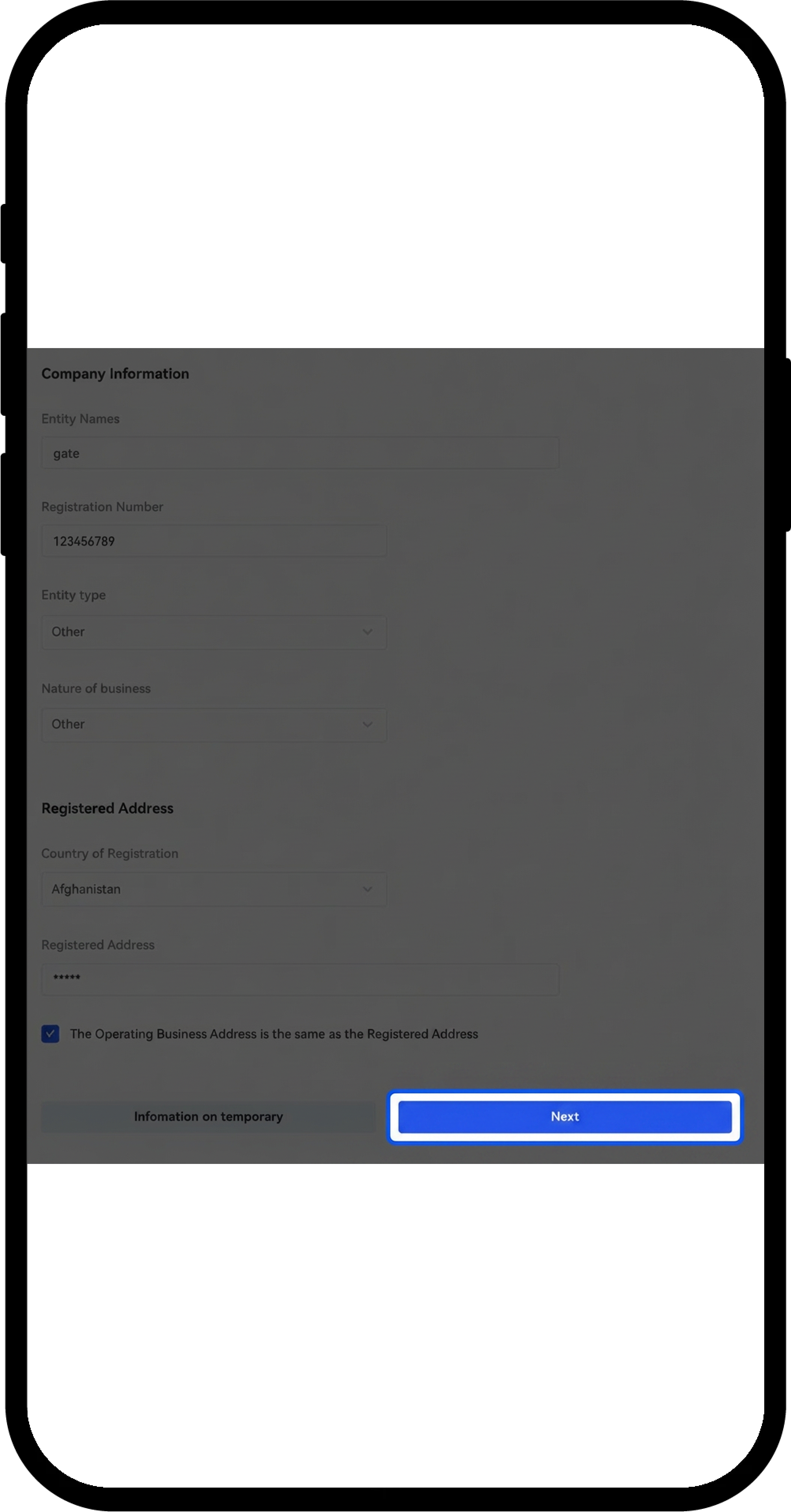
- On the "Company Information" page, complete all required fields:
- Entity name
- Registration number
- Entity type
- Nature of business
- Country of registration
- Registered address
- Click "Next" to proceed, or "Information on temporary" to save your progress.
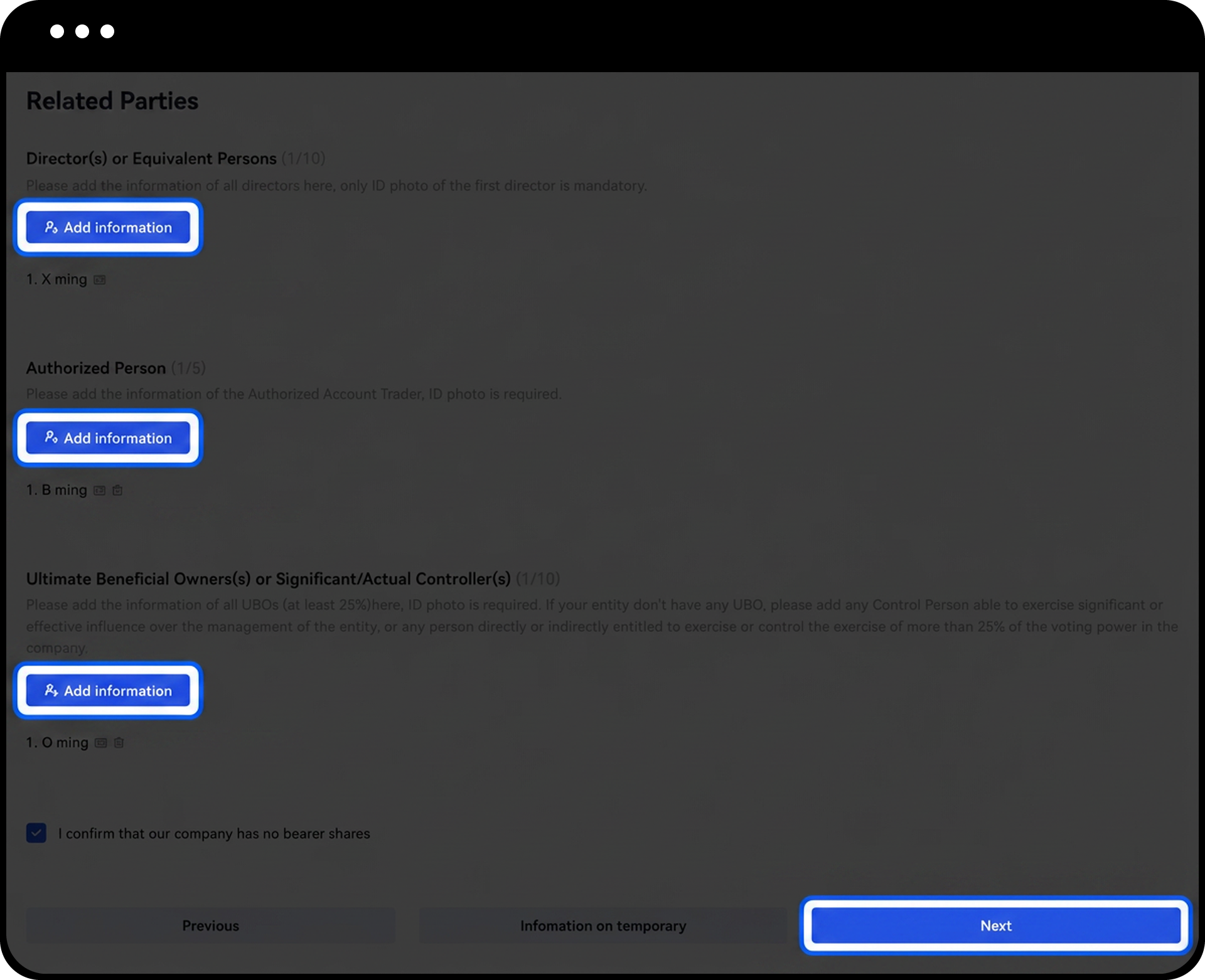
Step 4: Add Related Parties Information
- On the "Related Parties" page, add complete information for the following roles:
- Director(s) or Equivalent Persons
- Authorized Person
- Ultimate Beneficial Owner(s) or Significant/Actual Controller(s)
- For each party, provide their names and upload ID photos.
- Click "Next" to continue, or "Information on temporary" to save your progress.
- Use "Previous" if you need to modify information from the previous step.
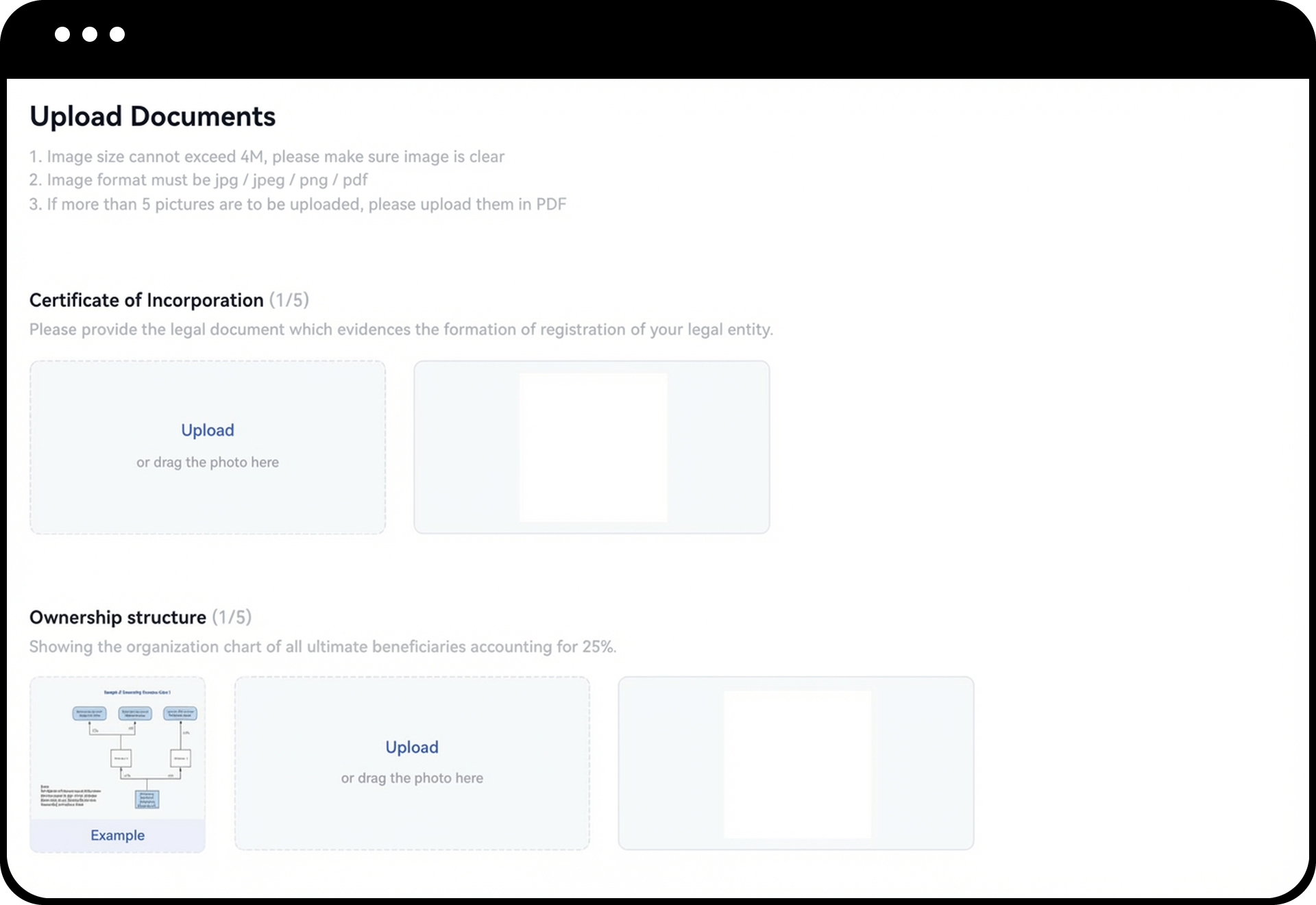
Step 5: Upload Corporate Documents
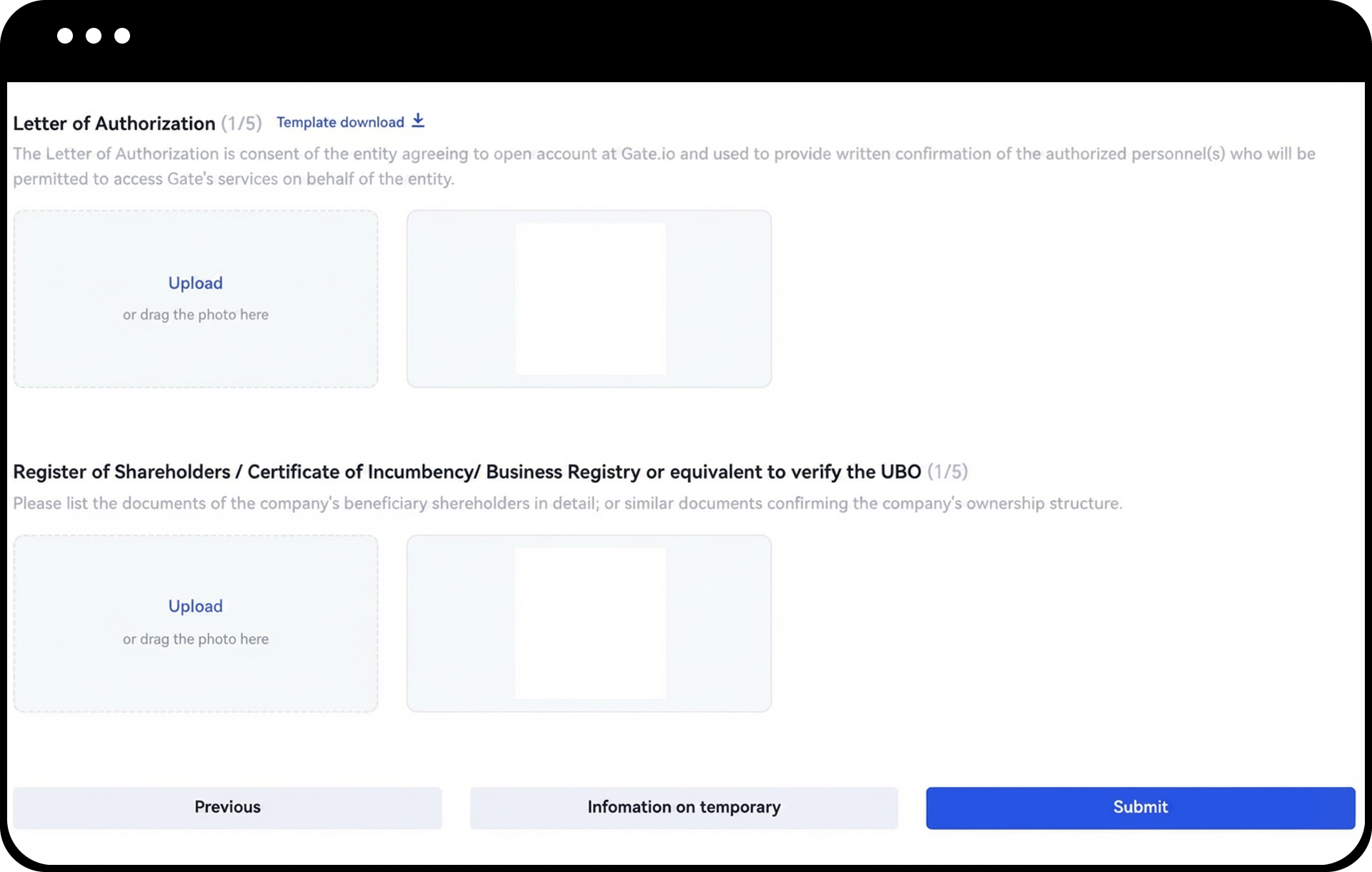
- On the "Upload Documents" page, upload the following:
- Certificate of Incorporation
- Ownership structure
- Letter of Authorization
- Register of Shareholders / Certificate of Incumbency / Business Registry or equivalent to verify the UBO
- After uploading all required documents, click "Submit" or "Information on temporary" to save.
- Use "Previous" if you need to modify information from previous steps.
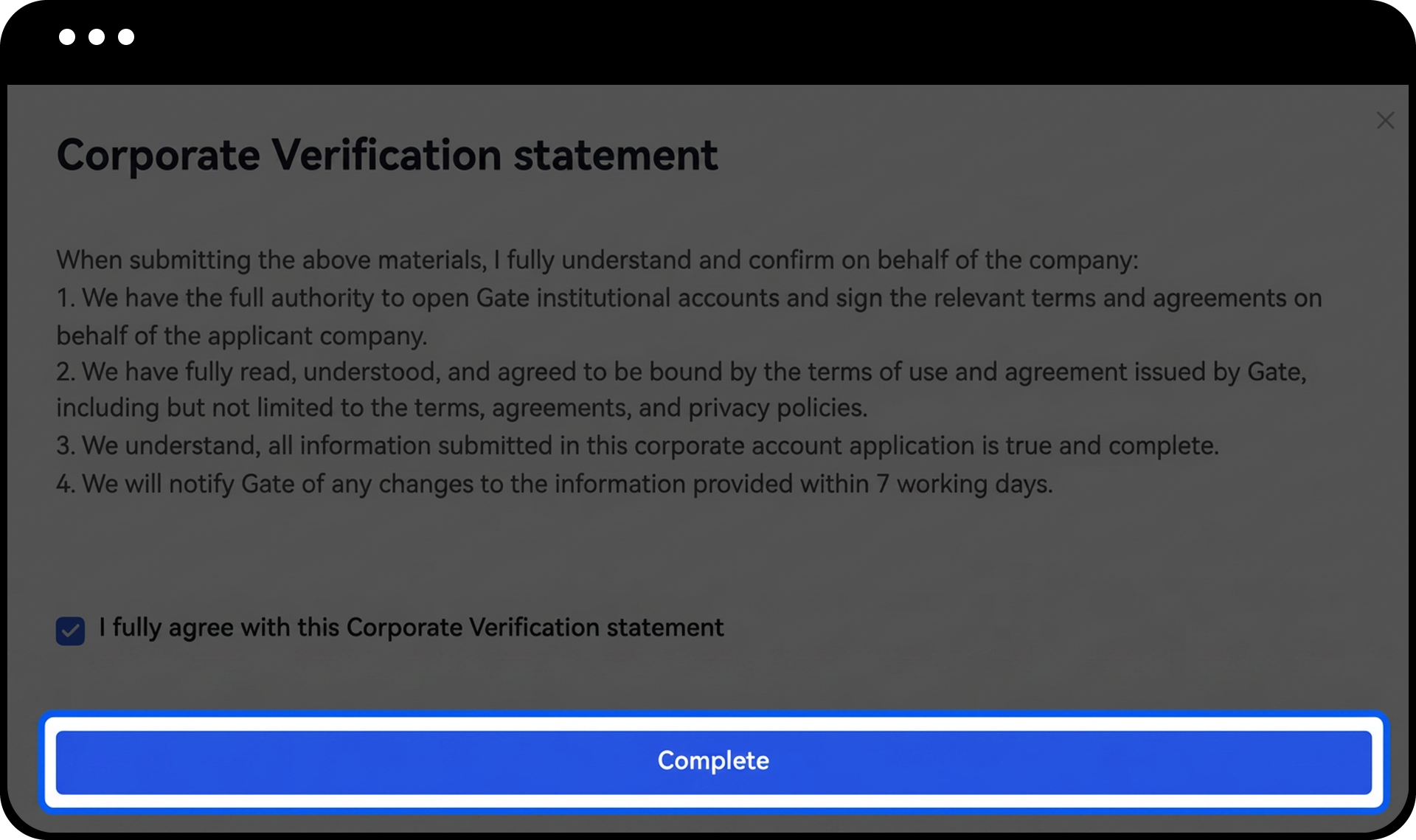
Step 6: Complete Verification Statement
- Carefully read the "Corporate Verification Statement".
- Check the box to confirm the accuracy of all information provided.
- Click "Complete" to submit your application for review by the Gate team.
Notes
- Only one type of identity verification can be selected per account. You cannot switch between individual and corporate verification types after initial verification.
- The review process typically takes 1 to 2 working days. Ensure all uploaded documents strictly follow the provided instructions.
- Corporate verification is currently only available on Gate Web, not on the mobile app.
- The corporation (legal entity) must hold a Gate account with individual KYC already completed.
- All information provided must be accurate and complete to avoid delays in the verification process.
FAQ
Q1: Can I change from individual verification to corporate verification later?
A: No, only one type of identity verification can be selected for the same account. Once you complete individual verification, you cannot switch to corporate verification, and vice versa.
Q2: How long does the corporate verification review process take?
A: The review process typically takes 1 to 2 working days. Please ensure all documents are uploaded correctly and meet the requirements to avoid delays.
Q3: Can I complete corporate verification using the Gate mobile app?
A: No, corporate verification is currently only supported on Gate Web. Please use a web browser to complete the verification process.
Q4: What is considered an Ultimate Beneficial Owner (UBO)?
A: An Ultimate Beneficial Owner is an individual who owns or controls more than 25% of the company's ownership or has significant control over the organization. You must provide identification documents for all UBOs during the verification process.
Q5: Can I save my progress and complete the verification later?
A: Yes, you can click "Information on temporary" at any step to save your progress and return to complete the verification later.
