Applicable Scope
This guide applies to Gate Web
Before you start: Ensure you have a Gate account and are logged in
Estimated time: 5 m
Objective
This guide will walk you through how to bind or unbind Google Authenticator or Gate Authenticator on Gate Web.
Bind Authenticator
Step 1: Download an Authenticator App
Gate supports both Google Authenticator and Gate Authenticator:
- Gate Authenticator: Download from the official Gate download page
- Google Authenticator: Search for "Google Authenticator" in the App Store or Google Play
For detailed download instructions, refer to the guide "How to Download Google/Gate Authenticator".
Step 2: Navigate to Security Center
Click "Profile" in the top-right corner, then select "Security Center" from the dropdown menu.
Step 3: Access Google Authenticator Settings
In Security Center, locate "Google Authenticator" and click "Enable". Copy the secret key displayed on the screen.
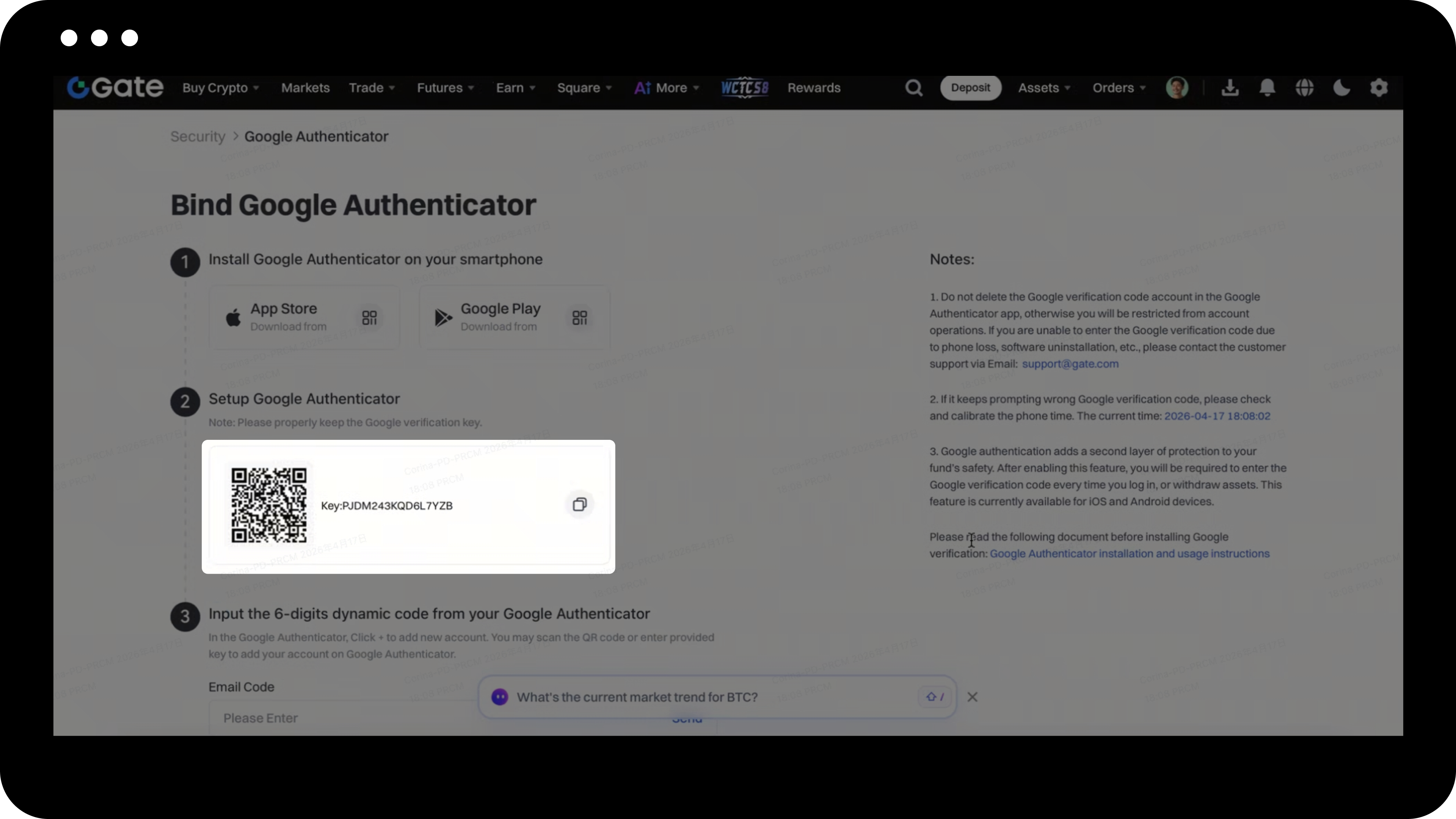
Step 4: Configure Your Authenticator App
Open your Google Authenticator or Gate Authenticator app on your mobile device:
- Tap the "+" icon
- Paste the secret key into the "Key" input field
- Enter your Gate account name
- Tap "Done"
Step 5: Complete the Binding
Return to the Google Authentication setup page on Gate Web:
- Enter the 6-digit verification code from your authenticator app
- Complete any other required information
- Click "Confirm" to finish binding
Unbind Authenticator (If Needed)
Scenario 1: Able to Receive Verification Codes Normally
- Log in to the Gate website.
- Go to [Security Center].
- Locate the Google Authenticator.
- Follow the on-screen instructions to complete the unbinding process.
Notes
- The authenticator is required for login, withdrawals, password changes, and other security operations.
- If you frequently fail to receive SMS codes, enabling an authenticator is recommended.
- If verification codes are repeatedly shown as incorrect, check and synchronize your phone's time settings.
- Security reset requests are reviewed within 24 hours, with results sent to your registered email.
- Web users who cannot log in must use the Gate App to initiate security reset requests.
- Gate may update product features, interfaces, and security procedures at any time.
- This information is for educational purposes only and does not constitute financial or legal advice.
FAQ
Q1: What should I do if my authenticator codes show as incorrect?
A: First, check your phone's time settings and ensure they are synchronized correctly. Authenticator codes are time-based and require accurate device time. If the issue persists, verify that you're entering the code from the correct Gate account entry in your authenticator app.
Q2: Can I unbind my authenticator if I've lost access to my phone?
A: Yes. If you can log in to your account, click "Security Reset" in Security Center and follow the instructions. If you cannot log in via Web, you must use the Gate App to initiate the reset request by tapping "Unable to Verify" on the verification code page. The review will be completed within 24 hours.
Q3: Can I use both Google Authenticator and Gate Authenticator simultaneously?
A: You can only bind one authenticator at a time to your Gate account. However, you can use either Google Authenticator or Gate Authenticator - both work with the same secret key. If you want to switch between them, you'll need to unbind the current one first.
